
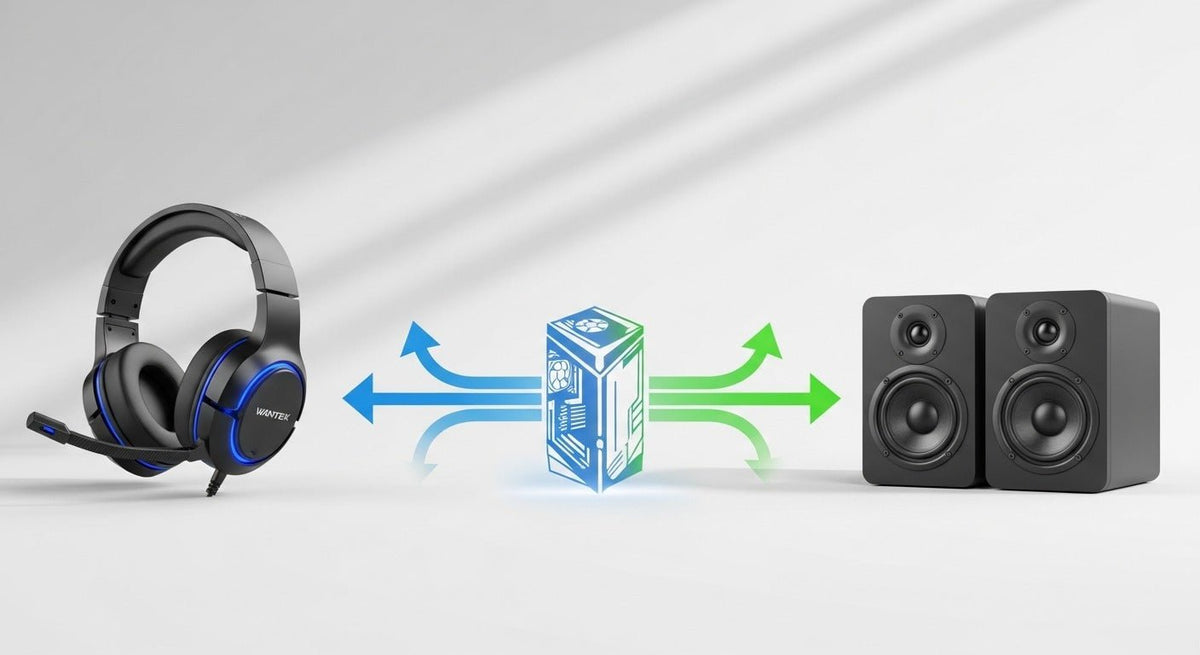
Sí, puede usar el micrófono integrado en unos auriculares como entrada de audio de su ordenador. No necesita "convertir" los auriculares ni desactivar sus altavoces. La configuración práctica consiste en conectar los auriculares, seleccionar su micrófono como dispositivo de entrada, probar la señal y, a continuación, elegir el dispositivo de salida que prefiera para la reproducción.
Configuración rápida: conecte o empareje los auriculares → elija el micrófono de los auriculares en la configuración de entrada de su sistema operativo → realice una breve prueba de micrófono → confirme el mismo micrófono dentro de su aplicación de llamadas o grabación.
Si desea que el sonido salga por los mismos auriculares, manténgalos seleccionados como salida. Si prefiere escuchar el audio a través de altavoces u otros auriculares, seleccione ese dispositivo por separado como salida.
Cómo funciona realmente el uso de unos auriculares como micrófono
Unos auriculares normalmente combinan dos funciones: auriculares para la salida de audio y un micrófono para la entrada de audio. Los sistemas operativos modernos exponen estas funciones por separado, por lo que el micrófono de los auriculares se puede seleccionar como entrada de grabación mientras la reproducción permanece en los mismos auriculares o se dirige a otro dispositivo.
Esto significa que no hay ningún paso especial de "conversión de auriculares a micrófono". La cuestión importante es si su ordenador reconoce la ruta del micrófono proporcionada por la conexión de los auriculares.

Comience con la conexión de los auriculares
La configuración cambia ligeramente dependiendo de si sus auriculares utilizan 3,5 mm, USB, Bluetooth o un receptor inalámbrico dedicado.
| Conexión | Qué verificar | Siguiente paso habitual |
|---|---|---|
| Conector de auriculares TRRS de 3,5 mm | El puerto del ordenador admite tanto salida de auriculares como entrada de micrófono. Un ordenador de sobremesa con puertos separados para auriculares y micrófono puede necesitar un adaptador (splitter) correctamente cableado. | Conecte los auriculares y confirme que el micrófono aparece como dispositivo de entrada. |
| Auriculares USB-A o USB-C | El puerto admite la ruta de audio USB de los auriculares y el sistema operativo detecta el dispositivo. | Seleccione el micrófono de los auriculares en "Entrada" y realice una prueba del sistema operativo. |
| Auriculares Bluetooth | Los auriculares están encendidos, emparejados y aparecen como entrada de micrófono disponible. | Seleccione el micrófono de los auriculares en el sistema operativo y luego en la aplicación que planea utilizar. |
| Receptor inalámbrico o dongle | El receptor está conectado y los auriculares están vinculados a él según las instrucciones del modelo. | Elija el punto final del micrófono del receptor/auriculares en "Entrada" y pruébelo. |
Auriculares de 3,5 mm: compruebe TRRS, tomas combinadas y adaptadores
Los auriculares de consumo habituales utilizan un conector TRRS de 3,5 mm de cuatro contactos para transmitir el audio izquierdo, el audio derecho, la toma de tierra y el micrófono a través de un solo conector. Las especificaciones actuales de auriculares con cable de Android documentan conectores de cuatro conductores y las disposiciones de micrófono y tierra CTIA/OMTP. Por lo tanto, un conector puede encajar físicamente sin garantizar que cada contacto de señal coincida con el dispositivo anfitrión.
Si su portátil tiene una toma combinada de auriculares compatible, un conector TRRS puede proporcionar tanto la reproducción como la entrada de micrófono. Si un ordenador de sobremesa tiene tomas separadas para auriculares y micrófono, es posible que necesite un adaptador para auriculares diseñado para separar esas dos rutas. Para una comprobación más detallada del conector, utilice la guía de TRS vs. TRRS de Wantek.

Auriculares USB: deje que el sistema operativo exponga el dispositivo de audio
Windows incluye controladores de clase para dispositivos de audio USB compatibles, por lo que muchos auriculares USB pueden aparecer como dispositivos de audio sin necesidad de instalar controladores por separado. Los controles específicos del modelo, el firmware, las funciones de software o la compatibilidad pueden variar, por lo que la prueba correcta es verificar si sus auriculares aparecen como la entrada de micrófono deseada y funcionan en la aplicación que necesita.
Auriculares Bluetooth e inalámbricos
Para auriculares Bluetooth o basados en receptor, complete primero la conexión inalámbrica. Luego, confirme que el sistema operativo exponga los auriculares como una entrada de micrófono. El emparejamiento por sí solo no garantiza que la aplicación esté utilizando ese micrófono, así que compruebe el menú de audio de la propia aplicación después de superar la prueba del sistema operativo.
Cómo usar unos auriculares como micrófono en Windows 11

Las instrucciones actuales de Microsoft para Windows utilizan Configuración > Sistema > Sonido para seleccionar y probar micrófonos. Siga esta secuencia:
Conecte los auriculares
Enchufe los auriculares con cable o complete la conexión Bluetooth/inalámbrica. Confirme que cualquier interruptor de silencio físico o control de silencio en el brazo del micrófono no esté activado.
Abra la configuración de entrada
Vaya a Inicio > Configuración > Sistema > Sonido. En Entrada, seleccione el micrófono de los auriculares que desea utilizar.
Realice la prueba del micrófono
Abra las propiedades del micrófono seleccionado, inicie la prueba integrada, hable normalmente, detenga la prueba y reproduzca la muestra. Ajuste el volumen de entrada solo si es necesario corregir el nivel de grabación.
Elija la salida por separado
En Salida, mantenga seleccionados los auriculares si desea escuchar el audio a través de ellos, o elija altavoces u otro dispositivo de reproducción. Un dispositivo de salida separado es opcional, no un requisito para utilizar el micrófono de los auriculares.
Compruebe los permisos del micrófono si una aplicación no puede escucharle
Vaya a Configuración > Privacidad y seguridad > Micrófono y confirme que el acceso al micrófono esté habilitado para el tipo de aplicación que está utilizando.
Microsoft proporciona los procedimientos actuales para configurar y probar micrófonos en Windows y para los permisos de aplicaciones para el micrófono.
Cómo usar unos auriculares como micrófono en macOS
Apple separa la entrada de sonido y la salida de sonido en los Ajustes del Sistema. Esto le permite usar el micrófono de los auriculares mientras mantiene la reproducción en los mismos auriculares o selecciona otro dispositivo de salida.
Conecte los auriculares
Conecte los auriculares (con cable, USB o inalámbricos) y asegúrese de que estén encendidos y no silenciados cuando sea necesario.
Seleccione el micrófono
Abra Menú Apple > Ajustes del Sistema > Sonido > Entrada, luego seleccione el micrófono de los auriculares entre los dispositivos de entrada disponibles.
Observe el nivel de entrada
Hable normalmente y confirme que el nivel de entrada responde. Ajuste el control deslizante del volumen de entrada si la señal es demasiado baja o demasiado alta para su uso.
Elija el dispositivo de reproducción
En Sonido > Salida, elija los auriculares, los altavoces del Mac u otro dispositivo de salida disponible según cómo desee escuchar.
Confirme el permiso de la aplicación
Si una aplicación específica no puede usar el micrófono, compruebe Ajustes del Sistema > Privacidad y seguridad > Micrófono y confirme que esa aplicación tiene permitido acceder a la entrada de audio.
Apple documenta tanto la selección de entrada de sonido y volumen de entrada como los permisos de acceso al micrófono para las versiones actuales de macOS.
Configure el mismo micrófono dentro de su aplicación
Pasar la prueba de entrada de Windows o macOS solo demuestra que el sistema operativo está recibiendo el micrófono de los auriculares. Zoom, Teams, Discord, OBS, una reunión en el navegador, un juego u otra aplicación aún pueden estar configurados para usar el micrófono del portátil, el de la cámara web, el del dock u otro dispositivo de audio.
Abra la configuración de audio de la aplicación, seleccione el mismo micrófono de los auriculares que ya probó a nivel del sistema operativo y realice una breve llamada o grabación de prueba. Si el medidor del sistema responde pero una aplicación permanece en silencio, concéntrese en la selección del micrófono, los permisos, el estado de silencio o la configuración "pulsar para hablar" de esa aplicación en lugar de cambiar el hardware inmediatamente.
¿Se puede usar el micrófono de los auriculares con altavoces u otro par de auriculares?
Sí. La entrada y la salida se pueden seleccionar por separado. Puede usar el micrófono de los auriculares como entrada mientras reproduce audio a través de los altavoces del ordenador, un monitor, otro par de auriculares u otro dispositivo de salida compatible.
Tenga en cuenta que los altavoces abiertos pueden ser captados por el micrófono y crear eco para otros participantes. Si eso sucede, baje el nivel de los altavoces, aumente la separación física entre los altavoces y el micrófono, o utilice auriculares para la reproducción.
Si el micrófono de los auriculares no funciona
Utilice el síntoma para aislar la ruta en lugar de cambiar varios ajustes a la vez:
- El micrófono no aparece en la lista: vuelva a comprobar la conexión, el puerto, el adaptador, el emparejamiento, el receptor o el reconocimiento del dispositivo.
- El micrófono aparece en la lista pero el medidor de entrada no se mueve: compruebe el silencio físico, el volumen de entrada, los permisos, la inserción del conector y el micrófono seleccionado.
- Windows o macOS recibe el micrófono pero una aplicación no: compruebe la selección y el permiso del micrófono de esa aplicación.
- El audio de los auriculares funciona pero el micrófono no: trate la reproducción y la entrada de micrófono como rutas de señal separadas; en conexiones de 3,5 mm, verifique que la toma y el adaptador admitan entrada de micrófono.
Para obtener una secuencia de diagnóstico completa, utilice la guía de solución de problemas del micrófono de los auriculares de Wantek.
Mejore la claridad de la voz una vez que el micrófono funcione
La optimización se realiza una vez confirmadas la conexión y la ruta. Empiece por la posición física del micrófono y, a continuación, ajuste el nivel de entrada mientras escucha una grabación breve. Evite asumir que existe un porcentaje, un valor de ganancia, una frecuencia de muestreo, una curva de ecualización o un ajuste de supresión de ruido correcto para todos los auriculares.
Si graba o retransmite, software como OBS puede añadir filtros que incluyen ganancia, supresión de ruido, puerta de ruido, compresor y limitador. Aplique el procesamiento solo después de tener una entrada limpia y correctamente seleccionada para que el software no oculte un problema de ruta o de hardware.
Consulte la Guía de filtros de OBS oficial para conocer los filtros disponibles actualmente en OBS.
Preguntas frecuentes
¿Puedo usar el micrófono de los auriculares mientras escucho a través de los mismos auriculares?
Sí. Seleccione el micrófono de los auriculares como entrada y mantenga los auriculares seleccionados como salida. Usar un dispositivo de salida diferente es opcional.
¿Puedo usar solo el micrófono de los auriculares y reproducir audio a través de los altavoces?
Sí. Windows y macOS permiten seleccionar la entrada y la salida por separado. Elija el micrófono de los auriculares para la entrada y los altavoces para la salida.
¿Necesito un adaptador para un micrófono de auriculares de 3,5 mm?
Solo en algunas configuraciones. Una toma combinada compatible puede transmitir audio y micrófono a través de un solo conector TRRS; las tomas separadas para auriculares y micrófono del PC pueden requerir un adaptador correctamente cableado.
¿Por qué funcionan los auriculares pero no el micrófono?
La reproducción y la entrada de micrófono son rutas separadas. Compruebe el estado de silencio, la selección de entrada, los permisos, la prueba de micrófono del sistema operativo y la compatibilidad de la toma de 3,5 mm o el adaptador, según corresponda.
¿Los auriculares USB siempre necesitan un controlador independiente?
No siempre. Windows incluye controladores de clase para dispositivos de audio USB compatibles, pero el software, los controles, el firmware y la compatibilidad específicos del modelo pueden variar.
¿Se pueden usar de la misma forma unos auriculares normales sin micrófono integrado?
No, no como un micrófono de auriculares normal. Esta guía se aplica a auriculares que proporcionan una ruta de entrada de micrófono real reconocida por el dispositivo.
¿Necesita unos auriculares que coincidan con su dispositivo?
Si sus auriculares actuales no proporcionan la conexión o la ruta de micrófono que requiere su ordenador o configuración de llamadas, empiece por el dispositivo y la conexión antes de comparar características.

