
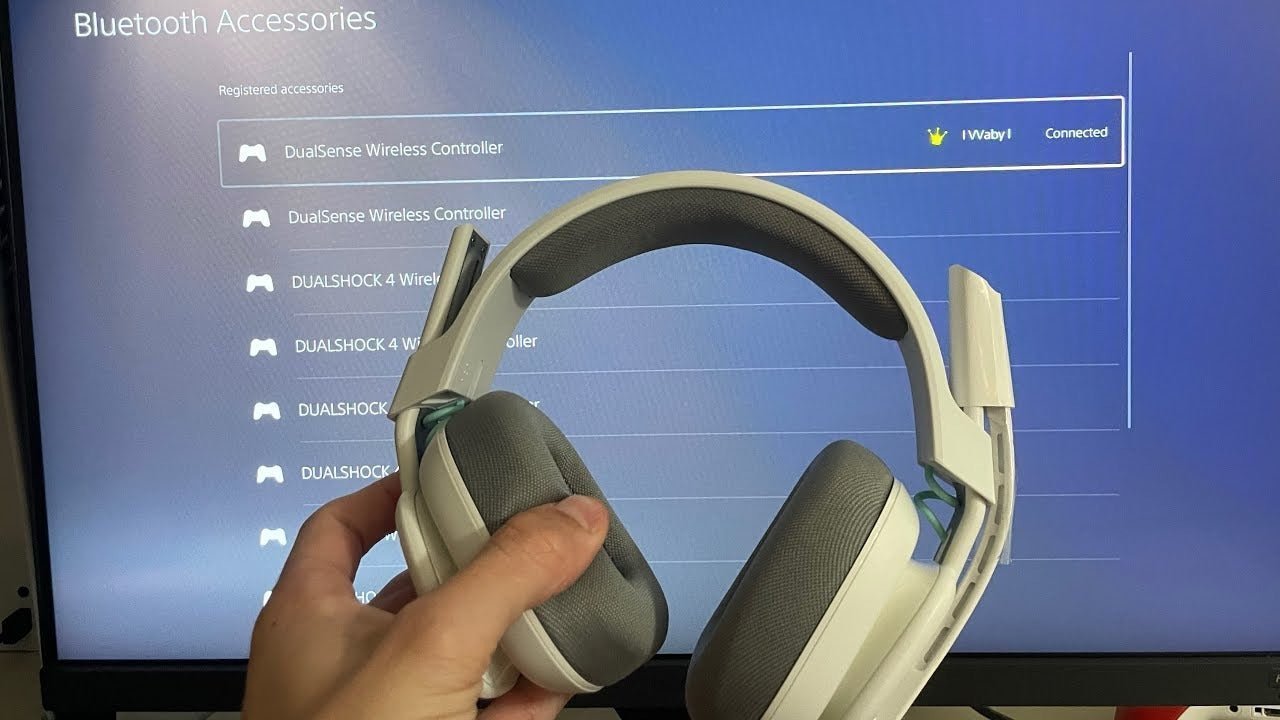
The safest way to choose a PS5 headset is to start with the connection it actually uses. Compatible wired headsets, USB audio devices, and PlayStation wireless products can all work, but generic Bluetooth support is not the same thing as PS5 headset compatibility.
Quick answer: For PS5, verify the headset’s supported connection, microphone path, mute and chat controls, comfort, and whether any USB receiver is included. Then configure the console’s Sound and Mic settings.

PS5 Headset Connection Paths
| Path | How it connects | What to verify |
|---|---|---|
| 3.5 mm wired | Compatible headset jack path | Headphone + microphone support and controller connection |
| USB wired | USB-A or USB-C audio device | PS5 support and required port |
| Wireless USB adapter | Dedicated receiver in a PS5 USB port | Receiver included and model compatibility |
| PlayStation Link | Supported PlayStation audio devices | Adapter/device pairing and supported features |
PlayStation’s current support material says a wireless-headset adapter can connect to a PS5 USB port, and its PULSE Elite instructions use the included PlayStation Link USB adapter. PlayStation also exposes headset output, microphone, sidetone, and related audio settings on the console. See the PlayStation accessories support page and PS5 audio settings guide.
If lighting and gaming aesthetics are part of the purchase, compare the connection path first in our light-up gaming headset guide so RGB does not distract from PS5 audio and microphone compatibility.
Do Not Assume Standard Bluetooth Headphones Will Work Directly
PS5 support is not established by a headset simply being Bluetooth-capable. Use the manufacturer’s PS5 compatibility statement or a supported receiver path. If the headset requires a proprietary USB dongle, keep that receiver with the console setup.
Set Up Output and Microphone Separately
- Connect the headset using its supported wired or wireless method.
- Open Settings > Sound and confirm the output device.
- Open microphone settings and confirm the intended input device and mic level.
- Test mute, sidetone, chat mix, and game/chat balance if the headset supports them.
- Check 3D Audio or EQ options based on the connected device and your preference.
What to Compare Before Buying
Microphone
For multiplayer chat, prioritize speech consistency and easy mute access over vague “studio quality” claims.
Comfort
Check clamp, ear-cup depth, weight, glasses pressure, and pad heat for the length of your normal sessions.
Wired vs. wireless
Wired models avoid charging; wireless models add freedom of movement but introduce battery and receiver management.
Controls
Do not assume every volume, chat-mix, or mute control works identically across connection modes. Verify the exact PS5 feature set.
PS5 USB Ports and Headsets
PlayStation’s USB-port guide lists different port types across PS5 model groups and states that a wireless-headset adapter can connect to any USB port on a PS5 console. For other specialty peripherals, PlayStation recommends checking the manufacturer’s port requirements.
PS5 Headset FAQ
Can I use a 3.5 mm headset with PS5?
Compatible analog headsets can use the supported headset-jack path. Verify that the plug carries the microphone signal if voice chat is required.
Can I connect any Bluetooth headphones directly to PS5?
Do not assume so. Verify PS5 support for the exact headset or use its supported USB/wireless adapter path.
Does PS5 support 3D Audio through headphones?
PS5 provides compatible-headphone audio settings, including 3D Audio features. Availability and controls can vary by device and game.
Where do I change headset volume and microphone settings?
Use the PS5 Sound and Mic controls in Settings or the control center, then confirm the headset’s own hardware controls.

