





Choose a USB Headset in Four Steps
Start with the device and port used for calls. Then compare headset fit, microphone controls, and the exact wired configuration—not just the model family name.
Start With the Connection
Identify the computer, dock, or other device handling your calls. Check whether it has USB-A, USB-C with USB audio support, or a 3.5 mm headset jack that supports both listening and microphone input.
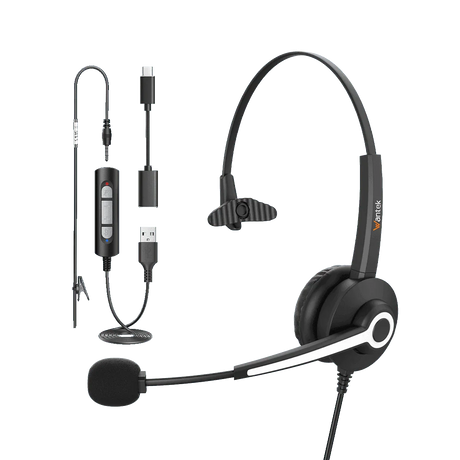
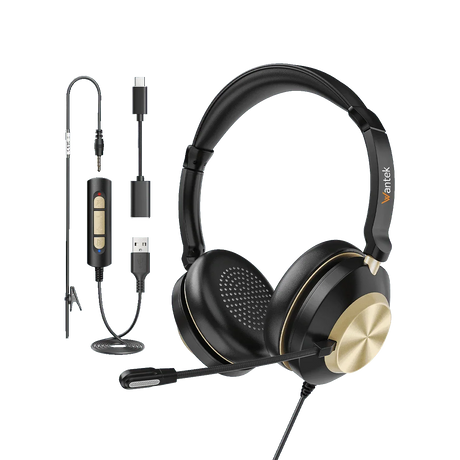
For example, the H600, H602, and H681 3-in-1 versions list USB-C, USB-A, and 3.5 mm. The H881 and H882 specification tables list USB and 3.5 mm. Wantek also sells connector-specific versions under some of the same model names, so confirm the product SKU before ordering.
Choose Single-Ear or Dual-Ear
Choose single-ear if you need to hear nearby coworkers or visitors while on calls. Choose dual-ear if you prefer call audio through both ears; it does not automatically mean active noise cancellation.
The current range includes single-ear models such as H600, H681, and H881, plus dual-ear models such as H602, H682, and H882.
Check the Microphone and Call Controls
For frequent calls, compare boom-mic placement and whether you can reach mute and volume controls without searching through your computer settings. Check which controls work with the specific connector you plan to use.
The listed H600, H602, H681, H881, and H882 configurations have boom microphones and volume/mute controls. An inline mute switch and the mute indicator inside Teams, Zoom, or another app may behave differently; test both rather than assuming they stay synchronized.
Match the Headset to the Work
For computer meetings and remote work, check your calling app, operating system, and computer audio settings. A compatible plug alone does not confirm that the microphone and app controls will work as intended.
For customer service or fixed workstations, compare cable reach, fit, microphone position, and the actual mute workflow as well as the connector. Before deploying several units, test one headset on a representative workstation. Teams can use Wantek's bulk USB headset page to confirm deployment requirements before ordering.

Compare Wantek USB Headset Options
Compare the five listed configurations by connector, fit, controls, and weight. Model names are shorthand here; the linked product details identify which version is being compared.
| Model | Wearing Style | Listed Connections | Microphone | Listed Controls | Weight |
|---|---|---|---|---|---|
| H600 | Single ear | Type-C / USB / 3.5 mm | Boom mic | Volume + one-key mute | 3 oz |
| H602 | Dual ear | Type-C / USB / 3.5 mm | Boom mic | Volume + one-key mute | 3 oz |
| H681 | Single ear | Type-C / USB / 3.5 mm | Boom mic | Inline volume + mute | 3.7 oz |
| H881 | Single ear | USB / 3.5 mm | Boom mic | Volume + one-key mute | 6.5 oz |
| H882 | Dual ear | USB / 3.5 mm | Boom mic | Volume + one-key mute | 6.7 oz |
This is a selected comparison, not the complete catalog. H600 and H602 also appear in USB-only versions; other model variants may differ. The connector and controls shown above apply to the linked configurations. Check each SKU, included adapters, current specifications, and availability before ordering.
USB-A, USB-C, 3.5 mm, or Bluetooth?
A port that physically fits is only the first check. Confirm the complete audio path, including microphone input and the controls you need for calls.
USB-A or USB-C
USB-A and USB-C are different connector shapes. For compatible USB audio devices, the cable can carry both playback and microphone signals without Bluetooth pairing or charging. Check whether a USB-C adapter is included rather than assuming every variant has a native USB-C plug.
3.5 mm
A 3.5 mm headset connection can carry both audio and microphone signals when the jack and plug are compatible. A headphone-only output may let you hear a call without transmitting your voice; some computers require a suitable splitter or adapter.
Bluetooth
Bluetooth is a separate wireless option when moving away from a fixed workstation matters. Confirm that both your device and chosen headset support call audio and microphone use; pairing, charging, and any required adapter differ from wired USB.
After connecting, select the headset as both the speaker and microphone in your computer and calling app. Place a short test call to check incoming sound, mic input, and mute. If only playback works, revisit the jack type, adapter, and app input selection before replacing the headset.
USB Headsets for Different Work Setups
The right choice depends on the workstation, how much awareness of the room you want, and how frequently you handle calls.

PC Meetings and Remote Work
Check whether the headset works through the laptop itself or a docking station, then choose single-ear or dual-ear fit. For calls in Teams, Zoom, or similar software, verify the speaker and microphone selections and test the inline controls.
Customer Service and Call Centers
For frequent workstation calls, assess the boom-mic position, reach of the mute control, wearing style, and the connector on each agent's device. Trial a unit before standardizing a larger order; Wantek has a dedicated bulk USB headset resource.
Shared Offices
If staff need to speak with coworkers while taking calls, a single-ear model leaves one ear open. Dual-ear may help users concentrate on the call, but fit and surrounding noise still matter. Do not assume the two designs have identical noise reduction.
For a team order, document the device and port for each workstation type, operating system, calling app, desired wearing style, cable/adapter requirements, and quantity. Verify the proposed SKU with a test call before scaling to other desks.

Frequently Asked Questions
What should I check first when buying a USB headset?
Identify the device that handles your calls and its actual audio port. Confirm that the selected headset variant supports both microphone input and playback, then compare wearing style, boom microphone, and call controls.
Does Wantek offer USB-C headsets?
Yes. The H600, H602, and H681 3-in-1 configurations list USB-C, USB-A, and 3.5 mm connections. Other versions of the same model family can differ, so check the SKU and whether the USB-C connection uses an adapter.
Should I choose a single-ear or dual-ear USB headset?
Single-ear is useful when you need to stay aware of nearby people; dual-ear delivers sound to both ears. Decide based on your working environment and comfort preference, not an assumption that dual-ear provides active noise cancellation.
Do wired USB headsets need charging?
No. The wired USB configurations on this page use the cable for audio and do not require a rechargeable headset battery. They also avoid Bluetooth pairing, though you may still need to select the correct audio device.
Which Wantek USB headsets list mute and volume controls?
The specific H600, H602, H681, H881, and H882 configurations linked in the comparison table list volume and mute controls. Confirm how those controls work through your selected connector and calling software.
Will every Wantek USB headset work with the same meeting applications?
No. Software behavior can vary by operating system, connector, and app settings, especially for inline buttons. The H882 product page references Teams, Zoom, Skype, and Google Meet, but this does not establish identical call-control behavior on every device.
What should a team compare before ordering USB headsets?
Document each computer or dock, port, calling app, preferred wearing style, and any required adapters. Trial the exact SKU and mute workflow, then provide quantity and shipping region through the bulk USB headset page.
What if I can hear a call but the headset microphone does not work?
Select the headset as the microphone in your device and calling-app settings. With a 3.5 mm connection, check that the jack supports microphone input; if using an adapter or dock, verify that complete path before testing again.
Ready to Check a Specific Setup?
Use the linked model details above to confirm your preferred connector and SKU. You can also review the H602 3-in-1 configuration, use the headset finder for your device, or plan a verified team order.
Continue Your USB Headset Research
Explore the specific connection or setup question that matters to your next decision.
