
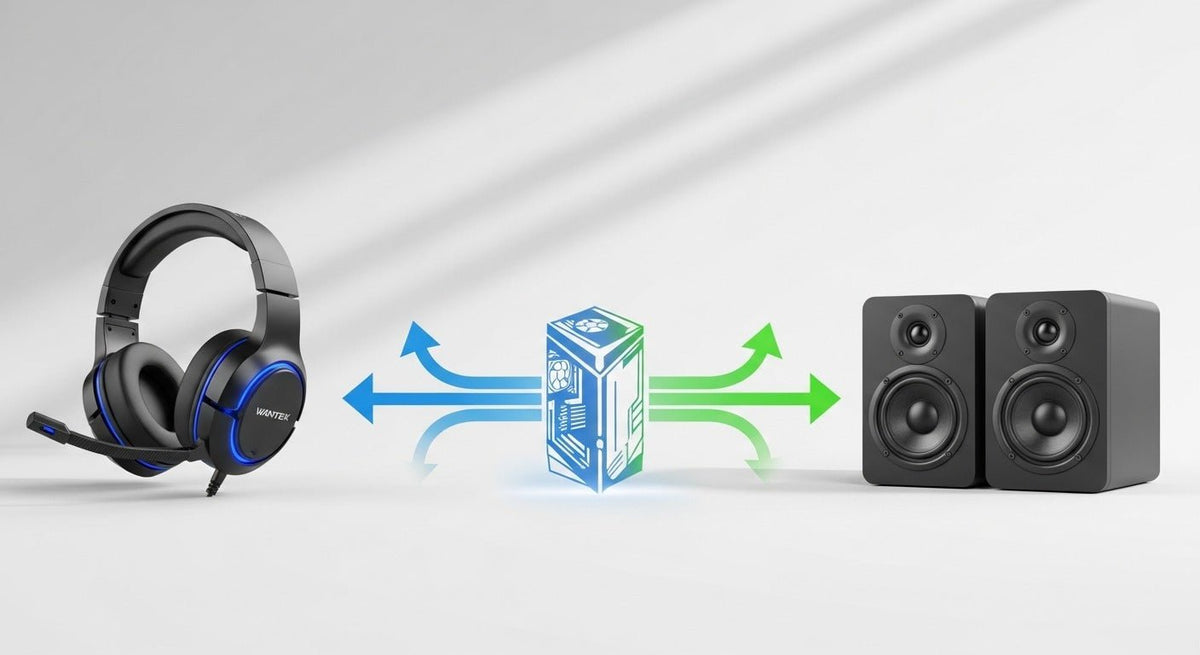
Yes—you can use the microphone built into a headset as your computer's audio input. You do not need to "convert" the headset or disable its headphones. The practical setup is to connect the headset, select its microphone as the input device, test the signal, and then choose whichever output device you want for playback.
Quick setup: connect or pair the headset → choose the headset microphone under your operating system's input settings → run a short microphone test → confirm the same microphone inside your calling or recording app.
If you want sound through the same headset, keep it selected for output. If you want to hear audio through speakers or another headset, select that device separately as the output.
How Using a Headset as a Microphone Actually Works
A headset normally combines two functions: headphones for audio output and a microphone for audio input. Modern operating systems expose those functions separately, so the headset microphone can be selected as the recording input while playback remains on the headset or is routed to another device.
This means there is no special "headset-to-microphone conversion" step. The important question is whether your computer recognizes the microphone path provided by the headset's connection.

Start With the Headset Connection
The setup changes slightly depending on whether your headset uses 3.5 mm, USB, Bluetooth, or a dedicated wireless receiver.
| Connection | What to verify | Typical next step |
|---|---|---|
| 3.5 mm TRRS headset plug | The computer jack supports both headphone output and microphone input. A desktop with separate headphone and mic jacks may need a correctly wired headset splitter. | Connect the headset, then confirm the microphone appears as an input device. |
| USB-A or USB-C headset | The port supports the headset's USB audio path and the operating system detects the device. | Select the headset microphone under Input and run an operating-system test. |
| Bluetooth headset | The headset is powered, paired, and exposed as an available microphone input. | Select the headset microphone in the operating system and then in the app you plan to use. |
| Wireless receiver or dongle | The receiver is connected and the headset is linked to it according to the model's instructions. | Choose the receiver/headset microphone endpoint under Input and test it. |
3.5 mm Headsets: Check TRRS, Combo Jacks, and Splitters
A common consumer headset uses a four-contact 3.5 mm TRRS plug to carry left audio, right audio, ground, and microphone through one connector. Android's current wired-headset specifications document four-conductor headset plugs and the CTIA/OMTP microphone-ground arrangements. A plug can therefore fit physically without guaranteeing that every signal contact matches the host device.
If your laptop has a single compatible headset combo jack, one TRRS plug can provide both playback and microphone input. If a desktop has separate headphone and microphone sockets, you may need a headset splitter designed to separate those two paths. For a deeper connector check, use Wantek's TRS vs. TRRS guide.

USB Headsets: Let the Operating System Expose the Audio Device
Windows includes class drivers for compatible USB audio devices, so many USB headsets can appear as audio devices without a separate driver installation. Model-specific controls, firmware, software features, or compatibility can still vary, so the correct test is whether your exact headset appears as the intended microphone input and works in the app you need.
Bluetooth and Wireless Headsets
For a Bluetooth or receiver-based headset, complete the wireless connection first. Then confirm that the operating system exposes the headset as a microphone input. Pairing alone does not prove that the application is using that microphone, so check the app's own audio menu after the operating-system test passes.
How to Use a Headset as a Microphone on Windows 11

Microsoft's current Windows instructions use Settings > System > Sound to select and test microphones. Use this sequence:
Connect the headset
Plug in the wired headset or complete the Bluetooth/wireless connection. Confirm any physical mute switch or boom-mute control is not engaged.
Open the input settings
Go to Start > Settings > System > Sound. Under Input, select the headset microphone you want to use.
Run the microphone test
Open the selected microphone's properties, start the built-in test, speak normally, stop the test, and play the sample back. Adjust input volume only if the recorded level needs correction.
Choose your output separately
Under Output, keep the headset selected if you want to hear audio through it, or choose speakers or another playback device. A separate output device is optional, not a requirement for using the headset microphone.
Check microphone permissions if an app cannot hear you
Go to Settings > Privacy & security > Microphone and confirm microphone access is enabled for the type of application you are using.
Microsoft provides the current procedures for setting up and testing microphones in Windows and for microphone app permissions.
How to Use a Headset as a Microphone on macOS
Apple separates sound input and sound output in System Settings. That lets you use the headset microphone while keeping playback on the same headset or selecting another output device.
Connect the headset
Connect the wired, USB, or wireless headset and make sure it is powered and unmuted when required.
Select the microphone
Open Apple menu > System Settings > Sound > Input, then select the headset microphone from the available input devices.
Watch the input level
Speak normally and confirm the input level responds. Adjust the input-volume slider if the signal is too low or too high for your use.
Choose the playback device
Under Sound > Output, choose the headset, Mac speakers, or another available output device according to how you want to listen.
Confirm app permission
If a specific app cannot use the microphone, check System Settings > Privacy & Security > Microphone and confirm that app is allowed to access audio input.
Apple documents both sound input selection and input volume and microphone access permissions for current macOS versions.
Set the Same Microphone Inside Your App
Passing the Windows or macOS input test only proves that the operating system is receiving the headset microphone. Zoom, Teams, Discord, OBS, a browser meeting, a game, or another application may still be configured to use a laptop mic, webcam mic, dock mic, or another audio device.
Open the application's audio settings, select the same headset microphone you already tested at the operating-system level, and make a short test call or recording. If the system meter responds but one application stays silent, focus on that application's microphone selection, permission, mute state, or push-to-talk setting rather than changing hardware immediately.
Can You Use the Headset Mic With Speakers or Another Pair of Headphones?
Yes. Input and output can be selected separately. You can use the headset's microphone as the input while playing audio through computer speakers, a monitor, another set of headphones, or another supported output device.
Be aware that open speakers can be picked up by the microphone and create echo for other participants. If that happens, lower the speaker level, increase the physical separation between speakers and microphone, or use headphones for playback.
If the Headset Microphone Does Not Work
Use the symptom to isolate the path instead of changing several settings at once:
- Microphone is not listed: recheck the connection, port, adapter, pairing, receiver, or device recognition.
- Microphone is listed but the input meter does not move: check physical mute, input volume, permissions, connector seating, and the selected microphone.
- Windows or macOS receives the mic but one app does not: check that application's microphone selection and permission.
- Headphone audio works but the mic does not: treat playback and microphone as separate signal paths; on 3.5 mm connections, verify the jack and splitter support microphone input.
For a full diagnostic sequence, use Wantek's headset microphone troubleshooting guide.
Improve Voice Clarity After the Mic Is Working
Optimization comes after connection and routing are confirmed. Start with the physical microphone position, then adjust input level while listening to a short recording. Avoid assuming there is one correct percentage, boost value, sample rate, EQ curve, or noise-suppression setting for every headset.
If you record or stream, software such as OBS can add filters including gain, noise suppression, noise gate, compressor, and limiter. Apply processing only after you have a clean, correctly selected input so that software does not hide a routing or hardware problem.
See the official OBS Filters Guide for the filters currently available in OBS.
Frequently Asked Questions
Can I use the headset microphone while listening through the same headset?
Yes. Select the headset microphone as the input and keep the headset selected as the output. Using a different output device is optional.
Can I use only the headset mic and play audio through speakers?
Yes. Windows and macOS let you select input and output separately. Choose the headset microphone for input and your speakers for output.
Do I need a splitter for a 3.5 mm headset microphone?
Only in some setups. A compatible combo jack can carry headset audio and microphone through one TRRS plug; separate PC headphone and microphone jacks may require a correctly wired splitter.
Why do the headphones work but the headset microphone does not?
Playback and microphone input are separate paths. Check mute state, input selection, permissions, the operating-system mic test, and 3.5 mm jack or splitter compatibility where applicable.
Do USB headsets always need a separate driver?
Not always. Windows includes class drivers for compatible USB audio devices, but model-specific software, controls, firmware, and compatibility can still vary.
Can ordinary headphones without a built-in microphone be used the same way?
No—not as a normal headset microphone. This guide applies to headsets or headphones that provide an actual microphone input path recognized by the device.
Need a Headset That Matches Your Device?
If your current headset does not provide the connection or microphone path your computer or calling setup requires, start with the device and connection before comparing features.

