
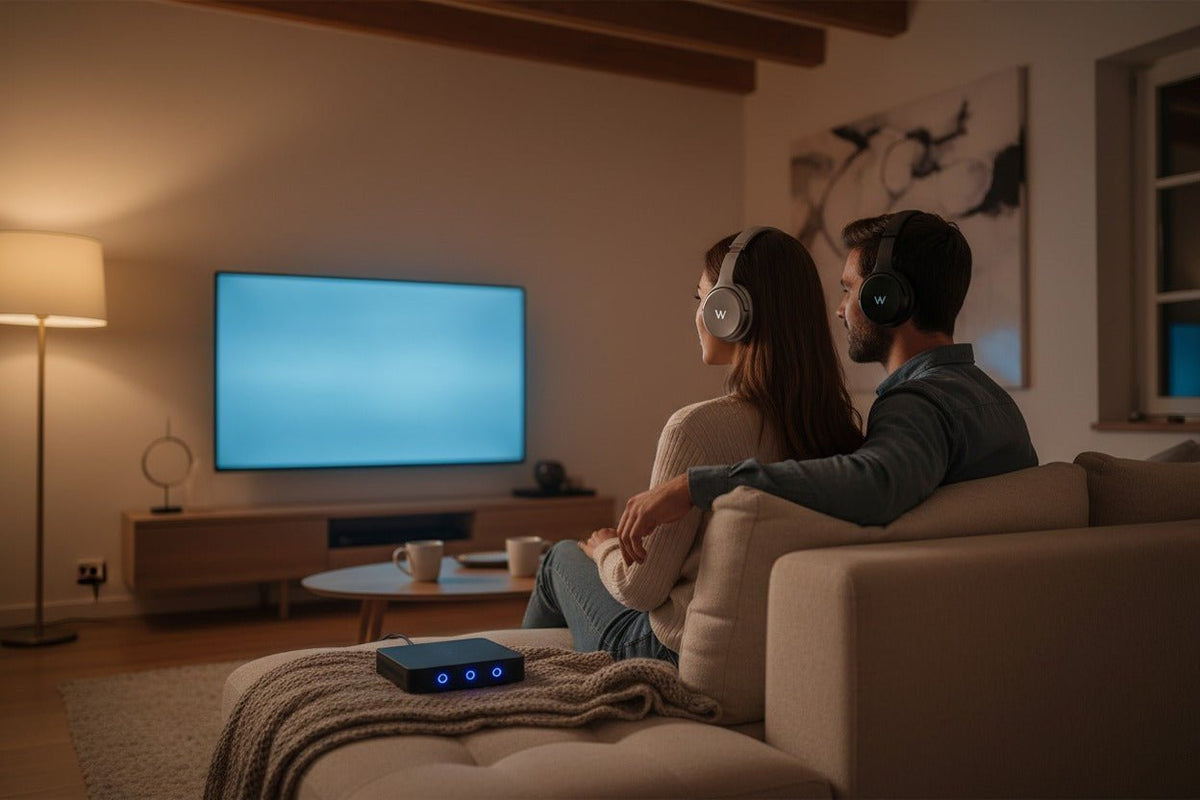
Para utilizar auriculares Bluetooth con un transmisor Bluetooth, conecte el transmisor a una salida de audio del dispositivo fuente, configure un adaptador de doble vía en modo TX/transmisión, aliméntelo y ponga tanto el transmisor como los auriculares en sus respectivos modos de emparejamiento. Una vez que se conecten, seleccione la salida de audio correcta en el televisor, ordenador, consola u otra fuente y pruebe la reproducción.
Configuración rápida: identifique una salida de audio en la fuente, conéctela a la entrada del transmisor, alimente el transmisor, empareje el transmisor y los auriculares, y luego configure la salida de audio de la fuente. Si utiliza audio óptico y no obtiene sonido, compruebe si el transmisor requiere PCM estéreo.
Qué hace realmente un transmisor Bluetooth
Un transmisor de audio Bluetooth toma el audio de una fuente que proporciona una salida de audio cableada o USB y envía ese audio de forma inalámbrica a auriculares o altavoces Bluetooth compatibles. Para el audio estéreo Bluetooth convencional, A2DP define el perfil de distribución de audio de alta calidad utilizado entre dispositivos compatibles.
Un transmisor es diferente de un receptor Bluetooth. Un transmisor envía audio a los auriculares Bluetooth; un receptor acepta audio Bluetooth y lo envía a una entrada cableada. Si desea añadir reproducción Bluetooth a un equipo de música antiguo o a un altavoz amplificado con entrada AUX, normalmente necesitará un receptor en lugar de un transmisor.

Paso 1: Adapte el transmisor al dispositivo fuente
Empiece por el dispositivo fuente, no por los auriculares. Busque una salida de audio que pueda alimentar al transmisor y confirme que este tiene la entrada correspondiente. Un conector que parezca correcto puede ser de la dirección equivocada; por ejemplo, las tomas de entrada RCA no alimentarán un transmisor.
| Salida de la fuente | Entrada del transmisor | Qué comprobar |
|---|---|---|
| Auriculares de 3,5 mm / salida de línea | Entrada analógica de 3,5 mm | Confirme que la toma sea una salida. El volumen de la fuente puede afectar al nivel de la señal en las salidas de auriculares. |
| Salida de audio RCA roja/blanca | Entrada analógica RCA o de 3,5 mm con el cable correcto | Utilice las tomas etiquetadas como Audio Out, no AV In, Component In u otra entrada. |
| Salida óptica / TOSLINK | Entrada digital óptica | Muchos transmisores esperan PCM estéreo. Compruebe el manual del transmisor antes de seleccionar Bitstream, Dolby o DTS. |
| Audio USB | Transmisor de audio USB | La fuente debe reconocer el transmisor como un dispositivo de audio USB. Un puerto USB de TV puede proporcionar solo alimentación. |
Para puertos y ajustes de salida específicos de televisores, consulte la guía de Wantek sobre cómo conectar auriculares Bluetooth a un televisor. Sony también documenta configuraciones de transmisores en las que la salida óptica del televisor se conecta a un transmisor inalámbrico y el televisor se configura en PCM en los modelos aplicables. El ejemplo de soporte de Sony muestra ese flujo de trabajo.
Paso 2: Ponga el adaptador en modo de transmisión y aliméntelo
Si el adaptador puede tanto transmitir como recibir, seleccione TX o Transmitir. El modo RX/Recepción hace el trabajo opuesto: acepta audio Bluetooth de un teléfono u ordenador y lo envía a través de una conexión cableada.
Alimente el transmisor como especifique su manual. Algunos modelos funcionan con una batería interna, mientras que otros utilizan alimentación USB. No asuma que un cable USB también transmite audio a menos que el producto esté diseñado como un transmisor de audio USB.
Paso 3: Empareje el transmisor con sus auriculares Bluetooth
Desconecte las conexiones guardadas que compitan
Si los auriculares se reconectan inmediatamente a un teléfono, tableta o portátil cercano, desconecte temporalmente ese dispositivo o apague su Bluetooth.
Ponga los auriculares en modo de emparejamiento
Utilice la secuencia de control exacta que aparece en el manual de los auriculares. Los botones de emparejamiento, los tiempos de espera, los patrones de LED y las instrucciones de voz varían según el modelo.
Ponga el transmisor en modo de emparejamiento
Siga el manual del transmisor. Los transmisores de audio sencillos suelen buscar automáticamente un dispositivo de audio cercano detectable; normalmente no tendrá que seleccionar el transmisor desde un menú en los auriculares.
Espere el indicador de conexión
Confirme la conexión mediante el LED, la pantalla o la señal de audio específica del modelo. Un color o patrón de parpadeo determinado no es universal en todos los transmisores Bluetooth.
Inicie la reproducción y seleccione la salida correcta
Reproduzca audio de calidad conocida y, a continuación, confirme que la fuente está enviando sonido al puerto o dispositivo de audio USB conectado al transmisor.
Paso 4: Configure el dispositivo fuente
TV
Seleccione la salida de audio que alimenta el transmisor. Si una conexión óptica se empareja correctamente pero no produce sonido, consulte la documentación del transmisor y pruebe con PCM estéreo cuando sea necesario. No asuma que Bitstream, Dolby Digital u otro formato multicanal es compatible con el transmisor.
PC con Windows
Para un transmisor de audio USB, abra Configuración > Sistema > Sonido y seleccione el adaptador en Salida si Windows no cambia automáticamente. La guía actual de solución de problemas de audio de Microsoft también recomienda verificar el dispositivo de salida activo y el dispositivo predeterminado cuando hay hardware de audio externo conectado. El soporte de Microsoft documenta estas comprobaciones de salida.
Mac
Para un transmisor de audio USB reconocido por macOS, abra Ajustes del Sistema > Sonido > Salida y elija el adaptador. La redacción del menú puede variar según la versión de macOS y la forma en que el adaptador se identifique.
PlayStation 5
Los dispositivos de audio Bluetooth estándar no son directamente compatibles con las consolas PS5, según el soporte técnico de PlayStation. Un transmisor de audio USB compatible puede proporcionar una ruta intermedia, o un transmisor puede conectarse a la salida de audio del televisor cuando sea apropiado. Para conocer el flujo de trabajo específico del dispositivo, utilice la guía de conexión de auriculares Bluetooth a PS5 de Wantek. La página de soporte de PlayStation confirma la limitación de audio Bluetooth directo.
Códecs y latencia: qué debe coincidir
El transmisor y los auriculares deben compartir un códec compatible para poder utilizarlo. Si no es así, la conexión recurre a otra opción mutuamente admitida. El soporte de códecs en un solo lado no es suficiente.
Para vídeo o juegos, el soporte de baja latencia puede ser importante. Qualcomm afirma que aptX Low Latency está diseñado para sincronizar audio y vídeo y puede alcanzar una latencia aproximada de 40 ms en implementaciones compatibles. Esa cifra no debe tomarse como una garantía para todas las configuraciones: el procesamiento de la fuente, el transmisor, los auriculares, la negociación de códecs y el búfer de audio/pantalla contribuyen al retraso que usted realmente escucha.
Regla de compatibilidad: consulte las especificaciones del transmisor y de los auriculares conjuntamente. Una etiqueta como "Bluetooth 5.x" no le indica por sí misma qué códec de audio, modo de micrófono, modo de auriculares duales o comportamiento de latencia utilizará el par.
¿Puede un transmisor conectarse a dos auriculares Bluetooth?
Algunos transmisores pueden enviar audio a dos auriculares al mismo tiempo, pero esta debe ser una función explícita del transmisor. No lo confunda con el Bluetooth multipunto, que suele describir un par de auriculares que mantienen conexiones con más de un dispositivo fuente.
El comportamiento de los auriculares duales es específico de cada modelo. La secuencia de emparejamiento, los códecs admitidos y la latencia pueden cambiar cuando se conectan segundos auriculares, por lo que debe seguir el manual del transmisor en lugar de asumir que el procedimiento para un solo auricular siempre se aplica sin cambios.
¿Funcionará el micrófono de los auriculares a través de un transmisor Bluetooth?
No necesariamente. Un transmisor básico de tipo TV está diseñado para enviar audio de reproducción a los auriculares. Enviar el audio del micrófono de vuelta a un ordenador o consola requiere una ruta de audio bidireccional que tanto el adaptador como la fuente admitan.
El perfil manos libres (HFP) del Bluetooth SIG define las conexiones de voz para dispositivos manos libres compatibles, pero ver HFP en la especificación de unos auriculares no prueba que un transmisor en particular pueda devolver la señal de su micrófono a su fuente. Si el chat de voz es importante, verifique el soporte explícito de micrófono o audio USB bidireccional para el adaptador y la plataforma exactos.
Cómo solucionar problemas comunes de los transmisores Bluetooth

El transmisor y los auriculares no se emparejan
- Confirme que el adaptador esté en modo TX/transmisión.
- Coloque los auriculares y el transmisor cerca el uno del otro para el emparejamiento inicial.
- Desconecte los auriculares de teléfonos u ordenadores que puedan estar reconectándose automáticamente.
- Reinicie ambos dispositivos y repita el procedimiento de emparejamiento documentado.
- Si el estado de emparejamiento guardado de los auriculares parece corrupto, utilice los pasos específicos del modelo en la guía de restablecimiento de auriculares Bluetooth de Wantek en lugar de intentar adivinar una combinación de botones de restablecimiento de fábrica.
Se emparejan, pero no hay sonido
- Confirme que el cable esté conectado a una salida de audio, no a una entrada.
- Seleccione la salida de audio correcta en el dispositivo fuente.
- Para configuraciones ópticas, verifique el formato digital requerido por el transmisor; el PCM estéreo es un requisito común.
- Compruebe los controles de volumen de la fuente, el transmisor y los auriculares cuando corresponda.
- Pruebe con una fuente de audio o cable diferente que sepa que funciona para aislar la parte que falla de la cadena.
El audio está retrasado
Confirme qué códec comparten realmente el transmisor y los auriculares. Si la fuente tiene un ajuste de sincronización AV o labial, utilícelo para compensar. Para juegos sensibles a la sincronización, una conexión dedicada cableada o una conexión inalámbrica para juegos diseñada específicamente puede ser más predecible que un transmisor de audio Bluetooth general.
El audio se corta
Reduzca la distancia entre el transmisor y los auriculares, elimine las obstrucciones físicas grandes y aleje el transmisor de interferencias fuertes de 2,4 GHz cuando sea práctico. Verifique también una alimentación estable; la alimentación USB intermitente puede parecer un problema inalámbrico.
El micrófono no funciona
Compruebe si el transmisor admite audio de retorno de micrófono en su plataforma de origen exacta. Si es un adaptador de TV solo de transmisión, el micrófono de los auriculares no se convertirá en una entrada de ordenador o consola simplemente porque los auriculares tengan un micrófono.
Preguntas frecuentes sobre transmisores Bluetooth
¿Los auriculares Bluetooth necesitan una aplicación para emparejarse con un transmisor?
Normalmente no. La mayoría de los transmisores de audio se emparejan directamente con los auriculares en modo de emparejamiento. Algunas aplicaciones de auriculares pueden cambiar la configuración, pero la conexión entre el transmisor y los auriculares normalmente no requiere una aplicación.
¿Puede un transmisor Bluetooth hacer que los auriculares cableados sean inalámbricos?
No por sí mismo. Un transmisor envía audio Bluetooth. Para utilizar auriculares cableados de forma inalámbrica, necesita un receptor Bluetooth o un adaptador de auriculares que reciba Bluetooth y proporcione una salida de auriculares cableada.
¿El audio óptico suena automáticamente mejor que el de 3,5 mm a través de Bluetooth?
No. El audio óptico evita una etapa de entrada analógica, pero la calidad final de Bluetooth sigue dependiendo del transmisor, el códec, los auriculares, el formato de la fuente y la implementación. La entrada óptica por sí sola no hace que Bluetooth sea sin pérdidas.
¿Por qué mi transmisor se conecta pero el televisor permanece en silencio?
El televisor puede seguir enviando audio a sus altavoces o utilizando un formato digital no compatible. Seleccione la salida correcta y compruebe si el transmisor requiere PCM estéreo para la entrada óptica.
¿Puedo usar un transmisor Bluetooth con un equipo de música de coche?
Solo cuando envía audio desde una salida de audio del coche a auriculares Bluetooth. Para transmitir audio del teléfono a la entrada AUX de un coche antiguo, utilice un receptor Bluetooth en su lugar.

