
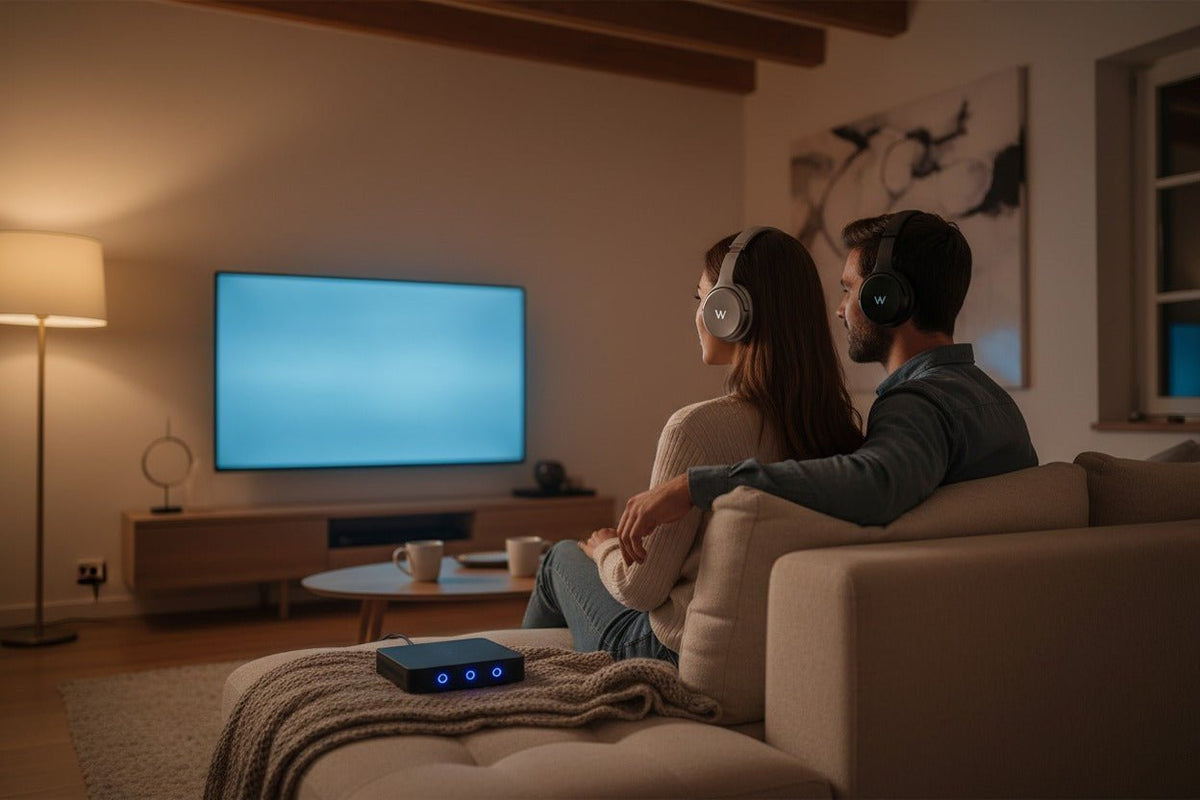
To use Bluetooth headphones with a Bluetooth transmitter, connect the transmitter to an audio output on the source device, set a two-way adapter to TX/transmit mode, power it, and put both the transmitter and headphones into their documented pairing modes. Once they connect, select the correct audio output on the TV, computer, console, or other source and test playback.
Quick setup: identify an audio output on the source, match it to the transmitter input, power the transmitter, pair the transmitter and headphones, then configure the source's audio output. If you are using optical audio and get no sound, check whether the transmitter requires stereo PCM.
What a Bluetooth transmitter actually does
A Bluetooth audio transmitter takes audio from a source that provides a wired or USB audio output and sends that audio wirelessly to compatible Bluetooth headphones, earbuds, or speakers. For conventional Bluetooth stereo audio, A2DP defines the high-quality audio distribution profile used between compatible devices.
A transmitter is different from a Bluetooth receiver. A transmitter sends audio to Bluetooth headphones; a receiver accepts Bluetooth audio and feeds it into a wired input. If you want to add Bluetooth playback to an older car stereo or powered speaker with AUX input, you normally need a receiver rather than a transmitter.

Step 1: Match the transmitter to the source device
Start with the source device, not the headphones. Find an audio output that can feed the transmitter and confirm that the transmitter has the matching input. A connector that looks correct can still be the wrong direction—for example, RCA input jacks will not feed a transmitter.
| Source output | Transmitter input | What to check |
|---|---|---|
| 3.5 mm headphone / line out | 3.5 mm analog input | Confirm the jack is an output. Source volume may affect the signal level on headphone outputs. |
| RCA red/white audio out | RCA or 3.5 mm analog input with the correct cable | Use jacks labeled Audio Out, not AV In, Component In, or another input. |
| Optical / TOSLINK out | Optical digital input | Many transmitters expect stereo PCM. Check the transmitter manual before choosing Bitstream, Dolby, or DTS. |
| USB audio | USB audio transmitter | The source must recognize the transmitter as a USB audio device. A TV USB port may provide power only. |
For TV-specific ports and output settings, see Wantek's guide to connecting Bluetooth headphones to a TV. Sony also documents transmitter setups in which the TV's optical output is connected to a wireless transmitter and the TV is set to PCM on applicable models. Sony's support example shows that workflow.
Step 2: Put the adapter in transmit mode and power it
If the adapter can both transmit and receive, select TX or Transmit. RX/Receive mode does the opposite job: it accepts Bluetooth audio from a phone or computer and sends that audio out through a wired connection.
Power the transmitter as its manual specifies. Some models run from an internal battery, while others use USB power. Do not assume that a USB cable also carries audio unless the product is designed as a USB audio transmitter.
Step 3: Pair the transmitter with your Bluetooth headphones
Disconnect competing saved connections
If the headphones immediately reconnect to a nearby phone, tablet, or laptop, temporarily disconnect that device or turn its Bluetooth off.
Put the headphones into pairing mode
Use the exact control sequence in the headphone manual. Pairing buttons, hold times, LED patterns, and voice prompts vary by model.
Put the transmitter into pairing mode
Follow the transmitter manual. Simple audio transmitters usually search for a nearby discoverable audio device automatically; you normally do not select the transmitter from a menu on the headphones.
Wait for the connection indicator
Confirm the connection using the model-specific LED, display, or audio cue. A particular color or blink pattern is not universal across Bluetooth transmitters.
Start playback and select the correct output
Play known-good audio, then confirm that the source is sending sound to the port or USB audio device connected to the transmitter.
Step 4: Configure the source device
TV
Select the audio output that feeds the transmitter. If an optical connection pairs successfully but produces no sound, check the transmitter documentation and try stereo PCM when required. Do not assume Bitstream, Dolby Digital, or another multichannel format is compatible with the transmitter.
Windows PC
For a USB audio transmitter, open Settings > System > Sound and select the adapter under Output if Windows does not switch automatically. Microsoft's current audio troubleshooting guidance also recommends verifying the active output device and default device when external audio hardware is connected. Microsoft Support documents these output checks.
Mac
For a USB audio transmitter recognized by macOS, open System Settings > Sound > Output and choose the adapter. Menu wording can vary by macOS version and by how the adapter identifies itself.
PlayStation 5
Standard Bluetooth audio devices are not directly compatible with PS5 consoles, according to PlayStation support. A compatible USB audio transmitter can provide an intermediary path, or a transmitter can be connected to the TV's audio output when appropriate. For the device-specific workflow, use Wantek's PS5 Bluetooth headphone connection guide. PlayStation's support page confirms the direct Bluetooth-audio limitation.
Codecs and latency: what needs to match
The transmitter and headphones must share a compatible codec for that codec to be used. If they do not, the connection falls back to another mutually supported option. Codec support on only one side is not enough.
For video or gaming, low-latency support can matter. Qualcomm states that aptX Low Latency is designed for synchronized audio and video and can achieve approximately 40 ms latency in compatible implementations. That figure should not be treated as a guarantee for every setup: source processing, the transmitter, the headphones, codec negotiation, and display/audio buffering all contribute to the delay you actually hear.
Compatibility rule: check the transmitter and headphone specifications together. A label such as “Bluetooth 5.x” does not by itself tell you which audio codec, microphone mode, dual-headphone mode, or latency behavior the pair will use.
Can one transmitter connect to two Bluetooth headphones?
Some transmitters can send audio to two headphones at the same time, but this must be an explicit feature of the transmitter. Do not confuse this with Bluetooth multipoint, which usually describes one pair of headphones maintaining connections with more than one source device.
Dual-headphone behavior is model-specific. The pairing sequence, supported codecs, and latency can change when a second headset is connected, so follow the transmitter manual rather than assuming the single-headphone procedure always applies unchanged.
Will the headset microphone work through a Bluetooth transmitter?
Not necessarily. A basic TV-style transmitter is designed to send playback audio to headphones. Sending microphone audio back to a computer or console requires a bidirectional audio path that the adapter and source both support.
The Bluetooth SIG's Hands-Free Profile (HFP) defines voice connections for compatible hands-free devices, but seeing HFP in a headset specification does not prove that a particular transmitter can carry its microphone signal back to your source. If voice chat matters, verify explicit microphone or two-way USB audio support for the exact adapter and platform.
How to fix common Bluetooth transmitter problems

The transmitter and headphones will not pair
- Confirm the adapter is in TX/transmit mode.
- Move the headphones and transmitter close together for the initial pairing.
- Disconnect the headphones from phones or computers that may be auto-reconnecting.
- Restart both devices and repeat the documented pairing procedure.
- If the headphone's saved pairing state appears corrupted, use the model-specific steps in Wantek's Bluetooth headphone reset guide rather than guessing a factory-reset button combination.
They pair, but there is no sound
- Confirm the cable is connected to an audio output, not an input.
- Select the correct audio output on the source device.
- For optical setups, verify the digital format required by the transmitter; stereo PCM is a common requirement.
- Check the source, transmitter, and headphone volume controls where applicable.
- Test a different known-good audio source or cable to isolate the failing part of the chain.
Audio is delayed
Confirm which codec the transmitter and headphones actually share. If the source has an AV-sync or lip-sync adjustment, use it to compensate. For timing-sensitive gaming, a dedicated wired or purpose-built gaming wireless connection can be more predictable than a general Bluetooth audio transmitter.
Audio cuts out
Reduce the distance between the transmitter and headphones, remove large physical obstructions, and move the transmitter away from strong 2.4 GHz interference where practical. Also verify stable power; intermittent USB power can look like a wireless problem.
The microphone does not work
Check whether the transmitter supports microphone return audio on your exact source platform. If it is a transmit-only TV adapter, the headset microphone will not become a computer or console input simply because the headphones themselves have a mic.
Bluetooth transmitter FAQ
Do Bluetooth headphones need an app to pair with a transmitter?
Usually not. Most audio transmitters pair directly with headphones in pairing mode. Some headphone apps can change settings, but the transmitter-to-headphone connection normally does not require an app.
Can a Bluetooth transmitter make wired headphones wireless?
Not by itself. A transmitter sends Bluetooth audio. To use wired headphones wirelessly, you need a Bluetooth receiver or headphone adapter that receives Bluetooth and provides a wired headphone output.
Does optical audio automatically sound better than 3.5 mm through Bluetooth?
No. Optical avoids an analog input stage, but the final Bluetooth quality still depends on the transmitter, codec, headphones, source format, and implementation. Optical input alone does not make Bluetooth lossless.
Why does my transmitter connect but the TV stays silent?
The TV may still be sending audio to its speakers or using an unsupported digital format. Select the correct output and check whether the transmitter requires stereo PCM for optical input.
Can I use a Bluetooth transmitter with a car stereo?
Only when you are sending audio from a car audio output to Bluetooth headphones. To stream phone audio into an older car's AUX input, use a Bluetooth receiver instead.

