
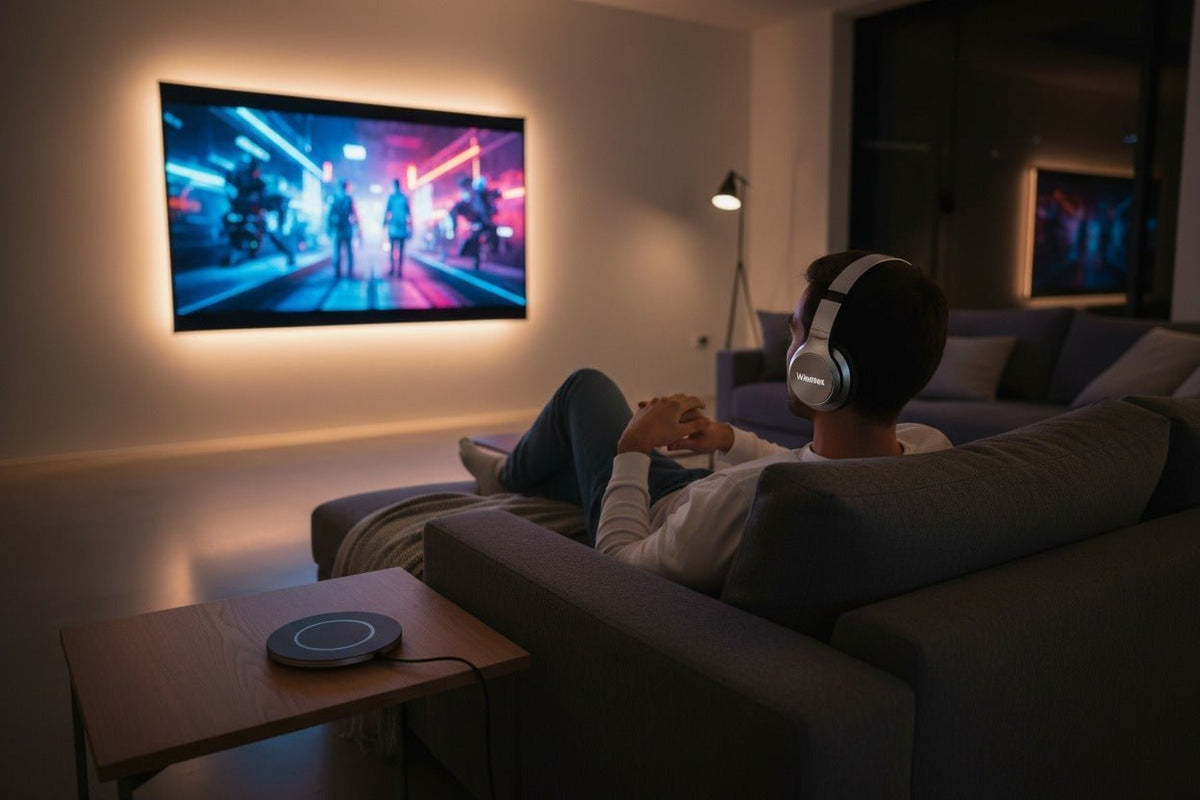
To connect Bluetooth headphones to a Roku TV, first check whether your exact Roku device supports Bluetooth Headphone Mode. On supported devices, go to Settings → Remotes & devices → Wireless headphones → Add new wireless headphones, put the headphones in pairing mode, and select them when they appear.
If you do not see “Wireless headphones,” do not assume the TV is too old or too new. Roku support varies by exact TV or streaming-player model. You can still have other options, including Headphone Mode through the Roku mobile app, a compatible Roku voice remote with a headphone jack, or an external transmitter connected to a TV audio output.

Choose the Right Roku Headphone Method First
The important distinction is whether your Roku device can send audio directly to Bluetooth headphones. Bluetooth hardware used for another purpose does not automatically mean Bluetooth headphone output is available.
| Your setup | Best starting method | What to verify |
|---|---|---|
| “Wireless headphones” appears in Roku settings | Pair Bluetooth headphones directly | Your headphones are in pairing mode and visible to the Roku device |
| No direct Bluetooth Headphone Mode | Use the Roku mobile app if your device supports mobile Headphone Mode | Phone/tablet and Roku are on the same wireless network |
| Compatible Roku voice remote has a headphone jack | Use wired headphones through the remote | The remote model actually includes the 3.5 mm headphone jack |
| You want a dedicated TV-headphone connection | Use an external transmitter or dedicated TV-headphone system | The TV output matches the transmitter or base input |
Roku's current support documentation explains which devices support direct Bluetooth Headphone Mode and notes that the Wireless headphones menu appears only on compatible Roku devices. Check the current list if you are unsure about a specific model: Roku Bluetooth Headphone Mode support.
Method 1: Pair Bluetooth Headphones Directly to a Compatible Roku Device
If your Roku device supports direct Bluetooth Headphone Mode, this is the shortest setup because the headphones connect to Roku itself instead of your phone.
Open Roku settings
Press Home on the Roku remote, then open Settings.
Open Wireless headphones
Go to Remotes & devices → Wireless headphones.
Start a new pairing
Select Add new wireless headphones. Roku says scanning can take up to about 30 seconds.
Put the headphones in pairing mode
Use the pairing procedure documented for your exact headphone model. Simply turning the headphones on may reconnect them to a phone instead of making them discoverable.
Select the headphones
Choose your headphones from the available-device list. After pairing, they remain in Roku's paired-device list for later reconnection.
Menu names matter: current Roku instructions use Wireless headphones and Add new wireless headphones. A generic “Bluetooth” menu is not a reliable compatibility test for headphone output.
How to reconnect or disconnect later
Return to Settings → Remotes & devices → Wireless headphones, select the paired headphones, and choose Connect or Disconnect. Compatible Roku devices may also offer an Auto-detect option for reconnection.
Method 2: Use Bluetooth Headphones Through the Roku Mobile App
Mobile Headphone Mode sends Roku audio to the Roku app on your phone or tablet. Your Bluetooth headphones connect to the mobile device, not directly to the TV.
- Install or update the Roku mobile app.
- Connect your phone or tablet and Roku device to the same wireless network.
- Pair and connect your Bluetooth headphones to the phone or tablet.
- Open the Roku app and connect it to the correct Roku device.
- Tap Remote, then tap the Headphone icon to activate Headphone Mode.
When mobile Headphone Mode is active, audio is routed to the mobile device instead of the TV speakers. Roku currently supports up to four mobile devices at the same time for Headphone Mode on supported setups. See Roku's mobile Headphone Mode instructions for the current requirements and limitations.
This is not a universal fallback for every Roku device. If the Headphone icon does not appear, confirm that the app is current, the phone and Roku are on the same network, and the Roku device supports mobile Headphone Mode.
Method 3: Use a Roku Voice Remote with a Headphone Jack
Some Roku voice remotes include a built-in 3.5 mm headphone jack. This is not a Bluetooth connection, but it is often the simplest private-listening option when you already own a compatible remote.
- Plug wired headphones into the remote's headphone jack.
- Lower the volume before putting the headphones on.
- Start playback and adjust volume with the Roku remote.
- Unplug the headphones when you want audio to return to the TV speakers.
Roku documents this separately because Headphone Mode through the remote and mobile app have different limitations. See Roku's voice-remote Headphone Mode guide.
Method 4: Use an External Bluetooth Transmitter

An external Bluetooth transmitter can add a wireless headphone path when your TV does not support direct Bluetooth headphone output. The key is the TV's physical audio output, not the Roku model name by itself.
- Identify the TV's available audio output, such as optical/TOSLINK, 3.5 mm audio out, or RCA audio out.
- Choose a transmitter that accepts that exact connection.
- Connect and power the transmitter according to its manual.
- Put both the transmitter and headphones into their documented pairing modes.
- Select the corresponding TV audio output if the TV requires it.
- Play video and check both sound and lip sync.
If you need help identifying the correct TV output before buying hardware, compare the television's documented outputs with the transmitter's documented inputs before ordering. Direct Bluetooth, external-transmitter, and dedicated TV-headphone setups use different audio paths.
For optical connections, do not change the TV's digital audio format at random. Some transmitters require PCM or another specific format, so follow the documentation for both the TV and transmitter.
Roku Bluetooth Headphone Troubleshooting
The Wireless headphones menu is missing
If Settings → Remotes & devices does not show Wireless headphones, the Roku device may not support direct Bluetooth Headphone Mode. Check Roku's current compatibility list rather than using the TV's age as a shortcut.
Roku cannot find the headphones
- Make sure the headphones are in their documented pairing mode, not merely powered on.
- Temporarily disconnect them from nearby phones, tablets, or computers that may reconnect automatically.
- Move the headphones closer to the Roku device during pairing.
- Restart both devices and try the pairing sequence again.
If the headphones themselves keep failing to enter pairing mode or reconnect incorrectly across devices, use the Bluetooth headphone reset and re-pairing guide before trying a factory reset. Reset procedures vary by exact model.
The headphones are connected but there is no sound
- Confirm that the headphones are selected under Roku's Wireless headphones menu.
- Check the Roku and headphone volume levels.
- If using the mobile app, verify that the app is connected to the correct Roku device.
- If using a transmitter, confirm that it is connected to an audio output, not an input.
Audio is out of sync
For mobile Headphone Mode, Roku recommends using the latest mobile app and provides an audio-delay adjustment procedure in its troubleshooting documentation. For direct Bluetooth or transmitter setups, check the complete signal path rather than assuming a newer Bluetooth version guarantees low latency.
Roku's current troubleshooting steps are available in How to resolve an issue with Headphone Mode.
Can two people listen at the same time?
Roku says multiple headphones cannot be connected directly to one Roku TV or player for Bluetooth Headphone Mode. On supported setups, the Roku mobile app can provide Headphone Mode to up to four mobile devices at the same time.
What to Check Before Buying Anything
- Exact Roku model: check Settings → System → About.
- Direct Headphone Mode support: look for Wireless headphones, not a generic Bluetooth label.
- Mobile Headphone Mode support: confirm the Roku app shows the Headphone control for your device.
- TV audio outputs: identify optical, 3.5 mm, RCA, or another supported output before choosing a transmitter or TV-headphone system.
- Headphone pairing procedure: use the manufacturer instructions for the exact model rather than a generic button-hold rule.
Prefer a Dedicated TV-Listening Setup?
Wantek TV996WK includes a transmitter/charging stand plus optical, 3.5 mm AUX, and RCA cables. Compare those connections with the outputs on your TV before choosing it for your setup.
Frequently Asked Questions
Can all Roku TVs connect directly to Bluetooth headphones?
No. Direct Bluetooth Headphone Mode is limited to compatible Roku devices. Check for Settings → Remotes & devices → Wireless headphones and confirm your exact model in Roku's current support documentation.
Why does my Roku TV have Bluetooth but no Wireless headphones menu?
Bluetooth can support different functions. A Roku device may use Bluetooth for accessories without offering direct headphone output. The Wireless headphones menu is the relevant indicator for direct Headphone Mode.
Can Bluetooth earbuds connect directly to Roku?
Yes, on compatible Roku devices. Roku currently states that Bluetooth headphones or earbuds supporting Bluetooth 4.2 or later can connect to a compatible device for Headphone Mode.
Can I listen through Bluetooth headphones without muting the TV?
Roku states that TV speakers are muted when mobile Headphone Mode is active. Other simultaneous-output behavior depends on the exact TV, audio path, and external hardware.
How many people can use Roku Headphone Mode at once?
Roku currently supports up to four mobile devices at the same time for mobile Headphone Mode on supported setups. Direct Bluetooth Headphone Mode does not connect multiple headphone pairs simultaneously.
Will a Bluetooth transmitter work with any Roku TV?
Not automatically. The TV must provide an audio output compatible with the transmitter's input. Verify the actual ports and required audio format before buying or connecting a transmitter.

