
Welcome to Wantek online store!

Announcement: Free shipping in USA, UK, FR, DE, IT, ES

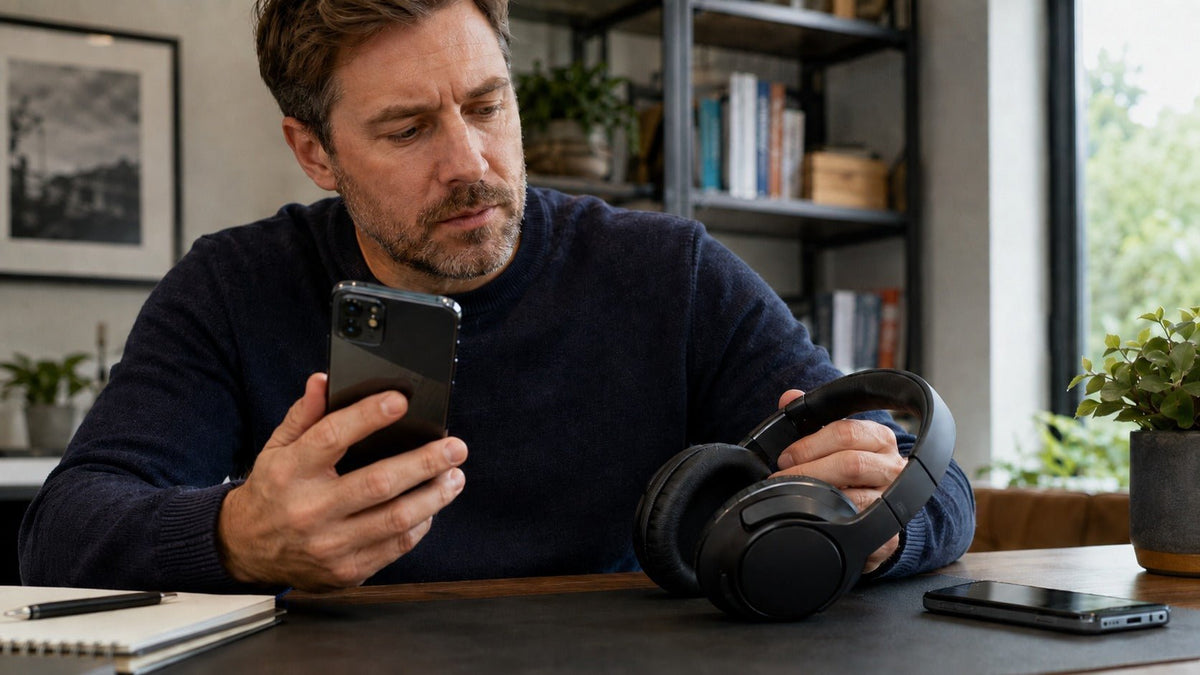
Bluetooth headphones being paired with a new smartphone at a home-office desk

Complete Guide to Resetting Bluetooth Headphones: Brand-Specific Reset and Troubleshooting Instructions

Troubleshoot audio issues instantly. Learn how to perform a factory reset on Bluetooth headphones. Covers unpairing, firmware glitches, and repair steps.

Joe Steve |

To reset Bluetooth headphones, start by removing the existing Bluetooth pairing from your phone, tablet, or computer. Then restart or factory-reset the headphones using the procedure documented for your exact model. Reset methods vary significantly between brands and even between generations of the same product family, so avoid undocumented button combinations.

If you're researching how to reset bluetooth headphones because of pairing failures, one-sided audio, dropouts, or other connection problems, start with a restart and fresh pairing before performing a full factory reset.

A factory reset is useful for persistent software or connection problems, but it cannot repair damaged drivers, worn batteries, corroded contacts, broken controls, or other physical faults.


Understanding Bluetooth Technology and Reset Mechanics

How Bluetooth Headphones Function

Bluetooth headphones use radio communication in the 2.4 GHz ISM band to exchange audio and control data with phones, computers, tablets, TVs, and other compatible devices.

When two Bluetooth devices pair, they establish the information needed to recognize and authenticate each other during future connections. Headphones may also store additional user settings such as equalizer preferences, ANC modes, multipoint configuration, control assignments, or device history.

Connection problems can sometimes develop when pairing information or device settings no longer match the current connection environment. Removing the existing pairing and establishing a fresh connection can eliminate this state without requiring hardware repair.

The Distinction Between Soft Reset and Factory Reset

Before using any brand-specific procedure, distinguish between restarting the headphones and restoring them to factory settings.

Soft Reset or Restart: A restart power-cycles the device without intentionally erasing its stored settings.

  • When to use: Frozen controls, temporary connection failures, intermittent audio, or a headset that is behaving unexpectedly
  • How it works: Turn the headphones off and back on, or use the manufacturer's documented restart procedure
  • What it usually preserves: Pairing history and user settings
  • Best first step: Use a restart before attempting a factory reset

For additional restart troubleshooting, see how to restart Bluetooth headphones.

Factory Reset: A factory reset restores supported user settings to their manufacturer-defined defaults. Depending on the model, it may erase Bluetooth pairing information, EQ settings, control preferences, multipoint configuration, or other stored settings.

  • When to use: Persistent pairing failures, repeated connection problems across devices, corrupted settings, or preparation for transfer to another user
  • How it works: A model-specific button sequence, charging-case control, or companion-app command
  • What it changes: Depends on the manufacturer and model
  • What it normally does not do: Repair physical damage or downgrade installed firmware

Critical Note: Reset procedures can differ between generations of the same product family. Verify the exact model before following a button sequence.

Bluetooth headphones being paired with a new smartphone at a home-office desk


Universal Reset Procedures: Preparing Your Devices

Why You May Need to Forget the Device First

Removing an existing Bluetooth pairing from the source device gives the headphones and source device an opportunity to establish a fresh pairing relationship.

This is especially useful when:

  • The headphones appear in Bluetooth settings but will not connect
  • The device repeatedly connects and disconnects
  • The headphones connect to the wrong phone or computer
  • A factory reset has cleared the pairing information on the headphones
  • The headphones were previously associated with several source devices

These Bluetooth headphones reset instructions should always be adapted to the exact model rather than treated as a universal button sequence.

Complete Step-by-Step: Forgetting Your Bluetooth Device

On iPhone and iPad:

  1. Open Settings.
  2. Tap Bluetooth.
  3. Locate the headphones under your saved devices.
  4. Tap the information icon beside the device.
  5. Select Forget This Device.
  6. Confirm the removal.
  7. Put the headphones into their documented pairing mode and reconnect.

On Android:

Menus vary by Android version and manufacturer.

  1. Open Settings.
  2. Open Connected devices, Connections, or Bluetooth.
  3. Locate the headphones in the paired-device list.
  4. Select the settings or gear icon beside the device.
  5. Choose Forget, Unpair, or Remove.
  6. Put the headphones into pairing mode and reconnect.

Some Android devices expose additional Bluetooth troubleshooting controls, but their location and availability vary. Do not clear system-app data unless the device manufacturer's support documentation recommends it for your specific problem.

On Windows 11:

  1. Open Settings.
  2. Select Bluetooth & devices.
  3. Locate the headphones.
  4. Select the device's More options menu.
  5. Choose Remove device.
  6. Put the headphones into pairing mode.
  7. Add them again through Bluetooth & devices > Add device.

Restarting Windows can also help if the Bluetooth adapter itself is unresponsive, but removing a device does not require a mandatory system restart.

On macOS:

  1. Open System Settings.
  2. Select Bluetooth.
  3. Locate the headphones.
  4. Open the device options.
  5. Choose Forget This Device.
  6. Put the headphones into pairing mode and reconnect.

Older troubleshooting instructions sometimes reference a hidden Bluetooth debug menu. That workflow is not applicable across current macOS versions, so use the Bluetooth controls provided by your installed version of macOS.

On Gaming Consoles:

Bluetooth audio support varies considerably by console.

  • Nintendo Switch: Supports compatible Bluetooth audio devices through System Settings > Bluetooth Audio.
  • PlayStation 5: Standard Bluetooth headphones are generally not paired directly for game audio. Compatible wireless headsets typically use supported USB adapters or other PlayStation-compatible connection methods.
  • Xbox Series X/S: Standard Bluetooth audio headphones do not pair directly with the console for normal game audio. Compatible Xbox wireless headsets, controller connections, or other supported connection paths are required.

Do not assume that a headset appearing as a Bluetooth device on a phone means it can connect directly to every gaming console.

Standard Pairing Mode Activation

Pairing mode is not the same as a factory reset.

A typical reconnect workflow is:

  1. Turn the headphones on.
  2. Activate pairing mode using the documented button or control.
  3. Open Bluetooth settings on the source device.
  4. Select the headphones.
  5. Complete any confirmation requested by the device.

Many headphones use a long press of the power or Bluetooth button to enter pairing mode, but the timing and LED behavior vary. Some earbuds automatically enter pairing mode when removed from their charging case.

Do not rely on a generic PIN such as 0000 unless the manufacturer's documentation specifically provides one.

Bluetooth troubleshooting hub

Continue Troubleshooting Your Bluetooth Headphones

Resetting is only one step. Use these focused guides for brand-specific pairing, audio interference, or PlayStation setup.

Pillar guide
Bluetooth Headphone Reset & Troubleshooting Guide You are here: reset methods, re-pairing, firmware checks, and common Bluetooth connection problems.

Brand-Specific Factory Reset Instructions: A Comprehensive Reference

Reset procedures are highly model-dependent. A sequence that works on one generation can perform a different function—or nothing at all—on another.

Apple AirPods and Beats

Apple uses different reset procedures across AirPods generations, so confirm the exact model before beginning.

AirPods 1st, 2nd, and 3rd Generation and AirPods Pro 1st and 2nd Generation:

  1. Place the AirPods in their charging case.
  2. Close the lid and wait 30 seconds.
  3. Open the lid.
  4. On your connected Apple device, forget the AirPods if they are still listed.
  5. Keep the charging-case lid open.
  6. Press and hold the setup button on the back of the case for about 15 seconds.
  7. Release it when the status light flashes amber and then white.
  8. Reconnect the AirPods.

Apple documents the current procedures for supported generations in its AirPods reset instructions.

Newer AirPods generations may use a different case-control sequence, so do not automatically apply the rear-button method to every AirPods model.

AirPods Max:

  1. Charge the headphones sufficiently before resetting.
  2. Press and hold the Noise Control button and Digital Crown.
  3. Continue holding until the status light flashes amber and then white.
  4. Release the controls and reconnect the headphones.

A shorter hold restarts AirPods Max without necessarily restoring factory settings, so follow the reset sequence appropriate to the problem.

Beats Headphones and Earbuds:

Beats reset combinations differ among Studio, Solo, Powerbeats, Beats Fit Pro, and other product families. Use the instructions for the exact model rather than applying an AirPods or generic Beats sequence.

Sony WH-1000XM4, WH-1000XM5, WF Series, and LinkBuds

Sony distinguishes between a basic reset and initialization, which restores supported settings and deletes pairing information.

For the Sony WH-1000XM5, factory initialization is performed as follows:

  1. Turn the headphones off.
  2. Disconnect the USB-C cable.
  3. Press and hold the Power and NC/AMB buttons simultaneously for about seven seconds.
  4. The blue indicator flashes four times when initialization is complete.
  5. Delete the old WH-1000XM5 pairing from the source device.
  6. Pair the headphones again.

Sony provides the exact WH-1000XM5 procedure in its WH-1000XM5 initialization guide.

The WH-1000XM4, WF-1000XM series, LinkBuds, and other Sony products can use different combinations involving buttons, touch sensors, or charging-case controls. Do not apply the WH-1000XM5 combination to other models without checking their help guide.

For related Sony connection guidance, see how to reset Sony Bluetooth headphones.

Samsung Galaxy Buds Series

Galaxy Buds reset procedures vary by model and software support.

For many Galaxy Buds models, Samsung provides a software reset through the Galaxy Wearable app rather than a universal charging-case button combination.

A typical supported workflow is:

  1. Connect the earbuds to the phone.
  2. Open Galaxy Wearable.
  3. Open Earbuds settings.
  4. Select Reset.
  5. Confirm the reset.
  6. Reconnect the earbuds when the reset is complete.

Samsung maintains current model-specific procedures in its Galaxy Buds reset guidance.

Avoid treating “hold both earbuds for 10 seconds” as a universal Galaxy Buds factory-reset method. Touch-and-hold actions can perform pairing or other functions depending on the model.

Bose QuietComfort Headphones and Earbuds

Bose distinguishes between restarting a product, clearing its Bluetooth device list, and performing a full reset. Those actions are not interchangeable.

For example, on QuietComfort 45, clearing the stored Bluetooth device list uses the Power/Bluetooth switch, while a full product reset uses a different sequence involving the Power/Bluetooth switch and Action button.

QuietComfort Earbuds, QuietComfort Ultra Earbuds, and older Bose true-wireless products use different case controls and reset procedures.

For Bose products:

  1. Identify the exact model.
  2. Determine whether you need to restart it, clear its Bluetooth list, or factory-reset it.
  3. Follow the Bose instructions for that specific operation.
  4. Remove the old Bose pairing from your phone or computer before reconnecting when instructed.

Jabra Elite Series

Jabra reset procedures also vary by generation.

For the Jabra Elite 85t, the reset process uses both earbud buttons while the earbuds are in the charging case. The earbud LEDs indicate when the reset command has been accepted, after which the case is closed briefly to complete the procedure.

Other models—including Elite 7, Elite 5, Elite 4, and earlier Elite generations—can use similar-looking controls with different indicator behavior.

After a Jabra factory reset:

  1. Remove the old Jabra pairing from the phone or computer.
  2. Re-pair the earbuds.
  3. Reconfigure any preferred settings in Jabra Sound+ if applicable.

JBL Free, Live, Tune, and Reflect Series

JBL does not use one reset procedure across every headphone and earbud.

Several supported Live and Tune headphones use the Volume Up + Volume Down controls for more than five seconds to trigger a factory reset. Some JBL true-wireless earbuds instead use tap-and-hold gestures or the JBL Headphones app.

Before resetting:

  1. Identify the complete JBL model number.
  2. Check whether it is an over-ear, on-ear, neckband, or true-wireless model.
  3. Follow the reset sequence documented for that family.
  4. Remove the previous Bluetooth pairing before reconnecting if required.

Avoid using the Volume Up + Volume Down sequence on an unrelated JBL product solely because it works on another JBL series.

Anker / Soundcore

Soundcore procedures vary substantially between models.

For example:

Soundcore Life Q30:

  1. Turn the headphones on if required by the documented workflow.
  2. Press and hold Power + Volume Up for about five seconds.
  3. Watch for the documented indicator behavior.
  4. Remove the existing Bluetooth pairing and reconnect.

Soundcore Space A40:

The earbuds use a charging-case reset procedure rather than the Life Q30 headphone combination.

Liberty Air, Liberty, Life P-series, Space-series, and other Soundcore products also use different case buttons, earbud controls, and timing.

Treat every Soundcore reset as model-specific.

Sennheiser Momentum, CX, and Other Wireless Models

Sennheiser's current products can support factory reset through the Smart Control app, while physical reset methods differ between models.

A practical workflow is:

  1. Restart the headphones first.
  2. Remove old Bluetooth pairings if connection problems persist.
  3. Open Sennheiser Smart Control when supported.
  4. Use the product's factory-reset option if available.
  5. Re-pair and test the headphones.

For hardware-only reset procedures, use the manual for the exact model. MOMENTUM Wireless and MOMENTUM True Wireless generations should not be treated as having one universal touch sequence.

LG TONE Free Series

LG TONE Free reset methods depend on the product generation.

For TONE Free TFP5, TFP8, and TFP9:

  1. Disconnect the earbuds from the source device.
  2. Place both earbuds in the charging case.
  3. Keep the charging case open.
  4. Press and hold the appropriate earbud control for approximately 10–13 seconds until the documented red indicator appears.
  5. Allow the earbuds to return to pairing mode.
  6. Reconnect them.

Other TONE Free generations can use a charging-case pairing button instead, so check the specific model before resetting.

OnePlus Buds

Many OnePlus Buds models use the charging-case setup button for reset.

A common OnePlus procedure is:

  1. Place both earbuds in the charging case.
  2. Leave the case open.
  3. Press and hold the setup button for approximately 10 seconds.
  4. Release the button after the documented indicator sequence appears.
  5. Re-pair the earbuds.

The exact LED sequence and supported reset behavior can vary by model.

Google Pixel Buds

Google Pixel Buds use the charging case for a factory reset.

For supported Pixel Buds models:

  1. Place the earbuds in the charging case.
  2. Leave the case open.
  3. Connect the case to power.
  4. Press and hold the pairing button on the back of the case for approximately 30 seconds.
  5. Release the button when the status light stops bouncing.
  6. Wait for the documented white/orange indicator sequence to complete.
  7. Re-pair the earbuds.

Google maintains the current sequence in its Pixel Buds reset instructions.

A 15-second hold is not the current factory-reset procedure documented for these supported Pixel Buds models.

Creative, JVC, Panasonic, and Other Brands

There is no reliable universal reset sequence for lower-cost or less common Bluetooth headphones.

Do not assume that combinations such as Power + Volume Up, Power + Volume Down, or holding both earbuds will factory-reset an unfamiliar model.

Instead:

  1. Identify the exact model number.
  2. Check the manufacturer's manual or official support documentation.
  3. Determine whether the documented operation is a restart, pairing reset, Bluetooth-list clear, or full factory reset.
  4. Follow the model-specific sequence.

Troubleshooting: How to Troubleshoot Bluetooth Headphones Issues

A reset should be one part of a structured troubleshooting process rather than the automatic first response to every Bluetooth problem.

For a deeper look at interference and connection symptoms, see how to troubleshoot Bluetooth headphones issues.

The 3 C's of Bluetooth Troubleshooting

Compatibility: Check whether both devices support the required Bluetooth profiles, audio codecs, operating-system features, and manufacturer-specific functions.

Bluetooth version alone does not determine codec compatibility. A phone with a newer Bluetooth version does not automatically support every codec used by a pair of headphones, and an older Bluetooth implementation is not automatically incompatible with all newer headphones.

Crowding: Bluetooth shares the 2.4 GHz radio environment with Wi-Fi and many other wireless technologies. Congested radio conditions, physical obstructions, distance, and nearby electronics can affect connection reliability.

If dropouts occur:

  • Move closer to the source device.
  • Test in another location.
  • Move away from heavily congested wireless equipment.
  • Compare performance with another source device.

Consumption: Verify that both the headphones and source device have adequate battery charge. A depleted or failing battery can cause power-related behavior that resembles a Bluetooth problem.

Do not assume that low battery always reduces Bluetooth transmission power in a predictable way; power management behavior differs by device.

Advanced Troubleshooting Steps

1. Firmware Update Verification

Use the manufacturer's official companion app or supported update method when available.

Examples include:

  • Sony | Sound Connect
  • Bose app
  • Jabra Sound+
  • Galaxy Wearable
  • Apple device settings for AirPods
  • Sennheiser Smart Control
  • Soundcore app

Check the manufacturer's instructions before and after a reset because some devices require specific pairing or battery conditions before firmware updates can be installed.

2. Remove and Re-Pair the Device

Delete the existing Bluetooth pairing from the source device, place the headphones into pairing mode, and establish a new connection.

This is less disruptive than a factory reset and often provides enough information to determine whether the problem is limited to one saved pairing.

3. Test Multipoint Connections

If the headphones support multipoint, temporarily disconnect the secondary source device.

A phone and laptop competing for the same multipoint headset can sometimes complicate troubleshooting by making it unclear which source is controlling the current connection.

Test with one source first.

4. Check for RF Interference

Move away from:

  • Busy Wi-Fi access points
  • Dense clusters of wireless peripherals
  • USB equipment producing radio-frequency noise
  • Physical barriers between the source and headphones

Testing in a different environment is one of the easiest ways to distinguish an environmental problem from a headphone problem.

5. Restart the Source Device's Bluetooth Connection

Try the least disruptive option first:

  • iPhone/iPad: Turn Bluetooth off and back on in Settings if needed, or restart the device.
  • Android: Toggle Bluetooth or restart the device.
  • Windows: Restart Bluetooth through Settings or troubleshoot the Bluetooth adapter if necessary.
  • macOS: Turn Bluetooth off and back on or restart the Mac.

If the operating system provides a built-in Bluetooth troubleshooter or diagnostic workflow, use that before deleting system data.

6. Test Another Source Device

Pair the headphones with another compatible phone, tablet, or computer.

  • If the same fault occurs on multiple devices, the problem is more likely to be associated with the headphones.
  • If the headphones work normally elsewhere, focus troubleshooting on the original source device.

7. Check the Indicator Behavior

LED colors are not standardized across headphone brands.

Red can indicate charging, low battery, reset status, an error, or another function depending on the product. Blue, white, amber, purple, and other patterns are equally model-specific.

Use the manual rather than interpreting LED colors generically.

Explore Wireless Options

Ready to Compare a Different Wireless Headset?

Compare Wantek wireless headsets and Bluetooth headphones by use case, wearing style, microphone design, and device path.

  • Work calls
  • Everyday listening
  • Wireless use

Understanding common Bluetooth terminology makes manufacturer documentation easier to follow.

Bluetooth Profiles and Codecs

  • A2DP (Advanced Audio Distribution Profile): A Bluetooth profile used for distributing audio from a source device to compatible receiving devices.
  • HFP (Hands-Free Profile): Supports hands-free calling functions between compatible devices.
  • SBC (Subband Codec): The baseline codec required by A2DP implementations.
  • AAC (Advanced Audio Coding): An optional audio codec supported by many devices and widely used within Apple's ecosystem.
  • aptX, aptX HD, aptX Adaptive: Qualcomm audio codec technologies that require compatible support at both ends of the Bluetooth connection.
  • LDAC: Sony's Bluetooth audio codec technology, with supported transmission modes reaching up to 990 kbps on compatible devices.

Codec availability depends on the source device, headphones, operating system, configuration, and implementation. A Bluetooth version number alone does not establish which codecs are available.

Hardware and Firmware Concepts

  • True Wireless Stereo (TWS): Earbuds with no cable connecting the left and right sides. Their internal coordination and reset behavior differ by architecture and model.
  • Pairing Mode: Makes the headphones discoverable for a new Bluetooth connection.
  • Restart: Reboots the device without intentionally restoring factory settings.
  • Factory Reset: Restores supported user configuration to the manufacturer's default state.
  • Bluetooth Pairing List: Stored information about previously paired devices.
  • Firmware: Software stored on the headphones that controls hardware behavior and product features.
  • OTA Update: A firmware or software update delivered electronically rather than through physical service media.
  • LED Indicator: A model-specific status indicator for charging, pairing, power, updates, resets, or errors.

A factory reset normally does not mean that the installed firmware is downgraded. User settings and firmware are separate parts of the device configuration.


User testing Wantek Bluetooth headphones after resetting and pairing them with a smartphone

When to Seek Professional Help and Claim Warranty Service

A factory reset is designed to address software, configuration, or pairing problems. It cannot restore damaged hardware.

Hardware Failure Indicators

Further inspection or service may be appropriate when:

  • One earbud remains silent across multiple source devices after correct troubleshooting
  • A battery no longer holds a usable charge
  • The headset has visible cracks, corrosion, damaged connectors, or liquid damage
  • ANC repeatedly produces abnormal noise after restart and reset
  • The microphone fails across multiple applications and devices
  • A charging case repeatedly fails to detect or charge an earbud
  • Physical buttons or touch controls no longer respond
  • The device cannot power on after proper charging

Before diagnosing a hardware failure, verify charging contacts, cables, power sources, firmware status, and operation on a second source device.

Warranty and Service Channels

Warranty periods and coverage vary by product, purchase location, seller, country, and optional protection plan.

For Apple, Sony, Bose, Samsung, Jabra, JBL, Soundcore, Sennheiser, LG, OnePlus, Google, and other brands:

  1. Locate the model and serial number.
  2. Check the manufacturer's warranty terms for the region where the product was purchased.
  3. Review available repair or replacement options.
  4. Keep proof of purchase when required.
  5. Check the warranty implications before attempting an internal repair.

Unauthorized damage caused during a repair may affect coverage, but warranty rights and repair restrictions depend on the written warranty and applicable law.


Frequently Asked Questions (FAQs)

Q1: How do I reset Bluetooth headphones if the button is stuck?

If a required physical button is broken, the standard hardware reset sequence may not be possible. Check whether the manufacturer provides an app-based reset or another documented method.

Allowing the battery to discharge may force a device to power down, which can help restart a frozen device, but that is not the same as a factory reset.

If the required control is physically damaged, service may be necessary.

Q2: Why are my Bluetooth headphones not showing up in pairing mode after a reset?

First confirm that the headphones actually entered pairing mode. Reset mode and pairing mode are sometimes separate operations.

Also check whether:

  • The headphones are sufficiently charged
  • Another saved device has already connected to them
  • The source device's Bluetooth connection is enabled
  • The headphones are within normal operating range
  • The previous pairing should be removed first
  • The correct model-specific pairing procedure was followed

Testing with a second source device can quickly determine whether discovery failure is limited to the original phone or computer.

Q3: Does resetting Bluetooth headphones improve sound quality?

Not inherently.

A factory reset does not improve the physical drivers or acoustic design. It can, however, restore default EQ, ANC, spatial-audio, personalization, or other software settings.

If an unwanted setting was changing the sound, returning to defaults may make the headphones sound different or preferable. You can then reconfigure the EQ and other features in the manufacturer's app.

Q4: How often should I reset my Bluetooth headphones?

There is no reason to factory-reset headphones on a schedule.

Use a reset when troubleshooting requires it. If the same connection problem repeatedly returns, investigate the source device, firmware, wireless environment, multipoint behavior, charging condition, or hardware instead of repeatedly restoring factory settings.

Q5: Does a factory reset delete the firmware version?

Normally, no.

A factory reset generally restores user settings without reverting installed firmware to an earlier release. Firmware downgrade behavior, when supported at all, is a separate manufacturer-specific process.

Q6: What is the difference between pairing and resetting?

Pairing creates or re-establishes a Bluetooth relationship between compatible devices.

Resetting changes the headphones' internal state. A simple restart may preserve everything, while a factory reset may clear pairing information and user settings.

If one phone cannot connect, removing and re-pairing that connection may be enough. A factory reset is better reserved for persistent problems or situations where the manufacturer specifically recommends it.

Q7: Do I need to reset both earbuds individually?

Follow the manufacturer's instructions.

Some true-wireless products are reset as a pair inside the charging case. Others use one case button, one earbud control, both earbud controls, or an app.

Resetting earbuds independently without instructions can leave them in different connection states.

Q8: Will resetting fix audio latency or sync issues?

Sometimes, but only when the latency problem is related to connection state, configuration, or a software fault.

A reset cannot add support for a codec or low-latency technology that the source device or headphones do not support. It also cannot eliminate latency inherent in a particular Bluetooth audio path.

After resetting:

  1. Re-pair the devices.
  2. Check the selected audio mode or codec when the operating system exposes it.
  3. Re-enable any manufacturer-specific gaming or low-latency mode.
  4. Compare performance with another source device.

Future-Proofing Your Wireless Audio Experience

Bluetooth audio continues to evolve beyond traditional Classic Audio.

LE Audio: Bluetooth Low Energy Audio introduces a newer architecture based around the LC3 codec and supports capabilities including multi-stream audio and broadcast applications.

The Bluetooth SIG provides an overview of Bluetooth LE Audio and its associated features.

When shopping for new headphones, do not assume that a particular Bluetooth version automatically guarantees LE Audio. Look for explicit support for LE Audio, LC3, and any specific features you need.

Auracast: Auracast broadcast audio allows a compatible audio transmitter to broadcast to multiple compatible receivers. Potential use cases include public televisions, accessibility systems, shared listening environments, and public venues.

Auracast support should also be verified explicitly rather than inferred from Bluetooth version alone.

Spatial Audio and Head Tracking: Some headphone ecosystems use software, sensors, and device-specific processing to create spatialized audio or dynamic head tracking. These features introduce additional settings that may be preserved, reconfigured, or restored during troubleshooting depending on the implementation.

Maintenance Best Practices

Good maintenance can prevent problems that a reset cannot solve.

  • Clean charging contacts according to the manufacturer's instructions.
  • Keep connectors dry and free of debris.
  • Avoid prolonged exposure to excessive heat.
  • Charge the headphones before long periods of disuse and follow the manufacturer's storage guidance.
  • Install firmware updates through official tools.
  • Inspect update notes when a specific feature or compatibility issue matters to you.
  • Use charging equipment that meets the manufacturer's electrical requirements.
  • Store earbuds in their case when appropriate to protect charging contacts and controls.

Conclusion and Final Workflow

Resetting Bluetooth headphones is most useful when it is treated as one stage of a structured troubleshooting process rather than a universal cure.

Start with the least disruptive steps and escalate only when needed.

Concise Memory Aid

  1. Restart the headphones first.
  2. Check charging and physical connections.
  3. Test the headphones with another source device.
  4. Forget the existing Bluetooth pairing when connection problems persist.
  5. Re-pair the headphones.
  6. Check for firmware updates.
  7. Perform the documented factory reset for the exact model if necessary.
  8. Re-pair and test again.
  9. Investigate hardware or service options if the same fault persists across multiple devices.

Methodology Summary Table for Quick Reference

Product / Family Reset Method Typical Control / Duration Important Detail
Apple AirPods 1–3 / AirPods Pro 1–2 Factory reset Case setup button, about 15 seconds Wait for amber, then white
Apple AirPods Max Factory reset Noise Control + Digital Crown, about 15 seconds Amber then white indicates reset
Sony WH-1000XM5 Factory initialization Power + NC/AMB, about 7 seconds Headphones off and USB disconnected
Samsung Galaxy Buds Model-dependent reset Galaxy Wearable on many models Do not assume a universal touch sequence
Bose QuietComfort Model-dependent Headphone or case controls Clearing the Bluetooth list and factory reset may be separate operations
Jabra Elite Model-dependent Earbud buttons or case workflow LED sequence varies by model
JBL Live / Tune Model-dependent Volume controls on supported headphones TWS earbuds may use different procedures
Soundcore Model-dependent Headphone controls or case button Life Q30 and Space A40 use different methods
Sennheiser Model-dependent Smart Control or hardware controls Check the exact generation
LG TONE Free Model-dependent Earbud or charging-case control TFP5/8/9 use a case-based earbud sequence
OnePlus Buds Model-dependent Charging-case setup button Verify the indicator sequence
Google Pixel Buds Factory reset Case pairing button, about 30 seconds Keep the case open and connected to power

The most important rule is simple: do not assume one brand-wide reset combination applies to every product. Model numbers and hardware generations matter.

A restart, fresh Bluetooth pairing, firmware check, and model-specific factory reset can resolve many configuration and connectivity problems. If the same problem remains when the headphones are tested correctly with multiple source devices, shift the diagnosis toward charging, battery, physical, or other hardware-related causes rather than repeatedly resetting the device.

Wantek Headset Finder

Find a Headset That Fits Your Setup

Answer five quick questions about your device, use case, connector, and priorities to get a Wantek recommendation path.

  • Choose your device
  • Define your use case
  • Review your match
Joe Steve

Joe Steve writes about business headsets, workplace audio, device compatibility, and headset buying decisions at Wantek. His work focuses on turning product specifications and connection details into practical guidance, helping readers choose the right headset for their devices, work environments, and communication needs.