
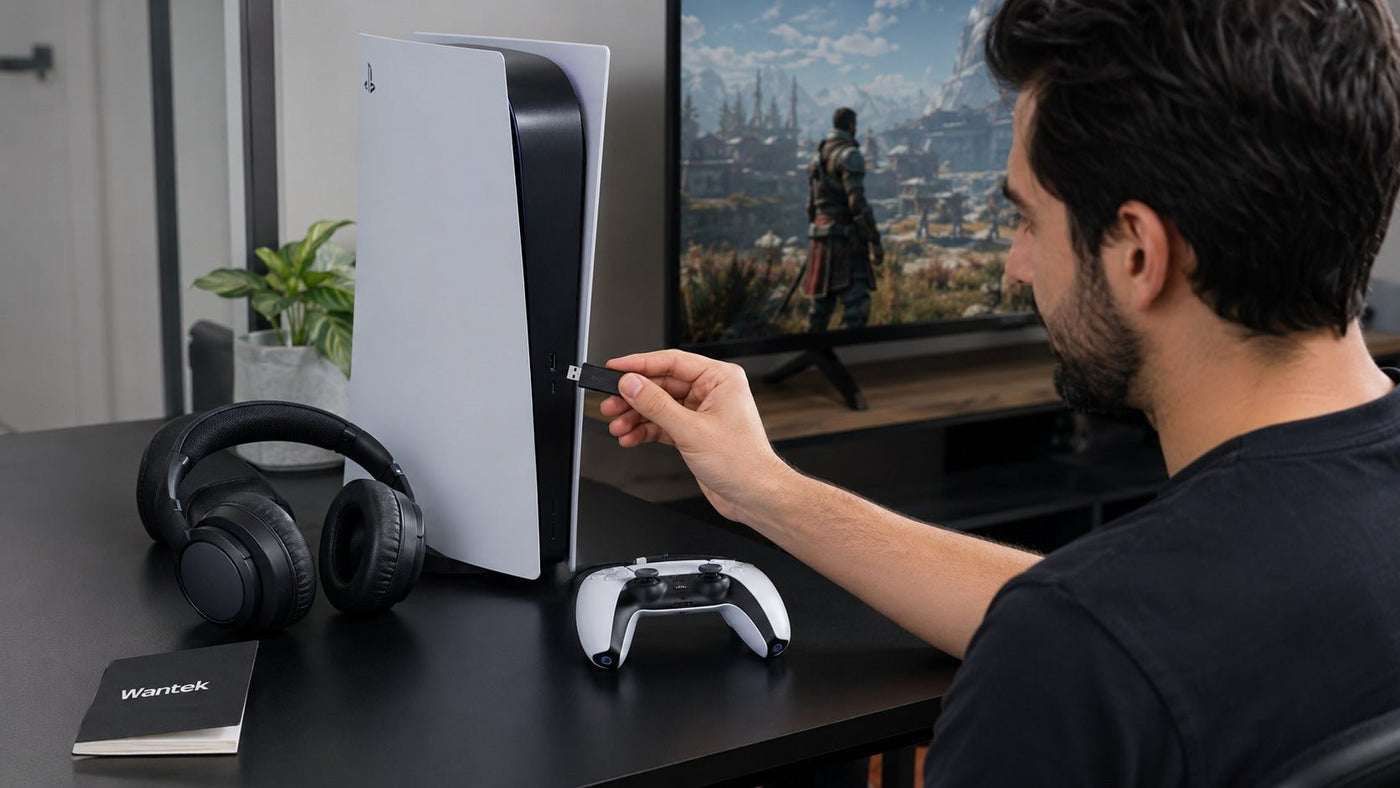
While the Sony PlayStation 5 does not support direct Bluetooth audio pairing with standard consumer headphones such as AirPods, Bose QuietComfort models, or Sony WH-1000XM5 headphones, you still have several practical ways to use wireless audio. Sony's own support documentation confirms that Bluetooth audio devices are not compatible with PS5 consoles.
The most practical workaround is usually a PS5-compatible USB Bluetooth audio transmitter, which acts as a bridge between the console and your headphones. Other options include a Bluetooth-enabled TV or monitor, a PlayStation-compatible wireless gaming headset, the DualSense controller's 3.5 mm jack, or PS Remote Play.
Quick setup: Connect a USB Bluetooth audio transmitter that explicitly supports PS5, put the transmitter and your headphones into pairing mode, and pair the headphones with the transmitter. On the console, go to Settings > Sound > Audio Output and select the USB audio device if it is not selected automatically. Test game sound and voice chat separately.
No USB transmitter? A TV or monitor with Bluetooth audio output may send PS5 sound to your headphones. You can also use a supported wired headset through the DualSense controller or listen through PS Remote Play on another device.
The PS5 Bluetooth Conundrum
The PS5 includes Bluetooth functionality for supported accessories, but standard Bluetooth headphones are not supported as native audio-output devices. Putting ordinary Bluetooth headphones into pairing mode therefore does not establish a direct PS5 game-audio connection.
That limitation affects popular consumer headphones and earbuds, including Apple AirPods, Bose QuietComfort headphones, and Sony WH-1000XM5 models. To use them for PS5 audio, you need an intermediary connection such as a compatible audio transmitter or another device that can receive the PS5's audio signal.
Understanding the difference between Bluetooth profiles, wireless gaming connections, and PS5 audio processing makes choosing the right solution much easier.

Understanding the PS5 Audio Architecture: Why Direct Pairing Fails?
Bluetooth audio depends on standardized profiles that define what connected devices can do. The A2DP (Advanced Audio Distribution Profile), for example, defines requirements for high-quality Bluetooth audio distribution between compatible devices.
The important distinction is that having Bluetooth hardware does not automatically mean a device supports every Bluetooth profile. The PS5 supports Bluetooth connectivity for compatible peripherals but does not provide standard Bluetooth headphone audio output.
Several technical considerations matter when evaluating workarounds:
-
Bluetooth Latency: Bluetooth audio requires encoding, transmission, buffering, and decoding. Total delay varies considerably by transmitter, codec, headphones, firmware, and operating mode. For gaming, particularly rhythm games and competitive titles, lower latency is generally preferable.
-
Tempest 3D AudioTech: PS5 spatial audio is processed by the console rather than requiring a proprietary Bluetooth codec. Sony confirms that Tempest 3D AudioTech works with compatible headphones connected through USB or the DualSense controller's 3.5mm jack.
-
Microphone and Audio Profiles: Two-way Bluetooth voice communication can use different operating modes from high-quality stereo playback. Depending on the transmitter and headphones, enabling microphone input may reduce audio quality or may not be supported at all.
Dedicated PlayStation wireless headsets avoid ordinary Bluetooth audio pairing by using their own wireless connection. The PULSE 3D Wireless Headset, for example, uses its included USB wireless adapter. Newer products such as PULSE Elite and PULSE Explore use PlayStation Link when connected to PS5.

Method 1: The USB Bluetooth Audio Adapter
If you already own Bluetooth headphones, a PS5-compatible USB Bluetooth audio transmitter is usually the simplest way to reuse them for game audio.
The key is choosing an audio transmitter, not simply a generic Bluetooth USB adapter intended to add Bluetooth functionality to a PC.
Step-by-Step Implementation Guide:
-
Select a Compatible Audio Transmitter:
- Look for a USB Bluetooth audio transmitter that explicitly lists PS5 compatibility.
- Check whether it supports audio output only or both audio and microphone communication.
- Confirm that the transmitter and your headphones share compatible Bluetooth codecs if latency or audio quality is important.
-
Connect the Transmitter:
- Insert the transmitter into a supported PS5 USB port.
- Follow the transmitter manufacturer's setup instructions.
-
Check the PS5 Audio Output:
- Navigate to Settings > Sound > Audio Output.
- Under Output Device, select the connected USB audio device if the PS5 does not switch automatically.
-
Put Your Headphones Into Pairing Mode:
- Follow the headphone manufacturer's instructions. Pairing controls vary by model.
-
Pair the Headphones With the Transmitter:
- Activate pairing mode on the transmitter.
- The headphones pair with the transmitter, not directly with the PS5.
-
Confirm Audio and Chat Behavior:
- Test game audio.
- If you need voice chat, verify whether the transmitter supports microphone input. If it does not, you can use another supported microphone input, such as the DualSense controller microphone.
For an AirPods-specific walkthrough, see how to connect AirPods to PS5.
Low-Latency Considerations
Do not assume that a transmitter advertising a particular low-latency codec will automatically provide that codec with every pair of headphones.
The transmitter and headphones must both support the same codec. If they do not, the connection falls back to another mutually supported option. End-to-end latency therefore depends on the complete audio chain rather than the transmitter alone.
For competitive gaming, a dedicated gaming headset using a purpose-built USB wireless connection or a wired headset is often the more predictable option.
Alternative: Use a 3.5 mm Bluetooth Transmitter With the DualSense
A battery-powered Bluetooth audio transmitter with a compatible 3.5 mm input can receive sound from the DualSense controller's headset jack. This route does not require the PS5 to recognize a USB audio transmitter, but you still need external transmitter hardware.
- Connect the transmitter to the DualSense controller's 3.5 mm headset jack.
- Switch the transmitter to its audio-transmit mode and put your headphones into pairing mode.
- Pair the headphones with the transmitter, following the manufacturer's instructions.
- On PS5, open Settings > Sound > Audio Output and select the controller headset output when needed.
- Check game audio first, then test voice chat separately. A one-way transmitter will not send your headphone microphone audio back to PS5.
Method 2: Native Integration with Sony PULSE 3D and PULSE Elite
Sony's first-party wireless headsets avoid standard Bluetooth audio pairing on PS5, but PULSE 3D and PULSE Elite use different wireless systems.
PULSE 3D Wireless Headset
- Connection: Uses its included USB wireless adapter for wireless PS5 audio.
- 3D Audio: Works with PS5's Tempest 3D AudioTech.
- Alternative Connection: Can also use a compatible 3.5mm wired connection.
- Bluetooth: It is not a PlayStation Link headset and should not be treated as a standard Bluetooth headset for PS5.
PULSE Elite Wireless Headset
PULSE Elite uses PlayStation Link with its USB adapter for PS5 connectivity. It also supports Bluetooth connections to compatible mobile devices. Sony documents simultaneous PlayStation Link and Bluetooth audio as part of the newer PULSE Elite and PlayStation Link audio system.
This allows PULSE Elite to remain connected to a PS5 through PlayStation Link while also receiving Bluetooth audio from a compatible phone or tablet.
Setup Procedure:
- Plug the appropriate wireless USB adapter into the PS5.
- Turn on the headset.
- Go to Settings > Sound > Audio Output and confirm the headset is selected.
- Configure 3D Audio for Headphones in the PS5 sound settings according to your preference.
Method 3: Advanced Connectivity with PULSE Explore Earbuds
PULSE Explore wireless earbuds use PlayStation Link for PS5 audio rather than standard Bluetooth pairing with the console.
Key characteristics include:
- PlayStation Link: Provides the primary wireless connection to PS5 through a compatible PlayStation Link USB adapter.
- Bluetooth Connectivity: Bluetooth can be used with compatible secondary devices such as smartphones.
- Dual-Device Use: PlayStation Link and Bluetooth connections can be used together in supported configurations.
- Microphone Processing: The earbuds include microphone noise-rejection technology designed for voice communication.
The distinction matters: although PULSE Explore includes Bluetooth capability, its PS5 audio connection uses PlayStation Link, not ordinary Bluetooth audio pairing.
Method 4: Connect Through a Bluetooth TV or Monitor
If your TV or monitor supports transmitting audio to Bluetooth headphones, you can pair the headphones with the display instead of the PS5. The audio travels from PS5 to the display over HDMI, then to your headphones over Bluetooth.
- Keep the PS5 connected to your TV or monitor through HDMI.
- Open the display's sound or Bluetooth audio-output settings. Confirm that it supports Bluetooth headphone output, not just Bluetooth input or a remote control.
- Put your headphones into pairing mode and select them from the display's available audio devices.
- Check that PS5 audio is being sent through HDMI, then launch a game and test for sound delay.
This method generally sends playback audio only. The TV's Bluetooth connection does not establish your headphones as a PS5 voice-chat microphone. Use a separate PS5-compatible microphone when necessary. Display processing and Bluetooth latency can also make this path less suitable for timing-sensitive games.
Method 5: PS Remote Play
If you do not want to add a USB audio transmitter to the console, PS Remote Play provides another route. Instead of connecting your Bluetooth headphones to the PS5, you connect them to the computer or mobile device receiving the Remote Play stream.
Remote Play Setup
- Device Setup: Install PS Remote Play on a supported PC, Mac, smartphone, or tablet.
- Headphone Pairing: Pair your Bluetooth headphones with that secondary device.
- Controller Connection: Connect a compatible controller according to the Remote Play platform's supported methods.
- Audio Routing: The PS5 streams the game to the secondary device, which outputs audio to your Bluetooth headphones.
Network Considerations
Remote Play adds network transmission to the audio and video path, so performance depends on connection quality. PlayStation lists 5 Mbps upload and download as the standard recommendation and at least 15 Mbps for best performance in its PS Remote Play requirements.
Because network conditions can introduce additional latency, Remote Play is less attractive when the lowest possible response time is the priority.
Method 6: Connect Wired Headphones to the DualSense Controller
If your headphones support a compatible 3.5 mm cable, connect them to the DualSense controller's headset jack. This is a wired alternative, not Bluetooth pairing.
- Plug your headphones or compatible 3.5 mm headset into the controller.
- Open Settings > Sound > Audio Output and choose the controller headset if necessary.
- Set Output to Headphones to the audio you want to hear, then test a game.
- For voice chat, check Settings > Sound > Microphone and select a recognized microphone. A headphone-only cable does not guarantee microphone support.

Headphone Compatibility Matrix
The connection method matters more than whether a headset is simply marketed as "wireless."
| Headphone Type | Connection Type | PS5 Compatibility | Latency Profile | In-Game Chat Support |
|---|---|---|---|---|
| Consumer Bluetooth headphones and earbuds | Bluetooth through compatible external transmitter | Requires intermediary hardware | Varies by transmitter, codec, and headphones | Depends on transmitter |
| PS5-compatible wireless gaming headsets | Dedicated USB wireless adapter | Native when designed for PS5 | Typically optimized for gaming | Usually supported when headset includes compatible mic |
| PULSE 3D | Included USB wireless adapter | Native | Gaming-focused wireless connection | Supported |
| PULSE Elite / PULSE Explore | PlayStation Link USB adapter | Native | Gaming-focused PlayStation Link connection | Supported |
| Headphones paired with a Bluetooth TV or monitor | PS5 HDMI audio through display, then display Bluetooth output | Depends on display Bluetooth audio-output support | Varies with display processing and Bluetooth connection | Requires a separate compatible PS5 microphone |
| Wired 3.5mm headphones | DualSense controller headset jack | Native | Avoids Bluetooth transmission latency | Supported when headset and microphone wiring are compatible |
Exact latency should not be inferred solely from the connection label. Wireless implementation, buffering, processing, and device configuration all affect the final result.
Optimizing the PS5 Audio Settings
Once your headset, wireless adapter, or Bluetooth transmitter is connected, confirm that the PS5 is routing audio correctly.
-
Primary Audio Output: Go to Settings > Sound > Audio Output.
- Select the appropriate device under Output Device.
- Check Output to Headphones if you want game audio routed through the headset.
-
Mic Input Configuration: Go to Settings > Sound > Microphone.
- Select your headset microphone when the connected device supports microphone input.
- If your Bluetooth transmitter supports audio output only, use another available PS5-compatible microphone input.
-
3D Audio:
- Configure 3D Audio for Headphones in the PS5 sound settings.
- The PS5 handles spatial-audio processing, so supported 3D Audio is not limited to Sony-branded headphones.
-
Audio Format:
- Follow the connected adapter or audio device manufacturer's recommendations if it requires a specific PS5 output format.
- Avoid assuming that one format is universally optimal for every USB transmitter or audio system.
Troubleshooting PS5 Bluetooth Connection Issues
Bluetooth transmitters introduce an additional device into the audio chain, so troubleshooting should isolate each part of the connection.
Audio Lag
If sound arrives noticeably after the on-screen action:
- Confirm that the transmitter and headphones are using a mutually supported codec.
- Check whether the transmitter has a gaming or low-latency operating mode.
- Disconnect and re-pair the headphones.
- Compare the result with a wired connection to determine whether Bluetooth transmission is the source of the delay.
Connection Drops
If audio cuts out:
- Keep the transmitter and headphones within their recommended operating range.
- Try another supported USB port if the adapter manufacturer permits it.
- Avoid unnecessary USB hubs.
- Reduce nearby wireless interference where practical.
- Re-pair the devices.
No Audio Output
If the headphones connect but remain silent:
- Go to Settings > Sound > Audio Output and confirm the correct output device.
- Restart the transmitter and headphones.
- Disconnect and reconnect the USB transmitter.
- Verify that the adapter is designed to transmit USB audio from PS5 rather than acting only as a general-purpose Bluetooth receiver or PC adapter.
Microphone Not Working
Many Bluetooth audio transmitters are designed primarily for playback.
If your adapter does not support microphone input:
- Use the DualSense controller microphone.
- Use a compatible USB microphone.
- Switch to a gaming headset with supported two-way audio.
- Use a wired headset connected to the DualSense controller.
Prefer a Simpler PS5 Headset Setup?
Compare gaming headsets by platform and connection type, then choose a wired or dedicated wireless path that matches your PS5 setup.
The Wired vs. Wireless Audio Debate
The best PS5 audio connection depends on whether you prioritize mobility, simplicity, chat support, or minimum latency.
| Feature | Bluetooth via Transmitter | Wired 3.5mm to DualSense |
|---|---|---|
| Latency | Variable | Avoids Bluetooth transmission delay |
| Audio Transport | Bluetooth codec-based wireless transmission | Analog headset connection through controller |
| Power | Headphones require their own battery | Headphones usually require no wireless battery |
| Mobility | Wireless | Tethered to controller |
| 3D Audio Support | Available when PS5 audio is routed through a compatible setup | Supported through compatible headphones |
| Microphone Support | Adapter-dependent | Available with compatible headset/mic wiring |
Bluetooth is convenient when you want to reuse consumer headphones you already own. A dedicated gaming wireless system is usually better when wireless freedom, voice chat, and predictable gaming performance all matter. Wired connections remain a simple option when minimizing wireless complexity is the priority.
Frequently Asked Questions (FAQ)
Q1: How do I pair Bluetooth headphones with PS5 if I have Apple AirPods?
You cannot use AirPods as a standard Bluetooth audio device connected directly to the PS5. Instead, pair the AirPods with a PS5-compatible Bluetooth audio transmitter connected to the console or another supported audio source.
Follow the pairing procedure for your specific AirPods model because pairing controls vary between generations.
Microphone support depends on the transmitter. Do not assume that an adapter capable of sending game audio to AirPods will also carry the AirPods microphone back to the PS5.
Q2: Does the PS5 support LDAC for Sony wireless headphones?
The PS5 does not provide standard Bluetooth headphone audio output, so it does not natively establish an LDAC connection with Bluetooth headphones such as Sony's consumer wireless models.
If you use an external Bluetooth transmitter, available codecs depend on both the transmitter and the headphones. The two devices must share a supported codec.
Q3: What causes choppy or hollow audio when using a Bluetooth dongle?
Potential causes include wireless interference, unstable pairing, limited range, transmitter configuration, codec changes, or an adapter that switches operating modes when microphone communication is enabled.
Re-pair the devices, test the transmitter closer to the headphones, check its documented operating mode, and confirm the PS5 is using the correct audio output device.
Q4: Are there any Bluetooth headphones that work directly without a dongle?
Standard Bluetooth headphones do not connect directly to PS5 as native Bluetooth audio devices.
Some PlayStation-focused wireless products connect through proprietary or dedicated wireless technologies instead. PULSE Elite and PULSE Explore, for example, use PlayStation Link with a USB adapter for PS5 audio. Their Bluetooth capability is used for compatible Bluetooth devices rather than direct Bluetooth audio pairing with PS5.
Q5: Can Bluetooth headphones provide completely lag-free PS5 gaming?
No wireless audio system should be described as literally zero-latency.
Bluetooth latency varies according to the transmitter, codec, headphones, buffering, and processing. If latency is a critical consideration, compare a PS5-compatible dedicated wireless gaming headset or wired headset against the Bluetooth setup you are considering.
Q6: Will a future PS5 firmware update enable native Bluetooth audio support?
Sony could change PS5 system capabilities through future software updates, but current PS5 support documentation does not list standard Bluetooth audio headphones as compatible native audio devices.
For current setups, choose hardware based on existing PS5 compatibility rather than relying on a possible future feature.
Q7: How can I connect Bluetooth headphones to PS5 without buying a USB adapter?
If your TV or monitor supports Bluetooth headphone output, pair your headphones with the display while the PS5 sends sound over HDMI. Alternatively, pair them with a device running PS Remote Play; neither method gives the PS5 native Bluetooth headphone pairing.
Choose the Right PS5 Audio Path
Choosing a PS5 headphone setup is primarily a connection decision.
- For Existing Bluetooth Headphone Owners: Use a PS5-compatible Bluetooth audio transmitter and confirm that its codec and microphone capabilities match your headphones and gaming needs.
- For Competitive or Chat-Focused Gaming: Consider a PS5-compatible gaming headset with a dedicated USB wireless connection or use a wired headset through the DualSense controller.
- For First-Party Integration: PULSE 3D provides wireless PS5 connectivity through its included adapter, while PULSE Elite and PULSE Explore use the newer PlayStation Link system.
- For Multi-Device Users: PULSE Elite and PULSE Explore can combine a PlayStation Link connection with Bluetooth connectivity to compatible secondary devices.
Ultimately, connecting Bluetooth headphones to the PS5 requires choosing the right intermediary connection rather than trying to pair ordinary Bluetooth headphones directly with the console. A compatible USB audio transmitter is often the simplest way to reuse existing Bluetooth headphones, while dedicated gaming wireless and wired connections are better suited to users who prioritize predictable latency and voice-chat support.

