
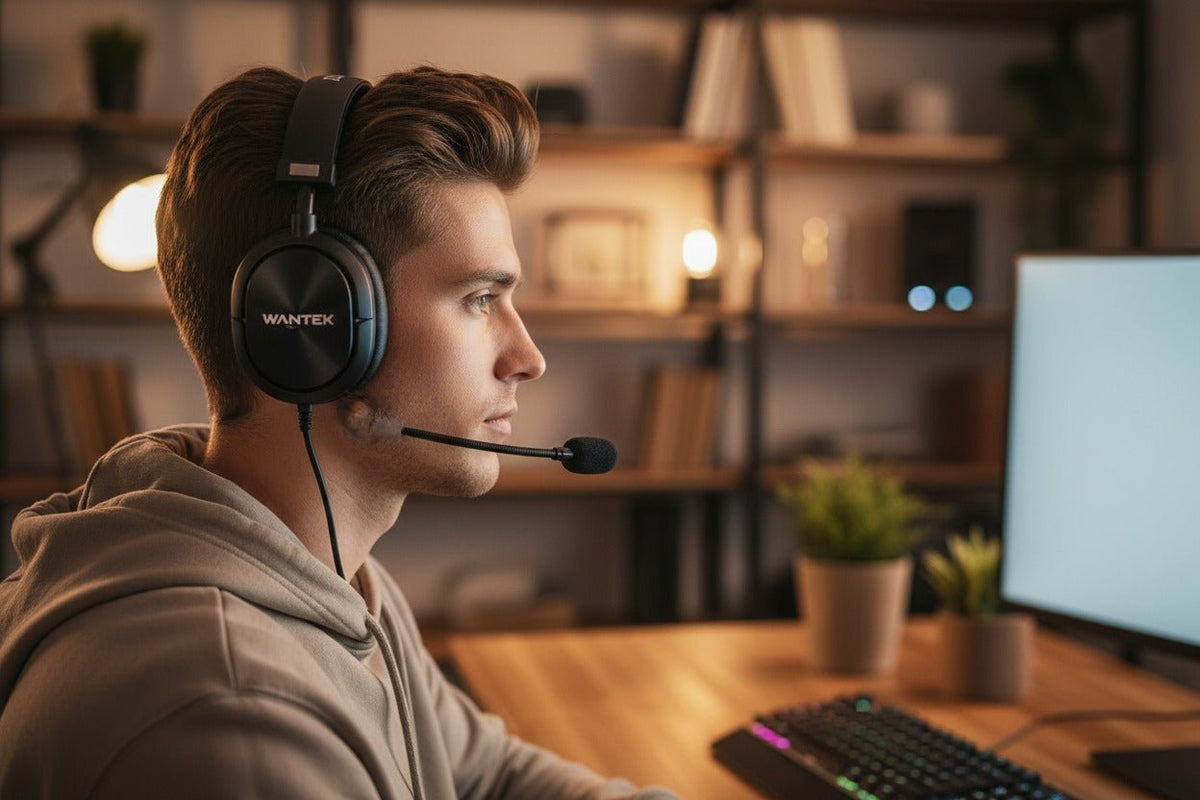
A headset microphone setup works best when you check the audio path in order: make the correct physical connection, select the headset as the input device, confirm microphone permission, set a usable input level, then test the same microphone inside the app you actually use.
Quick setup: connect the headset, unmute the microphone, choose it as your system input, speak at your normal call volume, adjust the input level so your voice is clear without obvious distortion, and make a short recording before changing any advanced processing.

Start with the headset connection
The connector determines how the microphone signal reaches your device. Before changing software settings, confirm that the headset and host device are meant to work through the connection you are using.
| Connection | What to verify | Common setup issue |
|---|---|---|
| 3.5 mm | Whether the host jack supports both headphone output and microphone input, and whether any splitter or adapter matches the required wiring | Headphones work but the microphone does not because the plug, jack, splitter, or adapter does not carry the expected mic contact |
| USB-A or USB-C | Whether the headset appears as an input device as well as an output device | The computer selects another microphone, or a hub, adapter, dock, or port complicates the signal path |
| Bluetooth or wireless | Whether the headset is connected through the intended wireless method and exposes a microphone input to the operating system | The headset is connected for playback, but the wrong input device or wireless audio mode is active |
If you are still choosing between a digital USB connection and an analog headset jack, see Wantek's USB vs. 3.5 mm headset comparison. It explains why the connector alone does not determine microphone quality.

Set up and test the headset microphone in Windows
On current Windows systems, start in Settings > System > Sound. Under Input, select the headset microphone you want to use. Windows provides a microphone test on the device properties page so you can record a short sample, play it back, and adjust the input volume if needed.
Check mute and connection
Make sure the headset is fully connected and that any physical or inline microphone mute control is off.
Select the headset microphone
Open Sound settings and choose the intended headset under Input rather than assuming Windows switched away from a laptop, webcam, display, dock, or other microphone.
Run the built-in test
Open the microphone properties, start the test, speak normally, stop the test, and listen to the recorded sample. Adjust input volume if the recording is consistently too quiet or audibly distorted.
Check microphone permissions
If an app cannot hear the microphone, open Settings > Privacy & security > Microphone and confirm microphone access and the relevant app permissions are enabled.
Microsoft documents both the Windows microphone test and the microphone permission controls. Use those system checks before reinstalling drivers or changing several settings at once.
Set up and test the headset microphone on Mac
On macOS, open Apple menu > System Settings > Sound, choose Input, then select the headset or external microphone you want to use. Apple also provides an input volume control and input level meter on supported configurations.
- Select the intended headset under Sound > Input.
- Speak at the volume and distance you normally use for calls or recording.
- Adjust input volume if the signal is consistently too low or too high.
- If an app cannot use the mic, open Privacy & Security > Microphone and confirm that app has permission.
Apple's current guidance covers both sound input selection and level adjustment and microphone access by app.
Set the microphone position before adding processing
A boom microphone should sit close enough to capture your voice consistently without sitting directly in the path of your breath. Start slightly to the side of your mouth rather than directly in front of it, then make a short recording and listen for plosive bursts, breathing noise, rubbing against clothing, or large level changes when you turn your head.
Do not chase a universal microphone distance or input percentage. Headsets differ in microphone sensitivity, boom length, processing, connection path, and software controls. The useful setting is the one that produces a clear test recording in your actual workstation without obvious clipping or an unnecessarily high noise floor.
Change one variable at a time. If you move the mic, change input gain, enable noise suppression, and switch ports at the same time, you will not know which change helped or caused a new problem.
Choose the same microphone inside your calling or recording app
A successful operating-system test proves that the system can receive the microphone. It does not prove that Zoom, Teams, Discord, a browser, a game, or recording software is using that same input.
Open the app's audio settings and select the same headset microphone you already tested at the system level. Then use the app's own test or a short real recording. This separates a system-level microphone problem from an app-level routing problem.
If the microphone works in Windows or macOS but fails in only one app, focus on that app's device selection, permission, mute state, and processing. If the operating system receives no microphone input at all, return to the physical connection, microphone permission, device recognition, and hardware path. Wantek's headset microphone troubleshooting guide follows this same signal-path approach.
Use noise suppression and other processing only when it solves a real problem

Noise suppression, echo reduction, automatic gain control, gates, compression, and other processing can be useful, but they are not substitutes for a correct connection and a clean input signal. Start with processing disabled or minimal where practical, listen to a short recording, then enable only the feature that addresses a specific problem.
- Background fan or HVAC noise: try noise suppression and compare the processed recording with the unprocessed one.
- Room echo: first reduce the microphone's distance from your mouth when the headset design allows it, then consider software echo or voice-isolation features supported by the app or operating system.
- Large changes between quiet and loud speech: adjust input level first; compression or automatic gain control can be a secondary tool when the application provides it.
- Keyboard or handling noise: check microphone placement and physical transmission before relying on aggressive processing.
Heavy processing can also create artifacts, clip word beginnings, or make the voice sound unnatural. Compare recordings instead of assuming that more processing means better clarity.
What to do when the microphone is too quiet, noisy, or not detected
| Symptom | Check next | Why |
|---|---|---|
| No microphone listed | Connection, port, wireless pairing, adapter path, and device recognition | The operating system has not exposed the expected input device |
| System test works, one app fails | App input selection, app permission, and in-app mute | The hardware and system input path are already functioning |
| Headphones work, mic does not | Mic mute, selected input, 3.5 mm jack type, splitter or adapter, or microphone endpoint | Playback and microphone signals can fail independently |
| Voice is too quiet | Mic position and system input volume | A weak source signal should be corrected before adding aggressive software gain |
| Voice breaks up or sounds distorted | Input level, connection stability, and processing chain | Too much level or processing can degrade the captured signal |
A practical headset microphone setup sequence
- Confirm the headset connection matches the host device.
- Unmute the microphone and seat the connector fully.
- Select the headset as the operating system's input device.
- Confirm microphone permission for the app you plan to use.
- Make a short system-level test recording.
- Adjust microphone position and input volume based on what you hear.
- Select the same input inside your calling, gaming, streaming, or recording app.
- Add noise suppression or other processing only if the test recording shows a problem it can address.
- Make one final recording in the room and posture you normally use.
If you are setting up a USB headset specifically for work calls, the Wantek USB headset with microphone guide covers connection, wearing style, controls, and compatibility checks before you choose a model.
Headset microphone setup FAQ
Why does my headset play sound but the microphone does not work?
Playback only proves the headphone path works. Check mic mute, the selected input device, microphone permissions, and whether a 3.5 mm jack, splitter, adapter, USB path, or wireless connection supports the microphone.
What microphone input level should I use?
There is no universal percentage. Speak normally, make a short recording, and adjust the input level until your voice is clear and consistent without obvious distortion or unnecessary background noise.
Should I enable noise suppression?
Enable it when a recording shows a background-noise problem it improves. Compare processed and unprocessed audio, because strong suppression can also introduce artifacts or make speech sound less natural.
Do I need special software for a headset microphone?
Not for basic setup. Windows and macOS can select and test microphone input. Manufacturer or third-party software is optional when you need device-specific controls or additional processing.
Need a headset that fits your device and connection?
Start with the device you use, the connection it supports, and whether microphone performance, mobility, or wearing style matters most.

