
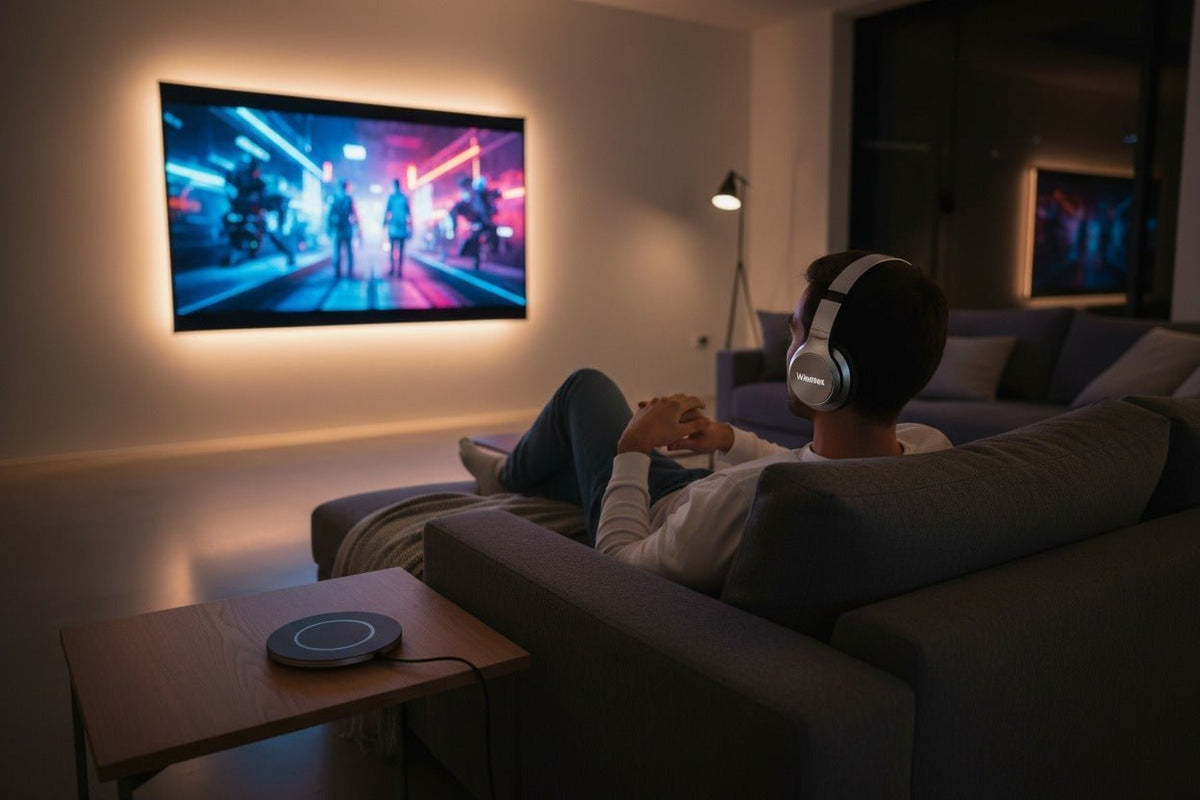
Um Bluetooth-Kopfhörer mit einem Roku-TV zu verbinden, prüfen Sie zunächst, ob Ihr spezifisches Roku-Gerät den Bluetooth-Kopfhörermodus unterstützt. Navigieren Sie bei unterstützten Geräten zu Einstellungen → Fernbedienungen & Geräte → Drahtlose Kopfhörer → Neue drahtlose Kopfhörer hinzufügen, versetzen Sie die Kopfhörer in den Kopplungsmodus und wählen Sie sie aus, sobald sie angezeigt werden.
Wenn Sie den Punkt „Drahtlose Kopfhörer“ nicht sehen, gehen Sie nicht davon aus, dass der Fernseher zu alt oder zu neu ist. Der Roku-Support variiert je nach genauem Modell des Fernsehers oder Streaming-Players. Es gibt jedoch noch weitere Optionen, darunter der Kopfhörermodus über die Roku-Mobil-App, eine kompatible Roku-Sprachfernbedienung mit Kopfhöreranschluss oder ein externer Transmitter, der an einen Audioausgang des Fernsehers angeschlossen wird.

Wählen Sie zuerst die richtige Roku-Kopfhörermethode
Der wichtige Unterschied besteht darin, ob Ihr Roku-Gerät Audio direkt an Bluetooth-Kopfhörer senden kann. Dass Bluetooth-Hardware für einen anderen Zweck verwendet wird, bedeutet nicht automatisch, dass eine Bluetooth-Kopfhörerausgabe verfügbar ist.
| Ihre Einrichtung | Beste Startmethode | Was zu prüfen ist |
|---|---|---|
| „Drahtlose Kopfhörer“ erscheint in den Roku-Einstellungen | Bluetooth-Kopfhörer direkt koppeln | Ihre Kopfhörer sind im Kopplungsmodus und für das Roku-Gerät sichtbar |
| Kein direkter Bluetooth-Kopfhörermodus | Roku-Mobil-App verwenden, falls Ihr Gerät den mobilen Kopfhörermodus unterstützt | Telefon/Tablet und Roku befinden sich im selben WLAN-Netzwerk |
| Kompatible Roku-Sprachfernbedienung mit Kopfhörerbuchse vorhanden | Kabelgebundene Kopfhörer über die Fernbedienung nutzen | Das Fernbedienungsmodell verfügt tatsächlich über die 3,5-mm-Kopfhörerbuchse |
| Sie wünschen eine dedizierte TV-Kopfhörerverbindung | Externen Transmitter oder dediziertes TV-Kopfhörersystem verwenden | Der TV-Ausgang passt zum Transmitter- oder Basiseingang |
Die aktuelle Support-Dokumentation von Roku erklärt, welche Geräte den direkten Bluetooth-Kopfhörermodus unterstützen, und weist darauf hin, dass das Menü Drahtlose Kopfhörer nur auf kompatiblen Roku-Geräten erscheint. Überprüfen Sie die aktuelle Liste, wenn Sie sich bei einem bestimmten Modell nicht sicher sind: Roku Bluetooth-Kopfhörermodus-Support.
Methode 1: Bluetooth-Kopfhörer direkt mit einem kompatiblen Roku-Gerät koppeln
Wenn Ihr Roku-Gerät den direkten Bluetooth-Kopfhörermodus unterstützt, ist dies die schnellste Einrichtung, da sich die Kopfhörer direkt mit dem Roku-Gerät verbinden und nicht mit Ihrem Telefon.
Roku-Einstellungen öffnen
Drücken Sie auf der Roku-Fernbedienung die Home-Taste und öffnen Sie dann Einstellungen.
Drahtlose Kopfhörer öffnen
Gehen Sie zu Fernbedienungen & Geräte → Drahtlose Kopfhörer.
Neue Kopplung starten
Wählen Sie Neue drahtlose Kopfhörer hinzufügen. Laut Roku kann der Suchvorgang bis zu 30 Sekunden dauern.
Kopfhörer in den Kopplungsmodus versetzen
Verwenden Sie das Kopplungsverfahren, das für Ihr spezifisches Kopfhörermodell dokumentiert ist. Das bloße Einschalten der Kopfhörer könnte dazu führen, dass sie sich wieder mit einem Telefon verbinden, anstatt sie erkennbar zu machen.
Kopfhörer auswählen
Wählen Sie Ihre Kopfhörer aus der Liste der verfügbaren Geräte aus. Nach der Kopplung verbleiben sie in der Liste der gekoppelten Geräte des Roku-Geräts für eine spätere erneute Verbindung.
Die Menünamen sind entscheidend: Die aktuellen Roku-Anleitungen verwenden Drahtlose Kopfhörer und Neue drahtlose Kopfhörer hinzufügen. Ein allgemeines „Bluetooth“-Menü ist kein zuverlässiger Kompatibilitätstest für die Kopfhörerausgabe.
Spätere Verbindung herstellen oder trennen
Gehen Sie zurück zu Einstellungen → Fernbedienungen & Geräte → Drahtlose Kopfhörer, wählen Sie die gekoppelten Kopfhörer aus und wählen Sie Verbinden oder Trennen. Kompatible Roku-Geräte bieten möglicherweise auch eine automatische Erkennungsoption für die erneute Verbindung.
Methode 2: Bluetooth-Kopfhörer über die Roku-Mobil-App verwenden
Der mobile Kopfhörermodus sendet Roku-Audio an die Roku-App auf Ihrem Telefon oder Tablet. Ihre Bluetooth-Kopfhörer verbinden sich mit dem Mobilgerät, nicht direkt mit dem Fernseher.
- Installieren oder aktualisieren Sie die Roku-Mobil-App.
- Verbinden Sie Ihr Telefon oder Tablet und Ihr Roku-Gerät mit demselben WLAN-Netzwerk.
- Koppeln und verbinden Sie Ihre Bluetooth-Kopfhörer mit dem Telefon oder Tablet.
- Öffnen Sie die Roku-App und verbinden Sie sie mit dem entsprechenden Roku-Gerät.
- Tippen Sie auf Fernbedienung und dann auf das Kopfhörer-Symbol, um den Kopfhörermodus zu aktivieren.
Wenn der mobile Kopfhörermodus aktiv ist, wird das Audio an das Mobilgerät statt an die TV-Lautsprecher geleitet. Roku unterstützt derzeit bis zu vier Mobilgeräte gleichzeitig für den Kopfhörermodus bei unterstützten Konfigurationen. Siehe Roku-Anleitung für den mobilen Kopfhörermodus für aktuelle Anforderungen und Einschränkungen.
Dies ist keine universelle Lösung für jedes Roku-Gerät. Wenn das Kopfhörersymbol nicht erscheint, vergewissern Sie sich, dass die App aktuell ist, sich Telefon und Roku im selben Netzwerk befinden und das Roku-Gerät den mobilen Kopfhörermodus unterstützt.
Methode 3: Roku-Sprachfernbedienung mit Kopfhöreranschluss verwenden
Einige Roku-Sprachfernbedienungen verfügen über eine integrierte 3,5-mm-Kopfhörerbuchse. Dies ist keine Bluetooth-Verbindung, aber oft die einfachste Option für privates Hören, wenn Sie bereits eine kompatible Fernbedienung besitzen.
- Schließen Sie kabelgebundene Kopfhörer an die Kopfhörerbuchse der Fernbedienung an.
- Verringern Sie die Lautstärke, bevor Sie die Kopfhörer aufsetzen.
- Starten Sie die Wiedergabe und passen Sie die Lautstärke mit der Roku-Fernbedienung an.
- Trennen Sie die Kopfhörer, wenn der Ton wieder über die TV-Lautsprecher ausgegeben werden soll.
Roku dokumentiert dies separat, da der Kopfhörermodus über die Fernbedienung und die Mobil-App unterschiedliche Einschränkungen aufweist. Siehe Roku-Anleitung für den Kopfhörermodus via Sprachfernbedienung.
Methode 4: Einen externen Bluetooth-Transmitter verwenden

Ein externer Bluetooth-Transmitter kann einen drahtlosen Kopfhörerpfad hinzufügen, wenn Ihr Fernseher keine direkte Bluetooth-Kopfhörerausgabe unterstützt. Entscheidend ist der physische Audioausgang des Fernsehers, nicht allein der Name des Roku-Modells.
- Identifizieren Sie den verfügbaren Audioausgang des Fernsehers, wie z. B. optisch/TOSLINK, 3,5-mm-Audioausgang oder Cinch-Audioausgang.
- Wählen Sie einen Transmitter, der genau diesen Anschluss unterstützt.
- Schließen Sie den Transmitter an und versorgen Sie ihn gemäß Handbuch mit Strom.
- Versetzen Sie sowohl den Transmitter als auch die Kopfhörer in ihre dokumentierten Kopplungsmodi.
- Wählen Sie den entsprechenden TV-Audioausgang, falls der Fernseher dies erfordert.
- Spielen Sie Videos ab und prüfen Sie Ton und Lippensynchronität.
Wenn Sie Hilfe bei der Identifizierung des korrekten TV-Ausgangs benötigen, bevor Sie Hardware kaufen, vergleichen Sie die dokumentierten Ausgänge des Fernsehers mit den dokumentierten Eingängen des Transmitters. Direkte Bluetooth-Verbindungen, externe Transmitter und dedizierte TV-Kopfhörersysteme nutzen unterschiedliche Audiowege.
Ändern Sie bei optischen Verbindungen nicht willkürlich das digitale Audioformat des Fernsehers. Einige Transmitter erfordern PCM oder ein anderes spezifisches Format, beachten Sie daher die Dokumentation für Fernseher und Transmitter.
Fehlerbehebung bei Roku Bluetooth-Kopfhörern
Das Menü „Drahtlose Kopfhörer“ fehlt
Wenn unter Einstellungen → Fernbedienungen & Geräte nicht Drahtlose Kopfhörer angezeigt wird, unterstützt das Roku-Gerät möglicherweise keinen direkten Bluetooth-Kopfhörermodus. Prüfen Sie die aktuelle Kompatibilitätsliste von Roku, anstatt das Alter des Fernsehers als Indikator zu verwenden.
Roku kann die Kopfhörer nicht finden
- Stellen Sie sicher, dass sich die Kopfhörer im dokumentierten Kopplungsmodus befinden und nicht nur eingeschaltet sind.
- Trennen Sie sie vorübergehend von Telefonen, Tablets oder Computern in der Nähe, die sich möglicherweise automatisch wieder verbinden.
- Bringen Sie die Kopfhörer während der Kopplung näher an das Roku-Gerät.
- Starten Sie beide Geräte neu und versuchen Sie die Kopplungssequenz erneut.
Wenn die Kopfhörer selbst ständig Schwierigkeiten haben, in den Kopplungsmodus zu gelangen oder sich geräteübergreifend falsch verbinden, nutzen Sie den Leitfaden zum Zurücksetzen und erneuten Koppeln von Bluetooth-Kopfhörern, bevor Sie ein Zurücksetzen auf Werkseinstellungen durchführen. Die Verfahren variieren je nach genauem Modell.
Kopfhörer sind verbunden, aber es kommt kein Ton
- Stellen Sie sicher, dass die Kopfhörer im Roku-Menü „Drahtlose Kopfhörer“ ausgewählt sind.
- Überprüfen Sie die Lautstärke von Roku und Kopfhörern.
- Wenn Sie die Mobil-App verwenden, verifizieren Sie, dass die App mit dem richtigen Roku-Gerät verbunden ist.
- Wenn Sie einen Transmitter verwenden, stellen Sie sicher, dass er an einen Audioausgang angeschlossen ist, nicht an einen Eingang.
Ton ist asynchron
Für den mobilen Kopfhörermodus empfiehlt Roku die Verwendung der neuesten Mobil-App und bietet in seiner Dokumentation zur Fehlerbehebung ein Verfahren zur Anpassung der Audioverzögerung an. Bei direkten Bluetooth- oder Transmitter-Konfigurationen sollten Sie den gesamten Signalpfad prüfen, anstatt davon auszugehen, dass eine neuere Bluetooth-Version eine niedrige Latenz garantiert.
Die aktuellen Schritte zur Fehlerbehebung von Roku finden Sie unter Beheben von Problemen mit dem Kopfhörermodus.
Können zwei Personen gleichzeitig zuhören?
Roku gibt an, dass für den Bluetooth-Kopfhörermodus nicht mehrere Kopfhörer direkt mit einem Roku-TV oder Player verbunden werden können. Bei unterstützten Setups kann die Roku-Mobil-App den Kopfhörermodus für bis zu vier Mobilgeräte gleichzeitig bereitstellen.
Was Sie vor dem Kauf prüfen sollten
- Genaue Roku-Modellnummer: prüfen Sie unter Einstellungen → System → Info.
- Support für direkten Kopfhörermodus: achten Sie auf Drahtlose Kopfhörer, nicht auf ein allgemeines Bluetooth-Label.
- Support für mobilen Kopfhörermodus: bestätigen Sie, dass die Roku-App die Kopfhörersteuerung für Ihr Gerät anzeigt.
- TV-Audioausgänge: identifizieren Sie optische, 3,5-mm-, Cinch- oder andere unterstützte Ausgänge, bevor Sie einen Transmitter oder ein TV-Kopfhörersystem auswählen.
- Kopplungsverfahren der Kopfhörer: nutzen Sie die Herstelleranleitung für Ihr genaues Modell, statt sich auf eine allgemeine Regel zum Halten einer Taste zu verlassen.
Bevorzugen Sie ein dediziertes TV-Hörsystem?
Das Wantek TV996WK umfasst einen Transmitter mit Ladestation sowie optische, 3,5-mm-AUX- und Cinch-Kabel. Vergleichen Sie diese Anschlüsse mit den Ausgängen Ihres Fernsehers, bevor Sie sich für dieses System entscheiden.
Häufig gestellte Fragen
Können sich alle Roku-TVs direkt mit Bluetooth-Kopfhörern verbinden?
Nein. Der direkte Bluetooth-Kopfhörermodus ist auf kompatible Roku-Geräte beschränkt. Suchen Sie nach Einstellungen → Fernbedienungen & Geräte → Drahtlose Kopfhörer und bestätigen Sie Ihr exaktes Modell in der aktuellen Support-Dokumentation von Roku.
Warum hat mein Roku-TV Bluetooth, aber kein Menü für drahtlose Kopfhörer?
Bluetooth kann verschiedene Funktionen unterstützen. Ein Roku-Gerät verwendet Bluetooth möglicherweise für Zubehör, ohne eine direkte Kopfhörerausgabe anzubieten. Das Menü „Drahtlose Kopfhörer“ ist der relevante Indikator für den direkten Kopfhörermodus.
Können sich Bluetooth-Ohrhörer direkt mit Roku verbinden?
Ja, auf kompatiblen Roku-Geräten. Roku gibt derzeit an, dass Bluetooth-Kopfhörer oder Ohrhörer, die Bluetooth 4.2 oder höher unterstützen, sich für den Kopfhörermodus mit einem kompatiblen Gerät verbinden können.
Kann ich über Bluetooth-Kopfhörer hören, ohne den Fernseher stummzuschalten?
Roku gibt an, dass die TV-Lautsprecher stummgeschaltet werden, wenn der mobile Kopfhörermodus aktiv ist. Anderes Verhalten bei gleichzeitiger Ausgabe hängt vom genauen Fernseher, dem Audiopfad und der externen Hardware ab.
Wie viele Personen können den Roku-Kopfhörermodus gleichzeitig nutzen?
Roku unterstützt derzeit bei unterstützten Setups bis zu vier Mobilgeräte gleichzeitig für den mobilen Kopfhörermodus. Der direkte Bluetooth-Kopfhörermodus kann nicht mehrere Kopfhörerpaare gleichzeitig verbinden.
Funktioniert ein Bluetooth-Transmitter mit jedem Roku-TV?
Nicht automatisch. Der Fernseher muss einen Audioausgang bereitstellen, der mit dem Eingang des Transmitters kompatibel ist. Überprüfen Sie die tatsächlichen Anschlüsse und das erforderliche Audioformat, bevor Sie einen Transmitter kaufen oder anschließen.

