
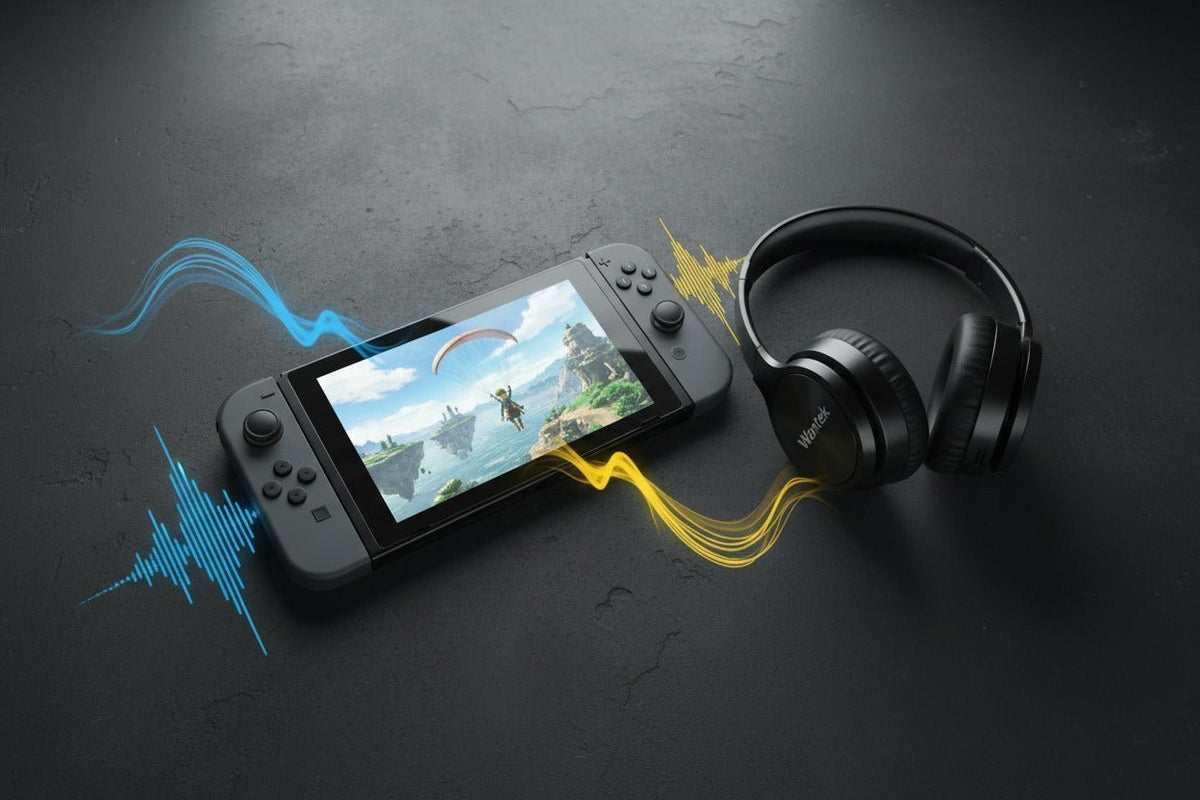
Yes—Nintendo Switch, Nintendo Switch Lite, and Nintendo Switch – OLED Model can connect directly to Bluetooth headphones for audio. You do not need a Bluetooth adapter for basic wireless listening, but the native connection has important limits: Bluetooth microphone input is not supported, only one Bluetooth audio device can be connected at a time, no more than two wireless controllers can be connected while Bluetooth audio is active, local wireless communication disconnects Bluetooth audio, and some devices may have noticeable delay.
Quick answer: Native Bluetooth is the simplest option for casual and portable play. If microphone chat or the lowest practical latency matters more, a wired 3.5mm headset or a separately verified USB/dongle-based wireless setup is usually the better connection path.
Can You Use Bluetooth Headphones with Nintendo Switch?
Nintendo added Bluetooth audio support to the original Switch family in system version 13.0.0. Current setup guidance is simpler: keep the console on the latest system version, then pair from System Settings > Bluetooth Audio. Nintendo's current support documentation applies to the standard Nintendo Switch, Switch Lite, and Switch – OLED Model.
Nintendo also documents the native Bluetooth audio profile and codec as A2DP with SBC. That detail matters when shopping: a headphone advertising aptX, aptX Adaptive, LDAC, or another codec does not make the Switch's native Bluetooth connection use that codec.
For the official pairing limits and current instructions, see Nintendo's Bluetooth Audio support guide and its Bluetooth audio compatibility details.

| Item | Native Switch behavior | Why it matters |
|---|---|---|
| Bluetooth audio | One Bluetooth audio device can be connected at a time; up to 10 can be saved. | Direct wireless listening works without an external transmitter. |
| Headset microphone | Bluetooth microphone input is not supported. | A Bluetooth gaming headset can play game audio while its microphone remains unavailable to the console. |
| Wireless controllers | Up to two wireless controllers can be connected while Bluetooth audio is active. | Four-player local setups may require a different audio connection. |
| Local wireless | Bluetooth audio disconnects when local wireless communication starts. | Nearby-system multiplayer can interrupt the Bluetooth audio connection. |
| Profile and codec | A2DP with SBC is the documented native Bluetooth audio path. | Do not choose headphones for aptX or LDAC specifically unless you are using separate hardware that supports the same codec. |
| Latency | Nintendo notes that some Bluetooth devices may have audio delay. | Rhythm, competitive, and timing-sensitive games may feel better over wired or separately verified low-latency wireless hardware. |
How to Pair Bluetooth Headphones with Nintendo Switch
Update the console
Open System Settings > System > System Update and install the latest available system version.
Check the controller count
Make sure no more than two wireless controllers are connected. A pair of Joy-Con counts as two wireless controllers.
Put the headphones in pairing mode
Use the pairing procedure for your exact headphones or earbuds. The method varies by model.
Open Bluetooth Audio
From the HOME Menu, open System Settings > Bluetooth Audio, then choose the option to add or pair a device.
Select your headphones
Choose the device when it appears. Once connected, test game audio before starting a long session.
If 10 Bluetooth audio devices are already saved, Nintendo requires you to remove at least one saved device before adding another.
What Are the Best Bluetooth Headphones for Nintendo Switch?
There is no single headphone model that is automatically best for every Switch player. The more useful question is which connection path fits the game, chat needs, and playing mode. Native Bluetooth is convenient, but it is not the right answer for every use case.
| Your priority | Connection path to consider | Main trade-off |
|---|---|---|
| Simple portable listening | Native Bluetooth headphones or earbuds | No headset microphone input and possible audio delay. |
| Timing-sensitive games | Wired 3.5mm headset or separately verified USB/dongle wireless setup | Less cable-free convenience or added hardware. |
| Voice chat | Wired 3.5mm CTIA headset or a game-specific compatible USB solution | Chat support can vary by game and connection path. |
| Using headphones you already own | Try native Bluetooth first | If latency bothers you, you may need a different connection rather than different headphones. |
For Casual and Single-Player Games
If you mainly play slower-paced, turn-based, exploration, or portable games, start with the Bluetooth headphones you already own. Native pairing avoids extra hardware, and Nintendo does not require a specific headphone brand. The practical questions are comfort, battery life, stable pairing, and whether the amount of latency on your particular device bothers you.
For Rhythm, Competitive, or Fast-Action Games
Do not assume a headphone's low-latency codec logo improves the Switch's native Bluetooth path. The console's documented native path is A2DP/SBC. If delay is noticeable, Nintendo's own troubleshooting guidance acknowledges that some Bluetooth audio devices can lag even when the system is working normally and recommends trying wired headphones when the issue persists.
See Nintendo's Bluetooth audio delay troubleshooting for the official steps.
For Voice Chat
If microphone chat matters, native Bluetooth is the wrong connection path because the Switch does not accept Bluetooth microphone input. The original Switch family includes a 3.5mm four-pole CTIA headphone/mic jack, so a compatible wired headset is the most direct fallback when the game supports that input path. Nintendo lists the jack specification in its Switch technical specifications.
If you are comparing wired and wireless gaming designs, compare Wantek gaming headsets by connection type, then verify the exact Switch audio and microphone path before ordering. A product being labeled a gaming headset does not by itself prove full Switch compatibility.
Do You Need a Bluetooth Transmitter?
Not for basic Bluetooth audio. A current Switch, Switch Lite, or Switch – OLED Model can pair directly with Bluetooth headphones. An external transmitter only becomes relevant when you are trying to solve a specific limitation, such as reducing delay with a separately compatible codec path or using a different wireless connection strategy.
If you go that route, verify both sides of the connection. A transmitter advertising aptX Low Latency or aptX Adaptive only helps when the paired headphones support the same mode and the adapter actually negotiates it. The Switch's native Bluetooth codec support does not change just because the headphones support additional codecs.
Wantek's Bluetooth headphone adapter and transmitter guide explains the difference between receiver and transmitter roles before you add extra hardware.

Handheld vs. Docked: What Changes?
Handheld and Tabletop Play
Native Bluetooth is the cleanest cable-free setup because there is nothing attached to the USB-C port. A 3.5mm wired headset remains useful when latency or microphone support matters more than cable-free play. If you add a USB-C transmitter, check whether it blocks charging or includes a verified pass-through charging design.
Docked Play
You can still use the Switch's native Bluetooth audio while the console is docked. If you instead use a USB wireless dongle, dedicated transmitter, or the TV's own Bluetooth output, compatibility and latency depend on that separate hardware path. Treat those as different setups rather than assuming the Switch's native Bluetooth rules describe them.
How to Fix Bluetooth Headphone Problems on Switch
- Update the console. Nintendo's support flow starts with the latest system version.
- Reduce connected wireless controllers. Bluetooth audio supports no more than two wireless controllers at the same time.
- Stop local wireless communication. Bluetooth audio disconnects while local communication is active.
- Check saved-device capacity. Remove an old Bluetooth audio device if 10 are already saved.
- Restart both devices. Restart the Switch and power-cycle the headphones if pairing or reconnection fails.
- Move closer and reduce interference. Nintendo recommends keeping the Bluetooth device close to the console and away from interfering metal or electronic equipment when troubleshooting delay.
- Use wired audio if delay remains unacceptable. Some Bluetooth devices may still lag even when the system is functioning normally.
What About Nintendo Switch 2?
Nintendo Switch 2 also supports Bluetooth audio, and Nintendo's current support page still states that Bluetooth microphone input cannot be used. It can save multiple Bluetooth audio devices but connect to one at a time, and the two-wireless-controller limit still applies while Bluetooth audio is active.
For Switch 2 GameChat, Bluetooth headphones can play other players' voices but cannot supply microphone input. Use the console's built-in microphone or a compatible wired or USB mic. Check System Settings, Audio, then Audio Input to select and test the microphone. See Nintendo's GameChat microphone troubleshooting guide. See Nintendo's Switch 2 Bluetooth Audio guide for the current pairing rules.
Compare Gaming Headsets by Connection
Start with the connection your Switch setup actually supports. Compare current wired and wireless gaming headset options, then verify microphone and console compatibility for the exact model before ordering.
Frequently Asked Questions
Can AirPods connect to Nintendo Switch?
AirPods can be used as a Bluetooth audio device when the Switch can discover and pair them. The AirPods microphone will not work as Bluetooth microphone input on the console, and some users may notice audio delay.
Do I need a Bluetooth adapter for Nintendo Switch headphones?
No. Switch, Switch Lite, and Switch – OLED Model support native Bluetooth audio on current system software. An adapter is optional and should solve a specific connection or latency need.
Can I use the microphone on a Bluetooth gaming headset?
Not through the Switch's native Bluetooth audio connection. Nintendo explicitly states that Bluetooth microphones cannot be used, so voice chat requires a different supported input path.
Why is my Bluetooth audio delayed on Switch?
Nintendo notes that some Bluetooth devices may experience latency even when the system is operating normally. Restarting, moving closer, reducing interference, or switching to wired audio can help.
How many controllers can I use with Bluetooth headphones?
Up to two wireless controllers can be connected while Bluetooth audio is active. A pair of Joy-Con counts as two wireless controllers.

