
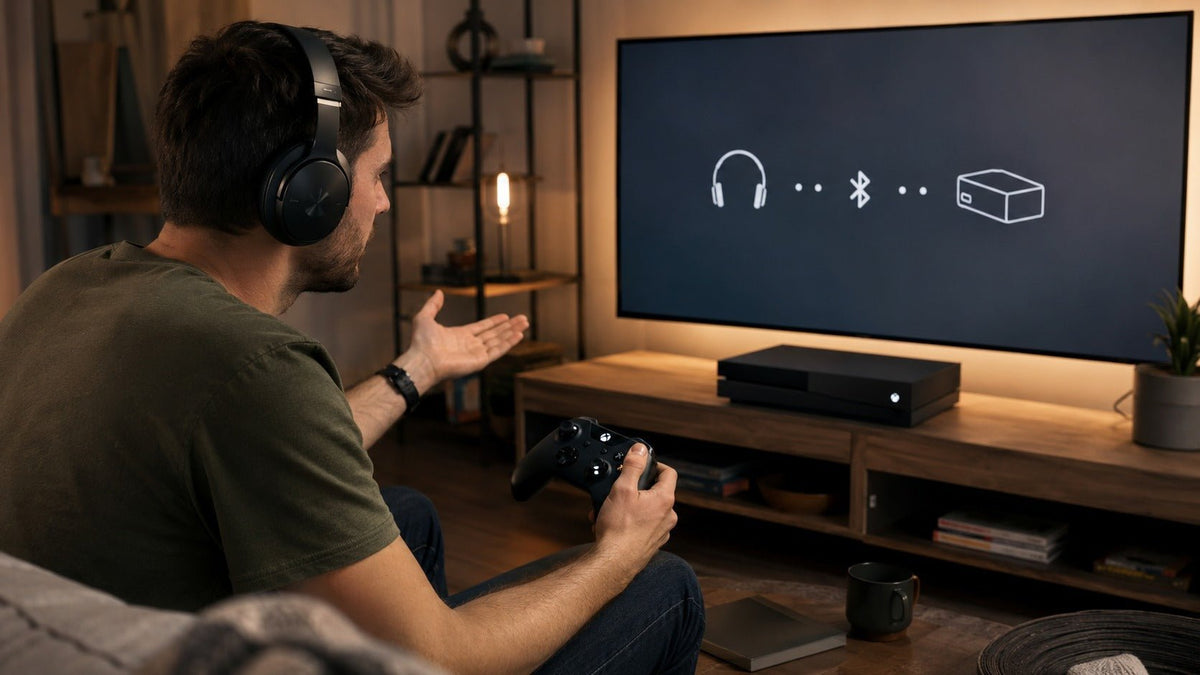
Standard Bluetooth headphones cannot pair directly with an Xbox One console the way they pair with a phone or laptop. Xbox consoles use Microsoft's Xbox Wireless technology for compatible wireless gaming accessories rather than providing a normal Bluetooth-audio pairing path for standard headphones.
If you already own Bluetooth headphones, you still have several practical options: connect through a controller with a compatible 3.5 mm cable, send your TV's audio to the headphones over Bluetooth, use an external transmitter connected to a compatible audio output, or listen through a device running Xbox Remote Play. For a broader explanation of the console's wireless-audio paths, see Wantek's Xbox Bluetooth and wireless headset setup guide .
Quick answer: If you need wireless game audio and party chat, start with a headset explicitly documented for Xbox console compatibility. If you only want to hear game audio through Bluetooth headphones you already own, TV Bluetooth, a suitable external transmitter, or Remote Play may work. A generic USB Bluetooth dongle should not be assumed to work simply because it can be plugged into an Xbox USB port.
Xbox One Bluetooth options at a glance
| Method | Game audio | Mic / chat | Main limitation |
|---|---|---|---|
| Xbox-compatible wireless headset | Yes | Yes, when supported by the headset | Requires a headset specifically designed for Xbox console connectivity. |
| 3.5 mm controller connection | Yes | Possible with a compatible TRRS headset and cable | Your Bluetooth headphones become wired to the controller. |
| TV Bluetooth audio | Usually, when the TV supports Bluetooth audio output | Usually not routed back to Xbox | TV compatibility and audio latency vary. |
| External Bluetooth transmitter | Depends on the transmitter and audio source | Often audio-only | The transmitter must receive audio from a compatible output. |
| Xbox Remote Play | Through the Remote Play device | Depends on device and communication workflow | The headphones connect to another device, not directly to Xbox One. |
Why Bluetooth headphones do not pair directly with Xbox One
Xbox Wireless and Bluetooth are different wireless technologies. Microsoft describes Xbox Wireless as its proprietary technology for connecting compatible accessories directly to Xbox consoles.
The distinction is easy to see in Microsoft's own Xbox Wireless Headset. The headset supports Xbox consoles through the Xbox ecosystem while Bluetooth is also provided for supported PCs and mobile devices.
This is why a headset specification that simply says Bluetooth does not establish direct Xbox One compatibility.
Compatibility rule: do not treat “Bluetooth,” “wireless,” or a USB dongle as proof of Xbox One support. Verify the exact console connection method for the specific headset or transmitter.

Method 1: Use an Xbox-compatible wireless headset
If your goal is wireless game audio plus voice chat without an additional workaround, the most direct approach is a headset specifically documented for Xbox console connectivity. If you are still choosing hardware, compare gaming headsets by connection type before treating “wireless” or “Bluetooth” as proof of Xbox support.
Xbox Wireless-compatible headsets communicate through the console's supported wireless system rather than relying on ordinary Bluetooth audio pairing.
To pair the Xbox Wireless Headset with Xbox One: Turn on the console and headset. Hold the headset's power/pair button for about four seconds until its indicator flashes, then press the Pair button on the Xbox One console. When the devices connect, the indicator lights stop flashing. Test game audio and microphone chat. Other Xbox-compatible headsets may use different controls, so follow their model-specific instructions.
Before choosing a third-party wireless headset, verify:
- explicit Xbox One compatibility;
- the exact wireless connection technology;
- game-audio support;
- microphone and party-chat support;
- game/chat balance controls if you need them; and
- whether a proprietary transmitter or adapter is included or required.
Some gaming headsets use a manufacturer-specific USB transmitter rather than Xbox Wireless. That can also be a valid Xbox path when the manufacturer explicitly documents that exact model and transmitter for Xbox One.
Method 2: Connect through the controller's 3.5 mm jack
If your Xbox controller has a 3.5 mm headset jack, a wired connection is one of the simplest ways to use compatible headphones. Microsoft's current Xbox Stereo Headset connects directly to an Xbox Wireless Controller through its 3.5 mm audio jack.
Bluetooth headphones that also provide a usable analog 3.5 mm input may work the same way for listening. In this setup, Bluetooth is not being used—the cable carries the audio.
Check the controller
Confirm that your controller has a compatible 3.5 mm headset jack.
Check the headphones
Confirm that the headphones support analog audio through a 3.5 mm connection rather than Bluetooth only.
Connect the cable
Connect the headset or headphones to the controller with the appropriate audio cable.
Adjust audio
Open the available Xbox headset controls and adjust volume or game/chat balance as needed.
Test the microphone
If you need voice chat, test the microphone separately before assuming the analog connection carries mic audio.
Will the Bluetooth headphone microphone work over a 3.5 mm cable?
Not necessarily. Many Bluetooth headphones use their built-in microphone only during a Bluetooth connection and provide listening-only operation when an analog cable is attached.
For microphone support through the controller, the headset, cable, and connector must all provide the required microphone path. A stereo-only audio cable does not add microphone functionality.
Method 3: Connect Bluetooth headphones to your TV
If the television or monitor receiving the Xbox's HDMI signal supports Bluetooth audio output, it may be able to send the game audio to your Bluetooth headphones.
Audio path: Xbox One → HDMI → TV → Bluetooth headphones
The exact menus depend on the TV, but the general setup is:
- Open the TV's sound or audio-output settings.
- Select Bluetooth audio if the television supports it.
- Put your headphones into pairing mode.
- Select the headphones from the television's Bluetooth-device list.
- Start a game and check whether the audio is synchronized with the picture.
Will party chat work through TV Bluetooth?
Usually, this should be treated as a listening path rather than a complete Xbox headset connection. Sending game audio from the TV to Bluetooth headphones does not automatically create a microphone-return path from the headphones back to Xbox One.
If multiplayer communication matters, use a connection method specifically documented to support both Xbox game audio and microphone chat.
Method 4: Use an external Bluetooth transmitter
An external Bluetooth transmitter can convert audio from a compatible output into a Bluetooth signal for your headphones. The important part is identifying where the transmitter actually receives its audio.
Depending on your setup, that source might be a compatible TV, monitor, controller-related audio path, or another documented audio output. Wantek's Bluetooth transmitter setup guide explains the transmitter-side inputs, outputs, pairing path, and latency checks in more detail.

Before buying a transmitter, verify:
- the physical audio input required by the transmitter;
- whether your Xbox setup actually provides that audio output;
- whether the transmitter is audio-output only or supports two-way communication;
- the Bluetooth formats supported by both transmitter and headphones;
- whether microphone or party-chat support is required; and
- whether the expected latency is suitable for gaming.
Important: do not assume that plugging a generic PC Bluetooth USB dongle into an Xbox One USB port will turn it into a supported Xbox audio transmitter. USB power and USB audio support are different things.
Does a low-latency Bluetooth codec guarantee Xbox compatibility?
No. A codec can affect the Bluetooth transmission between a compatible transmitter and compatible headphones, but it does not determine whether Xbox One supplies audio to that transmitter in the first place.
First verify the complete Xbox audio path. Only then does codec support become relevant to the wireless portion of the connection.
Why transmitter latency matters
A Bluetooth transmitter adds encoding, wireless transmission, decoding, and playback to the audio path. Delay can come from the transmitter, television, Bluetooth implementation, headphones, or a combination of them.
For games where timing matters, test lip synchronization, sound effects, and controller response before relying on the setup.
Method 5: Use Bluetooth headphones with Xbox Remote Play
Xbox Remote Play provides another approach. Instead of pairing the headphones with Xbox One, pair them with the phone, tablet, or computer receiving the Remote Play stream.
Audio path: Xbox One → network → Remote Play device → Bluetooth headphones
To use this method:
- Enable remote features on the Xbox console.
- On a supported device, visit xbox.com/remoteplay in a compatible browser and sign in with your Xbox account.
- Pair the Bluetooth headphones with that device.
- Start the Remote Play session.
- Confirm game audio and test any communication features you need.
Microsoft currently lists Xbox One as a supported Remote Play console and recommends a 5 GHz Wi-Fi or mobile-data connection with at least 10 Mbps download speed. If you are setting up a newer console instead, Wantek also has a dedicated guide on connecting Bluetooth headphones to Xbox Series X .
This can be useful when your Bluetooth headphones already work well with a phone, tablet, or computer, but it is still an indirect connection. Network conditions add another potential source of latency.
Does the microphone work with Remote Play?
Do not assume that microphone and party-chat behavior will be identical across every Remote Play device, headset, browser, or communication workflow. Test the specific setup if voice communication matters.
Which Xbox One headphone method should you use?
| Your priority | Start with | Why |
|---|---|---|
| Wireless gaming plus party chat | Xbox-compatible wireless headset | Designed around a documented console audio and microphone path. |
| Simple game audio and chat | Compatible 3.5 mm gaming headset | Avoids Bluetooth pairing and external transmitter complexity. |
| Use existing Bluetooth headphones for single-player audio | TV Bluetooth | Can reuse headphones if the TV supports Bluetooth audio output. |
| Existing Bluetooth headphones but no TV Bluetooth | External transmitter | Can add Bluetooth after a compatible audio output is identified. |
| Play through a phone, tablet, or computer | Xbox Remote Play | The Bluetooth connection happens on the Remote Play device. |
Troubleshooting Xbox One headphone connections
My Bluetooth headphones do not appear on Xbox One
That is expected for standard Bluetooth audio headphones. Xbox One does not provide the same general Bluetooth-headphone pairing workflow used by phones, tablets, and computers.
I plugged a Bluetooth USB dongle into Xbox One and nothing happened
A generic computer Bluetooth adapter should not be assumed to function as an Xbox audio transmitter. The USB connection may provide power without providing a compatible console-audio stream.
Use only a transmitter or wireless system whose manufacturer explicitly documents the required Xbox compatibility or connect the transmitter to another verified audio output.
I hear the game but my microphone does not work
Check whether your connection is one-way or two-way. TV Bluetooth and many external transmitters send audio toward the headphones but do not return microphone audio to the Xbox.
I connected headphones to the controller but the mic still does not work
Check the headset and cable specifications. The headphones must support microphone operation through the analog connection, and the cable must carry the required microphone signal rather than stereo audio only.
The Bluetooth audio is delayed
Latency can come from the TV, transmitter, wireless codec, headphones, Remote Play network, or multiple stages of the connection. If the delay interferes with gameplay, test a more direct supported audio path.
The headphones work for music on my phone but not on Xbox
Phone compatibility proves that the headphones support Bluetooth with the phone. It does not prove Xbox console compatibility because the Xbox connection uses a different device and wireless path.
Can AirPods connect directly to Xbox One?
AirPods should not be expected to pair directly with Xbox One as a normal Bluetooth gaming headset.
They may still be usable through an indirect path such as compatible TV Bluetooth output, an appropriate external transmitter, or a device running Xbox Remote Play.
The microphone and party-chat path must be checked separately from game audio.
Can Sony Bluetooth headphones connect directly to Xbox One?
Standard Sony Bluetooth headphones face the same basic limitation. Bluetooth support on the headphones does not establish a direct Xbox One console connection.
If the headphones also provide a compatible analog 3.5 mm input, connecting them to a controller may be a simpler way to receive game audio.
Can any wireless gaming headset work with Xbox One?
No. “Wireless gaming headset” is a product category, not a universal compatibility standard.
Different models may use Xbox Wireless, a proprietary USB transmitter, standard Bluetooth, or another radio system. A headset can work wirelessly with a PC or PlayStation and still lack the connection required by Xbox One.
Always verify the exact Xbox model listed by the headset manufacturer and whether both game audio and microphone chat are supported.
Frequently asked questions
Can I connect Bluetooth headphones directly to Xbox One?
Standard Bluetooth audio headphones do not pair directly with Xbox One like they do with a phone. Use an Xbox-compatible headset or an indirect audio path such as controller audio, TV Bluetooth, a compatible transmitter, or Remote Play.
Does Xbox One support Bluetooth headphones?
Xbox One does not provide a normal generic Bluetooth-headphone pairing path. Compatible wireless gaming accessories use Xbox Wireless or another specifically supported connection.
Can I plug a Bluetooth adapter into Xbox One?
Do not assume a generic USB Bluetooth adapter will carry Xbox audio. Use hardware explicitly documented for the required Xbox connection or attach a transmitter to a compatible audio output.
What is the easiest way to use headphones with Xbox One?
A compatible headset connected to a controller's 3.5 mm jack is one of the simplest wired options. For cable-free audio and chat, use a headset explicitly documented for Xbox compatibility.
Will Bluetooth headphones work through my TV?
Yes, when the TV supports Bluetooth audio output. This usually solves listening rather than Xbox microphone routing, so check party-chat requirements separately.
Can a Bluetooth transmitter add wireless audio to Xbox One?
Yes in some setups, but the transmitter needs a compatible audio source. Check its input, microphone capability, console path, and latency before buying.
Can Xbox Remote Play send game audio to Bluetooth headphones?
Yes. Pair the headphones with the supported device running Remote Play. The headphones connect to that device rather than directly to Xbox One.
Bottom line
The main limitation is simple: ordinary Bluetooth headphone support and Xbox-compatible wireless audio are not the same thing.
For wireless game audio plus chat, choose hardware whose Xbox One support is explicitly documented. If you already own ordinary Bluetooth headphones, TV Bluetooth, an external transmitter with a verified audio source, or Xbox Remote Play can provide alternative listening paths.
Before buying adapters or transmitters, verify the complete connection from the Xbox to the headphones. A Bluetooth logo, a USB plug, or support for a low-latency codec does not by itself establish Xbox compatibility.
Compare gaming headsets by connection
Start with the connection your console or controller actually supports, then compare microphone design, wired versus wireless operation, and device compatibility.

