
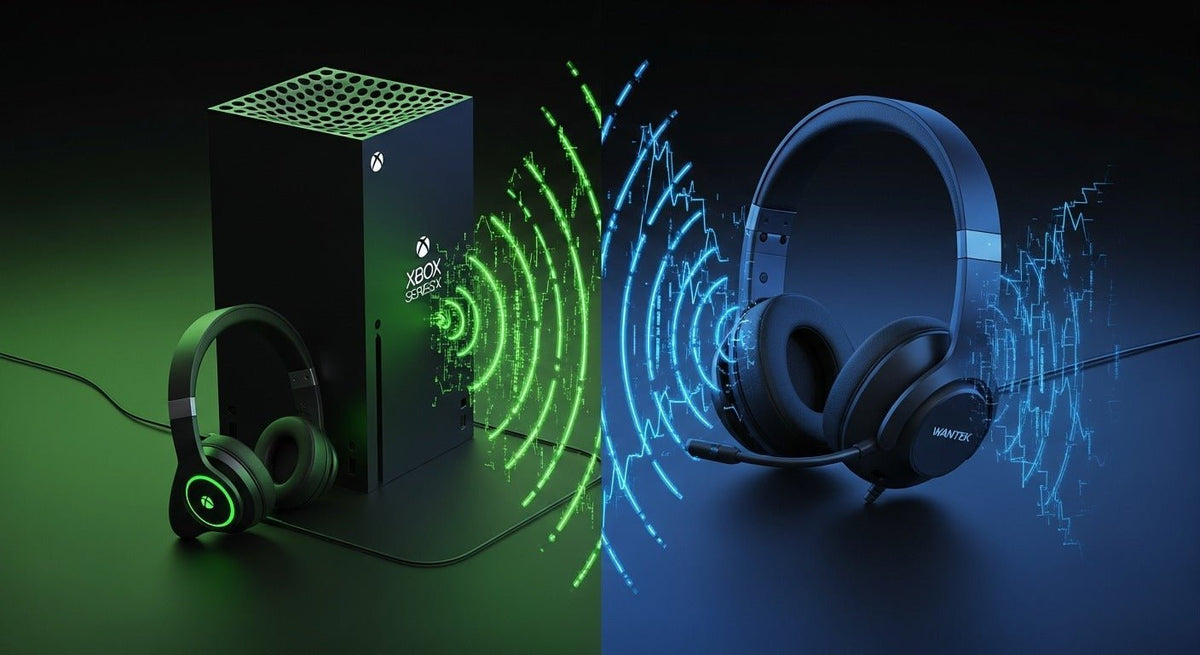
Xbox Series X|S and Xbox One do not provide a normal Bluetooth-audio pairing path for standard headphones. For wireless game audio and chat, use a headset that explicitly documents Xbox console support through Xbox Wireless or a compatible Xbox USB receiver. If you already own Bluetooth headphones, you can sometimes route game audio through your TV, monitor, or an external transmitter, but microphone support usually does not follow that workaround.
Quick answer: Do not treat “Bluetooth” or “wireless” as proof of Xbox compatibility. Microsoft describes Xbox Wireless as its proprietary console-accessory technology, while its current Xbox Wireless Headset uses Bluetooth for supported PC and mobile connections and a separate Xbox-compatible path for console use.

Compatibility note: The image above is conceptual. A pictured headset should not be assumed to support direct Xbox Wireless or Xbox console Bluetooth unless that exact connection is documented for the model.
Why Bluetooth Headphones Do Not Pair Directly With Xbox
Xbox consoles use console-specific wireless paths instead of exposing the same standard Bluetooth headphone-pairing workflow you would use on a phone or laptop. Microsoft’s accessory catalog distinguishes Xbox Wireless from Bluetooth and also lists supported wireless accessories that use manufacturer-supplied USB transmitters.
This distinction matters because the word Bluetooth may describe a headset’s connection to a phone or PC without establishing how that same headset connects to an Xbox console. The current Xbox Wireless Headset is a useful example: Microsoft documents direct Xbox compatibility alongside Bluetooth connectivity for PC and mobile devices.

Illustration note: This existing diagram is a simplified visual, not a compatibility chart for the pictured headset model.
The Xbox Wireless Audio Paths That Actually Matter
1. Direct Xbox Wireless
Some headsets pair directly with the console through Xbox Wireless, much like a compatible controller. Microsoft’s Xbox headset guidance documents the console pairing process for its wireless headset: turn on the headset and console, place the headset in pairing mode, then press the console’s Pair button.
This route is designed for Xbox console use and can carry game audio and microphone chat when the headset’s documented feature set supports them.
2. An Xbox-Compatible USB Wireless Receiver
Some wireless gaming headsets connect through a dedicated USB transmitter or receiver rather than direct Xbox Wireless pairing. The important detail is Xbox compatibility: a generic PC Bluetooth dongle should not be assumed to work simply because it fits the console’s USB port.
If the receiver has a platform switch, set it to Xbox mode when the manufacturer instructs you to do so. Then follow that headset’s pairing procedure and verify both playback and microphone input.
3. Dual-Wireless Headsets: Xbox for the Console, Bluetooth for a Second Device
A dual-wireless headset can use an Xbox-compatible connection for the console while Bluetooth handles a phone or supported PC. Microsoft says the Xbox Wireless Headset can pair with a phone and an Xbox console simultaneously, which is useful when you want console game audio while keeping a separate mobile connection available.
The key is that Bluetooth is the secondary-device path, not the direct Xbox console audio path.
4. Standard Bluetooth Headphones Through a TV, Monitor, or External Transmitter
If you already own Bluetooth headphones that are not Xbox-compatible, the display or another audio device can sometimes act as the bridge. For example, a TV with Bluetooth audio output may send the Xbox game sound to your headphones, or an external Bluetooth transmitter may connect to a compatible analog or digital audio output.
This is primarily a playback workaround. Party-chat microphone support often remains unavailable because the return microphone path is not going back to the console through the same route. Latency also depends on the complete chain: console, display or transmitter, codec, and headphones.
If your setup is specifically an Xbox One, Wantek’s Xbox One Bluetooth headphone setup guide breaks down the console-specific alternatives in more detail.

Illustration note: Treat this existing infographic as a connection-concept overview only. Verify the exact headset model before assuming direct Xbox Wireless support.
Compare the Main Wireless Setup Paths
| Feature | Xbox-compatible wireless | Dual Xbox + Bluetooth | Bluetooth via TV or transmitter |
|---|---|---|---|
| Console connection | Direct Xbox Wireless or a manufacturer-supplied Xbox-compatible USB receiver | Xbox-compatible wireless path for the console; Bluetooth for a second device | Console audio is routed through the TV, monitor, controller output, or another transmitter path |
| Game audio | Yes, when the exact headset is documented for Xbox | Yes on the Xbox-compatible connection | Usually, when the display or transmitter can output the Xbox audio signal |
| Microphone and party chat | Usually supported on compatible gaming headsets; verify the exact model | Usually supported through the Xbox connection; Bluetooth behavior depends on the second device | Often unavailable through a simple audio-output bridge |
| Setup complexity | Pair to the console or connect the supported USB receiver | Manage the console connection and the secondary Bluetooth connection separately | Requires the display or transmitter to provide a usable audio output and may add another pairing step |
| Useful when | You want a wireless headset designed for Xbox console audio and chat | You want Xbox audio while keeping a phone or supported PC connected | You want to reuse standard Bluetooth headphones mainly for game audio |
How to Set Up an Xbox-Compatible Wireless Headset
Confirm the headset’s Xbox connection method
Look for explicit Xbox Series X|S or Xbox One support. Determine whether the headset uses direct Xbox Wireless or a dedicated Xbox-compatible USB receiver.
Use the correct console pairing path
For direct Xbox Wireless, put the headset in pairing mode and use the console’s Pair button. For a USB-receiver model, connect the supplied receiver and select Xbox mode if the hardware provides a platform switch.
Verify both playback and microphone input
Do not stop after hearing game audio. Join a voice-chat test or use the headset controls to confirm that the microphone and chat features work on the same connection path.
Update or configure supported headset features
If your headset supports the Xbox Accessories app or its own manufacturer software, use the documented tool for firmware and audio settings rather than assuming every feature is controlled from the console.
A Reliable Wired Fallback: the Controller’s 3.5 mm Jack
If wireless compatibility is uncertain, a compatible wired headset can connect through the Xbox Wireless Controller’s 3.5 mm stereo headset jack. Microsoft documents that jack on the current controller and on its wired Xbox Stereo Headset.
For Bluetooth headphones that also include a detachable 3.5 mm cable, wired playback may work through the controller, but microphone support depends on the headphone, cable, and headset wiring. A listening cable does not automatically carry the microphone signal.
If you are comparing wired and wireless options before buying, Wantek’s gaming headset collection separates current models by connection type and explicitly recommends verifying the complete console connection path.
Troubleshooting Common Xbox Headset Problems
My Bluetooth headset appears on my phone but not on Xbox
That is expected for a standard Bluetooth-only headset. Check whether the manufacturer documents a separate Xbox Wireless mode or an Xbox-compatible USB receiver. Bluetooth support by itself does not establish direct Xbox console audio support.
The USB dongle powers on, but I get no Xbox audio
A USB connector is not enough to prove console compatibility. Confirm that the receiver is specifically documented for Xbox and, if it has a PC/Xbox switch, that the switch is set to the correct platform.
I can hear the game, but my microphone does not work
This is common when audio is being sent through a TV, monitor, or Bluetooth transmitter. Those paths may only send playback audio outward. If party chat matters, use a headset and connection method that explicitly supports Xbox microphone input.
Bluetooth audio feels delayed
Delay can be introduced by the display, transmitter, Bluetooth codec, headset, or processing in the signal chain. If timing matters, compare the workaround with a documented Xbox-compatible wireless connection or a wired controller connection.
What to Check Before Buying an Xbox Headset
- Exact console support: Xbox Series X|S, Xbox One, or both.
- Connection method: Xbox Wireless, an Xbox-compatible USB receiver, or 3.5 mm wired.
- Microphone path: Confirm that voice chat works on the same console connection you plan to use.
- Secondary Bluetooth: If included, check whether it is for phones or PCs rather than the Xbox console itself.
- Controls and app features: Verify chat mix, sidetone, EQ, firmware, and spatial-audio support model by model.
Verify Your Xbox Connection Before You Buy
Send Wantek your Xbox model, controller, headset model, and the connection you want to use. We can help you check whether the planned path supports game audio, microphone chat, or both.
Frequently Asked Questions
Can AirPods connect directly to an Xbox Series X or Series S?
No. Xbox consoles do not provide the standard Bluetooth headphone-pairing workflow used by phones and laptops. AirPods need another audio path, such as compatible TV Bluetooth or a separate transmitter.
Does the Xbox controller’s Bluetooth let me pair Bluetooth headphones?
No. The controller uses Bluetooth to connect the controller itself to supported PCs and mobile devices. Microsoft documents the controller’s 3.5 mm jack as the headset connection.
Can the Xbox Wireless Headset use Bluetooth with the Xbox console?
The headset supports Xbox consoles and also includes Bluetooth for supported PC and mobile connections. Microsoft specifically describes Bluetooth for PC/mobile use and allows phone-plus-console simultaneous pairing.
Will any USB Bluetooth dongle work on Xbox?
No assumption is safe. Use a wireless receiver or transmitter that explicitly documents Xbox compatibility. A generic PC Bluetooth dongle may power on without providing Xbox game audio or microphone support.
Can TV Bluetooth carry Xbox party-chat microphone audio?
Usually not through a simple TV audio-output connection. The TV may send game audio to the headphones, but the headset microphone still needs a supported return path to the Xbox console.

