
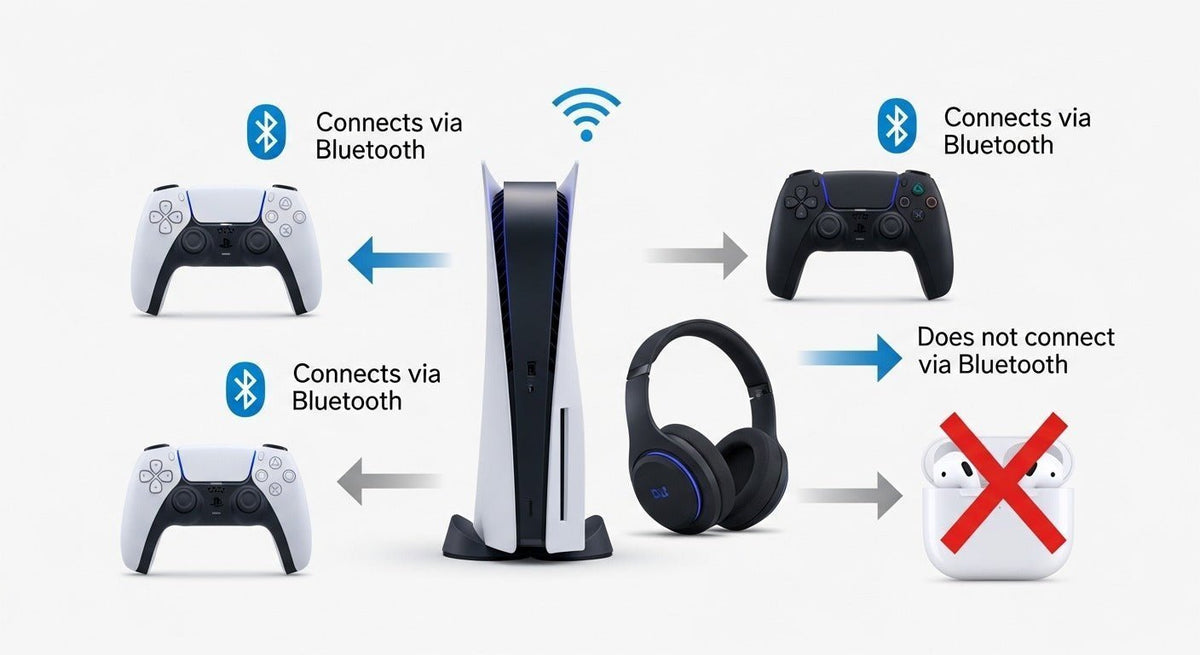
You cannot pair AirPods directly with a PS5 for game audio through the console's standard Bluetooth menu. PlayStation states that third-party wireless headsets using a Bluetooth connection are not supported on PS5. To use AirPods, you need an intermediary such as a PS5-compatible Bluetooth audio transmitter, a Bluetooth-capable TV or monitor, or PS Remote Play.
Quick answer: For the most direct console setup, use a Bluetooth audio transmitter that explicitly supports PS5 USB audio or a transmitter connected to the DualSense 3.5 mm headset jack. Pair the AirPods with the transmitter, then select the corresponding PS5 audio output. Microphone support is adapter-dependent, so do not assume the AirPods microphone will work for game chat.

Why AirPods Do Not Connect Directly to PS5
The PS5 uses wireless connections for supported controllers and accessories, but it does not provide standard Bluetooth headphone audio output for ordinary consumer Bluetooth earbuds. PlayStation's own PS5 FAQ says that third-party wireless headsets that use Bluetooth are not supported, while many USB and analog headsets are supported.
That means putting AirPods into pairing mode will not make them function as a normal PS5 audio-output device. The limitation is about the console's supported audio connection paths, not whether the PS5 contains Bluetooth hardware.
For the broader connection picture, see Wantek's guide to connecting Bluetooth headphones to PS5. PlayStation's current accessory ecosystem also illustrates the distinction: supported wireless audio products such as PULSE devices connect to PS5 through a dedicated PlayStation Link USB adapter rather than ordinary Bluetooth audio.
| Method | Best for | Main limitation |
|---|---|---|
| PS5-compatible Bluetooth transmitter | Direct console gaming setup | Compatibility, latency, and microphone support vary by adapter |
| TV or monitor Bluetooth | Using hardware you already own | Audio delay depends on the display and Bluetooth implementation |
| PS Remote Play | Software-only workaround on a phone, tablet, PC, or Mac | Adds network-dependent streaming latency |
Method 1: Use a PS5-Compatible Bluetooth Audio Transmitter
A Bluetooth audio transmitter acts as the bridge between the PS5 audio output and your AirPods. The important buying criterion is not simply “Bluetooth 5.x” or a particular codec label. The transmitter must support the connection path you plan to use and must be able to pair with your specific AirPods model.
Option A: USB Bluetooth Audio Transmitter
Confirm PS5 compatibility
Choose a USB audio transmitter whose manufacturer explicitly lists PS5 support. A generic computer Bluetooth dongle is not the same thing as a USB audio transmitter.
Connect it to the console
Plug the transmitter into a supported USB port on the PS5. Follow the transmitter manufacturer's setup instructions if it requires a pairing button or mode change.
Put your AirPods into pairing mode
AirPods pairing controls differ by generation. Use Apple's current AirPods pairing instructions for non-Apple devices rather than assuming every case uses the same button sequence.
Select the USB audio output
On PS5, go to Settings > Sound > Audio Output and select the transmitter if it appears as a USB headset or USB audio device. PlayStation documents the Audio Output menu in its current PS5 support guide.
Chat note: Some transmitters handle game audio only. If the adapter does not explicitly support two-way voice with AirPods, use the DualSense microphone or another compatible microphone for chat.
Option B: 3.5 mm Bluetooth Transmitter Through the DualSense Controller
A transmitter with a 3.5 mm audio input can use the DualSense controller's headset output as its source. This avoids relying on the transmitter being recognized as a USB audio device, but it adds another powered device to your controller setup.
- Connect the transmitter to the DualSense 3.5 mm headset jack.
- Put the transmitter into pairing mode.
- Put the AirPods into pairing mode using the instructions for your AirPods generation.
- On PS5, open Settings > Sound > Audio Output and confirm that audio is routed to the controller headset output.
- Test game audio and chat separately before relying on the setup for multiplayer communication.
Option C: HDMI Audio Extractor Plus Bluetooth Transmitter
An HDMI audio extractor can separate the PS5's HDMI audio before it reaches the display, after which a Bluetooth transmitter sends that audio to the AirPods. This is a more complex fallback and should only be used when the simpler USB, controller, or display-based options do not fit your setup.
Before buying an extractor, verify the exact video features you use. The extractor must pass through the resolution, refresh rate, HDR, VRR, and other HDMI features your display setup requires; otherwise it can become the limiting device in the signal chain.

Method 2: Connect AirPods to a Bluetooth TV or Monitor
If your TV or monitor can transmit audio to Bluetooth headphones, you may be able to pair the AirPods with the display instead of the PS5. In that setup, the connection path is PS5 → HDMI → display → Bluetooth → AirPods.
- Keep the PS5 connected to the display over HDMI.
- Open the display's Bluetooth audio or headphone settings.
- Put the AirPods into pairing mode and select them on the display.
- Test lip-sync and controller-to-sound delay in a game before deciding whether the setup is acceptable.
This method avoids adding an adapter to the PS5, but latency is controlled by the TV or monitor's audio processing and Bluetooth implementation. It may be fine for media playback yet distracting in timing-sensitive games.
Method 3: Use PS Remote Play
PS Remote Play can stream PS5 video and audio to a compatible phone, tablet, PC, or Mac. Pair the AirPods with that secondary device, then listen to the Remote Play stream through the AirPods.
- Set up PS Remote Play on a compatible device.
- Pair the AirPods with that device through its Bluetooth settings.
- Start Remote Play and connect to the PS5.
- Use the AirPods as the secondary device's audio output.
This avoids a separate transmitter, but both video and audio are being streamed over the network. Responsiveness therefore depends on the Remote Play device and network conditions.
How to Choose a Bluetooth Adapter for AirPods and PS5
- PS5 support: Look for an explicit PS5 compatibility statement from the adapter manufacturer.
- AirPods pairing support: Confirm that the transmitter can pair with standard Bluetooth headphones or earbuds, including your AirPods generation.
- Audio path: Decide whether you want USB audio, the DualSense 3.5 mm output, or an HDMI-based setup before choosing hardware.
- Chat support: If voice chat matters, verify microphone return support separately. Audio output compatibility does not prove microphone compatibility.
- Latency: Expect some wireless delay. Do not assume a transmitter's low-latency codec claim applies to AirPods unless both devices support the same mode.
- Power and charging: For battery-powered transmitters, check runtime and how the device is charged during longer sessions.
Troubleshooting AirPods on PS5
The AirPods do not appear during pairing
Confirm that the AirPods are actually in pairing mode, then reset the transmitter's pairing state and try again. If the AirPods are reconnecting automatically to a nearby iPhone, iPad, or Mac, temporarily disable Bluetooth on that device or disconnect the AirPods there first.
The transmitter is connected but there is no game audio
Open Settings > Sound > Audio Output on PS5 and confirm the expected output device. Also verify that the transmitter is in transmit mode rather than receive mode if the hardware supports both.
Game audio works but the AirPods microphone does not
This usually means the adapter supports one-way Bluetooth audio but not the microphone return path required for chat. Use the DualSense microphone or another PS5-compatible microphone unless the transmitter documentation explicitly confirms bidirectional chat support with your headset.
The audio is delayed
Bluetooth adds buffering and encoding delay, and TV-based or Remote Play setups can add more processing. Compare the available methods on your own setup. If timing matters more than keeping the AirPods, a wired or PS5-compatible gaming headset is the simpler path.
Frequently Asked Questions
Can you connect AirPods directly to PS5?
No. PS5 does not support ordinary third-party Bluetooth headsets as native wireless audio devices. AirPods need an intermediary such as a compatible transmitter, Bluetooth display, or Remote Play device.
Can you connect AirPods to PS5 without an adapter?
Yes, indirectly. If your TV or monitor supports Bluetooth headphone output, pair the AirPods with the display. You can also use PS Remote Play on a device already paired with the AirPods.
Will the AirPods microphone work on PS5 through a Bluetooth transmitter?
Not necessarily. Many transmitters provide game audio only. Check the adapter's documentation for bidirectional voice support; otherwise use the DualSense microphone or another PS5-compatible microphone.
Do AirPods support aptX Low Latency?
No. Do not buy a transmitter only because it advertises aptX Low Latency and assume AirPods will use that mode. Check the codec and compatibility details for both devices.
Why do my AirPods have audio lag on PS5?
The workaround adds Bluetooth encoding, transmission, decoding, and sometimes TV or network processing. The amount of delay depends on the transmitter, display, Remote Play path, and AirPods model.
Prefer a Simpler Gaming Connection?
If adapters and indirect audio paths are not worth the tradeoff, compare Wantek gaming headsets by connection type and verify the exact PS5 path before choosing.

