
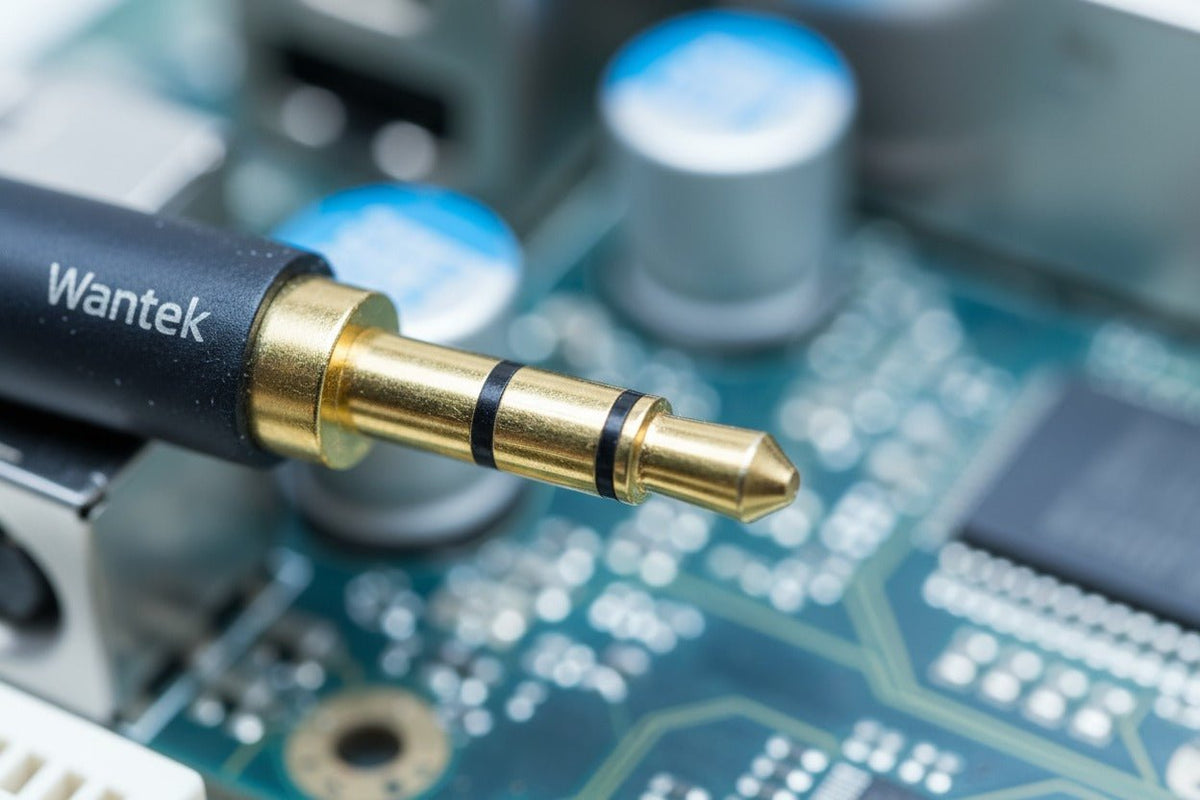
El ruido estático en los auriculares puede sonar como siseo, chasquidos, zumbidos, ruidos secos o distorsión intermitente. La causa puede ser una conexión suelta, el dispositivo de origen, la configuración de audio de Windows, interferencias inalámbricas o un fallo en el hardware. Para aislar el fallo, cambie una parte de la ruta de audio a la vez en lugar de modificar varios ajustes simultáneamente.
Empiece por aquí: pruebe los mismos auriculares en un segundo dispositivo y, a continuación, pruebe otro par de auriculares en el dispositivo original. Si el ruido persiste en los auriculares, céntrese en el auricular, el cable, el conector o la batería. Si el problema continúa en un ordenador o teléfono concreto, céntrese en ese dispositivo de origen, puerto, software o entorno inalámbrico.
Diagnóstico rápido: encuentre dónde comienza la estática
Pruebe una segunda fuente de audio
Conecte los auriculares a otro teléfono, ordenador, mando o dispositivo de audio compatible. Utilice el mismo archivo de audio local u otra fuente sencilla siempre que sea posible.
Pruebe con otro par de auriculares
Si un segundo par también presenta chasquidos en el dispositivo original, es más probable que el problema sea la fuente, el puerto, el adaptador, el software o el entorno inalámbrico.
Cambie una variable a la vez
En auriculares con cable, pruebe el conector, el cable, el adaptador y el puerto. En Bluetooth, pruebe la distancia, las interferencias cercanas, el emparejamiento y el firmware. En Windows, pruebe las mejoras de audio, el formato, los controladores y el solucionador de problemas integrado.
| Lo que escucha | Posible causa | Primera prueba |
|---|---|---|
| Chasquidos al mover el cable | Conector suelto, cable desgastado, conector dañado | Vuelva a insertar el conector y pruebe con otro cable o puerto |
| Zumbido leve en una configuración con múltiples dispositivos | Bucle de tierra o ruido relacionado con la alimentación | Simplifique la cadena de señal y pruebe los dispositivos de uno en uno |
| El Bluetooth se corta, salta o tiene estática | Distancia, obstrucción o interferencia de 2,4 GHz | Acérquese y realice pruebas lejos de dispositivos inalámbricos cercanos |
| Chasquidos solo en Windows | Mejoras de audio, formato, controlador o problema del servicio | Siga el orden de solución de problemas de audio de Windows |
| Ruido en todos los dispositivos | Auricular, cable, batería o fallo interno del hardware | Pruebe un cable que funcione correctamente si es extraíble, luego considere la reparación o el reemplazo |

Cómo arreglar la estática en auriculares con cable
1. Vuelva a insertar el conector e inspeccione la conexión
Desenchufe los auriculares y vuelva a conectarlos firmemente. Compruebe si el conector presenta dobleces, suciedad o daños evidentes. Si el dispositivo tiene más de una salida de audio compatible, pruebe otro puerto. Un chasquido que aparece cuando se mueve el conector o el cable apunta claramente a un problema de conexión.
2. Cambie el cable, el adaptador o la fuente siempre que sea posible
Si los auriculares usan un cable extraíble, pruebe con un cable compatible que sepa que funciona. Si un adaptador forma parte de la ruta, retírelo o reemplácelo para la prueba. Un resultado limpio tras realizar un cambio identifica qué parte de la cadena necesita atención.
3. Separe el audio analógico de fuentes de alimentación y radiofrecuencia cercanas
Las conexiones analógicas no balanceadas pueden captar interferencias en entornos con ruido eléctrico. Mantenga los cables de audio lejos de fuentes de alimentación, cables de CA, transmisores inalámbricos y otras fuentes de ruido evidentes cuando sea posible. No asuma que un cable más caro arreglará todos los problemas; la prueba útil es comprobar si cambiar el cable, la ruta o la fuente realmente cambia el ruido.
4. Trate el zumbido leve como un problema distinto al siseo de banda ancha
En sistemas con varios dispositivos alimentados, un zumbido de baja frecuencia puede provenir de un bucle de tierra. Sound Devices describe los bucles de tierra como múltiples rutas de tierra entre equipos interconectados y recomienda aislar la conexión problemática, utilizar conexiones balanceadas cuando sea posible o usar hardware de aislamiento adecuado.
No anule la conexión a tierra de protección de la red eléctrica para eliminar el zumbido. Solucione el problema a través de la ruta de audio, el cableado o el método de aislamiento.
Si está comparando una salida analógica ruidosa con unos auriculares USB digitales, la diferencia radica en la ruta de la señal, no en una regla universal de que un conector suena mejor. La guía de comparación entre auriculares USB y de 3,5 mm explica dónde se realiza la conversión de audio y de qué depende cada conexión.
Cómo arreglar la estática en auriculares Bluetooth o inalámbricos
1. Reduzca la distancia y elimine interferencias evidentes
El Bluetooth comparte el espectro de 2,4 GHz con otras tecnologías inalámbricas. El Bluetooth SIG señala que las interferencias y colisiones de paquetes pueden ocurrir en entornos de radio concurridos, aunque el Bluetooth utilice técnicas como el salto de frecuencia para mejorar la fiabilidad. Consulte la explicación del Bluetooth SIG sobre la interferencia inalámbrica y la fiabilidad.
Acerque los auriculares a la fuente, mantenga barreras metálicas fuera del camino directo y reduzca temporalmente la actividad en 2,4 GHz. Apple también documenta que las interferencias inalámbricas pueden causar que el audio Bluetooth salte, se entrecorte, se apague o produzca estática o zumbidos, y sugiere acercar los dispositivos y reducir las interferencias cercanas. Revise la guía de solución de problemas de interferencias inalámbricas de Apple.
2. Compruebe los dispositivos USB 3 cerca del receptor inalámbrico
Algunos dispositivos y cables USB 3 pueden crear interferencias de radiofrecuencia en la banda de 2,4 GHz. Intel ha publicado un artículo técnico específicamente sobre esta interacción. Si el problema aparece solo cuando hay un concentrador, unidad, cable o llave USB 3 cerca, aumente la separación física y vuelva a probar. Consulte el artículo de Intel sobre interferencias entre USB 3.0 y 2,4 GHz.
3. Olvide y vuelva a emparejar los auriculares
Elimine el emparejamiento Bluetooth guardado del dispositivo de origen, reinicie los auriculares si es necesario y vuelva a emparejarlos. Si la conexión sigue siendo inestable, utilice el procedimiento de restablecimiento documentado por el fabricante para su modelo exacto. La guía de restablecimiento de auriculares Bluetooth de Wantek explica la diferencia entre reiniciar, olvidar un dispositivo y realizar un restablecimiento de fábrica.
4. Observe si el problema comienza cuando se activa el micrófono
En algunos sistemas Bluetooth, abrir una aplicación de llamadas o chat cambia el modo de audio activo porque el micrófono está en uso. Apple documenta este comportamiento en Mac y señala que la calidad del audio puede disminuir y se pueden escuchar estática o chasquidos cuando los auriculares Bluetooth cambian a un modo que admite tanto la entrada de micrófono como la reproducción. Consulte la guía de calidad de audio de auriculares Bluetooth de Apple para Mac.
Cómo arreglar la estática o los chasquidos en auriculares en Windows 11
La guía actual de Microsoft sobre audio distorsionado o con chasquidos en Windows se centra en las mejoras de audio, el formato predeterminado y el controlador de audio. Realice estas comprobaciones en orden en lugar de cambiar varios ajustes avanzados a la vez. La página de solución de problemas de audio con chasquidos de Microsoft ofrece los pasos actuales para Windows.
1. Desactive las mejoras de audio y vuelva a probar
Vaya a Configuración > Sistema > Sonido, elija el dispositivo de salida y desactive las mejoras de audio disponibles. Si los chasquidos desaparecen, vuelva a activar solo el procesamiento que realmente necesite y realice la prueba de nuevo.
2. Pruebe con un formato de audio predeterminado diferente
En la configuración de sonido avanzada del dispositivo, elija un formato predeterminado compatible diferente y vuelva a probar. No hay un valor de frecuencia de muestreo universal que arregle todos los auriculares; utilice los formatos que Windows muestra para ese dispositivo y mantenga el ajuste que funcione de manera fiable.
3. Actualice o reinstale el controlador de audio
Utilice primero los pasos documentados de Windows para la actualización o reinstalación de controladores. Si el fabricante del PC, placa base, dispositivo de audio USB o interfaz de audio proporciona un controlador específico para el modelo, compare la versión instalada con la página de soporte actual del fabricante antes de cambiarla.
4. Reinicie los servicios de audio de Windows si los chasquidos continúan
Abra Servicios buscando services.msc. Reinicie Audio de Windows y Generador de puntos de conexión de audio de Windows, luego pruebe la reproducción de nuevo. Microsoft enumera el reinicio de estos servicios como un paso de solución de problemas por separado. Si el problema persiste, ejecute el solucionador de problemas de audio en la aplicación Obtener ayuda.
Cuándo puede ayudar un DAC externo, adaptador USB o interfaz de audio
Un dispositivo de audio USB externo puede ayudar cuando el ruido está específicamente vinculado a la ruta de salida analógica del ordenador. Por ejemplo, si los mismos auriculares suenan limpios en otra fuente pero hacen ruido desde la toma de 3,5 mm de un PC, trasladar la conversión de digital a analógico fuera de esa salida analógica puede ser un diagnóstico útil y, en algunas configuraciones, una solución práctica.
No es una cura universal. Un DAC externo no reparará un driver de auriculares dañado, un cable roto, una batería defectuosa, interferencias Bluetooth o un problema dentro de los propios auriculares. Pruebe el fallo antes de comprar hardware adicional.

Cuándo es probable que el problema sean los propios auriculares
Es más probable que sea un problema de hardware cuando el mismo ruido sigue a los auriculares en varios dispositivos de origen no relacionados, o cuando mover el cable cambia el síntoma de forma fiable. Otras señales de advertencia incluyen traqueteo en frecuencias específicas, un conector que falla al moverse o un problema aislado en un solo oído después de descartar los ajustes de balance y software.
Si solo un lado está afectado, compruebe los ajustes de balance, el emparejamiento o la sincronización, el comportamiento de carga y si el síntoma persiste en los auriculares al usar diferentes dispositivos de origen antes de concluir que el altavoz o el cableado interno han fallado.
¿Sigue solucionando problemas en unos auriculares de los que depende para trabajar?
Si el fallo sigue a los auriculares en varios dispositivos y la reparación ya no es práctica, empiece por el dispositivo y la conexión que realmente utiliza antes de comparar opciones de reemplazo.
Preguntas frecuentes
¿Por qué mis auriculares tienen estática en el PC pero no en el teléfono?
Si los mismos auriculares suenan limpios en el teléfono, céntrese en el puerto, adaptador, ruta USB, mejoras de audio, formato, controladores o interferencias cercanas del PC, en lugar de asumir que los auriculares están defectuosos.
¿Pueden las interferencias Bluetooth causar estática o chasquidos?
Sí. El Bluetooth comparte la banda de 2,4 GHz con otras tecnologías inalámbricas, por lo que la congestión, la distancia, las obstrucciones o las fuentes de RF cercanas pueden contribuir a cortes, tartamudeos, zumbidos o artefactos similares a la estática.
¿Puede una actualización de Windows causar chasquidos en los auriculares?
Puede coincidir con cambios en los controladores, dispositivos o ajustes de audio, pero no asuma que la actualización es la causa. Siga primero los pasos actuales de solución de problemas de audio con chasquidos de Microsoft y verifique el dispositivo de salida activo y el controlador.
¿Un DAC externo eliminará siempre la estática de los auriculares?
No. Puede ayudar cuando el ruido proviene de la ruta de salida analógica de un ordenador. No arreglará unos auriculares dañados, un cable defectuoso, interferencias Bluetooth, una batería que falla o problemas de software no relacionados.
¿Puede la cancelación activa de ruido crear un siseo tenue?
Algunos sistemas de ANC o transparencia pueden tener un ruido propio audible. Desactive la función y compare. Un siseo tenue dependiente del modo es diferente de un chasquido de cable, zumbido de bucle de tierra o cortes inalámbricos.

