
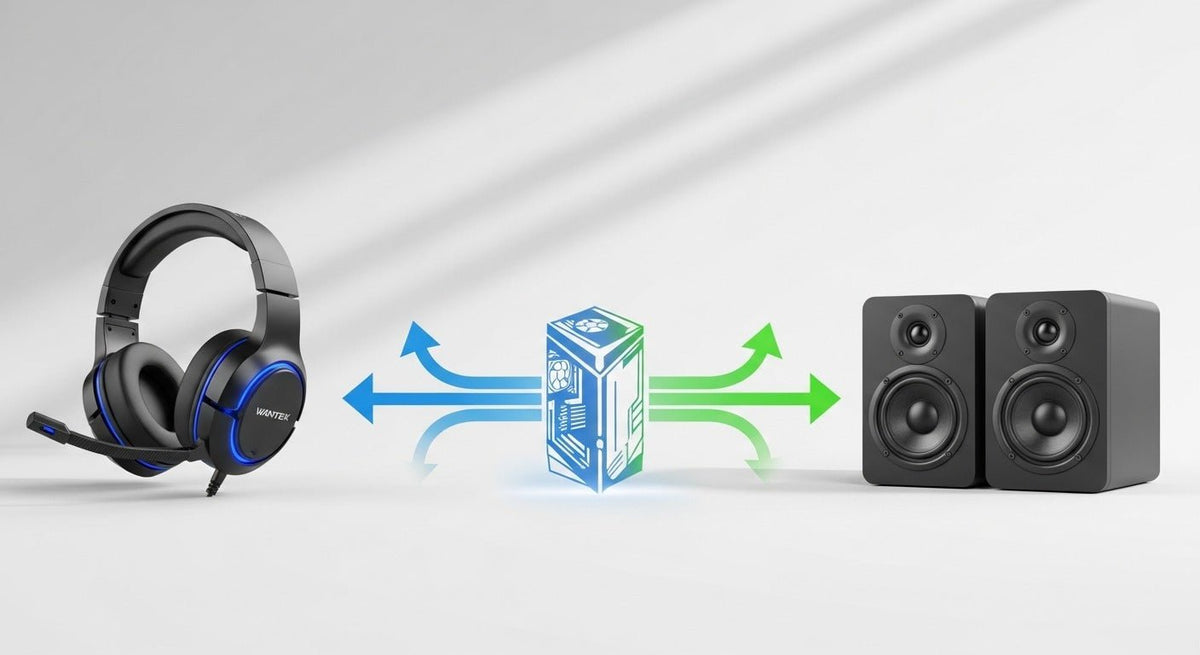
Ja – Sie können das integrierte Mikrofon eines Headsets als Audioeingang Ihres Computers verwenden. Sie müssen das Headset nicht „umwandeln“ oder die Kopfhörerfunktion deaktivieren. Die praktische Vorgehensweise besteht darin, das Headset anzuschließen, dessen Mikrofon als Eingabegerät auszuwählen, das Signal zu testen und dann für die Wiedergabe das gewünschte Ausgabegerät festzulegen.
Schnelle Einrichtung: Headset anschließen oder koppeln → in den Eingabeeinstellungen Ihres Betriebssystems das Headset-Mikrofon auswählen → einen kurzen Mikrofontest durchführen → das gleiche Mikrofon in Ihrer Telefonie- oder Aufnahme-App bestätigen.
Wenn Sie den Ton über dasselbe Headset hören möchten, lassen Sie es als Ausgabegerät ausgewählt. Wenn Sie den Ton über Lautsprecher oder ein anderes Headset hören möchten, wählen Sie dieses Gerät separat als Ausgabe aus.
Wie die Verwendung eines Headsets als Mikrofon tatsächlich funktioniert
Ein Headset kombiniert normalerweise zwei Funktionen: Kopfhörer für die Tonausgabe und ein Mikrofon für den Toneingang. Moderne Betriebssysteme stellen diese Funktionen separat zur Verfügung, sodass das Headset-Mikrofon als Aufnahmeeingang ausgewählt werden kann, während die Wiedergabe über das Headset erfolgt oder an ein anderes Gerät umgeleitet wird.
Das bedeutet, dass kein spezieller Schritt zur „Umwandlung von Headset in Mikrofon“ erforderlich ist. Die wichtige Frage ist, ob Ihr Computer den Mikrofonpfad erkennt, der durch den Anschluss des Headsets bereitgestellt wird.

Beginnen Sie mit dem Anschluss des Headsets
Die Einrichtung unterscheidet sich geringfügig, je nachdem, ob Ihr Headset einen 3,5-mm-Anschluss, USB, Bluetooth oder einen dedizierten Wireless-Empfänger verwendet.
| Anschluss | Was zu prüfen ist | Typischer nächster Schritt |
|---|---|---|
| 3,5-mm-TRRS-Klinkenstecker | Die Buchse des Computers unterstützt sowohl Kopfhörerausgang als auch Mikrofoneingang. Ein Desktop-PC mit getrennten Buchsen für Kopfhörer und Mikrofon benötigt ggf. einen korrekt verdrahteten Headset-Adapter (Splitter). | Schließen Sie das Headset an und bestätigen Sie, dass das Mikrofon als Eingabegerät erscheint. |
| USB-A- oder USB-C-Headset | Der Anschluss unterstützt den USB-Audiopfad des Headsets und das Betriebssystem erkennt das Gerät. | Wählen Sie das Headset-Mikrofon unter „Eingabe“ aus und führen Sie einen Test des Betriebssystems durch. |
| Bluetooth-Headset | Das Headset ist eingeschaltet, gekoppelt und als verfügbare Mikrofoneingabe zugänglich. | Wählen Sie das Headset-Mikrofon im Betriebssystem und anschließend in der App aus, die Sie verwenden möchten. |
| Wireless-Empfänger oder Dongle | Der Empfänger ist angeschlossen und das Headset gemäß den Anweisungen des Modells mit diesem verbunden. | Wählen Sie den Mikrofon-Endpunkt des Empfängers/Headsets unter „Eingabe“ und testen Sie ihn. |
3,5-mm-Headsets: Prüfung von TRRS, Kombi-Buchsen und Splittern
Ein herkömmliches Headset für Verbraucher verwendet einen vierpoligen 3,5-mm-TRRS-Stecker, um linken Audiokanal, rechten Audiokanal, Masse und Mikrofon über einen einzigen Anschluss zu übertragen. Die aktuellen Spezifikationen für kabelgebundene Headsets bei Android dokumentieren vierpolige Stecker sowie die Mikrofon-Masse-Belegungen nach CTIA/OMTP. Ein Stecker kann daher physisch passen, ohne dass garantiert ist, dass jeder Signalkontakt mit dem Host-Gerät übereinstimmt.
Wenn Ihr Laptop über eine einzelne kompatible Headset-Kombibuchse verfügt, kann ein TRRS-Stecker sowohl die Wiedergabe als auch den Mikrofoneingang bereitstellen. Wenn ein Desktop-PC über separate Buchsen für Kopfhörer und Mikrofon verfügt, benötigen Sie möglicherweise einen Headset-Splitter, der speziell dafür ausgelegt ist, diese beiden Pfade zu trennen. Für eine genauere Überprüfung der Anschlüsse verwenden Sie den Leitfaden zu TRS vs. TRRS von Wantek.

USB-Headsets: Das Betriebssystem erkennt das Audiogerät
Windows enthält Klassentreiber für kompatible USB-Audiogeräte, sodass viele USB-Headsets ohne separate Treiberinstallation als Audiogeräte erkannt werden. Da modellspezifische Bedienelemente, Firmware, Softwarefunktionen oder Kompatibilität variieren können, besteht der richtige Test darin, zu prüfen, ob Ihr spezifisches Headset als gewünschter Mikrofoneingang erscheint und in der von Ihnen benötigten App funktioniert.
Bluetooth- und Wireless-Headsets
Stellen Sie bei einem Bluetooth-Headset oder einem Modell mit Empfänger zuerst die kabellose Verbindung her. Bestätigen Sie anschließend, dass das Betriebssystem das Headset als Mikrofoneingang zur Verfügung stellt. Die Kopplung allein ist noch kein Beweis dafür, dass die Anwendung dieses Mikrofon auch tatsächlich verwendet. Überprüfen Sie daher nach dem erfolgreichen Test des Betriebssystems das Audio-Menü der jeweiligen App.
So verwenden Sie ein Headset als Mikrofon unter Windows 11

Die aktuellen Windows-Anweisungen von Microsoft nutzen Einstellungen > System > Sound, um Mikrofone auszuwählen und zu testen. Gehen Sie wie folgt vor:
Headset anschließen
Schließen Sie das kabelgebundene Headset an oder stellen Sie die Bluetooth-/Wireless-Verbindung her. Stellen Sie sicher, dass kein physischer Stummschalter oder eine Boom-Stummschaltung aktiviert ist.
Eingabeeinstellungen öffnen
Gehen Sie zu Start > Einstellungen > System > Sound. Wählen Sie unter Eingabe das Headset-Mikrofon aus, das Sie verwenden möchten.
Mikrofontest durchführen
Öffnen Sie die Eigenschaften des ausgewählten Mikrofons, starten Sie den integrierten Test, sprechen Sie normal, beenden Sie den Test und spielen Sie die Aufnahme ab. Passen Sie die Eingabelautstärke nur an, wenn der Aufnahmepegel korrigiert werden muss.
Ausgabe separat wählen
Lassen Sie unter Ausgabe das Headset ausgewählt, wenn Sie den Ton darüber hören möchten, oder wählen Sie Lautsprecher oder ein anderes Wiedergabegerät. Ein separates Ausgabegerät ist optional und keine Voraussetzung für die Nutzung des Headset-Mikrofons.
Mikrofonberechtigungen prüfen, wenn eine App Sie nicht hören kann
Gehen Sie zu Einstellungen > Datenschutz & Sicherheit > Mikrofon und bestätigen Sie, dass der Mikrofonzugriff für den verwendeten Anwendungstyp aktiviert ist.
Microsoft bietet aktuelle Anleitungen zum Einrichten und Testen von Mikrofonen unter Windows sowie zu den Mikrofonberechtigungen für Apps.
So verwenden Sie ein Headset als Mikrofon unter macOS
Apple trennt unter Systemeinstellungen Toneingabe und Tonausgabe. Dies ermöglicht Ihnen, das Headset-Mikrofon zu verwenden, während die Wiedergabe entweder über dasselbe Headset erfolgt oder Sie ein anderes Ausgabegerät auswählen.
Headset anschließen
Verbinden Sie das kabelgebundene, USB- oder Wireless-Headset und stellen Sie sicher, dass es eingeschaltet und bei Bedarf nicht stummgeschaltet ist.
Mikrofon auswählen
Öffnen Sie Apple-Menü > Systemeinstellungen > Ton > Eingabe und wählen Sie das Headset-Mikrofon aus den verfügbaren Eingabegeräten aus.
Eingabepegel beobachten
Sprechen Sie normal und prüfen Sie, ob der Eingabepegel reagiert. Passen Sie den Schieberegler für die Eingabelautstärke an, falls das Signal für Ihre Zwecke zu schwach oder zu stark ist.
Wiedergabegerät wählen
Wählen Sie unter Ton > Ausgabe das Headset, die Mac-Lautsprecher oder ein anderes verfügbares Ausgabegerät, je nachdem, wie Sie hören möchten.
App-Berechtigung bestätigen
Wenn eine bestimmte App das Mikrofon nicht verwenden kann, prüfen Sie unter Systemeinstellungen > Datenschutz & Sicherheit > Mikrofon, ob der App der Zugriff auf den Toneingang gestattet ist.
Apple dokumentiert sowohl die Auswahl des Toneingangs und die Eingangslautstärke als auch die Zugriffsberechtigungen für das Mikrofon für aktuelle macOS-Versionen.
Dasselbe Mikrofon innerhalb Ihrer App einstellen
Das Bestehen des Windows- oder macOS-Eingabetests beweist lediglich, dass das Betriebssystem das Headset-Mikrofon empfängt. Zoom, Teams, Discord, OBS, ein Browser-Meeting, ein Spiel oder andere Anwendungen können möglicherweise noch so konfiguriert sein, dass sie ein Laptop-Mikrofon, Webcam-Mikrofon, Dock-Mikrofon oder ein anderes Audiogerät verwenden.
Öffnen Sie die Audioeinstellungen der Anwendung, wählen Sie dasselbe Headset-Mikrofon aus, das Sie bereits auf Betriebssystemebene getestet haben, und führen Sie einen kurzen Testanruf oder eine Testaufnahme durch. Wenn der Systempegel reagiert, aber eine Anwendung stumm bleibt, konzentrieren Sie sich auf die Mikrofonwahl, Berechtigungen, den Stummschaltstatus oder die „Push-to-Talk“-Einstellung dieser Anwendung, anstatt sofort die Hardware zu wechseln.
Kann man das Headset-Mikrofon mit Lautsprechern oder einem anderen Kopfhörer verwenden?
Ja. Eingang und Ausgang können separat ausgewählt werden. Sie können das Mikrofon des Headsets als Eingang verwenden, während Sie den Ton über Computerlautsprecher, einen Monitor, einen anderen Kopfhörer oder ein anderes unterstütztes Ausgabegerät wiedergeben.
Beachten Sie, dass offene Lautsprecher vom Mikrofon aufgenommen werden und für andere Teilnehmer ein Echo erzeugen können. Wenn dies geschieht, verringern Sie die Lautstärke der Lautsprecher, vergrößern Sie den physischen Abstand zwischen Lautsprechern und Mikrofon oder verwenden Sie für die Wiedergabe Kopfhörer.
Wenn das Headset-Mikrofon nicht funktioniert
Nutzen Sie das Symptom, um den Pfad einzugrenzen, anstatt mehrere Einstellungen gleichzeitig zu ändern:
- Mikrofon wird nicht aufgelistet: Überprüfen Sie den Anschluss, den Port, den Adapter, die Kopplung, den Empfänger oder die Geräteerkennung erneut.
- Mikrofon wird aufgelistet, aber der Eingabepegel bewegt sich nicht: Prüfen Sie die physische Stummschaltung, die Eingabelautstärke, Berechtigungen, den korrekten Sitz des Steckers und das ausgewählte Mikrofon.
- Windows oder macOS erkennt das Mikrofon, aber eine App nicht: Prüfen Sie die Mikrofonauswahl und Berechtigung innerhalb der Anwendung.
- Kopfhöreraudio funktioniert, aber das Mikrofon nicht: Behandeln Sie Wiedergabe und Mikrofoneingang als separate Signalpfade; bei 3,5-mm-Anschlüssen stellen Sie sicher, dass Buchse und Splitter den Mikrofoneingang unterstützen.
Für eine vollständige Diagnoseabfolge verwenden Sie den Leitfaden zur Fehlerbehebung bei Headset-Mikrofonen von Wantek.
Stimmklarheit verbessern, nachdem das Mikrofon funktioniert
Optimierungen erfolgen erst, nachdem Anschluss und Routing bestätigt wurden. Beginnen Sie mit der physischen Positionierung des Mikrofons und passen Sie dann die Eingabelautstärke an, während Sie eine kurze Testaufnahme abhören. Gehen Sie nicht davon aus, dass es für jedes Headset eine universell korrekte Einstellung für Prozentsatz, Verstärkung, Abtastrate, EQ-Kurve oder Rauschunterdrückung gibt.
Wenn Sie aufnehmen oder streamen, kann Software wie OBS Filter wie Gain, Rauschunterdrückung (Noise Suppression), Noise Gate, Kompressor und Limiter hinzufügen. Wenden Sie die Bearbeitung erst an, nachdem Sie einen sauberen, korrekt gewählten Eingang haben, damit die Software kein Routing- oder Hardwareproblem kaschiert.
Weitere Informationen finden Sie im offiziellen OBS-Filter-Handbuch für die in OBS verfügbaren Filter.
Häufig gestellte Fragen
Kann ich das Headset-Mikrofon verwenden, während ich über dasselbe Headset höre?
Ja. Wählen Sie das Headset-Mikrofon als Eingang und lassen Sie das Headset als Ausgabe ausgewählt. Die Verwendung eines anderen Ausgabegeräts ist optional.
Kann ich nur das Headset-Mikrofon verwenden und den Ton über Lautsprecher wiedergeben?
Ja. Windows und macOS erlauben es, Eingang und Ausgang separat zu wählen. Wählen Sie das Headset-Mikrofon für die Eingabe und Ihre Lautsprecher für die Ausgabe.
Benötige ich einen Splitter für ein 3,5-mm-Headset-Mikrofon?
Nur bei manchen Setups. Eine kompatible Kombi-Buchse kann Headset-Audio und Mikrofon über einen TRRS-Stecker übertragen; getrennte PC-Buchsen für Kopfhörer und Mikrofon erfordern möglicherweise einen korrekt verdrahteten Splitter.
Warum funktionieren die Kopfhörer, aber das Headset-Mikrofon nicht?
Wiedergabe und Mikrofoneingang sind separate Pfade. Prüfen Sie den Stummschaltstatus, die Eingabeauswahl, Berechtigungen, den Mikrofontest des Betriebssystems sowie die Kompatibilität des 3,5-mm-Anschlusses oder Splitters.
Benötigen USB-Headsets immer einen separaten Treiber?
Nicht immer. Windows enthält Klassentreiber für kompatible USB-Audiogeräte, aber modellspezifische Software, Bedienelemente, Firmware und Kompatibilität können weiterhin variieren.
Können herkömmliche Kopfhörer ohne eingebautes Mikrofon auf die gleiche Weise verwendet werden?
Nein – nicht als normales Headset-Mikrofon. Dieser Leitfaden gilt für Headsets oder Kopfhörer, die einen tatsächlichen Mikrofoneingangspfad bieten, der vom Gerät erkannt wird.
Benötigen Sie ein Headset, das zu Ihrem Gerät passt?
Wenn Ihr aktuelles Headset nicht den Anschluss oder den Mikrofonpfad bietet, den Ihr Computer oder Ihr Setup für Anrufe erfordert, prüfen Sie das Gerät und den Anschluss, bevor Sie Funktionen vergleichen.

