
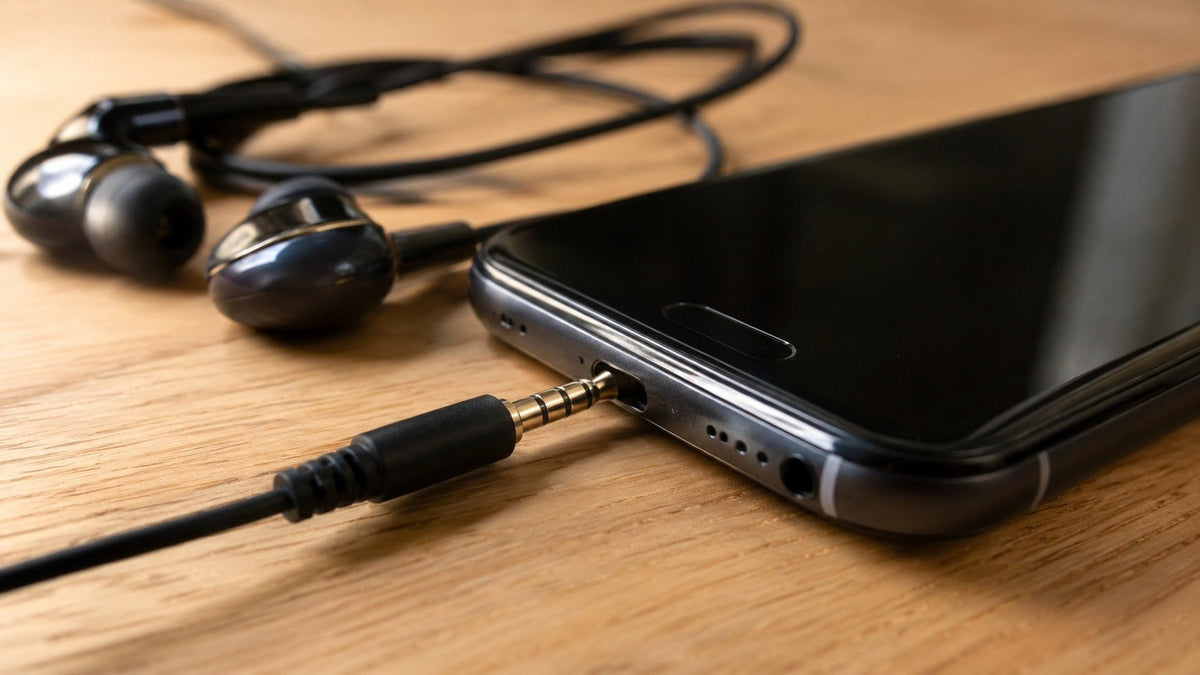
A headphone port is the socket on a device that accepts a wired audio plug. On many laptops, controllers, audio devices, and older phones, that socket is a 3.5 mm analog jack. A headphone-only jack can carry playback audio, while a compatible four-contact headset jack can also carry a microphone signal. If the port is dirty or audio is intermittent, start with the least invasive cleaning method and follow the exact device manufacturer's instructions before using compressed air, liquids, or tools inside the opening.
Quick answer: Power the device off, disconnect cables, inspect the port with a light, and remove only loose debris at the opening without scraping the contacts. Do not insert needles, paper clips, SIM-eject tools, or wet cleaning material into the jack. Manufacturer guidance differs: Dell allows compressed air for some computer audio ports, while Apple tells iPhone users not to use compressed air on the device.
What Is a Headphone Port?
A headphone port—also called a headphone jack or audio jack—is the receptacle built into the source device. The metal connector on the headphone cable is the plug. In everyday use, people often call both sides a “headphone jack,” but distinguishing the port from the plug makes compatibility and troubleshooting easier.
The most familiar consumer version is the 3.5 mm jack. Larger 6.35 mm connectors are common on some professional and home-audio equipment, while 2.5 mm connectors appear on some older or specialized devices. This guide focuses on the 3.5 mm port because it is the connection most readers mean when they ask how to clean a headphone jack.
TRS vs. TRRS: why the number of contacts matters
A typical 3.5 mm TRS plug has three conductive sections: Tip, Ring, and Sleeve. In ordinary stereo-headphone wiring, those contacts commonly carry left audio, right audio, and a shared return. A TRRS plug has four conductive sections and is commonly used for stereo headset audio plus a microphone.
For Android-compatible four-conductor headset jacks, the Android Open Source Project documents stereo output, microphone input, ground, and the CTIA LRGM contact order. That does not mean every 3.5 mm socket supports a microphone or uses the same wiring, so a plug that fits physically can still be functionally incompatible. See Android's 3.5 mm headset jack specification and Wantek's TRS vs. TRRS connector guide for the wiring details.

Why a Headphone Jack Can Stop Working
Dust or lint can interfere with the connection, but a dirty port is only one possible cause. A damaged cable, worn plug, incompatible TRS/TRRS wiring, incorrect audio settings, a loose socket, or internal hardware damage can produce similar symptoms. Diagnose the signal path before assuming the port itself needs aggressive cleaning.
| Symptom | Check first | What it can indicate |
|---|---|---|
| No sound after plugging in | Test the headset on another device, confirm volume/output selection, and inspect the port for visible debris. | Headset fault, audio setting, incomplete insertion, debris, or port damage. |
| Audio cuts out or works on one side | Test another known-good headset and gently check whether the plug feels unusually loose. | Cable or plug damage, contamination, worn contacts, or a damaged socket. |
| Headphones work but the microphone does not | Confirm the port is a headset combo jack, not headphone-only, and verify TRRS wiring and input settings. | TRS/TRRS mismatch, CTIA/OMTP mismatch, splitter issue, permissions, or input selection. |
| Device still acts as if headphones are connected | Restart the device, inspect the port, and test with a known-good plug. | Debris, jack-detection issue, software state, or hardware fault. |
If playback works but the microphone does not, use the headset microphone troubleshooting guide before replacing the headset or cleaning the port again.
How to Clean a Headphone Jack Safely
There is no single cleaning procedure that is correct for every phone, laptop, controller, mixer, or other device. The safest general rule is to begin with dry inspection and minimal contact, then follow the manufacturer's instructions for the exact device.
Power off the device and disconnect cables
Shut the device down if practical and unplug power and connected accessories. Dell's current computer-audio guidance specifically instructs users to turn the computer off and unplug cables before cleaning an audio port.
Inspect the port with a flashlight
Look for lint, dust, a foreign object, visible corrosion, a bent contact, or a loose socket. If the plug will not insert normally, do not force it.
Start with the least invasive dry cleaning
Hold the port so loose debris can fall outward. If material is sitting at the mouth of the port, remove it gently without pushing deeper or scraping internal contacts. Do not turn cleaning into a digging or prying operation.
Do not insert sharp or metal tools
A needle, paper clip, pin, metal tweezers, or SIM-eject tool can scratch contacts, deform the jack, bridge electrical contacts, or compact debris farther inside. If debris cannot be removed without probing the port, stop and use the device maker's service guidance.
Treat compressed air and liquids as device-specific
Do not assume either method is universally safe. Dell's audio-port troubleshooting guidance allows gentle compressed air for debris in supported computers and warns against water, cleaning sprays, or a damp cloth. Apple's iPhone handling guidance says to avoid moisture in openings and not to use cleaning products or compressed air. Follow the rule for your exact device.
Reconnect and test with a known-good headset
After cleaning, reconnect only when the port is dry and clear. Test a headset that is known to work, then check playback and microphone input separately if the jack supports both.
Avoid aggressive cleaning. Do not put alcohol or other liquid into the jack, scrape the contacts with a SIM-eject tool or another metal object, or use compressed air unless the device manufacturer explicitly permits that method.
Should You Clean the Headphone Plug Too?
Yes—inspect the plug whenever you troubleshoot the port. Wipe the metal plug with a clean, dry, lint-free cloth and check for bending, heavy wear, or contamination. Avoid soaking the plug, and do not reconnect it while any cleaning moisture is present.
If the same headset crackles on multiple devices, the cable or plug is a stronger suspect than the port. If several known-good headsets fail in the same device, focus on the device's socket, settings, or internal audio hardware.
If Cleaning Does Not Fix the Headphone Jack
Cleaning should be one troubleshooting step, not the entire diagnosis. Work through these checks before deciding the jack has failed:
- Test the headset elsewhere. This separates a headset problem from a source-device problem.
- Test a known-good headset in the device. If multiple headsets fail, the source device becomes the stronger suspect.
- Check the selected output and input. Computers and phones can route sound to speakers, Bluetooth devices, docks, monitors, or other audio endpoints.
- Confirm jack function. A headphone-only port does not automatically provide microphone input. A combo jack still requires compatible TRRS wiring.
- Remove unnecessary adapters or extensions. Test the simplest direct connection first.
- Stop if the socket is loose or visibly damaged. Mechanical damage is not a cleaning problem and may require repair.
If you are deciding whether to stay with analog 3.5 mm or move to a digital connection, the USB vs. 3.5 mm headset guide explains the signal-path and compatibility differences without treating either connector as automatically better.

What If Your Device Does Not Have a 3.5 mm Port?
A compatible USB-C, Lightning, or USB audio adapter can provide a wired path when the source device has no analog headphone jack. Compatibility depends on both the host device and the adapter: connector shape alone does not prove that headphone output, microphone input, inline controls, or every headset function will work.
For a work headset, start with the port and functions your actual device supports, then compare the headset connection, microphone, controls, and wearing style. If you already know you need an analog work headset, you can compare Wantek 3.5 mm work headsets.
Need a Wired Headset for a 3.5 mm Work Setup?
Compare current Wantek 3.5 mm headset options by wearing style, microphone, controls, and device connection before choosing a model.
Frequently Asked Questions
What is the difference between a headphone port and a headphone jack?
In everyday use, the terms are interchangeable. More precisely, the jack or port is the socket in the device, while the connector on the headphone cable is the plug.
Can I clean a headphone jack with isopropyl alcohol?
Do not treat alcohol inside the port as a universal cleaning method. Device manufacturers differ, so use liquid only when the exact manufacturer instructions for that device explicitly allow it.
Can I use compressed air to clean a headphone jack?
Only when the device manufacturer allows it. Dell permits gentle compressed air for some computer audio ports, while Apple's iPhone guidance says not to use compressed air.
Why do my headphones work but the microphone does not?
The port may be headphone-only, the headset may use incompatible TRS/TRRS wiring, or the microphone input may be incorrectly selected or blocked by software permissions.
How do I know whether the headphone port is damaged?
A loose socket, visible damage, or repeatable dropouts with multiple known-good headsets after settings and debris checks points more strongly to hardware damage than ordinary dirt.

