
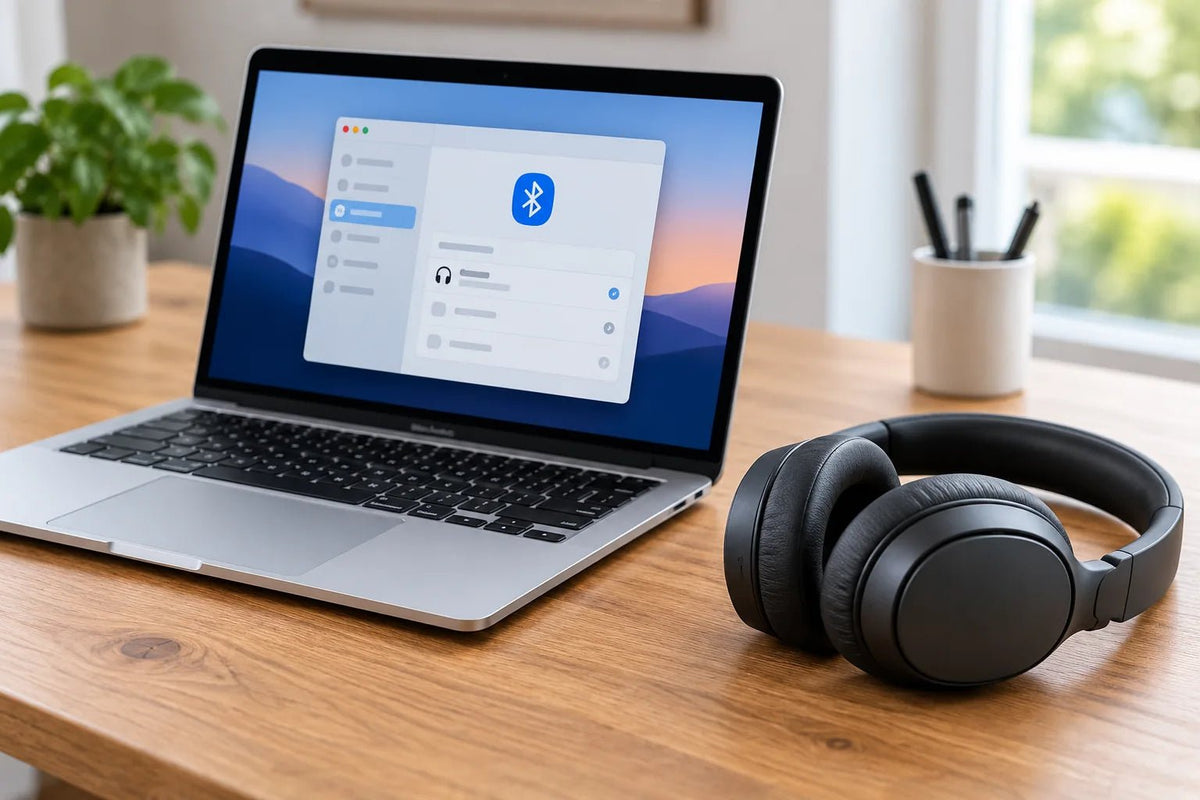
To connect headphones to a Mac, use System Settings > Bluetooth for wireless pairing or plug in a compatible wired headset. Then go to System Settings > Sound > Output and select your headphones if audio doesn't switch automatically. The connection steps depend on whether you use Bluetooth, AirPods, a 3.5 mm plug, or USB.
Quick check: Bluetooth headphones need pairing mode before the Mac can find them. Wired headphones need a matching audio port or compatible adapter. In either case, selecting the correct sound output is often the missing step.

How to Connect Bluetooth Headphones to a Mac
- Put your headphones in pairing mode. Charge or power them on, then follow the model's pairing instructions. Simply turning them on may reconnect them to another device without making them discoverable.
- Open Bluetooth settings on the Mac. Choose the Apple menu > System Settings > Bluetooth, and turn Bluetooth on if necessary.
- Select your headphones. When the model appears in the device list, click Connect. If a confirmation prompt appears, follow it.
- Set the audio output. Go to System Settings > Sound > Output and choose the connected headphones. Play a short audio clip to confirm the connection.
These steps follow Apple's Bluetooth connection instructions for Mac. On older macOS releases, the settings app may be called System Preferences instead of System Settings. Headphone button sequences vary by brand and model; for example, see our Sony headphones pairing guide for Mac for model-specific considerations.
How to Connect Wired Headphones to a MacBook or Desktop Mac
Headphones with a 3.5 mm plug
If your Mac has a compatible headphone jack, insert the plug fully. Open System Settings > Sound > Output and select Headphones if the Mac hasn't switched automatically. Not every Mac model has the same ports, so check the physical connector before buying an adapter.
If the headset also has a microphone, don't assume every audio jack or adapter carries its mic signal. Microphone support depends on the Mac's port and the headset's plug wiring.
USB-A, USB-C, or USB wireless-receiver headsets
Connect a USB headset or its supplied wireless receiver to a compatible Mac port. If an adapter or hub is needed, it must carry the required USB data and audio connection, not just power. Approve the accessory if macOS asks for permission, then select the headset under Sound > Output. Some wireless receivers pair only with their matching headset and do not appear in the Mac's normal Bluetooth device list.
For 3.5 mm headphones on a Mac without a matching audio jack, use a USB audio adapter that explicitly supports headphone output. If you also need the headset microphone, check microphone-input support before choosing the adapter.
How to Connect AirPods to a Mac
AirPods that are already set up with an iPhone may appear automatically on a Mac signed in to the same Apple Account with the required settings. Open Control Center > Sound and choose your AirPods if they are available.
For manual pairing, open System Settings > Bluetooth, put the AirPods in their case and use the pairing action specified for your AirPods generation, then click Connect when they appear. The correct gesture differs across AirPods models; follow Apple's current AirPods setup guide rather than assuming every case has the same button.
Choose the Headphones for Sound and the Microphone for Calls
A connected headset can appear as both an output device and an input device. In System Settings > Sound, choose the headphones under Output. If you want to speak through the headset, choose its microphone under Input. A meeting app may also have its own speaker and microphone selectors, so verify those separately.
If the headset microphone isn't detected, first confirm that the cable, adapter, or wireless connection actually supports microphone input. Our headset microphone setup guide for Windows and Mac covers the separate input and output settings in more detail.
Bluetooth call-quality note: When an app starts using a Bluetooth headset's microphone, the headset may switch to a lower-quality two-way audio mode. Closing the mic-using app or choosing another microphone can restore music playback quality. Apple explains this Bluetooth behavior.
Why Won't My Headphones Connect to My Mac?
The headphones don't appear in Bluetooth settings
- Confirm the headphones are in pairing mode, not just powered on. Check the model manual for the indicator or pairing prompt.
- Move the headphones closer to the Mac and check their battery.
- If the headphones are connected to a nearby phone, disconnect that connection temporarily and try pairing again.
- Toggle Bluetooth off and back on in macOS. If a saved entry for these headphones is causing repeated failures, use Forget and pair again; this removes the saved pairing.
The headphones show connected, but sound comes from the Mac
Open System Settings > Sound > Output, select the headphones, and check the output volume and mute setting. Also check the volume inside the app or browser tab playing audio. Apple's Mac sound output guide describes how to select the correct device.
The USB headset isn't recognized
Reseat the connector, try another compatible port, and check any hub or adapter. If your Mac requests approval for a new USB accessory, allow the device you intend to use. Then reopen Sound settings to see whether the audio output appears. If not, check whether the headset needs its own receiver or manufacturer setup steps.
Frequently Asked Questions
Can I connect any Bluetooth headphones to a Mac?
Most standard Bluetooth audio headphones can pair with a Mac, but specific features and control functions depend on the model. Put the headphones in pairing mode, then connect through the Mac's Bluetooth settings.
Why are my Bluetooth headphones connected but silent?
The Mac may still be sending audio to its speakers or another device. Select the headphones under Sound > Output, then check system and app volume.
Do I need Bluetooth to use wired headphones with a Mac?
No. A compatible 3.5 mm headset or USB audio device uses a wired connection. Bluetooth settings are only needed for headphones pairing over Bluetooth.
Can I use a headphone microphone on Mac calls?
Yes, if the headset's connection supports microphone input and macOS recognizes it. Select the microphone under Sound > Input, then verify the same input inside your calling app.
Need a USB Headset for Mac Calls?
If you need a headset with a microphone for Mac meetings, compare wired USB options by connector and call controls. Check each model's USB-A or USB-C connection and microphone support for your Mac before choosing.

