
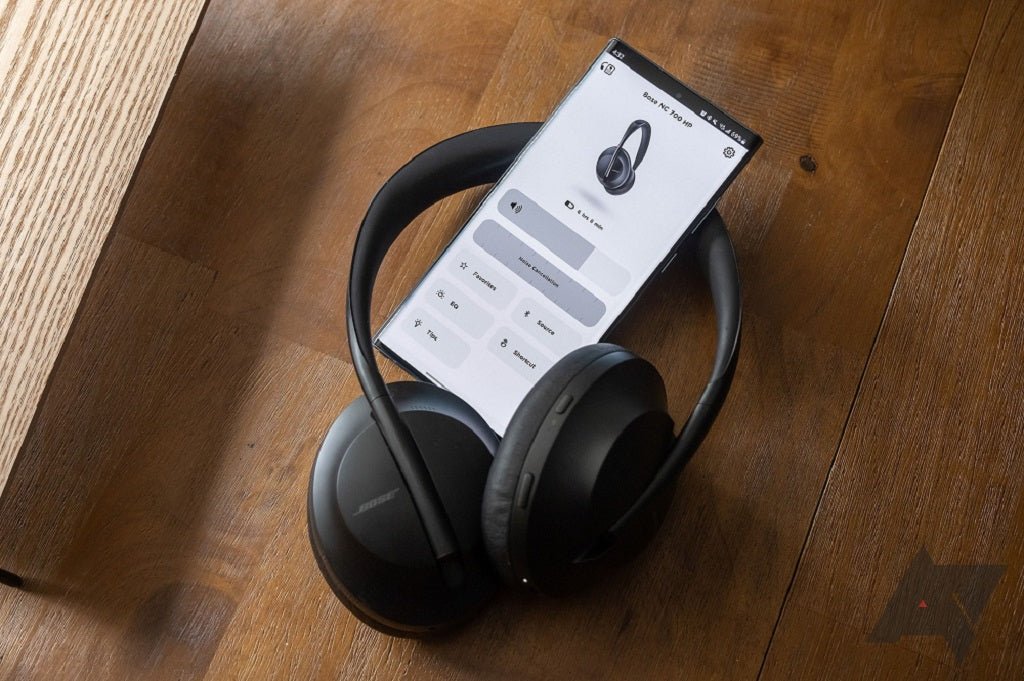
To connect Bose headphones, put the headphones into pairing mode first, then select them from the Bluetooth menu on your phone, computer, tablet, or other supported source device. The exact button or switch action varies by model, so use the Bose instructions for your specific headphones when the control layout differs.
Quick answer: On current Bose QuietComfort Headphones, slide and hold the power switch toward the Bluetooth symbol until the status light blinks blue and the headphones announce that they are ready to connect. Then open Bluetooth settings on the source device and select the Bose headphones.

Put Your Bose Headphones in Pairing Mode
Bose's current QuietComfort Headphones support page instructs users to hold the power switch toward the Bluetooth symbol until the Bluetooth light blinks blue. If you are wearing the headphones, a voice prompt indicates that they are ready to connect.
That control sequence should not be assumed for every older Bose product. Models such as QuietComfort 35 II and some SoundLink headphones use older control layouts and may use the Bose Connect app rather than the current Bose app. If your controls do not match this guide, use the support page for the exact model.
For current QuietComfort models, see Bose's official pairing instructions.
Connect Bose Headphones to iPhone or iPad
Turn on Bluetooth
Open Settings > Bluetooth on the iPhone or iPad and make sure Bluetooth is enabled.
Make the Bose headphones discoverable
Use the pairing control for your Bose model. On current QuietComfort Headphones, hold the power switch toward the Bluetooth symbol until the light blinks blue.
Select the headphones
Tap the Bose device name when it appears in the Bluetooth device list. Apple documents the same basic process for third-party Bluetooth accessories.
Apple's current Bluetooth accessory instructions also explain how to forget a device if you need to remove an old pairing before reconnecting.
Connect Bose Headphones to Android
- Open the Android Bluetooth or Connected devices settings.
- Choose the option to pair a new device.
- Put the Bose headphones into pairing mode.
- Select the Bose headphones when they appear and complete any on-screen prompts.
Menu names vary by Android manufacturer and version. If the headphones are already saved but will not reconnect, remove the saved Bluetooth entry and pair them again rather than repeatedly tapping an inactive device name.
Connect Bose Headphones to Windows 11
Microsoft's current Windows instructions require Bluetooth to be enabled and the accessory to be discoverable. In Windows 11, open Settings > Bluetooth & devices, put the Bose headphones into pairing mode, and select them from the available devices.
See Microsoft's Bluetooth pairing guide for Windows if the headphones do not appear or the computer has no working Bluetooth adapter.
Connect Bose Headphones to a Mac
- Put the Bose headphones into pairing mode.
- Open System Settings > Bluetooth on the Mac.
- Wait for the Bose device name to appear under nearby devices.
- Select Connect.
If the Mac remembers the headphones but cannot connect, remove the existing Bluetooth record and pair again. Also confirm that another nearby phone or computer has not automatically taken the active connection.
Use the Bose App When Your Model Supports It
The current Bose app can help set up supported products, manage Bluetooth connections, install firmware updates, and adjust supported listening features. Bose maintains a current compatibility list for the app, including current QuietComfort and QuietComfort Ultra headphones.
Older Bose products may use the separate Bose Connect app. Bose lists models such as QuietComfort 35 Wireless Headphones II and SoundLink Around-ear Wireless Headphones II under Bose Connect. The app name therefore depends on the product generation; do not install an app based only on the Bose brand name.
Use Bose's Bose app support page or the Bose Connect compatibility page to confirm the correct software for your model.
How Multipoint Changes Reconnection
Some Bose headphones support two active Bluetooth source connections. On supported models, a second connected phone or computer can affect which device receives audio or which source reconnects first. Bose's current support documentation also notes that multipoint behavior can be managed in the Bose app on supported headphones.
If audio keeps switching unexpectedly, temporarily turn off Bluetooth on the second source or disable multipoint in the app where Bose provides that control. This isolates the connection before you reset or re-pair the headphones.
Fix Bose Headphones That Will Not Connect
| Problem | First check | Next step |
|---|---|---|
| Headphones do not appear | Confirm the Bose headphones are actually in pairing mode and discoverable. | Turn Bluetooth off and back on at the source, then restart pairing. |
| Saved device will not reconnect | Check whether the headphones connected automatically to another remembered device. | Disconnect the other source or forget the Bose entry and pair again. |
| Audio cuts between two devices | Check whether multipoint is active. | Pause the other source or temporarily disable its Bluetooth connection. |
| Windows cannot find the headphones | Confirm the PC has working Bluetooth and that it is turned on. | Use Windows Bluetooth troubleshooting or a compatible Bluetooth adapter if the PC lacks Bluetooth. |
| TV will not pair | Confirm the TV actually supports Bluetooth audio output, not only Bluetooth remotes or accessories. | If it lacks Bluetooth audio, use a compatible transmitter or another supported audio path. |
Connecting Bose Headphones to a TV
A television needs to support Bluetooth audio output for direct pairing. Some TVs include Bluetooth for remotes or keyboards without supporting Bluetooth headphones, so check the TV's audio-output settings and manual rather than assuming the Bluetooth logo is enough.
If the TV does not provide Bluetooth audio, a transmitter connected to a supported audio output may provide another path. For the connection choices and lip-sync trade-offs, use Wantek's Bluetooth headphones with TV setup guide.
Frequently Asked Questions
Do I need the Bose app to pair Bose headphones?
Not always. Current QuietComfort headphones can be paired from standard Bluetooth settings. The Bose app adds supported setup, connection-management, firmware, and listening controls.
Why are my Bose headphones connected but not playing sound?
Check the source device's selected audio output first. If two devices are connected, pause or disconnect the other source and confirm the intended device is sending audio.
Can Bose headphones connect to two devices at once?
Some Bose models support Bluetooth multipoint, but support varies by product and generation. Confirm the exact model's specifications rather than assuming all Bose headphones behave the same way.
Should I reset Bose headphones every time pairing fails?
No. First verify pairing mode, remove stale device entries, disconnect competing sources, and restart Bluetooth. Use the model-specific Bose reset procedure only when simpler connection checks do not resolve the problem.
Can Bose Bluetooth headphones pair directly with PS5 or Xbox?
Do not assume direct console Bluetooth audio support. Console compatibility depends on the platform and connection method, and may require a wired path, supported USB wireless device, or transmitter.

