
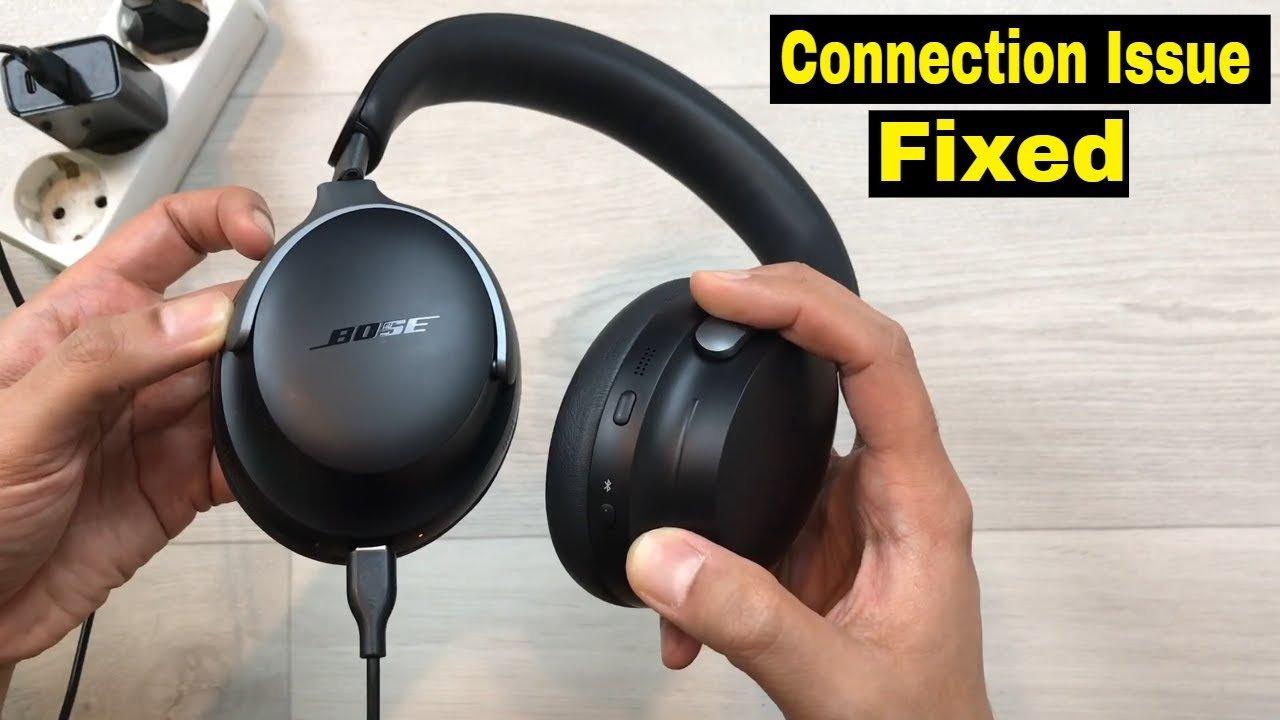
To connect Bose Bluetooth headphones, first put the exact model into pairing mode, then select it from the Bluetooth menu on your phone, computer, tablet, or other source device. The button sequence varies by Bose model and generation, so use the model-specific support page when the controls do not match a generic guide.
Quick answer: current Bose QuietComfort over-ear models typically enter pairing mode by holding the Power/Bluetooth control until the headphones announce or indicate that they are discoverable. On the source device, turn Bluetooth on and select the Bose product. If the product appears more than once on Windows, Bose advises choosing the normal headphone entry rather than an “LE-” entry.

Start With the Exact Bose Model
“Bose headphones” covers several generations of QuietComfort headphones, QuietComfort Ultra models, older QC35 products, earbuds, and other devices. Pairing controls and companion apps are not identical across those products. For example, current QuietComfort Headphones (2nd Gen) use the Power/Bluetooth switch for pairing, while current QuietComfort Earbuds use a touch-and-hold gesture on an earbud.
Before troubleshooting, confirm the model name printed in the Bose app, on the product, packaging, or support page. Do not clear pairings or reset the headphones based on instructions for a different generation.
How to Pair Bose Headphones Over Bluetooth
Put the Bose headphones in pairing mode
For QuietComfort Headphones (2nd Gen), Bose says to slide the Power/Bluetooth switch toward the Bluetooth symbol and hold it for about three seconds until the discoverable indication appears. Other models can use a different control.
Open Bluetooth settings on the source device
Turn Bluetooth on and open the device list. On phones and tablets this is normally under Settings; on Windows and macOS it is in the system Bluetooth settings.
Select the Bose product name
Choose the normal Bose headphone entry. On Windows, Bose specifically warns that if the product appears twice, select the entry with the headphone or speaker icon rather than the entry beginning with “LE-”.
Confirm audio input and output
A successful Bluetooth pairing does not always mean the operating system selected the headphones for playback or calls. Check the audio output and, for calls, the microphone input in the system or calling app.
Connection Steps by Device
| Device | Where to connect | Important check |
|---|---|---|
| iPhone / iPad | Settings → Bluetooth → select the Bose product | Confirm the headphones, not the phone speaker, are selected for playback. |
| Android | Settings → Bluetooth or Connected devices → pair new device | Some current Bose products also support Android Fast Pair, but ordinary Bluetooth pairing still works. |
| Windows 11 | Settings → Bluetooth & devices → Add device → Bluetooth | If two Bose entries appear, avoid the “LE-” entry and choose the normal headphone entry. |
| Mac | System Settings → Bluetooth → select the Bose product | If connected but silent, choose the headphones under Sound output. |
| Chromebook | Quick Settings → Bluetooth → select the Bose product | Bose’s current Ultra support page includes ChromeOS as a standard Bluetooth pairing path. |
| Bluetooth TV | Use the TV’s Bluetooth audio / accessory menu | The TV must actually support Bluetooth audio output; Bluetooth hardware alone is not enough. |
Can Bose Headphones Connect to Two Devices at Once?
Many current Bose models support multipoint, but the exact capacity depends on the product. Bose says QuietComfort Headphones (2nd Gen) can be actively connected to two devices at the same time and can store multiple devices in memory. Audio plays from one connected source at a time.
To switch between two connected sources, Bose’s current instructions are simple: pause audio on the first device, then start playback on the second. The Bose app can also manage connected devices on supported current products. See Bose’s multipoint instructions for QuietComfort Headphones (2nd Gen) for the exact behavior of that model.
Do You Need the Bose App to Pair?
Not always. Current Bose headphones can generally be paired through the source device’s Bluetooth menu, and Bose also offers model-specific app workflows for setup and connection management. The important part is using the correct app for the exact generation.
Older products such as QC35 and QC35 II appear on Bose’s Bose Connect compatibility list. Current QuietComfort products use newer Bose support and app workflows. Do not assume an app instruction written for QC35 applies to a current QuietComfort Ultra or QuietComfort (2nd Gen) model.
What About a Wired Connection?
Some Bose over-ear headphones also support analog or USB audio paths, but the available connection depends on the exact model. A cable that physically fits does not prove that microphone controls, digital audio, or charging will work through that port.
If you are connecting through an analog jack or adapter, Wantek’s 3.5 mm audio cable guide explains TRS/TRRS function, adapters, and why connector shape alone is not a complete compatibility test.
Can Bose Headphones Connect Directly to a PS5?
Do not treat every Bluetooth-equipped device as a generic Bluetooth-audio source. The PlayStation 5, for example, does not support direct pairing with ordinary Bluetooth audio headphones for game sound. Bose headphones therefore need another supported path, such as a compatible USB audio transmitter, a wired connection through the DualSense controller when the headphone model supports analog audio, or Remote Play.
For those console-specific paths, use Wantek’s PS5 Bluetooth headphone connection guide rather than repeatedly trying standard phone-style pairing.
If Your Bose Headphones Will Not Connect
- Confirm pairing mode. Powered on is not the same as discoverable.
- Check the saved device list. Remove a stale Bose entry from the phone or computer, then try pairing again.
- Temporarily disable nearby competing connections. A previously paired phone or computer may reconnect first.
- Restart both sides. Power-cycle the Bose product and the source device before more disruptive steps.
- Try a second source device. If the Bose headphones pair elsewhere, the first device or its Bluetooth settings are the more likely problem area.
- Use the exact Bose reset procedure only if needed. Bose reset and device-list-clearing steps vary by product, so use the model-specific support article.
For current QuietComfort Ultra models connected to Windows, Bose also documents Bluetooth-adapter power management as one possible cause of repeated disconnections. That is a Windows-specific troubleshooting branch, not a universal fix.
Frequently Asked Questions
Why are my Bose headphones not showing up in Bluetooth?
They may be powered on without being in pairing mode, already connected to another nearby device, or represented by an old saved pairing. Re-enter the exact model’s pairing mode before resetting anything.
Why do my Bose headphones appear twice on Windows?
Bose says some products can appear with both a normal entry and an “LE-” entry. For current QuietComfort Ultra pairing instructions, choose the normal headphone or speaker entry rather than “LE-”.
Can Bose headphones connect to a TV?
They can connect to TVs that support compatible Bluetooth audio output. Put the Bose product in pairing mode, then use the TV’s Bluetooth-audio menu. Check the TV manual if it only supports Bluetooth remotes or accessories.
Can Bose headphones connect to two devices at once?
Many current Bose models support two active Bluetooth connections, but verify the exact model. Bose states that QuietComfort Headphones (2nd Gen) can connect to two devices simultaneously while playing audio from one at a time.

