
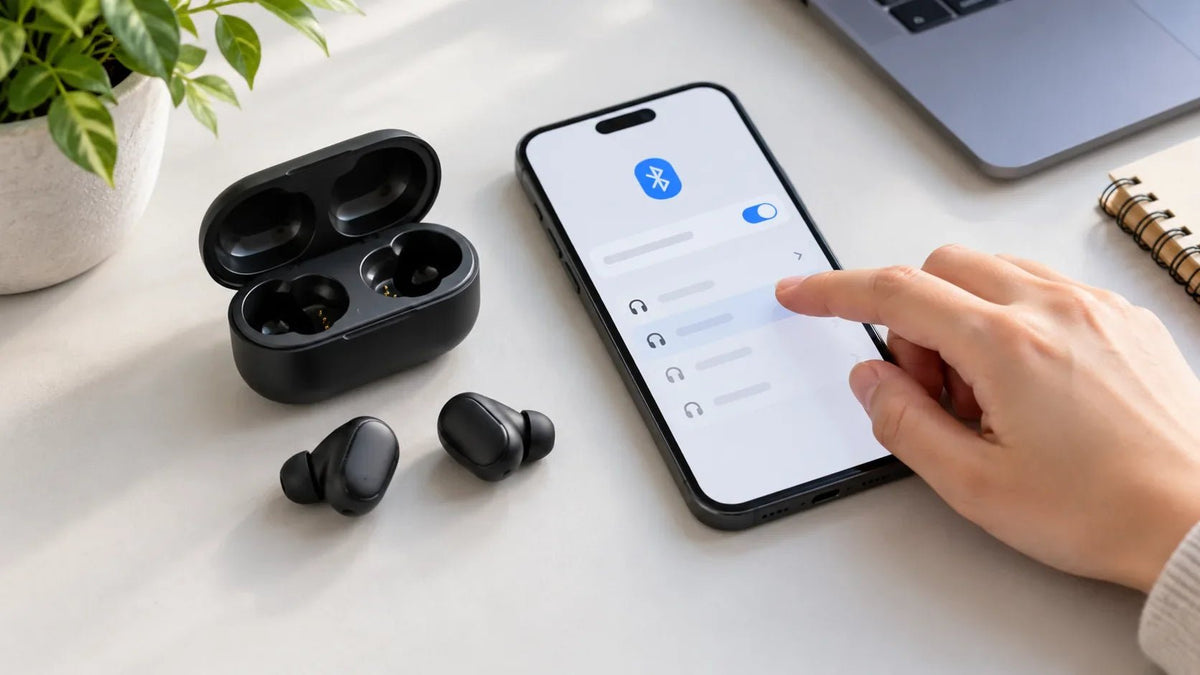
To connect wireless earbuds, charge the earbuds and case, put the earbuds into pairing mode, turn on Bluetooth on your phone or computer, and select the earbuds by name. The exact pairing control varies by model: some earbuds become discoverable when you open the case, while others require a button or touch-control sequence.
Quick steps: Charge both earbuds → activate pairing mode → open Bluetooth settings → choose the earbud name → test audio. If the name does not appear, check whether the earbuds are already connected to another device before attempting a reset.
How to connect wireless earbuds: the basic steps
- Charge the earbuds and case. Make sure both earbuds have enough power to enter pairing mode. Check that they are seated correctly in the case if one side seems inactive.
- Make the earbuds discoverable. Open the case or follow the pairing instruction for your exact model. A flashing indicator may show pairing mode, but the light pattern is not universal. Pairing and factory reset are different operations.
- Turn on Bluetooth on the source device. Open the device's Bluetooth settings. Keep the earbuds nearby while it searches for discoverable accessories.
- Select the earbuds. Choose the model name shown in the available-device list and follow any confirmation prompt. If asked for a pairing code, use the device documentation.
- Test the connection. Play audio through both earbuds. If you plan to make calls, also check that the correct microphone is selected in your device or calling app.
How to connect wireless earbuds to an iPhone or iPad
- Put the earbuds into the pairing mode specified by the manufacturer.
- Open Settings > Bluetooth on your iPhone or iPad and turn Bluetooth on.
- Tap the earbud name when it appears, then accept any pairing prompt.
Apple's Bluetooth accessory setup guide covers third-party devices. If you have already paired these earbuds but they will not reconnect, try selecting them from the saved-device list before forgetting the pairing.
How to connect wireless earbuds to Android
- Put the earbuds in pairing mode and enable Bluetooth on the phone.
- Open Bluetooth settings and choose Pair new device (menu names vary by phone and Android version).
- Select the earbud name under available devices and complete any prompt.
Compatible Android phones and earbuds may offer Fast Pair with a nearby setup notification. The pop-up is optional; use ordinary Bluetooth settings when it does not appear. Google's Android Bluetooth instructions explain the manual path. For Android-specific left/right earbud and Fast Pair troubleshooting, see our TWS earbuds pairing guide for Android.
How to connect wireless earbuds to a Windows PC
On Windows 11, enter pairing mode, open Settings > Bluetooth & devices, turn Bluetooth on, and select Add device > Bluetooth. Choose the earbuds and finish the on-screen steps. You can also pair from the Bluetooth control in Quick Settings.
If Bluetooth is missing, check whether the PC has a working Bluetooth adapter. If the earbuds connect but play through computer speakers, select the earbuds as the sound output. Microsoft's Windows Bluetooth pairing guide also documents the Windows 10 path.
How to connect wireless earbuds to a Mac
Put the earbuds in pairing mode. On the Mac, open Apple menu > System Settings > Bluetooth, find the earbuds, and click Connect. If they connect but audio uses another device, open System Settings > Sound and choose the earbuds for output or input as appropriate. See Apple's Mac Bluetooth connection guide.
Why wireless earbuds will not connect
The earbuds do not appear in the Bluetooth list
Confirm that the earbuds are in pairing mode rather than merely powered on. Make sure they have charge and move them closer to the phone or computer. If they automatically reconnect to an older phone or laptop, disconnect that source temporarily, then scan again.
Only one earbud connects or plays audio
Check the charge and contacts for both earbuds, then return both to the case and follow the manufacturer's synchronization or re-pairing steps. Some true wireless models need a model-specific reset to reestablish the left/right connection. Avoid a generic long-press reset sequence: it can differ among models.
The device says connected, but there is no sound or microphone
Pairing does not automatically select the earbuds as the playback or recording device. Check the active audio output, the calling app's microphone selection, and any media-audio or call-audio options available on your device. Test music and a call separately.
The earbuds connected before but no longer reconnect
Try turning Bluetooth off and on, restarting the earbuds, and checking whether another saved device is taking the connection. If that fails, choose Forget This Device or its equivalent on the source, then pair again. Use a factory reset only with the exact model instructions.
Can wireless earbuds connect to two devices?
Many earbuds can remember more than one paired device, but that is not the same as staying connected to both at once. Multipoint is a separate, model-specific capability; even with multipoint, simultaneous playback from two devices is not guaranteed. If a model lacks multipoint, disconnect it from the current device before switching to the other device's saved Bluetooth list.
Frequently asked questions
Do all wireless earbuds enter pairing mode when the case opens?
No. Some automatically enter pairing mode when first used, while others require a case button or an earbud control sequence. Follow the manual for the exact model rather than assuming a universal action.
Do I have to pair my earbuds every time I use them?
Usually not. After the first successful pairing, the phone or computer generally remembers the earbuds. If automatic reconnection fails, select them from saved Bluetooth devices before deleting and recreating the pairing.
Why do my earbuds show up twice in Bluetooth settings?
Some models expose more than one Bluetooth entry or separate connection functions. Check the manufacturer's setup instructions and choose the intended audio device; do not assume every second entry is an error or pair both entries blindly.

