
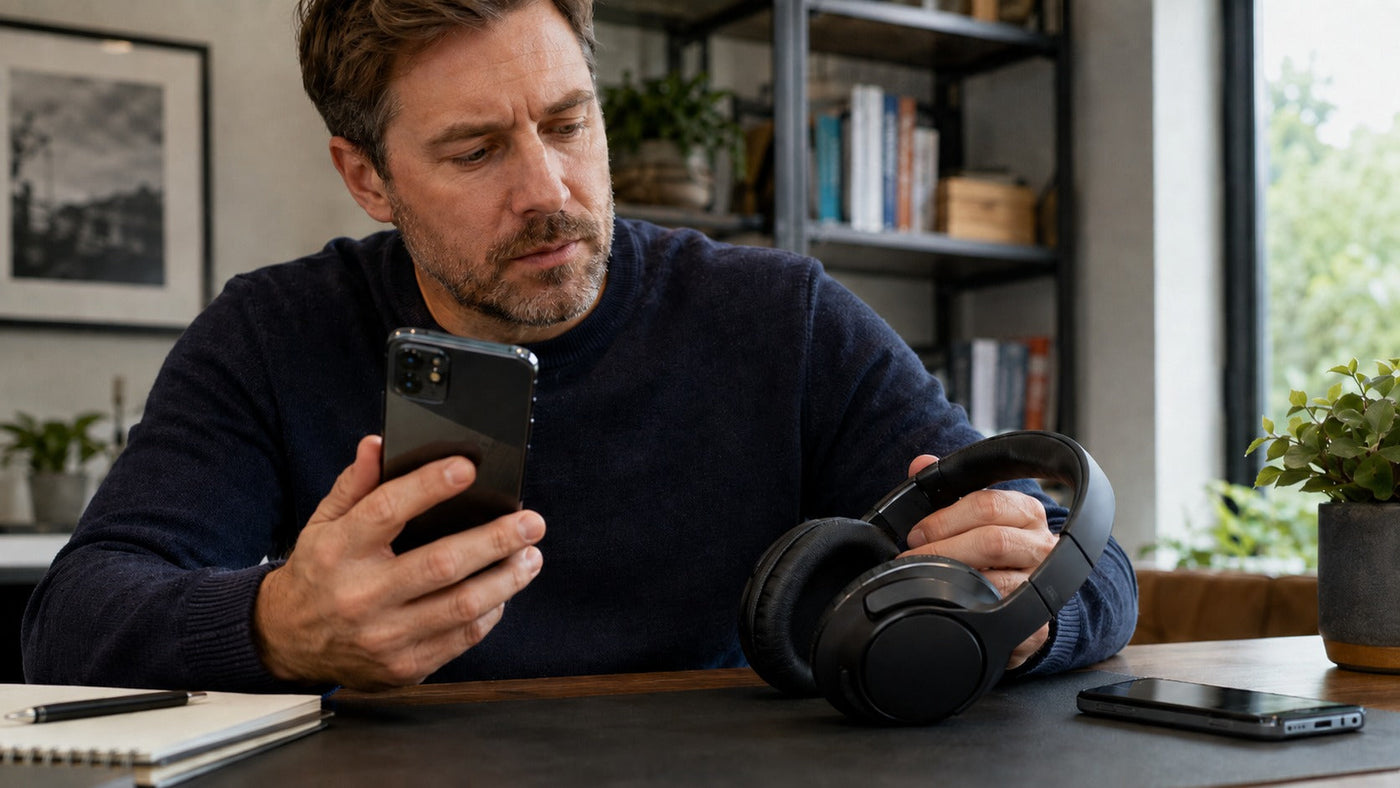
You just got a new phone. Maybe it’s a new iPhone or a fresh Android device. You unbox it, power it on, grab your wireless headphones, hit connect—and nothing happens. Or the headphones keep reconnecting to your old phone instead.
That’s when knowing how to reset bluetooth headphones becomes useful. The process usually isn’t difficult, but there is no universal reset sequence. Sony, Apple, JBL, Soundcore, Skullcandy, and other manufacturers use different buttons, timing, indicator lights, and case controls.
The Sticky Situation of Wireless Memory
Bluetooth headphones can retain pairing information for previously connected devices. Depending on the model, they may also support several stored devices or multipoint connections.
That history is normally useful because it lets your headphones reconnect automatically. But when you switch phones, troubleshoot repeated pairing failures, or encounter corrupted connection behavior, removing old pairings or performing a factory initialization may help.
A factory reset is not automatically necessary every time you change phones. Start with ordinary unpairing and pairing. Escalate to a model-specific reset only if the headphones refuse to connect, repeatedly reconnect to another device, or continue behaving incorrectly.
Why Most People Skip This Crucial Step
The difference between forgetting a device and resetting the headphones is easy to miss.
When you select “Forget This Device” or “Unpair” on a phone, you remove that Bluetooth relationship from the phone. Depending on the headphones, their own stored pairing list may remain unchanged.
A factory initialization goes further on models that support it. It can delete stored pairing information and restore configurable settings to their defaults.
That distinction matters when troubleshooting stubborn connection problems.

The Universal First Step: Forget and Unpair
Before attempting a factory reset, start with the least disruptive option.
On your old iPhone:
- Open Settings > Bluetooth.
- Find the headphones.
- Tap the information button.
- Select Forget This Device.
On Android, the exact menu varies by manufacturer, but the process is similar:
- Open Bluetooth or Connected Devices settings.
- Select the saved headphones.
- Choose Forget, Remove, or Unpair.
Then put the headphones into pairing mode and try connecting them to the new phone.
If that works, stop there. You do not need a factory reset.
If the headphones still fail to connect, reconnect automatically to another device, or behave unpredictably, the next step is to check how to reset bluetooth headphones to factory settings for your specific model.
How to Reset Sony Bluetooth Headphones: The Deep Dive
Sony is a good example of why generic reset instructions are risky. Even closely related Sony models use different initialization procedures.
If you’re researching how to reset Sony bluetooth headphones, identify the exact model number before pressing anything.
Sony Over-Ear Headphones: The WH Series
For the Sony WH-1000XM4:
- Turn the headphones off.
- Disconnect the USB-C cable.
- Press and hold the Power and CUSTOM buttons simultaneously for at least 7 seconds.
- When initialization completes, the blue indicator flashes four times.
Sony states that this procedure restores settings to their factory state and deletes pairing information. See the Sony WH-1000XM4 factory-initialization guide for the official sequence.
For the Sony WH-1000XM5:
- Turn the headphones off.
- Remove the USB-C cable.
- Press and hold the Power and NC/AMB buttons for about 7 seconds.
- Wait for the blue indicator to flash four times.
The WH-1000XM5 does not use the same button combination as the WH-1000XM4. Sony documents the procedure in its WH-1000XM5 factory-initialization instructions.
That difference is exactly why treating all Sony WH-series headphones as interchangeable can cause trouble.
Sony Earbuds: The WF Series
True wireless Sony earbuds use another process.
For the Sony WF-1000XM4:
- Put both earbuds into the charging case.
- Leave the case lid open.
- Touch and hold the sensors on both earbuds for about 10 seconds.
- When the charging-case indicator begins flashing red, release both sensors within 5 seconds.
- Successful initialization is confirmed when the case indicator flashes green four times.
Sony’s WF-1000XM4 initialization instructions also state that initialization deletes pairing information.
Original Sony LinkBuds use a different method. They rely on the initialize button on the charging case rather than the WF-1000XM4 touch-sensor sequence.
For LinkBuds, the earbuds are placed in the case, the case is opened, and the initialize button is held for about 15 seconds before the indicator sequence confirms initialization. Follow Sony’s LinkBuds initialization instructions for the exact timing and indicator behavior.
The lesson is simple: even within one brand, model-specific instructions matter.
The Generic Approach for Budget Brands
If you have JBL, Soundcore, Skullcandy, or another Bluetooth headset, resist the temptation to assume every model uses the same “hold Power for 10 seconds” shortcut.
Common reset designs include:
- Single-button hold: Some devices reset after holding the Power or Bluetooth button for a specified period.
- Button combination: Others require Power plus a volume button, both volume buttons, or another model-specific combination.
- Charging-case reset: Many true wireless earbuds use a button on the charging case.
- Touch-control reset: Some earbuds require holding one or both touch sensors.
- Dedicated reset control: A smaller number of devices provide a clearly documented reset button or recessed control.
Indicator colors also vary. Red-and-blue flashing is common on some devices during pairing, but it is not a universal factory-reset confirmation.
That’s why resetting bluetooth headphones should always begin with the model number and official instructions rather than a guessed button combination.
What to Do After Resetting Bluetooth Headphones? The Essential Follow-Up
A successful factory reset is only half the job. If you’re wondering what to do after resetting bluetooth headphones?, the next step is rebuilding the Bluetooth connection cleanly.
First, put the headphones into pairing mode.
Some models enter pairing mode automatically after initialization. Others require a specific Power, Bluetooth, case-button, or touch-control action. Follow the model’s instructions rather than relying on a universal timing rule.
Second, remove any stale entry from your new phone.
If a previous pairing attempt already created an entry for the headphones, delete it before trying again.
Third, pair the headphones again.
On iPhone:
- Open Settings > Bluetooth.
- Put the headphones in pairing mode.
- Wait for the model name to appear.
- Tap it to connect.
On Android, commonly:
- Open Settings > Connected devices or Bluetooth settings.
- Choose Pair new device or the equivalent option.
- Select the headphones.
Menu wording differs across Samsung Galaxy, Google Pixel, Motorola, OnePlus, and other Android devices.
Fourth, test both playback and the microphone.
Play audio, adjust the volume, and make a short recording or test call. If the device pairs but behaves incorrectly, check for firmware updates through the manufacturer’s current companion app.
For supported Sony products, that app is now called Sony | Sound Connect.
Fifth, re-pair additional devices if needed.
If the factory initialization deleted the headphone’s pairing history, laptops, tablets, phones, and other previously connected devices will need to be paired again.

The iPhone-Specific Quirk: AirPods and Beats
AirPods require their own section because Apple has changed the reset procedure across generations.
For AirPods 1, AirPods 2, AirPods 3, AirPods Pro 1, and AirPods Pro 2:
- Put the AirPods in the charging case.
- Close the lid and wait 30 seconds.
- If they still appear on your iPhone or iPad, choose Forget This Device in Bluetooth settings.
- Open the charging-case lid.
- Press and hold the setup button on the back for about 15 seconds.
- Wait until the status light flashes amber and then white.
- Reconnect the AirPods.
AirPods 4 and AirPods Pro 3 use a different case-control sequence involving repeated double-taps on the front of the charging case.
Apple maintains the current procedures in its AirPods and AirPods Pro reset instructions.
Beats products should also be handled model by model. Different Beats headphones and earbuds use different reset combinations, so do not assume an AirPods procedure or a generic Power-plus-volume combination applies.
AirPods can also pair with Android and other non-Apple devices as ordinary Bluetooth audio accessories. Some Apple ecosystem features will not be available, but basic Bluetooth listening and calling remain possible on supported models.
When Resetting Doesn’t Work: Check the Basics
Sometimes the reset procedure does nothing. Before assuming the headphones are defective, check the conditions required for the reset.
-
Charge the headphones and charging case. Some wireless earbuds cannot initialize if the case does not have enough power.
-
Verify the exact model. WH-1000XM4 and WH-1000XM5 look related but use different factory-initialization button combinations. Similar differences exist across many brands.
-
Check the timing carefully. Some procedures require releasing a button shortly after an indicator changes. Holding it longer is not always better.
-
Disconnect charging cables when required. Some over-ear headphones specifically require initialization while disconnected from USB power.
-
Check the manufacturer’s app. Certain models offer reset, initialization, firmware-update, or connection-management tools through their companion apps.
-
Install available firmware updates. If pairing problems continue after a successful reset, current firmware may resolve software-related issues.
A reset can clear configuration and pairing problems. It cannot repair a damaged charging port, broken switch, failed battery, damaged speaker driver, or other physical hardware fault.
Ready to Compare a Different Wireless Headset?
Compare Wantek wireless headsets and Bluetooth headphones by use case, wearing style, microphone design, and device path.
- Work calls
- Everyday listening
- Wireless use
A Few Practical Habits That Prevent Repeat Problems
If your headphones keep reconnecting to an old laptop, tablet, TV, or phone, temporarily disconnect them from those devices while pairing the new one.
You usually do not need to erase every Bluetooth device you have ever used. Focus on devices that the headphones are actively trying to reconnect to.
After pairing succeeds, giving the headphones a recognizable Bluetooth name can also help when your phone, computer, and office are full of wireless devices with similar model numbers.
On iPhone, supported Bluetooth accessories can be renamed from the device information screen. Other operating systems provide similar options depending on the accessory.
The Android Specifics: A Quick Word on Saved Devices
Android menus vary considerably between manufacturers and versions, so there is no single universal path such as “Bluetooth > Saved devices” that applies everywhere.
The basic process is consistent:
- Open Bluetooth or Connected Devices settings.
- Find the existing headphone entry.
- Choose Forget, Unpair, or Remove.
- Put the headphones back into pairing mode.
- Choose Pair new device.
- Select the headphones when they appear.
If the device still refuses to pair, restart Bluetooth or restart the phone before moving to more disruptive troubleshooting.
Avoid treating “clear Bluetooth cache” as a universal Android fix. Some versions and manufacturers expose system Bluetooth storage controls; others do not.
Is There a Difference Between “Reset” and “Pairing Mode”?
Yes, and confusing the two causes a lot of unnecessary troubleshooting.
Pairing mode makes the headphones discoverable so another device can establish a Bluetooth connection.
Reset usually restarts the device or clears a temporary fault, depending on the manufacturer.
Factory initialization or factory reset goes further on supported products and may restore settings to their defaults and delete stored pairing information.
Those terms are not standardized identically across every manufacturer.
For example, Sony distinguishes between a normal reset and initialization to restore factory settings on several headphone models. A normal reset may preserve pairing information, while initialization can delete it.
So a long Power-button press is not automatically a factory reset. It may simply turn the headphones on, force a restart, or enter pairing mode.
If your headphones already work normally and you simply want to connect another phone, pairing mode may be all you need.
The Last Resort: Use Model-Specific Troubleshooting
Completely draining a headphone battery, playing audio until the battery dies, or attempting to “drain internal capacitors” is not a standard Bluetooth troubleshooting procedure.
If normal pairing and the documented reset process both fail, use a cleaner escalation path:
- Fully charge the headphones and charging case.
- Restart the phone.
- Forget the Bluetooth device and pair again.
- Confirm the correct manufacturer reset or initialization procedure.
- Update the headphone firmware if an update is available.
- Test the headphones with another phone or computer.
- If they work on another device, troubleshoot the original phone.
- If they fail with multiple devices, inspect the headphones for charging, control, or hardware problems.
On iPhone, Reset Network Settings is a broader troubleshooting option, but it affects saved network configuration beyond the headphones themselves. It makes more sense after ordinary Bluetooth troubleshooting has failed.
The Bottom Line: Don’t Panic
Bluetooth resets are not intuitive because manufacturers implement them differently.
The safest sequence is straightforward:
- Forget the headphones on the old or problematic device.
- Try normal pairing with the new device.
- If that fails, identify the exact headphone model.
- Follow the manufacturer’s documented reset or factory-initialization procedure.
- Delete stale pairing entries.
- Pair the headphones again.
- Test playback, microphone operation, and any multipoint connections you actually use.
Skip universal “hold this button for 10 seconds” advice unless it matches the instructions for your exact model.
A few extra seconds spent checking the model can save a lot of pointless button pressing.
FAQ: How to Reset Bluetooth Headphones for New Device (iPhone/Android)
1. Why do I need to reset my Bluetooth headphones before pairing them with a new device?
You usually don’t. First forget or unpair the headphones and try normal pairing. A factory reset is more appropriate when persistent connection problems remain or the headphones need their stored pairing information cleared.
2. What is the most common way to reset Bluetooth headphones?
There is no reliable universal reset combination. Depending on the model, the process may use the Power button, multiple buttons, touch sensors, or a charging-case control. Check the exact manufacturer instructions for your model.
3. Do I need to delete the headphones from my old phone’s Bluetooth settings as well?
It is usually a good idea when switching devices, especially if the old phone keeps reconnecting automatically. On iPhone, choose Forget This Device; on Android, use the equivalent Forget, Remove, or Unpair option.
4. What should I do if the reset doesn’t work and my headphones still won’t pair with my new iPhone or Android?
Charge the headphones and case, confirm the correct model-specific reset sequence, remove stale Bluetooth entries, restart the phone, and try pairing again. Then check for headphone firmware updates and test the headphones with another device. If they fail across multiple devices, the problem may be with the headphones rather than the original phone.
Find a Headset That Fits Your Setup
Answer five quick questions about your device, use case, connector, and priorities to get a Wantek recommendation path.
- Choose your device
- Define your use case
- Review your match

