
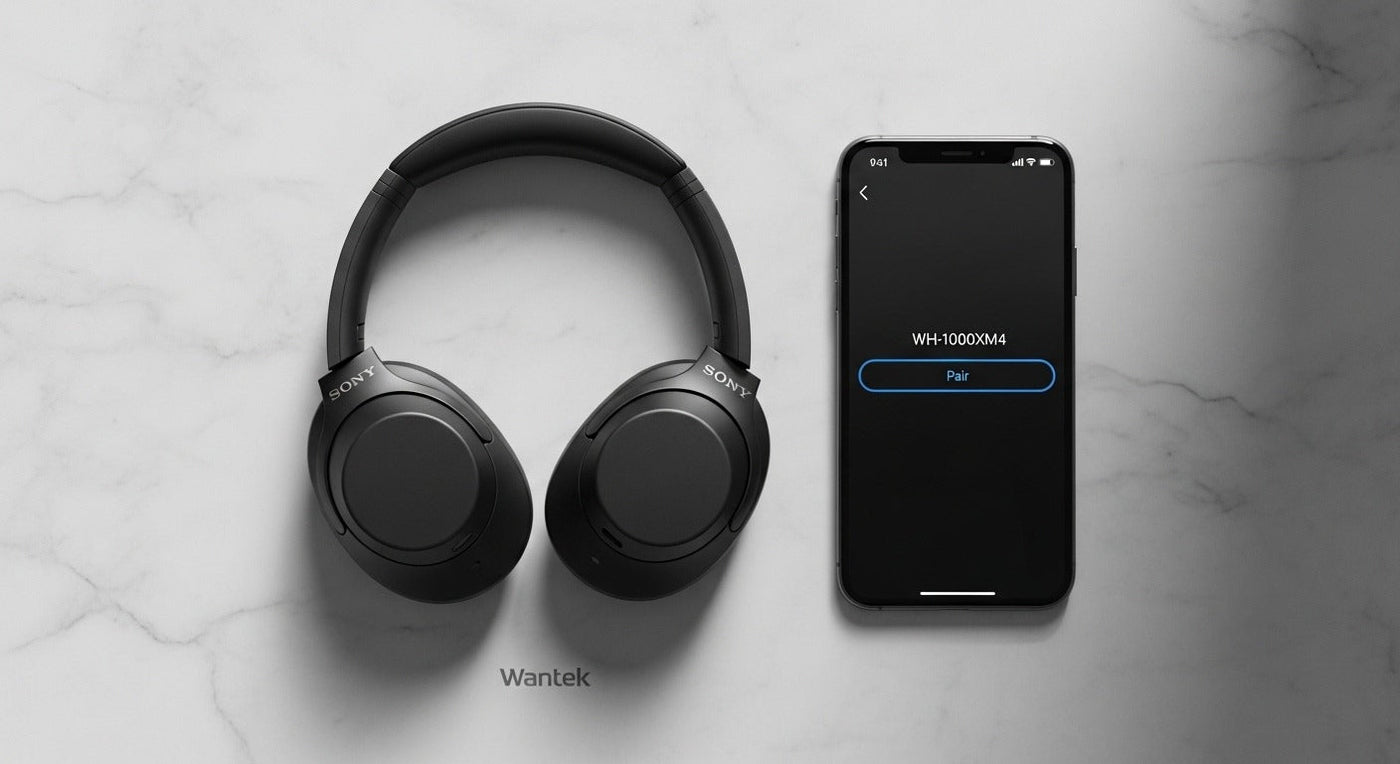
To connect Sony Bluetooth headphones, put the exact model into pairing mode, open Bluetooth settings on the phone, computer, tablet, or other supported source, then select the Sony model name. Pairing steps vary by model, so use the manufacturer procedure for your headphones rather than a generic button sequence.
Quick answer: first-time pairing is often automatic after power-on or removal from the charging case. For a second device, many Sony models require a longer button hold to re-enter pairing mode.
Pairing steps for common Sony Bluetooth headphones
| Model | How to enter pairing mode | What to select |
|---|---|---|
| WH-1000XM4 | For a second or later device, hold the power button for about 7 seconds until the blue indicator repeatedly flashes twice. | WH-1000XM4 |
| WF-C500 | For a second or later device, hold the buttons on both earbuds for about 5 seconds until the blue indicators repeatedly flash twice. | WF-C500 |
How to connect Sony headphones to a phone or computer
Charge the headphones and keep the source device nearby
Sony’s pairing guides for the WH-1000XM4 and WF-C500 specify placing the Bluetooth device within about 1 m (3 ft) during pairing.
Enter pairing mode
Use the model-specific control sequence. First-time pairing may happen automatically, while pairing another device usually requires a button hold.
Open Bluetooth settings on the source
Turn Bluetooth on and wait for the headphone model name to appear in the available-device list.
Select the correct Sony device name
For the WH-1000XM4, Sony specifically says to select WH-1000XM4 rather than LE_WH-1000XM4 when both appear.
For model-specific details, use Sony’s official guides for WH-1000XM4 Bluetooth pairing and WF-C500 Bluetooth pairing.
If your Sony headphones do not appear
- Move the headphones closer to the source device.
- Make sure the headphones are actually in pairing mode, not simply powered on.
- Temporarily turn off Bluetooth on a previously connected device if the headphones keep reconnecting to it.
- Delete the old pairing entry from the source device and pair again.
- Use a factory reset only when you have the documented reset procedure for your exact model.
For a model-safe troubleshooting sequence before factory reset, see Wantek’s Bluetooth headphone reset guide.
Connecting Sony headphones to TVs and game consoles
A Bluetooth logo on the headphones does not mean every TV or game console supports Bluetooth audio. Check the source device’s own audio-output documentation. Some consoles use proprietary wireless systems or controller-based wired audio instead of standard Bluetooth headphone pairing.

Xbox is a useful example: console-compatible wireless headsets can use Xbox Wireless for the console while Bluetooth is used for a phone or PC. If Xbox is your target device, use the dedicated Xbox Bluetooth headset setup guide instead of assuming standard Bluetooth pairing will work.
Frequently asked questions
How do I put Sony WH-1000XM4 headphones in pairing mode?
For a second or later device, Sony says to hold the power button for about 7 seconds until the blue indicator repeatedly flashes twice, then select WH-1000XM4 on the source device.
How do I pair Sony WF-C500 earbuds with another device?
Sony says to hold the buttons on both earbuds for about 5 seconds to enter pairing mode, then select WF-C500 in the Bluetooth device list.
Why do my Sony headphones keep connecting to another device?
A previously paired device may reconnect automatically. Temporarily disable Bluetooth on that device, then put the headphones back into pairing mode and connect from the intended source.

