
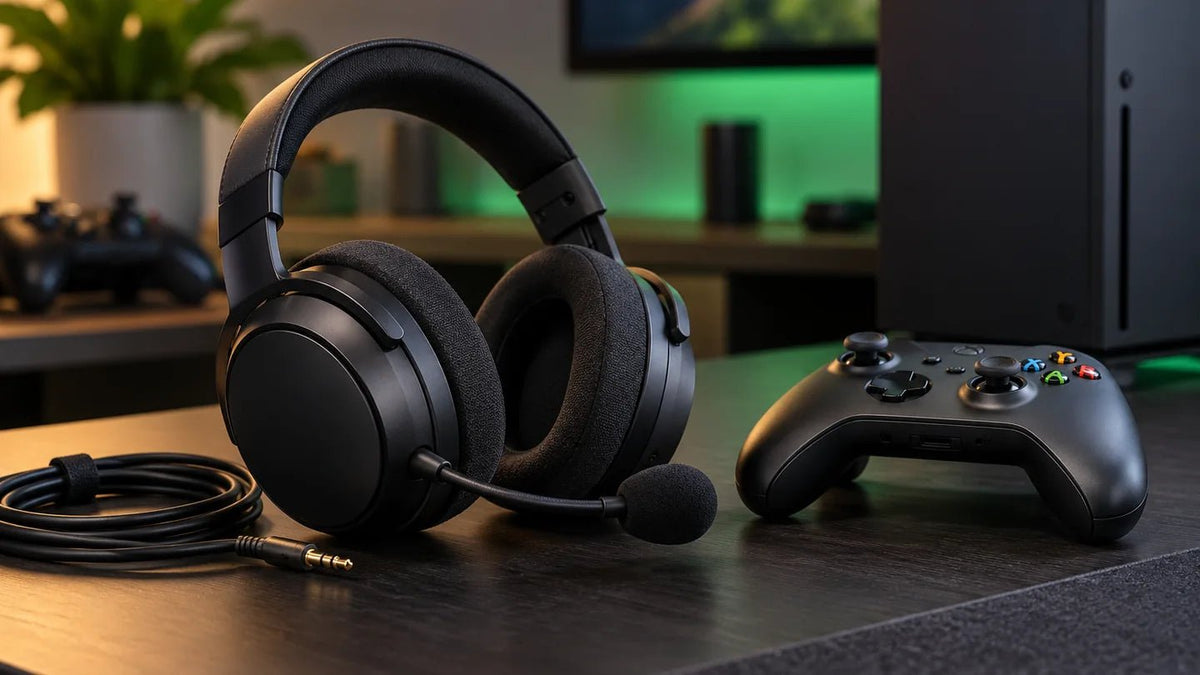
If your Xbox headset is not working, identify which part has failed before replacing anything: game sound, microphone input, party chat, or the connection itself. On Xbox Series X|S and Xbox One, a headset can play game audio while its microphone or chat path is still unavailable.
Start here: Check the headset's mute and volume controls, reconnect it through an Xbox-supported connection, then open the Xbox guide's Audio & music controls when available. Test game sound and voice chat separately. If the problem follows one controller, headset, or game, that is a more useful clue than changing every setting at once.
Choose the Fix That Matches Your Xbox Headset Problem
- No game sound: Check the plug or wireless link, headset volume, and game/chat balance first.
- You hear the game but not other players: Check party-versus-game chat, chat routing, and the chat mixer.
- Others cannot hear you: Check microphone mute, the microphone connection, and the current chat channel.
- Wireless headset will not connect: Verify Xbox compatibility and the exact pairing method; ordinary Bluetooth pairing is not the console's native headset connection.
- Audio cuts out: Isolate the headset, controller, cable, or wireless link using one change at a time.
1. Check the Headset Connection First

Wired headset through an Xbox controller
For a 3.5 mm wired headset, insert the plug fully into a compatible controller's headset jack. Check the physical mute switch and volume control on the cable or earcup. Microsoft's Xbox Stereo Headset specifications confirm the 3.5 mm controller connection for Xbox Series X|S and Xbox One.
If you use an older Xbox One controller without a built-in headset jack, you may need a compatible headset adapter. A cable with separate headphone and microphone plugs also needs the correct combined-headset connection; hearing audio alone does not confirm that the microphone contact works.
Wireless headset or USB receiver
Charge and power on the headset, then confirm its exact Xbox connection path. Direct Xbox Wireless headsets pair with the console; other Xbox-compatible models may use a manufacturer-supplied receiver with an Xbox mode. A generic Bluetooth USB adapter, or a headset that only pairs with a phone, is not evidence of Xbox console support. For setup instructions, see the Xbox wired and wireless headset connection guide.
2. Fix an Xbox Headset With No Game Audio
- Raise the headset's own volume control, and make sure the headset is not muted or powered off.
- Press the Xbox button on the controller. In the guide, open Audio & music when that option is available and check the headset volume.
- Move the headset chat mixer toward the middle. At an extreme, the mixer can silence either game sound or chat.
- For wired headsets, reconnect the 3.5 mm plug. If possible, compare with another compatible controller or a known-working headset.
- For Xbox-compatible wireless models, confirm the headset is paired to the console or that its supported receiver is connected and in the correct mode.
Microsoft's Xbox gaming headset help describes the guide's headset volume, chat mixer, and mic-monitoring controls. The exact control shown may depend on the headset, controller, and console software.
3. Fix Party Chat When Game Audio Still Works
First determine whether the failure occurs in an Xbox party, in-game voice chat, or both. Those are different chat paths. Make sure you joined the intended channel, nobody is muted, and the game or party is using the expected voice-chat mode.
Next, check the headset chat mixer. If game audio is loud but teammates are silent, move the mixer away from the game-only end. On some headsets, a hardware wheel controls the same balance. Check both before changing account settings.
If the problem occurs only in a game, inspect that game's voice-chat input/output and cross-platform communication options. If it occurs across games and Xbox parties, investigate console communication permissions and the headset microphone path. Menu labels may differ by account and software version; avoid switching unrelated privacy settings without checking which communication feature is blocked.
4. Fix an Xbox Headset Microphone That Is Not Working
- Unmute the headset's physical microphone switch, button, or flip-to-mute boom, if it has one.
- Check whether the microphone is properly attached, and reseat a detachable boom or wired connector if applicable.
- Try speaking in an Xbox party where the other participant can confirm whether your voice is received. Check that you have not muted yourself in that party.
- If the microphone fails in one game but works in an Xbox party, check the game's chat settings rather than assuming the mic is defective.
- If a wired headset works on another compatible device but not through one Xbox controller, test another controller when available. The controller jack or adapter may be the problem.
Mic monitoring is not a microphone on/off test. It changes how much of your own voice you hear in the headset; it does not prove other players can hear you. Microsoft's Xbox Wireless Headset information describes separate mute, game/chat balance, and mic-monitoring controls. If the microphone also fails on a compatible computer, the general headset microphone troubleshooting guide can help isolate a broader hardware or connection fault.
5. Fix Wireless Pairing or Audio Dropouts
If the headset disconnects, first verify that the product and the exact receiver or variant support your Xbox model. Reconnect it using the headset maker's procedure; do not apply a reset button sequence from a different headset. Recharge the headset, move closer to the console, and check whether the failure coincides with a low battery or an obstructed wireless connection.
For Microsoft's Xbox Wireless Headset, the official Xbox pairing instructions use the headset's pairing control and the console's Pair button. Other manufacturers' headsets may use a USB receiver and a different procedure. Pairing a headset to a phone over Bluetooth does not establish an Xbox game-audio link.
6. Find Out Whether the Headset, Controller, or Game Is at Fault
Change one variable at a time. A wired headset that works through a second controller points toward the original controller jack or adapter. A different known-compatible headset failing through the same controller points toward that controller or its settings. A microphone that works in Xbox party chat but not in a particular game points toward the game's chat configuration.
| Test result | What to check next |
|---|---|
| The same wired headset works with a second controller. | Check the first controller's 3.5 mm jack or adapter. Compare it with another known-working headset. |
| Another compatible headset works through the original controller. | Inspect the problem headset's plug, cable, and mute controls; test it on another compatible device. |
| The microphone works in an Xbox party but fails in one game. | Check that game's chat channel, microphone mute, and communication settings. |
| The wireless headset pairs with a phone but not the Xbox. | Verify the exact Xbox-compatible variant and use its documented Xbox Wireless or supported receiver setup. Phone Bluetooth pairing alone is not enough. |
After checking these simpler causes, inspect relevant controller or supported-headset updates in the Xbox Accessories app or the manufacturer's documented updater. Restart the console if the connection state appears stuck. Avoid a factory reset as the first troubleshooting step, because it removes useful context without isolating the audio fault.
When Should You Replace the Headset?
Consider replacement only after the same fault persists across appropriate tests. If the cable fails when moved, one earcup stays silent on multiple compatible devices, or the microphone never works through a known-good connection, hardware damage becomes more plausible. If the problem occurs only on Xbox, confirm platform compatibility and the controller or receiver before buying another headset.
If replacement is necessary, compare connection methods in the Wantek gaming headset collection. For Xbox, verify the exact wired controller connection or documented Xbox wireless support before ordering; a generic Bluetooth label is not enough.
Frequently Asked Questions
Why does my Xbox headset play game sound but not party chat?
The chat mixer may favor game audio, or you may be in the wrong voice-chat channel. Check the Xbox guide's audio controls, party mute settings, and whether the problem also occurs in another party or game.
Why does my headset work on my phone but not my Xbox?
Phone Bluetooth compatibility does not mean the headset supports Xbox console audio. Xbox requires a compatible controller connection, direct Xbox Wireless, or an explicitly supported receiver. Confirm the exact model and connection mode.
Does Xbox mic monitoring control whether my friends hear me?
No. Mic monitoring adjusts how much of your own voice you hear through the headset. To test microphone transmission, unmute the mic and check whether another person can hear you in a party.
Do older Xbox One controllers need a headset adapter?
Some older Xbox One controllers lack a built-in 3.5 mm headset jack. Those models may need a compatible stereo headset adapter, while controllers with a suitable jack can use a compatible wired headset directly.

