
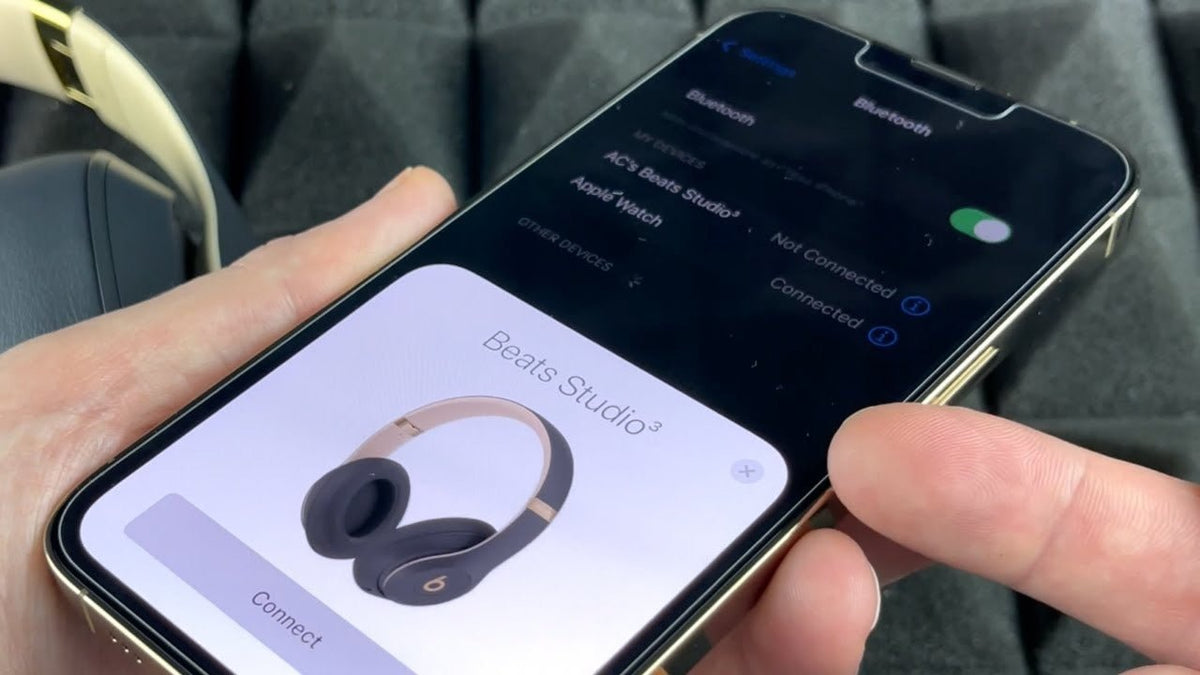
Beats products share Bluetooth basics, but the control used to enter discovery mode depends on the model. Pairing makes your headphones visible to a phone or computer; syncing can also refer to making that pairing available on other devices signed in to the same account.
Quick answer: Turn on Bluetooth, put your Beats in discovery mode, and select them in the device list. On supported Apple or Android setups, pairing can also carry over to devices signed in to the same Apple Account or Google Account. That does not mean every device will play through your Beats at the same time.

Put Your Beats in Pairing Mode
Start with the pairing control for your exact model. Apple’s current Beats pairing guide covers newer models; its Solo3 setup instructions cover the older generation.
- Beats Studio Pro: Turn on the headphones and press and hold the system button on the right earcup.
- Beats Solo 4: Press and hold the power button on the right earcup.
- Beats Solo3 Wireless: Press and hold the power button for about 5 seconds. When the Fuel Gauge lights flash, the headphones are discoverable.
- Beats Fit Pro, Studio Buds+, Powerbeats Fit, and Powerbeats Pro 2: Leave the earbuds in the open charging case and press and hold its system button.
- Beats Solo Buds: With the case open and the earbuds inside, press and hold the button above the “b” logo on either earbud until the pairing tone repeats.
- Beats Flex: Press and hold the power button on the right control module.
Flashing lights, or the pairing tone on Solo Buds, indicate that the device is ready. Older Beats models may use a different procedure, so use the instructions for your specific generation instead of assuming one button combination works for every model.
Pair with iPhone or iPad
- Open Settings > Bluetooth and turn Bluetooth on.
- With earbuds inside, open their charging case near your iPhone or iPad. For over-ear headphones, turn them on and hold them nearby.
- Follow the Beats setup animation if it appears. If it does not, put the Beats in discovery mode and select their name in the Bluetooth list.
After the first connection, supported Beats can reconnect when you use them again. The setup animation is convenient, but manual Bluetooth pairing is still an option.
Pair with Android
On a compatible Android device, turn on Bluetooth and bring your Beats nearby. Follow the setup prompt if one appears. Otherwise, put the headphones or earbuds into discovery mode, open Settings > Connections > Bluetooth (the path may vary by phone), and select the Beats name.
Supported Beats products can use the Beats app on Android for setup and management. Google Account-based automatic pairing is available in supported setups, but do not treat the app or account as a requirement for ordinary Bluetooth pairing.
Pair with Mac or Windows
Mac
Choose Apple menu > System Settings > Bluetooth. Put your Beats in discovery mode, find their name in the device list, and click Connect. If they have already been paired, selecting the existing entry may be enough.
Windows 11
- Put the Beats into discovery mode.
- Open Start > Settings > Bluetooth & devices, then turn Bluetooth on.
- Choose Devices > Add device > Bluetooth, select your Beats, and complete the prompts.
These Windows menu steps follow Microsoft’s Windows 11 device-pairing guidance. If the Beats show as connected but sound comes from the computer speakers, check the selected audio output before repeating the pairing process.
How Beats Sync Across Your Devices
Apple explains that after you set up supported Beats with an iPhone or another Apple device, the pairing can become available on your other devices signed in to the same Apple Account. Supported Android setups offer similar account-based pairing through a Google Account. You may still need to select Beats as the active Bluetooth or audio-output device.
Account syncing, saved pairings, and simultaneous audio are different things. A device appearing in several Bluetooth lists does not establish that it can receive sound from multiple sources at once. If music is playing on the wrong phone or computer, check which device is currently connected and which output is selected.
Fix a Stale Pairing or a Missing Connection
- Beats do not appear: Check the charge, keep them near the source, and confirm they are in discovery mode rather than simply powered on.
- The saved connection fails: Forget or unpair Beats in the source’s Bluetooth settings, then put them in discovery mode and pair again. Apple documents this sequence in its unpairing guide.
- Another device reconnects first: Temporarily disconnect Beats from the previous phone or computer and select them on the intended device.
- Connected, but no sound: Confirm that Beats are the selected playback destination in the system or app. A successful Bluetooth connection does not always mean audio is routed there.
- Still stuck: Only then consider a reset, following Apple’s reset directions for your exact model. For a broader explanation of when a reset is appropriate, see Wantek’s Bluetooth headphone reset guide.
FAQ
Why doesn’t the Beats setup animation appear?
An automatic prompt is not required for Bluetooth pairing. Put your Beats in the discovery mode for their model and connect through the phone or computer’s Bluetooth settings.
Can Beats pair with Android?
Yes. Supported Beats headphones and earbuds pair over Bluetooth with Android. Some models also offer a setup prompt and management through the Beats app.
Do Beats automatically sync with my other devices?
Supported Beats can share pairing information with devices signed in to the same Apple Account or Google Account. You may still need to choose the Beats as the active output on the device you want to use.
Should I reset Beats every time pairing fails?
No. First try forgetting the saved connection and pairing again. Reset only if those steps fail, and use the documented method for the exact Beats model.

