
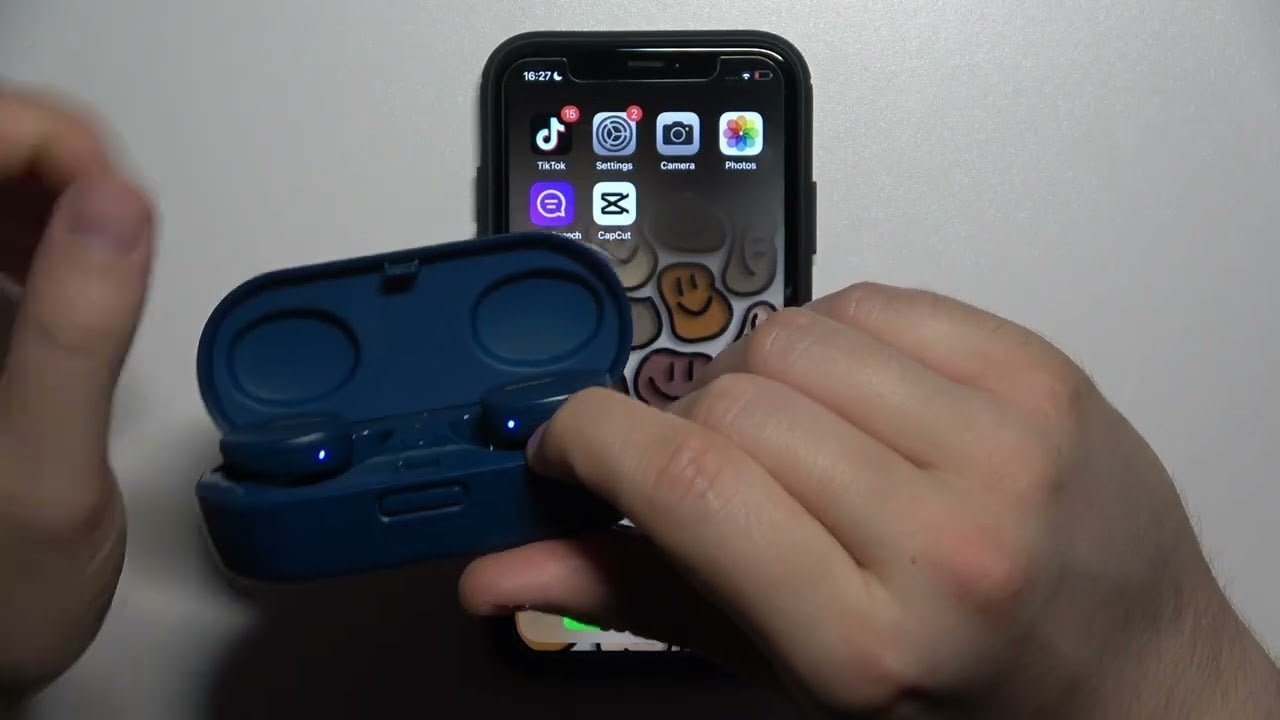
Bose headphones deliver crisp, immersive sound—until they stubbornly refuse to connect. 😤 Whether you're figuring out how to connect Bose headphones to iPhone, wrestling with an iPad, navigating Android’s quirks, or learning how to connect Bose headphones to a new device, this guide eliminates the guesswork. Let’s ditch the frustration and get you back to your playlist.
How to Connect Bose Headphones to iPhone: A Foolproof Walkthrough
iPhones and Bose headphones typically sync seamlessly—like avocado and toast. But when they don’t, here’s your battle plan:
Step 1: Wake Up Bluetooth
- Swipe into the Control Center (top-right on newer models, bottom-up on older ones).
- Tap the Bluetooth icon until it glows blue. No blue? No connection.
Step 2: Activate Pairing Mode
- QuietComfort/SoundLink users: Slide and hold the power switch until you hear “Ready to pair” or see a rapid blue blink.
- Bose 700 loyalists: Press and hold the dedicated Bluetooth button for 3 seconds. The light should pulse like a disco strobe.
Step 3: Seal the Deal
- Navigate to Settings > Bluetooth.
- Under Other Devices, tap your headphones. Wait for the satisfying “Connected” confirmation.
Source: Bose's general Bluetooth connection guide
Why this fails (and how to fix it):
- Headphones MIA? Restart both devices. It’s the digital equivalent of a caffeine reboot.
- Stuck on “Connecting”? Forget the device in Bluetooth settings and retry.
Pro Tip: iPhones prioritize recently used devices. If your headphones keep auto-connecting to your iPad, disable Bluetooth on the iPad temporarily.

How to Connect Bose Headphones to iPad: Because Autocorrect Isn’t Your Only Struggle
Pairing with an iPad mirrors the iPhone process—but let’s address iPad-specific quirks.
The Shortcut Method
- Bluetooth On: Open Settings > Bluetooth and flip the toggle.
- Headphones in Pairing Mode: Hold the power button until the LED winks at you.
- Tap to Connect: Select your Bose model under Other Devices.
Ecosystem Quirk: Using the same Apple ID? Your headphones might auto-populate on the iPad. Handy—unless you’re trying to pair with a different device.
Random Fact: The iPad’s Bluetooth range (~30 feet) is slightly longer than the iPhone’s. Use this to your advantage when pacing during calls.
How to Connect Bose Headphones to Android: Defying Fragmentation, One Pairing at a Time
Android’s diversity means steps vary, but here’s the universal blueprint:
Step 1: Unleash Bluetooth
- Swipe down the notification shade and long-press the Bluetooth icon.
- Alternatively, dive into Settings > Connected Devices > Bluetooth.
Step 2: Headphones in Discovery Mode
- Same drill: Hold the power/Bluetooth button until the light flashes rebelliously.
Step 3: Bonding Time
- Under Available Devices, tap your Bose model.
- If prompted for a PIN, try 0000 or 1234 (though Bose rarely requires this).
Android-Specific Annoyances:
- Battery saver mode may throttle Bluetooth. Disable it if connections drop.
- Codec conflicts can mangle audio quality. Tweak this in Developer Options (if you’re feeling adventurous).
How to Connect Bose Headphones to a New Device: Breaking Up with Old Tech
Switching devices? Avoid the “why won’t you forget me?!” drama with these steps:
Step 1: Clean Break
- Turn off Bluetooth on the previously connected device. Or, better yet, forget the headphones in its settings.
Step 2: Reset the Romance
- Hold the Bluetooth button until the LED flashes blue—a universal sign of availability.
Step 3: New Love
- Follow the pairing steps for your target device (iPhone, Android, etc.).
Pet Peeve Alert: Some Bose models (looking at you, SoundLink II) only remember one device. To pair anew, you must sever ties with the old one first.
Troubleshooting: When Tech Acts Like a Toddler
Even premium gadgets throw tantrums. Here’s how to pacify them:
Problem: “My Headphones Won’t Pair!”
- Check the charge. A low battery can cause pairing glitches.
- Restart everything. Yes, even the headphones (hold the power button for 10 seconds).
Problem: “Audio Keeps Cutting Out”
- Reduce interference. Bluetooth hates microwaves, Wi-Fi routers, and thick walls.
- Update firmware. The Bose Connect app (iOS/Android) delivers crucial fixes.
Problem: “Connected but No Sound”
- Verify output. On iPhones, swipe into Control Center and tap the audio output icon.
- Check mute switches. Some Bose models have physical mute buttons.
Unrelated but Cool: Bluetooth 5.0 (found in newer Bose models) offers double the range and speed of older versions. Upgrade if you’re still on 4.2.
Frequently Asked Questions:
Q1: How do I pair my Bose headphones with a smartphone?
A1: Turn on your Bose headphones, enable Bluetooth on your smartphone, and select your headphones from the list of available devices to complete pairing.
Q2: Can I connect Bose headphones to a laptop or PC?
A2: Yes, go to your computer’s Bluetooth settings, put your headphones in pairing mode, and select them from the detected devices list.
Q3: What should I do if my Bose headphones won’t connect?
A3: Ensure your headphones are charged, restart Bluetooth on your device, and reset your headphones if needed by holding the power button for 10 seconds.
Q4: Do Bose headphones support multi-device pairing?
A4: Some Bose models support multi-device pairing. Check your product manual or the Bose app to confirm and manage connected devices.
Parting Wisdom: Because You’ve Earned It
Pairing Bose headphones shouldn’t require a tech degree. Whether it’s an iPhone, iPad, Android, or a new device, the steps are methodical—not magical. Still stuck? The Bose support site has detailed manuals for every model.
Now, go forth. Listen to podcasts, binge true crime, or drown out your neighbor’s karaoke night. Your soundtrack awaits. 🎧
Limited-Time Deals – Grab Yours Before They're Gone!
High-quality sound meets unbeatable prices. Don’t miss out on our exclusive discounts – upgrade your headphones today! [Claim Your Deal]

