
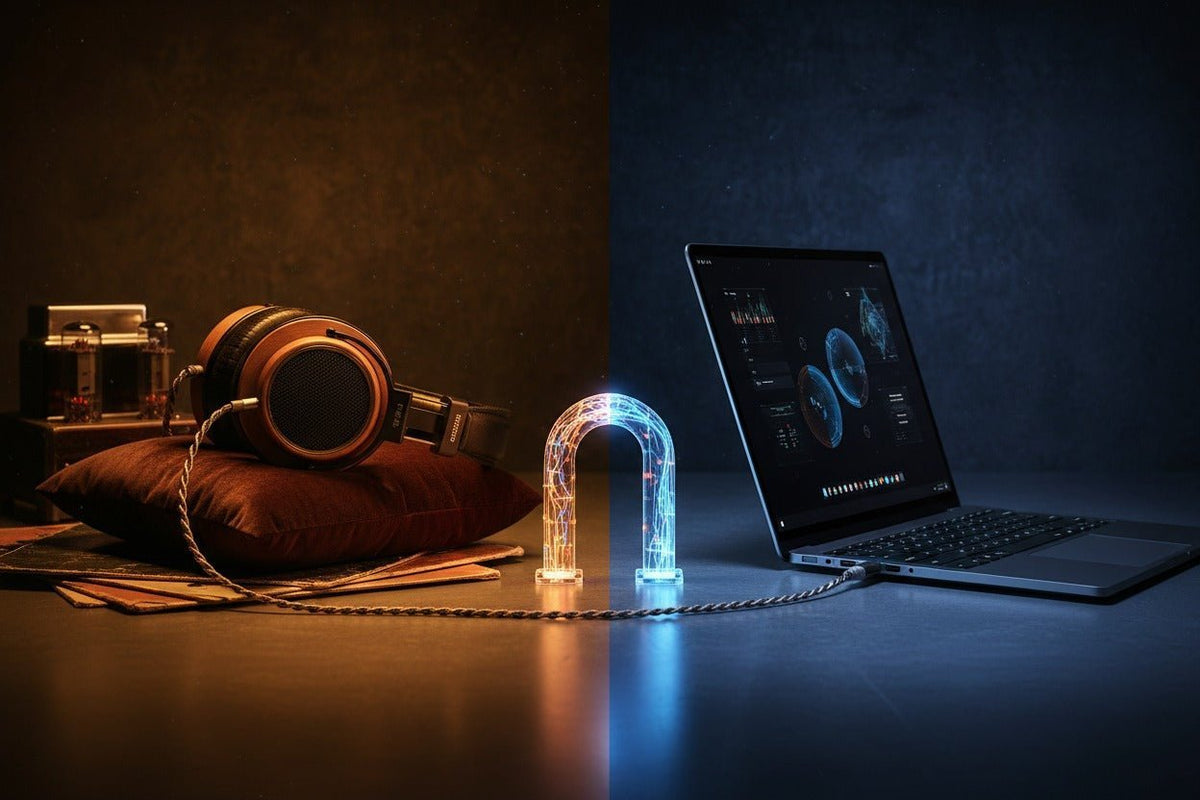
A 3.5mm headphone-to-USB adapter is not just a plug converter. For normal playback, the USB side carries digital audio and the adapter converts it to an analog signal that 3.5mm headphones can use. If your headset also has a microphone, the adapter must support headset input as well as headphone output.
Quick answer: For a USB-A computer, use an active USB audio adapter or USB sound card with a built-in audio codec. For USB-C, an active digital adapter is the safest choice unless the device explicitly supports analog USB-C Audio Adapter Accessory Mode. A four-pole 3.5mm headset also needs an adapter that supports microphone input—not merely stereo headphone output.
Why a Headphone Jack to USB Adapter Needs Electronics

A 3.5mm headphone plug carries analog audio. A USB connection normally carries digital data. That means the playback path needs a digital-to-analog converter (DAC) before the signal reaches your headphones. Many USB audio adapters also include a small headphone amplifier.
A headset adds another requirement. If its 3.5mm TRRS plug carries a microphone signal, the USB adapter must also provide an analog-to-digital path for the mic. An adapter advertised only as a headphone output may play audio correctly while leaving the microphone unavailable.
Windows includes class drivers for compliant USB Audio devices; Microsoft documents native USB Audio Class support, including USB Audio 2.0 in Windows 10 version 1703 and later. That makes many standards-compliant adapters plug-and-play, although vendor-specific features can still require their own software.
USB-A vs. USB-C: Choose the Adapter by the Host Port
| Host connection | What to look for | Main compatibility risk |
|---|---|---|
| USB-A | Active USB audio adapter with a built-in codec/DAC | A passive physical adapter cannot turn a USB data port into analog headphone output |
| USB-C | Active USB-C audio adapter for the broadest device support | USB-C connector shape alone does not prove support for every audio mode |
| 3.5mm TRRS headset | Adapter that explicitly supports both headphones and microphone input | Output-only dongles can leave the headset microphone or controls unavailable |
USB-C Can Carry Digital Audio or Optional Analog Audio
The USB Type-C specification defines an Audio Adapter Accessory Mode that can route analog audio through USB-C hardware designed to support it. That does not mean every USB-C phone, tablet, laptop, dock, or dongle implements that mode. When compatibility is uncertain, an active USB audio adapter that presents itself as a USB Audio device is the more predictable route.

How to Choose the Right USB Audio Adapter
1. Decide Whether You Need Headphone Output Only or Full Headset Support
For headphones without a microphone, a stereo output adapter may be enough. For a call-center, gaming, or office headset with a single four-pole 3.5mm plug, verify that the adapter supports microphone input as well. Do not assume a 3.5mm socket automatically handles both directions.
2. Match the Connector to the Actual Device
Check whether the computer uses USB-A, USB-C, a dock, or a hub. If you are selecting a complete wired work headset rather than preserving an existing pair of analog headphones, Wantek's wired headset connection guide explains how to choose between USB-A, USB-C, 3.5mm, and desk-phone connection paths.
3. Check Headphone Power Requirements
Impedance alone does not determine whether a headphone is easy to drive; sensitivity and the adapter's available voltage and power matter too. For ordinary office headsets and consumer headphones, a basic adapter may be sufficient. For demanding studio headphones, check the adapter manufacturer's output specifications instead of assuming every USB dongle will provide adequate level or headroom.
4. Do Not Buy by Sample Rate Alone
Claims such as 24-bit/96kHz or 32-bit/384kHz describe supported digital formats, not guaranteed audible quality. Compatibility, output noise, microphone support, power, and stable drivers are usually more important than the highest number on the package.
5. Treat Inline Controls as a Separate Compatibility Question
Even when audio and microphone functions work, volume, mute, or call-control buttons may not map identically through every adapter, operating system, dock, and calling app. If those controls matter, test the complete workstation path.
How to Connect 3.5mm Headphones or a Headset to USB
Identify the 3.5mm plug
Determine whether you have stereo headphones or a headset with a combined headphone-and-microphone TRRS plug.
Choose an active USB audio adapter
Match USB-A or USB-C to the host device and confirm microphone input support if you need it.
Connect the adapter first
Insert the USB adapter into the computer, dock, or supported device, then connect the 3.5mm plug.
Select the USB audio device
In system sound settings, select the adapter as the output device. For a headset, also select it as the input device.
Test playback and microphone separately
Play audio, then make a short microphone recording or test call. A working headphone output does not prove the microphone path is working.
Troubleshooting Common Problems
No Sound
- Confirm the adapter appears as an audio device in the operating system.
- Select it manually as the output device if the system did not switch automatically.
- Try another USB port and bypass the dock or hub temporarily.
- For USB-C, verify that the adapter is an active digital audio adapter if the host does not support analog accessory mode.
Headphones Work but the Microphone Does Not
- Check that the adapter explicitly supports headset microphone input.
- Confirm the correct input device is selected in both the operating system and the calling app.
- If you are using separate headphone and microphone plugs, use an adapter designed for that two-plug arrangement rather than a single-jack TRRS headset.
Volume Is Too Low
First check system and application volume. If levels remain low with demanding headphones, the adapter may not provide enough output voltage or power. A more capable USB DAC/headphone amplifier may be appropriate.
Static, Hiss, or Dropouts
Test the headphones directly on another analog source, then test the adapter on another USB port or computer. This separates a headphone problem from adapter noise, a damaged connector, or a USB/dock issue. Sensitive in-ear monitors can also reveal the noise floor of an adapter more readily than less-sensitive headphones.
Adapter vs. Direct USB Headset
An adapter makes sense when you already own a 3.5mm headphone or headset that fits your needs. A direct USB headset can be simpler when the primary use is computer calling and you want one tested connection path instead of a separate analog headset plus adapter.
Wantek's current PC headset collection separates USB and 3.5mm options and advises buyers to start with the computer connection before choosing a model. Some current Wantek wired models also provide USB-C, USB-A, and 3.5mm connection options in one headset, which can remove the need for a separate audio adapter in supported setups.
Compatibility rule: a connector fitting physically is not proof that audio, microphone, inline controls, and app behavior will all work. Verify the complete device + adapter + headset path.
Prefer a Direct USB Headset?
If your main use is PC calls and you would rather avoid a separate 3.5mm-to-USB adapter, compare current Wantek USB headset connections and wearing styles.
Headphone Jack to USB Adapter FAQ
Can I plug 3.5mm headphones into a USB port?
Yes, with a compatible USB audio adapter. For normal playback, the adapter receives digital USB audio and converts it to analog output for the 3.5mm headphones.
Do all USB-C to 3.5mm adapters work with every USB-C device?
No. USB-C describes the connector, not one guaranteed audio implementation. An active USB audio adapter is generally safer when the host's analog audio accessory support is unknown.
Will a USB adapter make my headset microphone work?
Only if the adapter supports microphone input and matches the headset connection. A headphone-output-only dongle can play sound while providing no usable microphone path.
Does a more expensive USB adapter automatically sound better?
No. Price alone does not establish performance. Compare compatibility, output power, noise, microphone support, measured performance, and the needs of your headphones.
Should I use an adapter or buy a USB headset?
Use an adapter when you want to keep a suitable 3.5mm headset. Choose a direct USB headset when simpler PC connectivity is more important than preserving the existing analog headset.


1 comment
I have an old Ipod with hundreds of songs, I want to use it as a source to drive sound bar that has usb type connectors.
Can I use one of the cables that has a DAC built in?
I there a better way to connect the old Ipod
/
thanks