
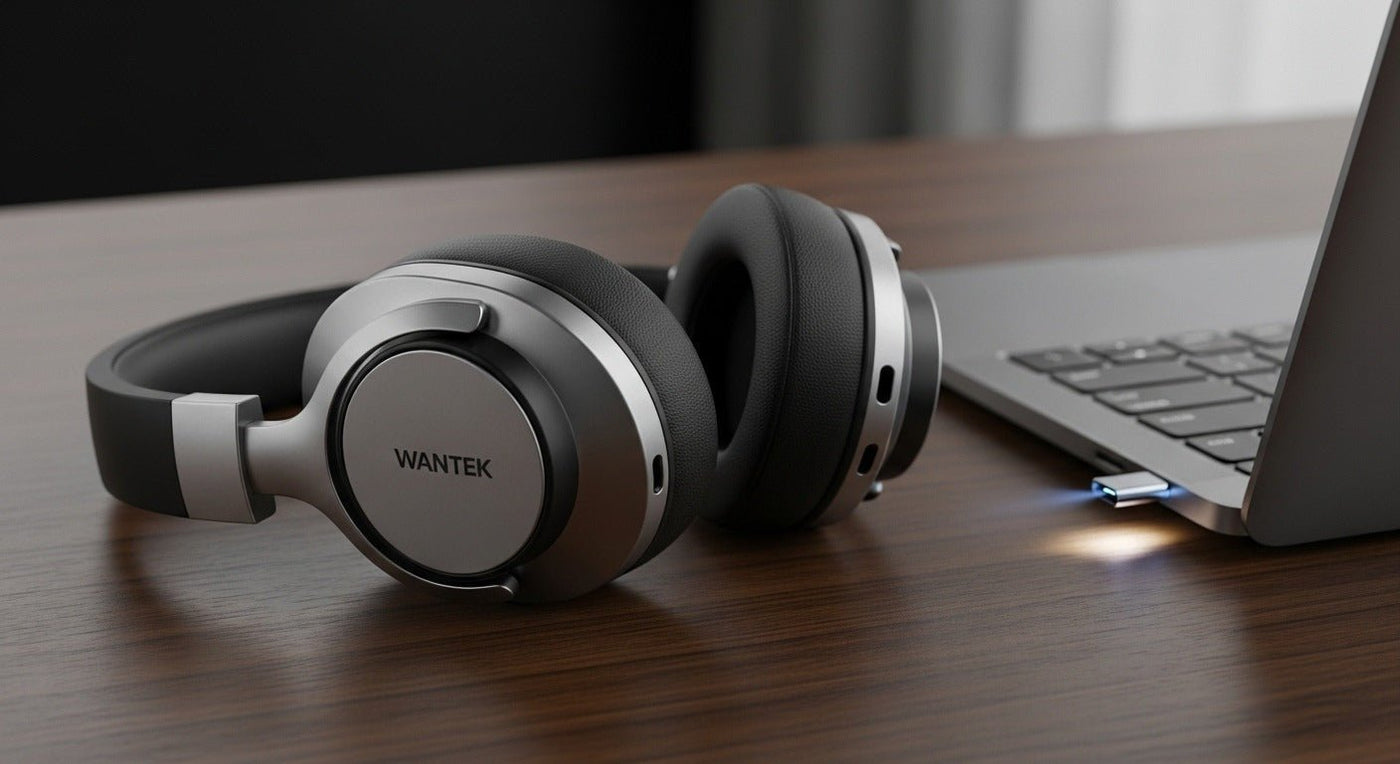
Computer headphones are asked to do very different jobs: video meetings, music, gaming, training, and calls. The “best” wireless pair depends on which of those tasks must work without compromise.
General rule: Bluetooth maximizes device flexibility; a dedicated USB wireless adapter can provide a more controlled connection for work or gaming.

Core features to compare
- Connection path and supported operating systems.
- Boom vs built-in microphone.
- Mute and call controls.
- Multipoint or laptop/phone switching.
- Battery and charge time.
- Comfort over the longest normal session.
- Gaming latency if relevant.

USB shape is not the whole compatibility story
A USB-C port can carry different functions depending on the computer. For USB headsets, confirm audio support, adapter needs, and app controls rather than matching connector shape alone.
For wired alternatives, see Wantek’s wired computer headset guide.
Compare PC work headsets
Wantek offers Bluetooth, USB-A, USB-C, and multi-connector office headsets for different computer workflows.
Computer Headphones Need More Than Bluetooth Pairing
For a laptop or desktop, confirm how the headphones handle both playback and microphone input. Work calls, games, and recording software can select different audio devices, so test the headset inside the application instead of stopping after successful pairing.
Prioritize features by task
For meetings, prioritize microphone consistency, mute access, comfort, and device switching. For media, battery life and listening comfort may dominate. For gaming, latency and platform support become more important. One model can cover several tasks, but the trade-offs should be explicit.
Computer Setup Checklist
- Confirm Bluetooth, USB receiver, or wired fallback.
- Select the headset for both input and output.
- Check app-specific audio settings.
- Test battery runtime against a normal workday.

