
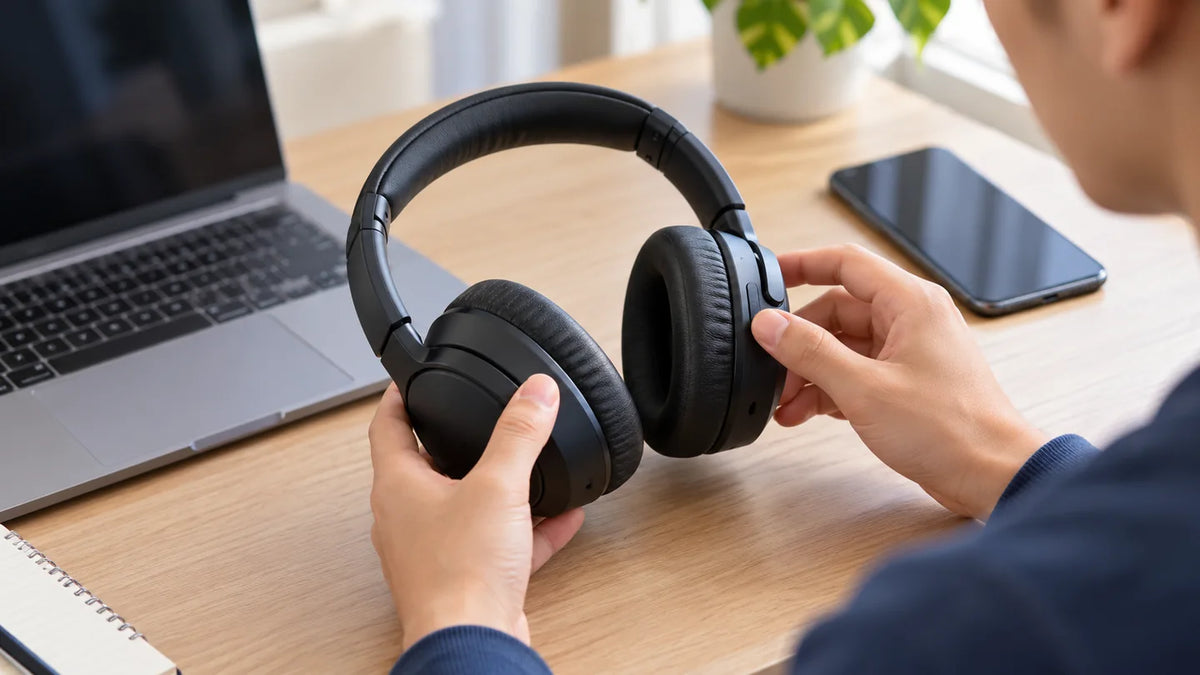
If your headphones are not working, first check whether the problem is no sound, a missing connection, audio in only one ear, or a microphone that will not pick up your voice. Start with the volume and selected audio output, reconnect the headphones, and test a second app. Those checks can separate a settings problem from a connection or hardware fault without erasing your saved settings.
Quick check: Play a known audio file, turn up both the device and headphone volume, verify the correct output is selected, and reconnect the cable or wireless connection. If the headphones still fail, test them on another compatible device before resetting or replacing them.
First, identify what is not working
- No sound at all: Check the active output device, mute and volume controls, and the connection.
- Headphones are not detected: Check the port, adapter, USB receiver, Bluetooth pairing, or power state.
- Only one side works: Check left/right balance and the connection before treating it as a broken speaker.
- Sound cuts out or crackles: Compare another port, cable, app, or wireless environment.
- Audio works but the mic does not: Troubleshoot microphone input separately from headphone playback.
Change one thing at a time and replay the same audio after each change. Otherwise, it is difficult to tell which step made a difference.
How to fix headphones with no sound
- Check volume and mute. Confirm the headphones, operating system, and app are not muted. Some headsets have their own inline or earcup volume control.
- Select the headphones as the output. Your device may still be sending audio to a monitor, laptop speakers, TV, or an older Bluetooth connection.
- Try another app or audio file. If one app is silent but system sounds work, check that app's output and mute settings rather than replacing the headphones.
- Reconnect the headphones. Reseat a wired plug, reconnect a USB device, or disconnect and reconnect Bluetooth. For battery-powered models, confirm they are charged and turned on.
- Restart the source device if needed. If a connection or audio service appears stuck, restart the phone or computer and test again.
- Try a second compatible source. Headphones that work on another device point toward the original source, port, output routing, or software. Failure on more than one compatible device makes a headphone-side issue more likely.
Wired headphones: check the jack, USB port, and adapter
3.5 mm headphones
Push the connector fully into the correct headphone or combo-audio jack. Inspect the plug and cable for obvious damage without bending them sharply. If a case, extension, or adapter prevents a firm connection, remove it temporarily. On a desktop with separate audio and microphone sockets, using the microphone input instead of the headphone output can leave you with no playback.
A USB-C or Lightning adapter must support the audio connection your phone or computer requires. Physical fit alone does not guarantee that every adapter carries analog or digital audio. Test a known-compatible adapter if one is available.

USB-A and USB-C headphones
Connect directly to a known-working USB port rather than through a hub or dock for the first test. Then check whether the system lists the headset as an audio output. If it appears but remains silent, choose it as the output and check its volume. If it does not appear, try another compatible port and check the device manufacturer's driver or support instructions.
Bluetooth headphones: check the connection before resetting
Charge the headphones, turn them on, and confirm they are connected to the device you are testing. Paired does not always mean currently connected for playback. If the headphones have also been used with a nearby phone or laptop, temporarily disconnect that other source and test again.
- Turn Bluetooth off and back on at the source device, or disconnect and reconnect the headphones.
- Verify the headphones are selected as the current audio output.
- If the connection remains unreliable, remove the saved pairing and pair again using the exact model's instructions.
- Try the headphones with another compatible source device.
Use a factory reset only after these checks and only with the manufacturer's procedure for your model. The Bluetooth headphone reset guide explains the difference between restarting, re-pairing, and factory resetting.
For true wireless earbuds, also confirm that both earbuds are seated and charging in the case. A silent earbud with no power is a different problem from a working earbud receiving the wrong audio channel.
Check audio output settings on your device
Windows 11
Open Settings > System > Sound. Under Output, select the headphones and check the volume and mute state. If Windows sees the device but playback is still silent, try the built-in audio troubleshooter and, where applicable, turn off audio enhancements temporarily. Microsoft provides an official Windows audio troubleshooting guide for further steps.
Mac
Open System Settings > Sound > Output and select the intended headphones. Check output volume and balance where those controls are available. If audio works in another application, investigate the silent app's output selection.
iPhone or iPad
Check the volume, playback destination, and headphone connection. For wired headphones, inspect the port and connector for obstruction or damage, and try a second compatible pair. Apple's iPhone and iPad headphone troubleshooting instructions describe these checks.
Android
Check media volume and the current media-output destination. Android menus vary by manufacturer and version. For Bluetooth headphones, open the connected-device settings and confirm the headphones are connected for media audio where that control is provided. For USB-C or 3.5 mm models, verify that the connection or adapter is compatible with the phone.
What if only one ear or the microphone stops working?
If only one ear plays sound, check left/right audio balance, charging for each wireless earbud, and the plug or cable. Then test another device. Follow the separate one-sided Bluetooth headphone troubleshooting guide if that is the specific symptom.
If you can hear audio but others cannot hear your voice, check the microphone's physical mute control, the selected input device, and the app's microphone permission. A working speaker does not prove that the microphone path works. The headset microphone troubleshooting guide covers Windows, Mac, USB, 3.5 mm, and wireless mic tests.
When is the headphone hardware likely to be faulty?
A hardware fault becomes more plausible when the same failure persists on multiple confirmed-compatible devices after checking power, audio output, connections, and app settings. Visible cable damage, a loose connector, a failed charging contact, or sound that repeatedly disappears when the same cable area moves can also point toward a physical issue.
Before opening the headphones, check the exact model's warranty and repair options. Repeated pairing resets will not repair a broken wire, speaker, charging circuit, or worn battery. If another known-working pair fails on the original device too, continue troubleshooting the device or its port instead of assuming both headphones are defective.
Frequently asked questions
Why are my headphones connected but not playing sound?
They may be connected for control or calls while playback is routed elsewhere. Select the headphones as the media output, check both volume controls, and test another app before re-pairing.
Why did my headphones suddenly stop working?
Start with output selection, mute, power, and the physical or Bluetooth connection. If nothing changed visibly, restart the source device, test another app, and then compare a second compatible device.
Can a software update stop headphones from working?
Yes, an update can change audio routing or affect drivers and device recognition. First check output selection and the manufacturer's current support guidance; do not install unrelated drivers or immediately reset the headphones.
Should I replace headphones that have no sound?
Not before testing them on another compatible device. If the same failure follows the headphones after connection, power, and output checks, review warranty or repair options before purchasing a replacement.

