
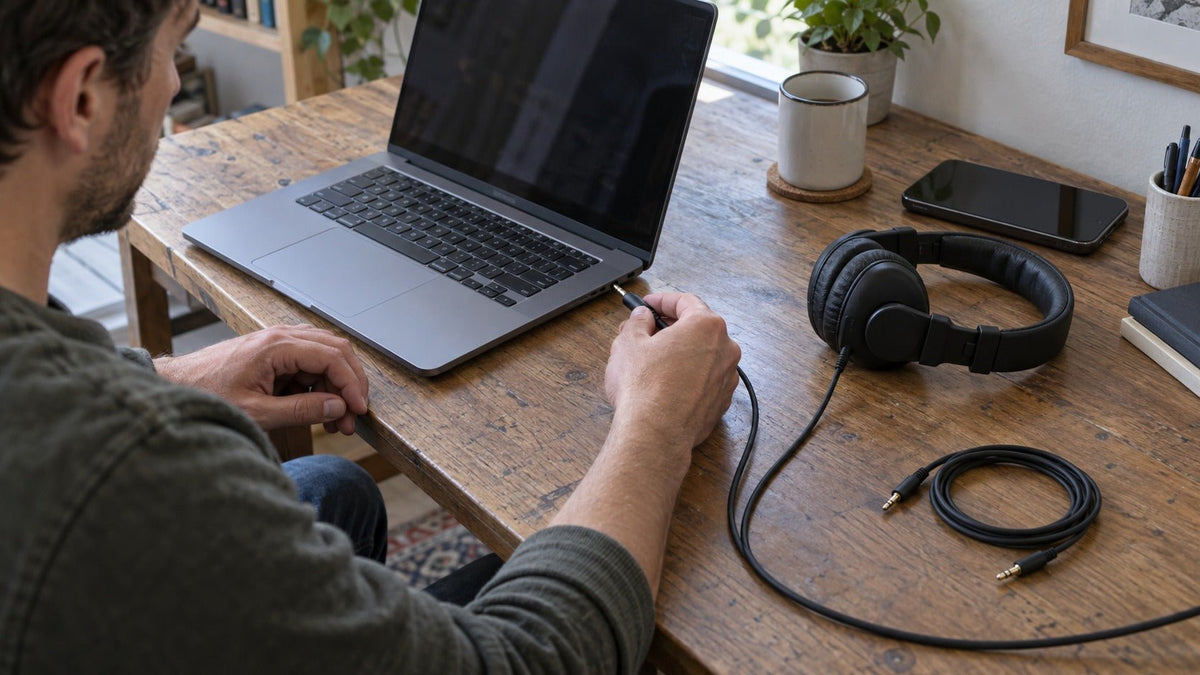
Static noise is not one specific fault. People use the term for hiss, crackling, buzzing, popping, or digital breakup caused by problems anywhere from the audio source and cable to grounding, wireless interference, software, or failing hardware.
Start by isolating the problem instead of buying a fix. Play a known-good audio source, test a second cable or connection when possible, and try the same headphones or speakers on another device. If the noise follows one component, you have narrowed the fault. If it stays with one computer or room, focus on that source, its power, settings, or interference environment.
What Does “Static Noise” Actually Mean?
In everyday troubleshooting, “static” is an umbrella term for unwanted audio. It is not automatically the same thing as white noise. A steady hiss, a low electrical hum, intermittent crackling, and Bluetooth stutter can sound similar to a listener while pointing to very different parts of the signal path.
| What you hear | Likely area | First test |
|---|---|---|
| Steady hiss | Gain, noise floor, source electronics | Lower gain and test another source |
| Low hum or buzz | Grounding or electrical coupling | Remove devices from the chain one at a time |
| Crackle when a plug or cable moves | Connector, cable, jack | Reseat, inspect, then swap the cable |
| Wireless stutter or breakup | Bluetooth/RF link | Move closer and test in a different wireless environment |
| Only one PC crackles | Audio settings, driver, port, power | Test another output and disable audio enhancements |

Common Causes of Static Noise
Loose, damaged, or contaminated connections
A partially seated plug, damaged cable, worn jack, or poor adapter connection can create intermittent contact. If the noise changes when you gently move a connector, test a known-good cable or another port before changing software settings.
Electromagnetic interference
Audio and data cables can pick up unwanted energy through electric, magnetic, electromagnetic, or conducted coupling. Cable construction, shielding, routing, and the surrounding equipment all affect susceptibility. Analog Devices provides a useful overview of how noise can couple into cables.
As a practical test, temporarily move audio cables away from power adapters, chargers, lighting equipment, routers, and other electronics. Change one variable at a time so you can tell which change mattered.
Ground loops and grounding problems
A ground loop can form when connected equipment has multiple ground paths. In audio systems it commonly shows up as hum or buzz rather than broadband hiss. Focusrite's support guidance explains that multiple ground paths can create unwanted current and recommends isolating the source methodically; see its explanation of ground hum and ground loops.
For a computer, interface, and powered monitors, test the system with unnecessary devices disconnected and add them back one at a time. If a specific signal connection creates the hum, investigate that connection instead of assuming the speakers are defective.
Poor gain staging or an audible noise floor
Every analog audio system has some noise. A weak signal followed by heavy amplification can make that noise much more obvious. Set gain so the wanted signal is strong without clipping, then use downstream level controls for listening volume. Do not solve hiss by simply turning every gain control up.
Wireless interference or an unstable Bluetooth link
Wireless crackling is usually a connection problem rather than analog “static.” Distance, obstacles, competing 2.4 GHz activity, saved pairings, the source device, and the headphones themselves can all affect the link. Test close to the source, remove major obstructions, and compare the same headphones on another device or in another room.
If the problem persists after basic connection checks, use the Bluetooth headphone reset guide before attempting an undocumented factory-reset button combination.
Windows audio settings or driver problems
On Windows 11, crackling or distorted audio can be related to audio enhancements, the selected default format, audio drivers, or Windows audio services. Microsoft documents these checks in its current distorted or crackling audio troubleshooting guide.
Hardware failure
Hardware becomes more likely when the same symptom follows the same device across multiple known-good sources, cables, applications, and locations. A failing jack, cable, amplifier stage, transducer, power supply, or internal connection can all produce noise. Isolation tests are more useful than guessing which component has failed.

How to Troubleshoot Static Noise Step by Step
Confirm the noise is not in the content itself
Play a known-good local file, a system sound, and content from another app. If only one recording or stream contains the noise, troubleshoot the source content before changing hardware.
Change one part of the signal path
Try another port, cable, adapter, pair of headphones, speaker input, or source device. The goal is to find out whether the noise follows one component or remains with the same source.
Separate audio from obvious interference sources
Temporarily move signal cables and devices away from chargers, power bricks, lighting equipment, routers, and dense cable bundles. Retest before making the change permanent.
If you hear hum or buzz, simplify the powered system
Disconnect nonessential powered devices, then reconnect them one at a time. If a particular connection introduces the noise, investigate that ground or signal path rather than replacing unrelated equipment.
Check gain and level settings
Reduce excessive input gain, avoid clipping, and make sure you are not amplifying a weak source signal unnecessarily. Compare the noise with and without the input connected.
For Bluetooth, test the radio link
Move closer to the source, remove obstacles, turn off unused nearby Bluetooth connections, and test another compatible device. Re-pair before escalating to a model-specific factory reset.
For Windows, test software settings
Turn audio enhancements off, test another default format, update or reinstall the audio driver if needed, and restart the Windows audio services. Retest after each change instead of changing everything at once.
Escalate only after the fault is isolated
If the same noise follows the same component across different sources and conditions, check the manufacturer's service options, warranty, and repair path before buying accessories that may not address the cause.
Fixes by Audio Device
Headphones and headsets
For wired models, prioritize the plug, cable, adapter, source port, and electrical environment. For Bluetooth models, prioritize the wireless link, pairing state, source device, and firmware or model-specific support. If your problem is specifically headphone hiss, crackling, or buzzing, continue with Wantek's headphone static and audio interference guide, which handles the headphone-only branch in more detail.
Powered speakers and studio monitors
Disconnect the signal input and listen again. If the noise disappears, work backward through the cable, source, interface, and grounding path. If the noise remains with the input removed, the speaker's own amplifier or power stage becomes a stronger suspect.
Microphones and recorded audio
If noise is being recorded, solve the input problem before processing whenever possible: check gain, cable routing, power, the interface, and the microphone itself. If the recording already contains a steady background noise, post-production can reduce it. Audacity's documentation explains how its Noise Reduction effect uses a noise-only sample to reduce steady background noise, while warning that aggressive processing can create artifacts.
Recorded-noise cleanup is not the same as fixing the live signal path. If the hiss or buzz is entering during recording or playback, correcting the source usually gives a better result than trying to remove it afterward.
What Not to Do
- Do not assume every hiss, buzz, crackle, or pop has the same cause.
- Do not buy a DAC, isolator, cable, or power conditioner before the tests point to the part of the chain it would actually address.
- Do not use an undocumented Bluetooth reset sequence for a model just because it works on another brand.
- Do not raise listening volume to overpower static; that masks the symptom without fixing it.
- Do not treat noise-cancelling microphone features or ANC as a general cure for electrical or connection noise.
Frequently Asked Questions
Is static noise the same as white noise?
No. “Static” is a broad troubleshooting term for unwanted hiss, crackle, buzz, pops, or breakup. White noise is a specific type of random noise with a defined spectral characteristic.
Why do I hear static only on my computer?
If the same headphones or speakers are clean on another device, focus on the computer's port, USB path, power environment, selected audio device, enhancements, default format, and driver.
Can a ground loop cause static noise?
Yes, although ground loops more often sound like hum or buzz. If the noise appears only when multiple powered devices are connected, simplify the system and add devices back one at a time.
Why do Bluetooth headphones crackle or stutter?
Common causes include distance, obstacles, radio congestion, stale pairing state, source-device problems, or headphone-side faults. Test close to the source and compare another device before resetting hardware.
Can software remove static from a recording?
Software can reduce some steady recorded noise, but it cannot repair a live hardware or connection fault. Fix the signal path first when you still have access to the recording setup.
When is a hardware fault more likely?
Hardware becomes more likely when the same symptom follows the same component across multiple known-good sources, cables, apps, and locations after relevant software and connection checks are exhausted.
Need a Replacement After Troubleshooting?
If testing across multiple devices points to a headset fault and repair is not practical, narrow replacement options by device, connection, use case, and wearing style.

