
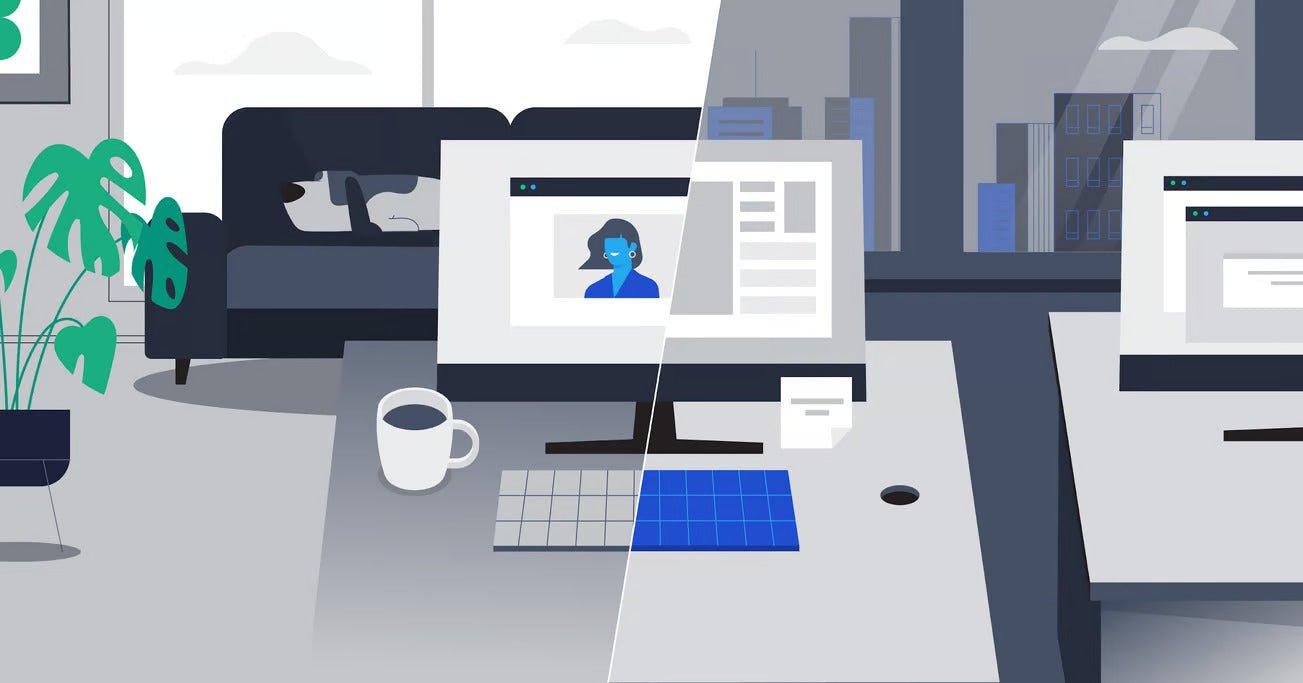
A useful personal collaboration space makes calls repeatable. The goal is not to fill the desk with equipment; it is to create a setup where audio, video, network access, controls, and ergonomics work the same way each day.
Quick answer: Start with the device that runs meetings, then choose a headset or microphone, camera position, lighting, network path, and desk layout that can stay consistent between calls.
Start With the Meeting Device
Identify whether meetings run from a company laptop, personal computer, phone, thin client, or shared workstation. That determines the practical USB, 3.5 mm, Bluetooth, dock, and software choices for the rest of the setup.
Prioritize Clear Two-Way Audio
For frequent calls, audio problems are often more disruptive than small video differences. A headset can reduce speaker-to-microphone bleed and gives the user a consistent listening level. A boom microphone can also keep the pickup element close to the mouth.
If you need a work-call headset, the work headset buying guide covers wired, wireless, single-ear, dual-ear, microphone, and device choices.
Build the Space Around Five Functions
| Function | Goal | Check |
|---|---|---|
| Audio | Clear speech and comfortable listening | Headset/mic position, mute, volume, echo risk. |
| Video | Stable eye-level framing | Camera height, background, privacy. |
| Lighting | Readable face without harsh glare | Window direction, monitor reflections, lamp position. |
| Network | Reliable meeting connection | Wi-Fi strength or wired Ethernet where appropriate. |
| Ergonomics | Comfort across long work blocks | Screen height, keyboard/mouse placement, chair and headset fit. |
Keep Audio Routing Simple
Select one primary microphone and one primary output device in the operating system and meeting app. Multiple active microphones in the same room can create echo or confusing feedback. If you switch between a headset and speakers, know where the app stores its device choice.
Place the Camera at a Practical Height
A camera near eye level reduces the need to look sharply down at a laptop. Keep framing stable and avoid putting a bright window directly behind the user when possible. You do not need a complicated studio setup for ordinary work meetings.
Use Lighting You Can Repeat
Natural light can work well, but it changes during the day. A simple lamp or fixed desk light can make appearance more consistent. Avoid placing the brightest light directly behind the user or reflecting it into glasses and screens.
Plan for Shared and Hybrid Environments
If the same desk is used by more than one person, label cables, provide a clear charging location, and standardize the default audio device. For hot desks, a wired USB headset can reduce pairing overhead; for users who move during calls, a wireless headset may be more useful.
Run a Five-Minute Meeting Check
- Confirm the correct microphone and output device.
- Check camera framing and background.
- Test mute and volume controls.
- Confirm the network connection is stable.
- Join a short test call before an important meeting.
Hybrid Collaboration Space FAQ
Do I need a separate microphone for hybrid work?
Not always. A headset with a well-positioned microphone can be simpler for individual calls. A separate microphone can suit other recording or desk setups.
Is wireless always better for a home office?
No. Wireless adds mobility; wired avoids charging and pairing. Choose based on movement, device compatibility, and call frequency.
What should I upgrade first?
Fix the biggest repeatable problem first: unstable network, unclear audio, poor camera position, or uncomfortable ergonomics. Do not replace equipment that already works for the task.
Compare Headsets for Hybrid Work
Start with your computer or phone connection, then compare current office headset options.
