
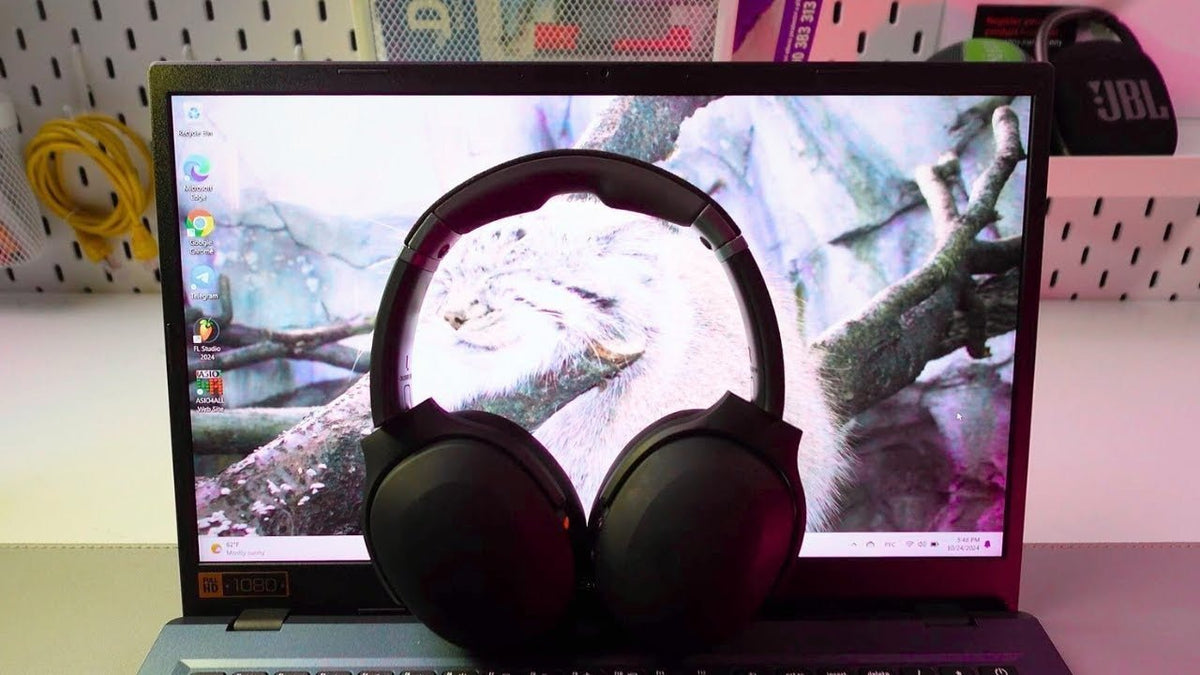
Skullcandy headphones and earbuds use standard Bluetooth pairing, but the button sequence for entering pairing mode or resetting saved connections varies by model. Use the product name printed on the headset, case or support page before following reset instructions.
Quick answer for iPhone: Put the Skullcandy product into pairing mode, open Settings > Bluetooth on the iPhone, wait for the model name under available devices, then tap it. If it is already saved but will not connect, forget the device and follow the model-specific reset procedure.

Pair Skullcandy Headphones to an iPhone
- Charge the headphones or earbuds enough to complete setup.
- Put the exact Skullcandy model into pairing mode. First-time power-on often does this automatically, but the button sequence varies.
- On iPhone, open Settings > Bluetooth and turn Bluetooth on.
- Tap the Skullcandy model name when it appears.
- Wait for the connected status or product voice prompt before starting audio.
For example, Skullcandy’s current Crusher ANC 2 support page says first-time power-on enters pairing mode; holding the power button for six seconds from off also enters pairing mode. The sequence is different on other models, so do not apply a Crusher reset to every Skullcandy product.
Pairing on Android, Mac and Windows
| Device | Where to select the headset |
|---|---|
| iPhone / iPad | Settings > Bluetooth |
| Android | Bluetooth / Connected devices settings; wording varies by manufacturer |
| Mac | System Settings > Bluetooth |
| Windows 11 | Settings > Bluetooth & devices |
If the Headphones Appear but Will Not Connect
- Disconnect them from another nearby phone, tablet or computer that may reconnect automatically.
- Forget/remove the headset from the problem device’s Bluetooth list.
- Power the headset off.
- Follow Skullcandy’s support page for the exact model to clear or reset its saved pairing state if necessary.
- Re-enter pairing mode and connect again.
Skullcandy’s app support page also notes that the main Bluetooth connection should be established before app-compatible products are linked to the app.
Multipoint Is Model-Specific
Some newer Skullcandy models support two-device multipoint, while others do not. Do not assume a headset can stay actively connected to both a phone and computer just because both devices have been paired previously.
Skullcandy Pairing FAQ
Why is my Skullcandy headset not showing on iPhone?
Make sure the headset is actually in pairing mode and not already connected to another nearby device. Then reopen the iPhone Bluetooth list.
Should I select a device name ending in “-LE”?
Skullcandy says a “-LE” entry can be a secondary connection used by certain services. Pair the normal product name for primary audio.
Are reset instructions the same for every Skullcandy model?
No. Use the support page for the exact model because button combinations and reset behavior differ.

