
Skullcandy earbuds do not all use the same button sequence. The reliable approach is to identify the exact model, use that model’s pairing instructions, and only reset the earbuds if ordinary pairing fails.
Quick answer: For first-time pairing, charge the earbuds, put the exact model into its documented pairing mode, open Bluetooth settings on the phone or computer, and select the product name. Do not copy a reset sequence from a different Skullcandy model.

Identify the Exact Skullcandy Model
Check the model name inside the charging-case lid or on the back of the case. Skullcandy’s product support pages use this identification step because Dime 3, Push Active, Rail ANC, Sesh ANC, and other models have different pairing and recovery controls.
Use the Model’s First-Time Pairing Procedure
Start with the instructions for your exact model. On several Skullcandy true-wireless models, removing both earbuds from the charged case starts first-time pairing, but prompts, lights, and button controls differ.
- For new earbuds, remove any protective stickers from the charging contacts and make sure both earbuds are charging in the case.
- Take both earbuds out and follow the model’s pairing-mode instructions. Listen for a pairing prompt or check the LED behavior described by Skullcandy.
- Open Bluetooth settings on your phone or computer and select the regular Skullcandy model name when it appears.
- Accept the pairing prompt, then play audio to confirm the connection.
Dime 3 example: Skullcandy’s Dime 3 support page instructs first-time users to remove both earbuds from the case, wait for “Ready to pair,” and select “Dime 3” in the Bluetooth list. These are Dime 3 instructions, not a universal button sequence.
Find Bluetooth Settings on Your Device
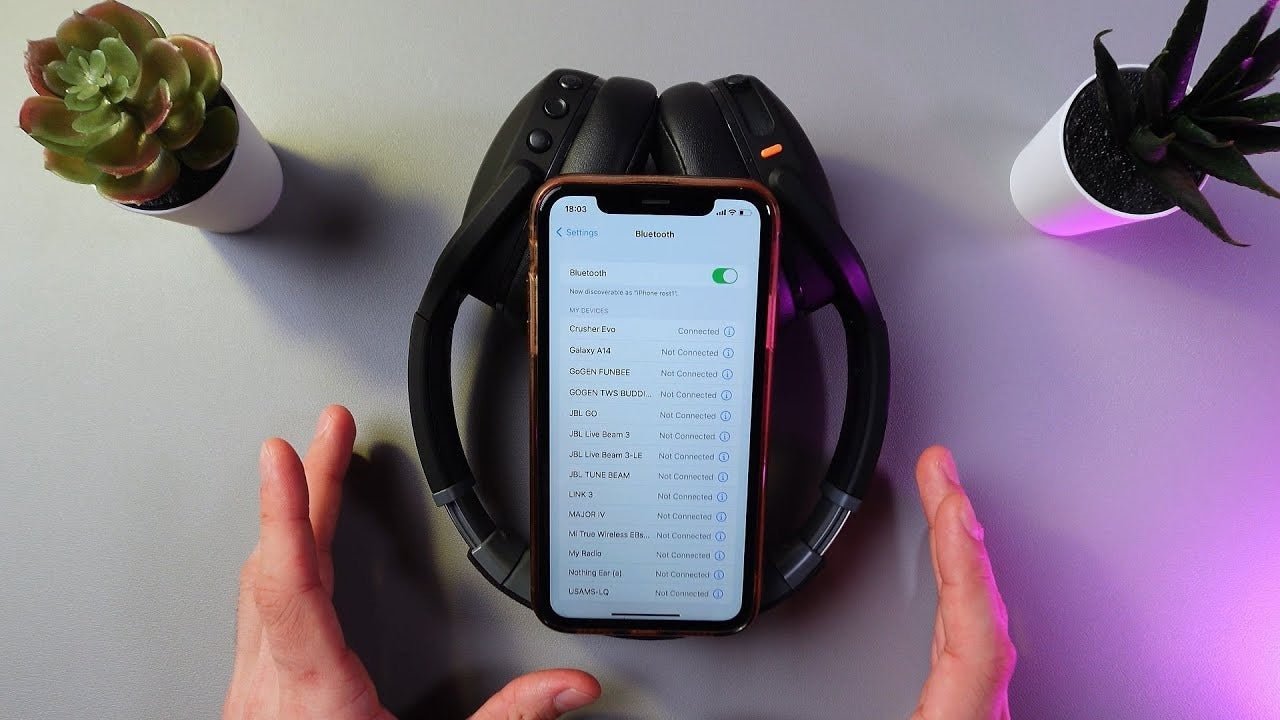
- iPhone or iPad: Open Settings > Bluetooth, switch Bluetooth on, and tap the earbuds when they appear.
- Android: Open Bluetooth or Connected devices in Settings, choose the option to pair a new device, and select the model. Menu names vary by phone.
- Windows 11: Go to Settings > Bluetooth & devices > Devices > Add device, then choose Bluetooth.
- Mac: Open Apple menu > System Settings > Bluetooth, find the earbuds, and select Connect.
Pairing a Second Device Is Not Universal
Pairing two devices previously does not necessarily mean the earbuds support two active connections. Multipoint is model-specific.
For example, Skullcandy documents multipoint on Dime 3: while connected to the first device, hold the button on either earbud for three seconds to enter pairing mode for a second device. By contrast, Skullcandy’s Sesh ANC support page uses a press followed by a one-second hold on the same earbud to enter new-device pairing mode. Check your own model before following either sequence.
When Pairing Fails
- The earbuds do not appear: Confirm both earbuds are charged and in pairing mode. Temporarily disconnect an older phone or laptop that may reconnect automatically.
- The model appears but will not connect: Forget the saved Bluetooth entry on the problem device, return the earbuds to pairing mode, and try again.
- Only one earbud plays sound: Reseat and charge both earbuds, then use the model’s earbud-to-earbud resync instructions before trying its reset procedure. Resync and factory reset are not interchangeable.
- The device says “Connected,” but audio is silent: Check media volume and choose the earbuds as the audio output device.
- You see a name ending in “-LE”: On models where Skullcandy shows both names, select the regular model name for audio rather than the Bluetooth Low Energy entry. See Skullcandy’s app and Bluetooth guidance.
If these checks fail, use the official reset procedure for the exact model. For example, the reset controls Skullcandy documents for Dime 3 and Sesh ANC differ; do not apply a generic long-press or case-button shortcut to every pair.
FAQ
Why can’t I use one Skullcandy reset sequence for every model?
Controls and firmware differ by product family. A reset sequence that is correct for one model can be wrong for another, so identify the model first.
Can Skullcandy earbuds pair with iPhone and Android?
Current Bluetooth models can pair with compatible Bluetooth devices, but setup details and app support vary by model. Follow the exact product support page.
Do all Skullcandy earbuds support multipoint?
No. Multipoint is model-specific. Verify the feature for the exact earbuds before relying on two-device connectivity.
Why is sound coming from only one Skullcandy earbud?
The earbuds may need charging or may have lost synchronization with each other. Charge and reseat both, then follow the resync steps for your exact model before attempting a reset.

