
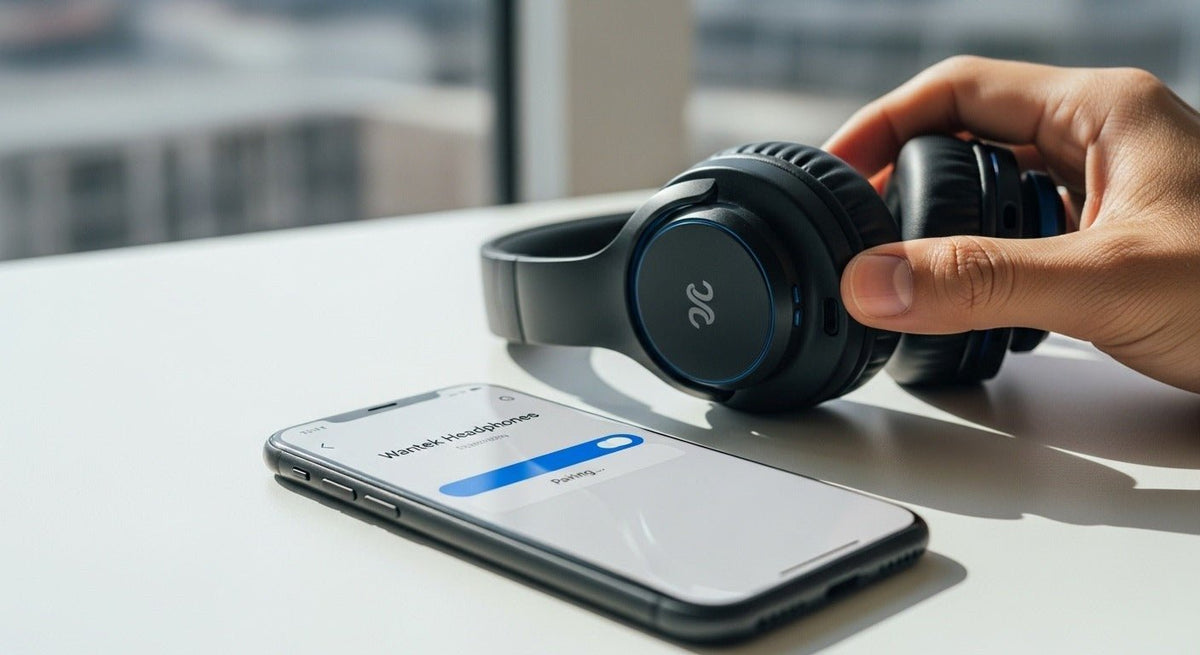
iClever pairing steps vary by model, so the safest method is to identify the model number first, then use its manual to enter pairing mode. After that, the source device follows the normal Bluetooth flow: scan, select the iClever model name, and connect.
Before resetting anything: charge the headphones, keep them close to the source, disconnect or disable Bluetooth on devices that may auto-reconnect, and confirm the headphones are in pairing mode.
Find the manual for your exact iClever model
iClever maintains an official manuals page with model-specific downloads including BTH02, BTH03, BTH12, BTH13, BTH15, BTH16, BTH18, BTH19, BTH20, BTH21, and BTH22.

Generic pairing sequence
- Turn the headphones off if the manual requires starting from power-off.
- Use the model-specific button sequence to enter pairing mode.
- Open Bluetooth settings on the phone, tablet, computer, or TV.
- Select the exact iClever model name.
- Confirm audio output after the connection completes.

If the headphones do not appear
- Move them closer to the source.
- Turn off Bluetooth on previously connected devices.
- Remove the old pairing entry and scan again.
- Restart the source device’s Bluetooth radio.
- Use the reset procedure only from the manual for your model.
TVs and game consoles need separate compatibility checks
A Bluetooth menu on one device does not guarantee Bluetooth headphone audio on every TV or console. Check the source device’s audio-output documentation.
For general reset logic across brands, use Wantek’s Bluetooth headphone reset guide.
Use the Same Pairing Logic Across Devices
Bluetooth menu names differ across phones, tablets, and computers, but the core sequence is similar: put the headphones into pairing mode, open Bluetooth settings on the source device, select the headphones, and wait for the connection to complete.
If the headphones do not appear
Move them close to the source, disconnect or turn off a previously connected device, and confirm the headphones are actually in pairing mode rather than simply powered on. If necessary, remove an old saved pairing from the source and try again.
After Pairing
Test both playback and microphone input when calls are required. On computers, also confirm the correct input and output device inside the operating system and communication app.
Frequently asked questions
Why are my iClever headphones not entering pairing mode?
The button sequence can differ by model. Check the exact BTH or HS model manual and make sure the headphones are not simply reconnecting to another device.
Can iClever headphones pair with two devices?
Multipoint support is model-specific. Do not assume it from Bluetooth version alone; check the manual for the exact headphones.

