
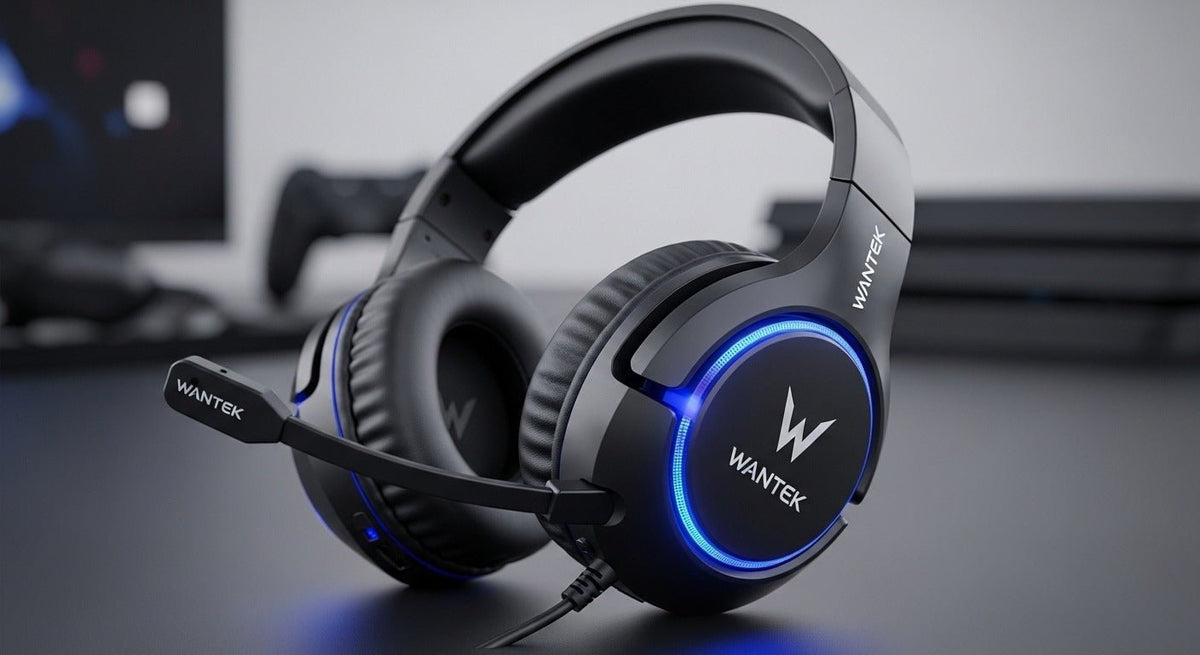
PS4 headset compatibility starts with the connection path. A 3.5 mm headset can connect through a compatible DualShock 4 controller, while USB and wireless headsets need explicit PS4 support.

Choose the connection first
PlayStation’s DUALSHOCK 4 support guide documents headphone audio through the controller’s 3.5 mm jack. USB and wireless models still need explicit PS4 compatibility.
| Connection | Check |
|---|---|
| 3.5 mm | TRRS headset mic and controller support. |
| USB | Explicit PS4 audio/mic compatibility. |
| Wireless | Supported USB adapter or PlayStation-compatible radio path. |
Mic and comfort
A boom mic helps keep mouth distance consistent. For long sessions, headband pressure, pad heat, weight, and cable routing matter as much as sound.
For a simple wired console option, see Wantek’s gaming headset collection.
Use the DUALSHOCK 4 Headset Jack for a Simple Wired Path
Sony's PS4 support documentation explains that headphones can connect to the DUALSHOCK 4 controller's 3.5 mm jack. On PS4, use Settings > Devices > Audio Devices to select the output and choose what is sent to the headphones.
See PlayStation's DUALSHOCK 4 support page for the current controller-audio instructions.
PS4 Headset Connection Options
| Connection | Why consider it | Check first |
|---|---|---|
| 3.5 mm through DUALSHOCK 4 | Simple wired path for compatible headsets. | Audio plus microphone support and controller jack condition. |
| USB headset | Can provide a digital audio path on supported devices. | Exact PS4 compatibility and whether both output and microphone are supported. |
| Wireless headset with supported adapter | Removes the controller cable. | PS4 support for the exact headset and receiver or adapter. |
Test the Microphone in PS4 Settings
PlayStation's voice-chat troubleshooting guide directs PS4 users to Settings > Devices > Audio Devices and Adjust Microphone Level. If the input meter does not respond, test another headset or controller before assuming the problem is software.
Choose Comfort for the Length of Your Sessions
Check headband adjustment, cushion pressure, heat, glasses comfort, and whether the cable or receiver gets in the way. A headset that works technically can still be a poor fit for long sessions.
Do Not Assume Ordinary Bluetooth Headphones Will Work as a Full PS4 Gaming Headset
Wireless support is implementation-specific. Verify the exact headset and adapter path for game audio and microphone chat instead of assuming phone-style Bluetooth pairing will provide the full console workflow.
PS4 Headset Troubleshooting Checklist
- Push a 3.5 mm plug fully into the controller jack.
- Check Output to Headphones in PS4 audio settings.
- Check the microphone input meter.
- Try another controller or headset if the input does not respond.
- For USB or wireless headsets, verify support for the exact model and adapter.
PS4 Headset FAQ
Can I plug a headset into the DUALSHOCK 4 controller?
Yes. PlayStation documents a 3.5 mm headset connection through the DUALSHOCK 4 controller, with output settings under Audio Devices.
How do I check the headset microphone on PS4?
Go to Settings > Devices > Audio Devices and use Adjust Microphone Level. The input meter should respond when the microphone is working.
Will any Bluetooth headset pair directly with PS4 for game chat?
Do not assume it will. Verify the exact wireless headset and adapter path for PS4 game audio and microphone support.
Compare Gaming Headsets by Connection
Start with the PS4 connection path and microphone requirement, then compare current gaming headsets without assuming every model supports PS4.

