
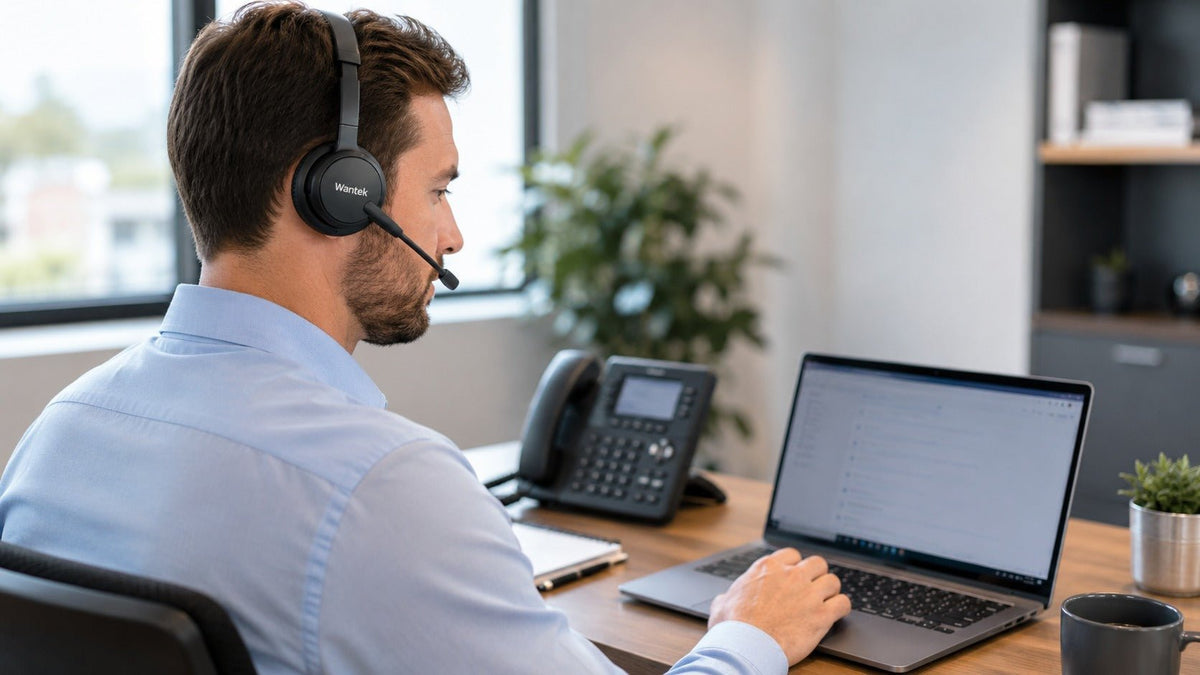
To use one headset with a desk phone and a computer, verify two complete connection paths and how the headset, base, or switching device selects between them. A compatible multi-source base can provide that setup. A headset supplied with several plug options does not automatically keep both devices connected.
Start with the desk phone’s exact model, the computer’s ports and operating system, the calling application, and the controls you need. VoIP does not identify a headset connector by itself: calls may run through an IP desk phone, a computer softphone, or both. Confirm each endpoint separately.
This guide uses manufacturer documentation rather than hands-on product testing.
Which connection arrangement do you need?
Choose the connection architecture before choosing the headset.
| Work setup | Arrangement to investigate | Essential check |
|---|---|---|
| Desk phone and computer, frequent switching | Supported multi-source base or switching device | Both endpoint connections and source-selection behavior |
| Desk phone only | Model-compatible wired headset or wireless base | Phone model, headset port, cable, and remote-answer requirements |
| Computer and mobile phone | Supported Bluetooth multipoint configuration | Two active connections and call-priority rules |
| Different devices used at different times | Supported alternative cables or plug options | Whether changing devices requires reconnecting the cable |
| Two conversations that must be combined | Documented conferencing or mixing setup | Explicit support for the intended call paths |
If your second device is a smartphone rather than a physical office phone, our laptop-and-phone multipoint guide is the closer match.
Separate compatibility, simultaneous connection, switching, and mixing
Compatibility means the equipment supports a particular endpoint and connection method. A USB headset working with your laptop establishes nothing about a modular headset socket on a desk phone.
Simultaneous connection means the required sources can remain attached or connected at the same time. It does not establish which source is active.
Source switching and call handling cover selecting a source plus actions such as answer, end, mute, and hold. Those functions can differ between the desk phone and the computer application even when both carry audio successfully.
Audio mixing or conferencing means combining two call or audio paths. Dual connectivity alone does not promise that behavior.
Write your requirement as a task: “Keep the desk phone and laptop connected, answer either using the headset, and return to the first source after the second call.” That is more useful than asking whether a product is simply “dual connectivity.”

Verify the physical desk phone first
Record the full phone model and its software or firmware version where relevant. Identify the actual headset port rather than choosing from connector shape alone.
Wantek’s desk-phone compatibility guidance distinguishes RJ-style modular connections, documented USB-headset support, and wireless or EHS arrangements. A phone’s USB socket is not, by itself, confirmation that it accepts your USB headset.
Cisco’s 8800-series accessories guide shows why model-level verification matters: supported analog, USB, and Bluetooth headset options differ across phones in the same series.
For an existing installation, photograph the phone’s model label, headset port, cable ends, and any amplifier or base. Include those details when requesting a replacement; an office extension number or the phone brand alone is insufficient.
Map the desk-phone connection first
Check your exact phone model and identify the appropriate starting path before selecting a headset or accessory.
Choose between a multi-source base and alternative cables
A base designed to manage several call sources
A multi-source base provides documented inputs and controls for supported endpoints. The important questions are which base is included, which sources it accepts, and how the user selects a call.
Cisco’s Headset 560 Series illustrates the distinction: its Multibase can connect to several call sources and provides source-selection controls, while the Standard Base has a different connection role. Use examples like this to evaluate the exact package. Do not transfer another manufacturer’s base capabilities to a Wantek headset or assume that a charging stand is also a multi-device audio base.
Cables or adapters for use at different times
Some headsets provide different supported interfaces for different devices. That can be useful when moving between workstations even if changing the connection requires physically reconnecting a cable.
A Quick Disconnect connector allows a headset cable to separate from a matching lower cable or interface. Check the specific product family and lower cable. Do not assume every QD connector is interchangeable, or that disconnecting it places a call on hold.
Our QD headset connection guide covers that wired setup. Ask the supplier to list the complete working combination rather than ordering a collection of individually plausible adapters.
Decide whether remote answering matters
Carrying call audio and answering remotely are separate requirements. If you want to answer a desk-phone call while away from the handset, check the supported control method for the phone and headset base.
Jabra’s Link 950 documentation provides a concrete example: it supports switching between a desk phone and softphone, while full desk-phone call control can require an Electronic Hook Switch adapter.
Confirm the exact EHS accessory and phone settings, or the supported alternative if EHS is unavailable. Do not buy an EHS cable solely because its plug fits, and do not assume every wireless package includes the required accessory.
Check the computer and UC application separately
Record whether computer audio travels over a cable, a manufacturer-supplied receiver, or native Bluetooth. Confirm the available USB connector and any docking station in that path.
Then test the calling application. Selecting a working microphone and speaker does not establish that answer/end buttons or mute synchronization work as intended. Microsoft documents call controls and mute synchronization for Certified for Microsoft Teams personal peripherals; check the specific certified configuration rather than relying on a broad “UC compatible” label.
Desk-phone compatibility remains a separate question. A Teams-compatible computer setup does not establish the correct modular wiring, phone settings, or base accessories for a physical phone.
Wantek offers different headset types for different endpoints. Use the documented connection options of each product; this guide does not identify a verified Wantek package that universally combines a desk phone and computer with remote answering.
Validate one workstation before a team rollout
Use the same phone, computer image, calling app, and accessories planned for deployment. Run this acceptance sequence:
- Desk-phone audio: make and receive a call, checking microphone and speaker levels.
- Computer audio: select the intended input and output, then make a test call.
- Source selection: move between endpoints and confirm which call is active.
- Second incoming call: check what happens to the first call and how you return to it.
- Mute: verify what the remote listener hears and what each device indicates.
- Remote answering: test away from the desk if that capability is required.
- Recovery: repeat after computer sleep, base restart, or reconnecting an accessory.
Record pass, fail, or not required for each task. Do not treat two successful individual calls as proof that all switching behavior works.
A practical procurement record should contain the headset SKU, base model, cable and adapter part numbers, phone model, firmware, computer operating system, application version, and test outcome. Keep it with the workstation inventory so later replacements reproduce the tested arrangement.
Troubleshoot by identifying which path fails
Desk phone works, computer does not: check the computer-side connection, selected microphone and speaker, permissions, and application settings. Do not immediately replace the desk-phone cable.
Computer works, desk phone does not: check the phone-side port, supported cable, base configuration, and phone settings. Compare them with the manufacturer’s instructions for that model.
Audio works, headset buttons do not: investigate call-control support, EHS requirements, and application integration separately from the audio connection.
Switching interrupts the other call: check whether the system supports hold, source selection, or conferencing for that particular combination. A source button should not be interpreted as a universal transfer or merge control.
For broader purchasing questions, use our call-center headset buying guide. For movement versus fixed-desk use, see the wired vs. wireless office headset comparison.
Frequently asked questions
Can one headset serve a desk phone and computer?
Yes, when the headset and its supported base, switch, or interfaces provide both connection paths. Confirm the complete configuration and source-switching behavior before purchasing.
Does a USB port on a phone prove USB-headset compatibility?
No. Check the phone manufacturer’s supported headset connections for the exact model. A physical USB socket does not establish audio or call-control support.
What does EHS add to a wireless desk-phone setup?
A compatible Electronic Hook Switch arrangement can provide desk-phone call control through a wireless base. The accessory, protocol, settings, and phone model must match the supported configuration.
Does “UC compatible” mean the headset will work with my desk phone?
No. UC or application compatibility can describe computer-side audio and controls, while physical desk-phone compatibility still depends on the phone model, port, wiring, base, and accessories.
Does dual connectivity combine two calls automatically?
No. Source connections, call switching, and audio conferencing are different capabilities. Combining calls requires explicit support from the equipment or calling service involved.
Choose around your full work setup
Use Wantek’s headset finder to narrow the wearing style and connection category, then verify the exact phone-and-computer combination.

