
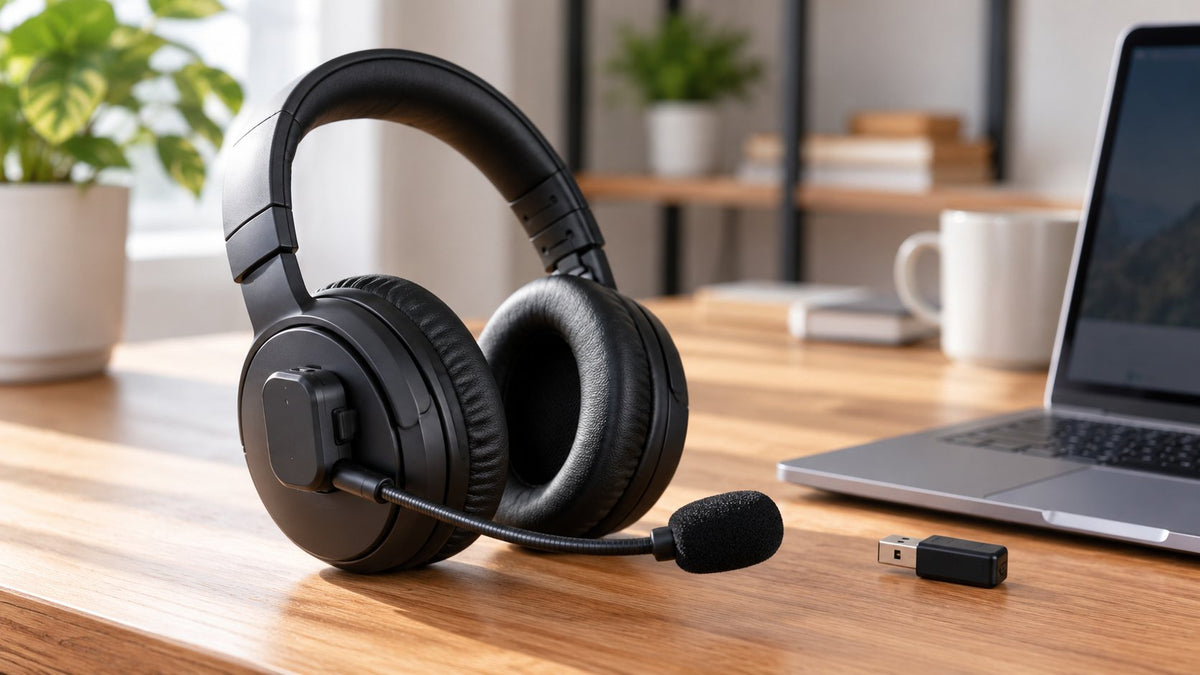
Yes, you can attach a wireless microphone to many existing headsets or headphones, provided there is a suitable mounting surface and your computer or other host supports the microphone's receiver. The microphone and headphones can work as two separate audio devices. Attaching the mic does not automatically connect it to the headphones' Bluetooth radio.
Quick answer: For a headphone-mounted wireless boom mic, check the mounting system, the microphone's USB receiver or other connection requirements, and your device's ability to use one microphone for input while keeping your headphones selected for output. A headset with a built-in boom mic may be simpler if you want one wireless device for both.
What kind of wireless microphone can you attach?
An attachable wireless boom microphone is designed to mount to an earcup or headset shell. A small transmitter in the microphone sends your voice to its own receiver. This lets you keep headphones you already like while adding a mic positioned near your mouth.
One documented example is Antlion Audio's ModMic Wireless. Its mounting guide describes a magnetic base attached to the headphones with an adhesive pad; its setup instructions use a dedicated USB receiver. The receiver, not the headphones, supplies the microphone input to the computer. See Antlion's installation guidance and the ModMic Wireless user manual for model-specific instructions.
A clip-on wireless lavalier microphone is a different design. It typically clips to clothing rather than an earcup and may use a receiver connected to a phone, camera, or computer. A wireless stage headset microphone often connects to a compatible bodypack transmitter and receiver system. Neither type should be treated as a universal replacement boom for ordinary headphones.
| Microphone design | Mounting and connection |
|---|---|
| Attachable wireless boom | Mounts to a suitable earcup surface. Some models use their own USB receiver, which must work with your device. |
| Wireless lavalier | Clips to clothing rather than the headphones. Check that its receiver and your recording device are compatible. |
| Wireless stage headset mic | Worn as a separate head-mounted microphone. Usually requires a compatible transmitter and receiver system. |
| Detachable headset boom | Connects to a model-specific headset socket. Detachable does not mean it works as a separate wireless microphone. |
Check compatibility before buying or mounting
1. Can the microphone physically attach?
Look for enough accessible space on the outside of an earcup, with no controls, vents, hinges, charging ports, or microphones underneath the proposed mount. Adhesive mounts may not work reliably on some rubberized, textured, or sharply curved surfaces. Follow the attachment maker's surface-preparation and curing instructions rather than assuming every headset material is suitable.
2. How does the wireless mic reach your device?
Do not assume a wireless microphone pairs directly with Bluetooth headphones. Some attachable models use a proprietary link to a dedicated USB receiver. For example, the ModMic Wireless manual states that it pairs with its own USB receiver, not directly with a phone's ordinary Bluetooth audio connection. Confirm the receiver, operating system, USB port, and any adapter requirements for the exact model before purchase.
3. Can your device use separate input and output?
On many computers, you can select the attachable mic or its receiver for input and your existing headphones for output. They remain separate devices even though the microphone is physically mounted on the headphones. A phone, console, desk phone, or restricted work computer may not support the same combination. Check the actual host and app rather than relying on the headset's Bluetooth label.
4. Will the microphone fit your workflow?
Consider the weight of the attachment, boom reach, battery charging, mute control, receiver placement, and whether the microphone stays attached when the headphones are stored. If you already own a headset with a fixed or detachable microphone, first check its manufacturer's replacement-part instructions. A separately sold wireless mic is not automatically compatible with that headset's microphone socket.
How to attach and set up a wireless boom microphone
- Choose the mounting position. Wear the headphones and hold the microphone in place. Check that the boom can reach near the corner of your mouth without blocking earcup controls or interfering with the fit.
- Prepare the surface. Follow the microphone manufacturer's cleaning and drying instructions. Do not apply adhesive over fabric, vents, movable joints, or finishes that the maker advises against.
- Install the mounting base. Apply the supplied mount using the product's instructions and allow any required curing time. Check the charging-port orientation before fixing the base in place.
- Connect the receiver. Plug the microphone's supported receiver into a compatible port on the computer or other supported host. Pair the microphone with that receiver if needed, then confirm power and mute status.
- Select two audio devices. Keep the existing headphones selected for playback and choose the new wireless microphone for recording. Set the same microphone in your meeting, gaming, or recording app.
- Test a recording. Speak at normal volume, check the input meter and listen for clipping, breath noise, dropouts, or a different microphone being selected automatically.
For a ModMic Wireless specifically, the manufacturer's manual provides its own receiver placement, pairing, mount orientation, and microphone positioning steps. Use those directions rather than generic button combinations.
How to choose the new microphone on Windows or Mac

Windows 11
Open Settings > System > Sound. Under Input, select and test the wireless microphone or its USB receiver. Under Output, select the headphones you want to hear. Then choose the same input and output devices in your calling or gaming app. Microsoft documents the microphone testing workflow in its Windows microphone setup guide.
If the app cannot access the mic, check Settings > Privacy & security > Microphone and the relevant application permissions. A working headphone speaker does not prove the separate microphone is configured.
macOS
Open System Settings > Sound > Input and select the supported wireless microphone. Choose your headphones separately under Output. Test the input level, then check the app's microphone selection. Apple's Mac sound input instructions describe the input-device selection and level controls.
What if the new microphone does not work?
- No microphone appears: Check receiver compatibility, the USB connection, power, pairing, and whether the host recognizes the receiver. Do not try to pair a receiver-only mic through the headphones' Bluetooth menu.
- The app hears the wrong mic: Select the external microphone in both the system and app. Temporarily mute the laptop or webcam microphone to verify which one is active.
- Audio cuts out: Check battery charge, receiver distance, possible radio interference, and the manufacturer's recommended receiver placement.
- The boom sounds muffled or distorted: Reposition it slightly to the side of your mouth, outside the direct breath stream, and adjust the input level before adding processing.
- The microphone mount comes loose: Check the headset surface and mounting instructions. Do not keep applying stronger adhesives to finishes that may be damaged.
If the system detects the mic but a single app remains silent, follow the headset microphone setup guide to isolate input selection, permissions, mute state, and application settings.
Attach a microphone or buy a headset with one built in?
An attachable wireless microphone makes sense when you want to keep your current headphones and your computer supports a separate audio input. It adds a second battery or receiver to manage, and the mounting fit needs checking. An integrated wireless headset can simplify charging, controls, and setup, but its microphone and listening design are tied to that model.
If you are still deciding between modular and integrated audio, see our gaming headset vs. headphones plus microphone comparison for the complete setup trade-offs.
Prefer a headset with a built-in microphone?
Compare connection types and microphone designs before choosing a new work or gaming headset.
Frequently asked questions
Can I attach a wireless microphone to Bluetooth headphones?
Often, yes, if the headphones have a suitable mounting surface and your host supports the microphone's separate connection. The microphone may require its own USB receiver; it does not necessarily pair with the headphones by Bluetooth.
Will an attachable wireless mic work with a phone or Xbox?
Not by default. Check the exact microphone and receiver against the phone or console's supported USB and audio-input options. Physical attachment alone does not establish compatibility.
Do I need to remove the microphone already built into my headset?
No. On supported computers, choose the separate wireless microphone as the recording input and keep your headset as the playback output. You can leave the original microphone unused.
Is a detachable boom mic the same as a wireless attachable mic?
No. Some detachable booms connect through a model-specific physical socket and use the headset's electronics. A separate wireless attachable mic has its own transmitter and usually a dedicated receiver.

