
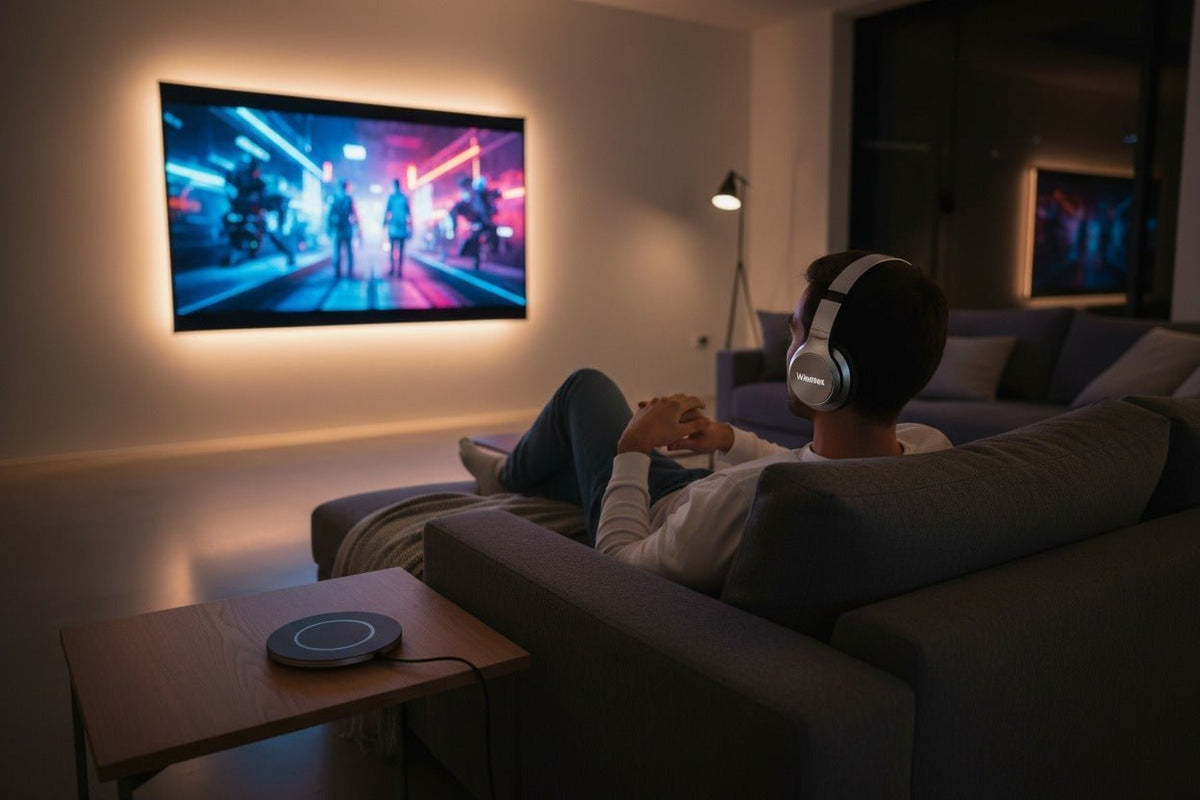
Per collegare delle cuffie Bluetooth a una Roku TV, controlla innanzitutto se il tuo specifico dispositivo Roku supporta la modalità Cuffie Bluetooth (Bluetooth Headphone Mode). Sui dispositivi compatibili, vai su Impostazioni → Telecomandi e dispositivi → Cuffie wireless → Aggiungi nuove cuffie wireless, imposta le cuffie in modalità abbinamento e selezionale quando compaiono.
Se non visualizzi “Cuffie wireless”, non dare per scontato che la TV sia troppo vecchia o troppo nuova. Il supporto Roku varia in base all'esatto modello di TV o lettore di streaming. Esistono comunque altre opzioni, tra cui la modalità Cuffie tramite l'app mobile Roku, un telecomando vocale Roku compatibile dotato di jack per cuffie o un trasmettitore esterno collegato a un'uscita audio della TV.

Scegli innanzitutto il metodo Roku corretto per le cuffie
L'importante distinzione consiste nel capire se il tuo dispositivo Roku può inviare l'audio direttamente alle cuffie Bluetooth. L'hardware Bluetooth utilizzato per altri scopi non significa automaticamente che sia disponibile l'uscita audio per le cuffie Bluetooth.
| La tua configurazione | Metodo di partenza consigliato | Cosa verificare |
|---|---|---|
| “Cuffie wireless” appare nelle impostazioni Roku | Abbina direttamente le cuffie Bluetooth | Le cuffie sono in modalità abbinamento e visibili al dispositivo Roku |
| Nessuna modalità Cuffie Bluetooth diretta | Usa l'app mobile Roku se il tuo dispositivo supporta la modalità Cuffie mobile | Telefono/tablet e Roku sono sulla stessa rete wireless |
| Telecomando vocale Roku compatibile con jack cuffie | Usa cuffie cablate tramite il telecomando | Il modello di telecomando include effettivamente il jack per cuffie da 3,5 mm |
| Vuoi una connessione dedicata TV-cuffie | Usa un trasmettitore esterno o un sistema dedicato TV-cuffie | L'uscita TV corrisponde all'ingresso del trasmettitore o della base |
L'attuale documentazione di supporto Roku spiega quali dispositivi supportano la modalità diretta Cuffie Bluetooth e specifica che il menu Cuffie wireless appare solo sui dispositivi Roku compatibili. Controlla l'elenco aggiornato se non sei sicuro di uno specifico modello: Supporto Roku per la modalità Cuffie Bluetooth.
Metodo 1: Abbina direttamente le cuffie Bluetooth a un dispositivo Roku compatibile
Se il tuo dispositivo Roku supporta la modalità diretta Cuffie Bluetooth, questa è la configurazione più rapida poiché le cuffie si connettono direttamente a Roku invece che al telefono.
Apri le impostazioni Roku
Premi Home sul telecomando Roku, quindi apri Impostazioni.
Apri Cuffie wireless
Vai su Telecomandi e dispositivi → Cuffie wireless.
Avvia un nuovo abbinamento
Seleziona Aggiungi nuove cuffie wireless. Roku avvisa che la scansione può richiedere fino a circa 30 secondi.
Imposta le cuffie in modalità abbinamento
Usa la procedura di abbinamento documentata per il tuo specifico modello di cuffie. Accendere semplicemente le cuffie potrebbe riconnetterle a un telefono invece di renderle rilevabili.
Seleziona le cuffie
Scegli le tue cuffie dall'elenco dei dispositivi disponibili. Dopo l'abbinamento, rimarranno nell'elenco dei dispositivi associati di Roku per una riconnessione futura.
I nomi dei menu sono importanti: le attuali istruzioni Roku utilizzano Cuffie wireless e Aggiungi nuove cuffie wireless. Un menu generico “Bluetooth” non è un test di compatibilità affidabile per l'uscita cuffie.
Come riconnettere o disconnettere in seguito
Torna su Impostazioni → Telecomandi e dispositivi → Cuffie wireless, seleziona le cuffie abbinate e scegli Connetti o Disconnetti. I dispositivi Roku compatibili potrebbero anche offrire un'opzione di rilevamento automatico per la riconnessione.
Metodo 2: Usa le cuffie Bluetooth tramite l'app mobile Roku
La modalità Cuffie mobile invia l'audio Roku all'app Roku sul tuo telefono o tablet. Le tue cuffie Bluetooth si collegano al dispositivo mobile, non direttamente alla TV.
- Installa o aggiorna l'app mobile Roku.
- Collega il tuo telefono o tablet e il dispositivo Roku alla stessa rete wireless.
- Abbina e connetti le tue cuffie Bluetooth al telefono o tablet.
- Apri l'app Roku e connettila al dispositivo Roku corretto.
- Tocca Telecomando, quindi tocca l'icona Cuffie per attivare la modalità Cuffie.
Quando la modalità Cuffie mobile è attiva, l'audio viene instradato verso il dispositivo mobile invece che verso gli altoparlanti della TV. Roku attualmente supporta fino a quattro dispositivi mobili contemporaneamente per la modalità Cuffie sulle configurazioni supportate. Consulta le istruzioni Roku per la modalità Cuffie mobile per i requisiti e le limitazioni attuali.
Questa non è una soluzione universale per ogni dispositivo Roku. Se l'icona Cuffie non appare, conferma che l'app sia aggiornata, che il telefono e il dispositivo Roku siano sulla stessa rete e che il dispositivo Roku supporti la modalità Cuffie mobile.
Metodo 3: Usa un telecomando vocale Roku con jack per cuffie
Alcuni telecomandi vocali Roku includono un jack integrato per cuffie da 3,5 mm. Non si tratta di una connessione Bluetooth, ma spesso è l'opzione di ascolto privato più semplice se possiedi già un telecomando compatibile.
- Collega le cuffie cablate al jack per cuffie del telecomando.
- Abbassa il volume prima di indossare le cuffie.
- Avvia la riproduzione e regola il volume con il telecomando Roku.
- Scollega le cuffie quando vuoi che l'audio torni agli altoparlanti della TV.
Roku documenta questo aspetto separatamente poiché la modalità Cuffie tramite telecomando e tramite app mobile presenta limitazioni diverse. Consulta la guida Roku alla modalità Cuffie tramite telecomando vocale.
Metodo 4: Usa un trasmettitore Bluetooth esterno

Un trasmettitore Bluetooth esterno può aggiungere un percorso wireless per le cuffie quando la tua TV non supporta l'uscita cuffie Bluetooth diretta. La chiave è l'uscita audio fisica della TV, non il nome del modello Roku in sé.
- Identifica l'uscita audio disponibile della TV, come ottica/TOSLINK, uscita audio da 3,5 mm o uscita audio RCA.
- Scegli un trasmettitore che accetti esattamente quella connessione.
- Collega e alimenta il trasmettitore in base al suo manuale.
- Imposta sia il trasmettitore che le cuffie nelle loro modalità di abbinamento documentate.
- Seleziona l'uscita audio TV corrispondente se la TV lo richiede.
- Riproduci un video e controlla sia il suono che la sincronizzazione labiale.
Se hai bisogno di aiuto per identificare l'uscita TV corretta prima di acquistare l'hardware, confronta le uscite documentate del televisore con gli ingressi documentati del trasmettitore prima di ordinare. Il Bluetooth diretto, il trasmettitore esterno e i sistemi dedicati TV-cuffie utilizzano percorsi audio differenti.
Per le connessioni ottiche, non modificare a caso il formato audio digitale della TV. Alcuni trasmettitori richiedono PCM o un altro formato specifico, quindi segui la documentazione sia per la TV che per il trasmettitore.
Risoluzione dei problemi delle cuffie Bluetooth Roku
Il menu Cuffie wireless manca
Se Impostazioni → Telecomandi e dispositivi non mostra Cuffie wireless, il dispositivo Roku potrebbe non supportare la modalità diretta Cuffie Bluetooth. Controlla l'elenco di compatibilità attuale di Roku invece di usare l'età della TV come scorciatoia.
Roku non riesce a trovare le cuffie
- Assicurati che le cuffie siano nella loro modalità di abbinamento documentata, non semplicemente accese.
- Disconnettile temporaneamente da telefoni, tablet o computer vicini che potrebbero riconnettersi automaticamente.
- Avvicina le cuffie al dispositivo Roku durante l'abbinamento.
- Riavvia entrambi i dispositivi e riprova la sequenza di abbinamento.
Se le cuffie stesse continuano a non entrare in modalità abbinamento o a riconnettersi in modo errato tra i dispositivi, utilizza la guida al ripristino e al ri-abbinamento delle cuffie Bluetooth prima di tentare un ripristino alle impostazioni di fabbrica. Le procedure di ripristino variano in base al modello esatto.
Le cuffie sono connesse ma non c'è audio
- Conferma che le cuffie siano selezionate nel menu Cuffie wireless di Roku.
- Controlla i livelli del volume sia di Roku che delle cuffie.
- Se usi l'app mobile, verifica che sia connessa al dispositivo Roku corretto.
- Se usi un trasmettitore, conferma che sia collegato a un'uscita audio, non a un ingresso.
L'audio non è sincronizzato
Per la modalità Cuffie mobile, Roku consiglia di utilizzare l'app mobile più recente e fornisce una procedura di regolazione del ritardo audio nella sua documentazione di risoluzione dei problemi. Per configurazioni Bluetooth dirette o con trasmettitore, controlla l'intero percorso del segnale invece di presumere che una versione Bluetooth più recente garantisca una bassa latenza.
I passaggi di risoluzione dei problemi attuali di Roku sono disponibili in Come risolvere un problema con la modalità Cuffie.
Due persone possono ascoltare contemporaneamente?
Roku afferma che non è possibile collegare più cuffie direttamente a una Roku TV o a un lettore per la modalità Cuffie Bluetooth. Sulle configurazioni supportate, l'app mobile Roku può fornire la modalità Cuffie fino a quattro dispositivi mobili contemporaneamente.
Cosa controllare prima di acquistare qualsiasi cosa
- Modello Roku esatto: controlla in Impostazioni → Sistema → Informazioni.
- Supporto modalità cuffie diretta: cerca Cuffie wireless, non un'etichetta generica Bluetooth.
- Supporto modalità cuffie mobile: conferma che l'app Roku mostri il controllo Cuffie per il tuo dispositivo.
- Uscite audio TV: identifica ottica, 3,5 mm, RCA o un'altra uscita supportata prima di scegliere un trasmettitore o un sistema TV-cuffie.
- Procedura di abbinamento cuffie: usa le istruzioni del produttore per il modello esatto invece di una regola generica di pressione dei pulsanti.
Preferisci una configurazione dedicata per l'ascolto TV?
Wantek TV996WK include una base trasmettitore/ricarica più cavi ottici, AUX da 3,5 mm e RCA. Confronta queste connessioni con le uscite della tua TV prima di sceglierlo per la tua configurazione.
Domande frequenti
Tutte le Roku TV possono connettersi direttamente alle cuffie Bluetooth?
No. La modalità diretta Cuffie Bluetooth è limitata ai dispositivi Roku compatibili. Cerca Impostazioni → Telecomandi e dispositivi → Cuffie wireless e conferma il tuo modello esatto nella documentazione di supporto Roku attuale.
Perché la mia Roku TV ha il Bluetooth ma non il menu Cuffie wireless?
Il Bluetooth può supportare funzioni diverse. Un dispositivo Roku potrebbe utilizzare il Bluetooth per accessori senza offrire un'uscita diretta per le cuffie. Il menu Cuffie wireless è l'indicatore pertinente per la modalità diretta Cuffie.
Gli auricolari Bluetooth possono connettersi direttamente a Roku?
Sì, sui dispositivi Roku compatibili. Roku attualmente afferma che cuffie o auricolari Bluetooth che supportano Bluetooth 4.2 o versioni successive possono connettersi a un dispositivo compatibile per la modalità Cuffie.
Posso ascoltare tramite cuffie Bluetooth senza silenziare la TV?
Roku afferma che gli altoparlanti della TV vengono silenziati quando la modalità Cuffie mobile è attiva. Altri comportamenti di uscita simultanea dipendono dalla TV esatta, dal percorso audio e dall'hardware esterno.
Quante persone possono usare la modalità Cuffie Roku contemporaneamente?
Roku attualmente supporta fino a quattro dispositivi mobili contemporaneamente per la modalità Cuffie mobile sulle configurazioni supportate. La modalità diretta Cuffie Bluetooth non collega più paia di cuffie simultaneamente.
Un trasmettitore Bluetooth funzionerà con qualsiasi Roku TV?
Non automaticamente. La TV deve fornire un'uscita audio compatibile con l'ingresso del trasmettitore. Verifica le porte reali e il formato audio richiesto prima di acquistare o collegare un trasmettitore.

