
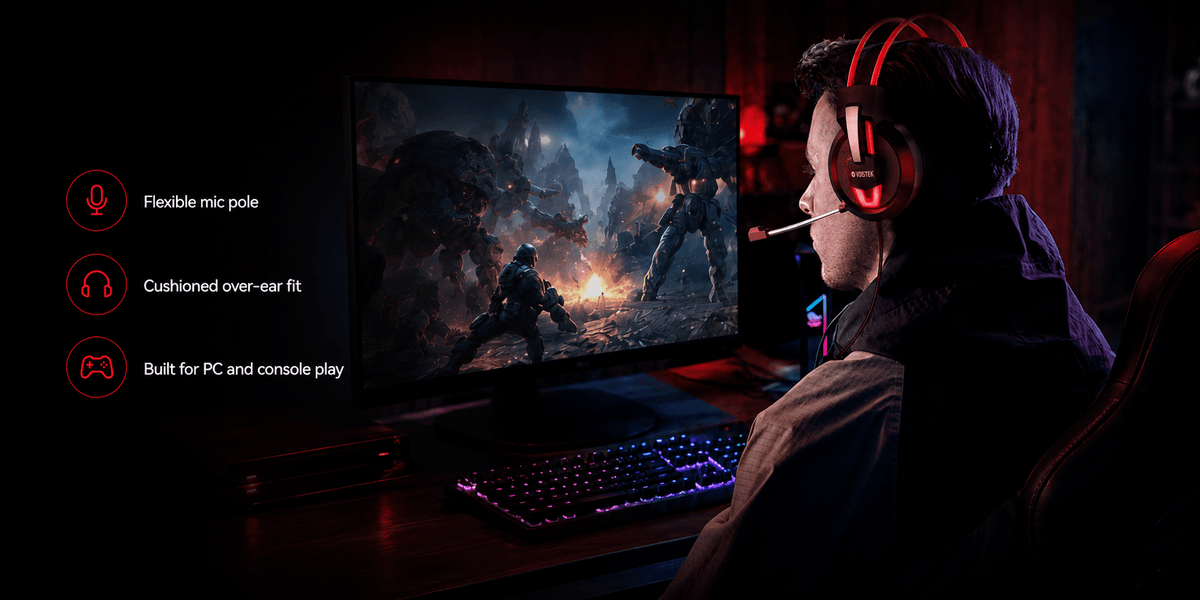
Choose a Call of Duty headset by checking your platform and audio connection first, then microphone controls and fit. For competitive play, start your comparison with wired audio or a dedicated gaming wireless receiver. Treat footstep presets and spatial audio as settings to test on your own setup.
A practical starting point: compare the wired HyperX Cloud III if you want several connection options, the SteelSeries Arctis Nova 5X Wireless if you need a gaming dongle and Bluetooth switching, or the Voistek V9 Pro if you want straightforward 3.5mm audio and inline controls. These are feature-based candidates, not a ranking from Call of Duty listening tests.
Check Your Platform Before Choosing a Headset
Write down the exact PC or console you use and the connection you plan to plug in. Confirm game audio and microphone input separately. A USB plug can carry audio, connect a wireless receiver, charge a battery, or power lighting; its presence alone does not establish compatibility.
- PC: check whether your computer has a combined headset jack or separate headphone and microphone sockets. Verify any required splitter and select the intended input and output devices.
- PS5: choose a documented controller, USB, or wireless-adapter connection. Ordinary Bluetooth audio is not a direct substitute: PlayStation’s Bluetooth audio guidance identifies incompatible Bluetooth audio devices.
- Xbox: verify the exact headset variant and its Xbox connection instructions. A receiver advertised for PC or PlayStation does not establish Xbox support.
Check feature support as well as basic audio. For example, SteelSeries lists PlayStation support for the Nova 5X but states that PlayStation does not support its ChatMix feature. If you are comparing broader connection and comfort requirements, use our gaming headset buying guide.
Three Headsets to Compare for Call of Duty
These candidates represent different connection needs. Manufacturer specifications establish the features below; they do not prove which headset will let you locate footsteps most accurately. Compare current prices and the exact version before ordering.
| Headset | Connection and practical check |
|---|---|
| HyperX Cloud III (wired) | 3.5 mm, USB-C, or USB-A connection; detachable microphone. Confirm which connection and features work on your platform. |
| SteelSeries Arctis Nova 5X Wireless | 2.4 GHz USB wireless receiver and Bluetooth Quick-Switch. Xbox, PlayStation, and PC support; PlayStation does not support ChatMix. |
| Voistek V9 Pro (wired) | 3.5 mm connection for game audio; USB powers RGB lighting only. Inline volume and mic-mute controls. Check your device's headset jack. |
HyperX Cloud III: Wired Connection Options
The wired Cloud III offers 3.5mm, USB-C, and USB-A connectivity, plus a detachable microphone. It is worth comparing if you want one wired headset with several ways to connect. Check the supported connection for each platform; do not assume every software feature carries across systems.
Use the HyperX Cloud III wired product page to confirm the included adapters and platform details. Keep it distinct from Cloud III wireless models when comparing listings.
SteelSeries Arctis Nova 5X Wireless: Dongle and Bluetooth Switching
The Nova 5X provides a 2.4GHz USB wireless connection and Quick-Switch to Bluetooth. SteelSeries lists Xbox, PlayStation, and PC support for this variant, with platform-specific limits on ChatMix. It is a candidate if you want wireless gaming and a separate phone connection, but switching between connections does not mean mixing both audio streams.
Check the exact X variant and receiver setup on the Arctis Nova 5X Wireless page. Its app presets are adjustment options, not evidence of a universal advantage in Call of Duty.
Voistek V9 Pro: Simple 3.5mm Audio
The V9 Pro, sold in the Wantek store, uses 3.5mm game audio, a flexible boom microphone, and inline volume and microphone-mute controls. USB powers its RGB lighting; it does not carry game audio. Compare it if those wired controls meet your needs, and check your device’s headset socket before buying.

There is no comparative Call of Duty footstep test presented here for the V9 Pro. Its 50mm driver specification alone cannot establish positional accuracy or superiority over the other candidates.
Check the V9 Pro Connection Details
Review the 3.5mm audio path, boom microphone, and inline controls against your gaming setup.
Test Footstep Audio Before Buying Another Headset
Start with a repeatable scene in the Call of Duty title you actually play. Compare the same route or encounter at a similar listening level and change one setting at a time. Listen for direction and separation from other sounds, rather than judging only how loud footsteps become.
- Confirm that game audio is reaching the headset you selected.
- Try the game’s available headphone mixes using the same scene.
- Compare spatial processing separately from EQ. Keep a note of the original settings so you can return to them.
- If you change EQ, make small adjustments and replay the scene. Reject settings that make other cues harder to distinguish.
- Repeat the check with team chat active, then adjust chat balance if voices obscure the game.
This is a comparison method, not a universal footstep preset. Game versions, maps, audio mixes, and your headset can change the result. A louder setting is not by itself proof of better localization.
Do You Need 7.1 or Enhanced Headphone Mode?
A headset does not need a “7.1” label to use Call of Duty’s Enhanced Headphone Mode. Embody’s Call of Duty information says its Universal Profile works with headphones and earbuds without a purchase in supported titles. Check availability in your game’s current settings; the optional Personalized Profile is a separate offering.
When using Enhanced Headphone Mode, follow Embody’s setup instructions to disable third-party spatial processing. Compare one spatial processor at a time rather than automatically combining the game mode with headset surround software.
Our virtual surround troubleshooting guide explains how to isolate output-device and processing problems if the result sounds flat or distant.
Fix Team Chat Separately From Game Audio
If you hear the game but teammates cannot hear you, check microphone mute, the selected input device, and a microphone test before replacing the headset. Position the boom near your mouth without pointing it directly into your breath.
For Warzone, Activision’s communication guide places Voice Chat controls under Settings > Audio > Voice Chat. Check whether chat is enabled, which group you can talk to, and whether anyone is muted. Platform account settings may override in-game choices. Other Call of Duty titles can have different menus.
Before committing to a new headset, also check clamp pressure, ear-cup depth, glasses contact, and access to mute during a normal session. A connection that works and controls you can reach are useful requirements to settle before paying for extra effects.
Frequently Asked Questions
What is the best headset for Call of Duty footsteps?
Choose by platform, connection, fit, and controls, then compare positional cues in your game. The specifications here do not establish a single winner for footstep accuracy.
Should I choose wired or wireless for Call of Duty?
Wired avoids headset charging and receiver setup. Wireless gives more freedom to move; verify the gaming connection, platform support, and charging requirements for the exact model.
Do I need to buy a special headset for Enhanced Headphone Mode?
No. Embody says the Universal Profile works with headphones and earbuds in supported titles. Check the game’s current settings and keep third-party spatial processing disabled when using that mode.
Why can I hear Call of Duty but my microphone does not work?
Check the headset’s mute control, microphone input selection, and voice-chat settings separately. In Warzone, platform account settings can also override the game’s communication settings.

