
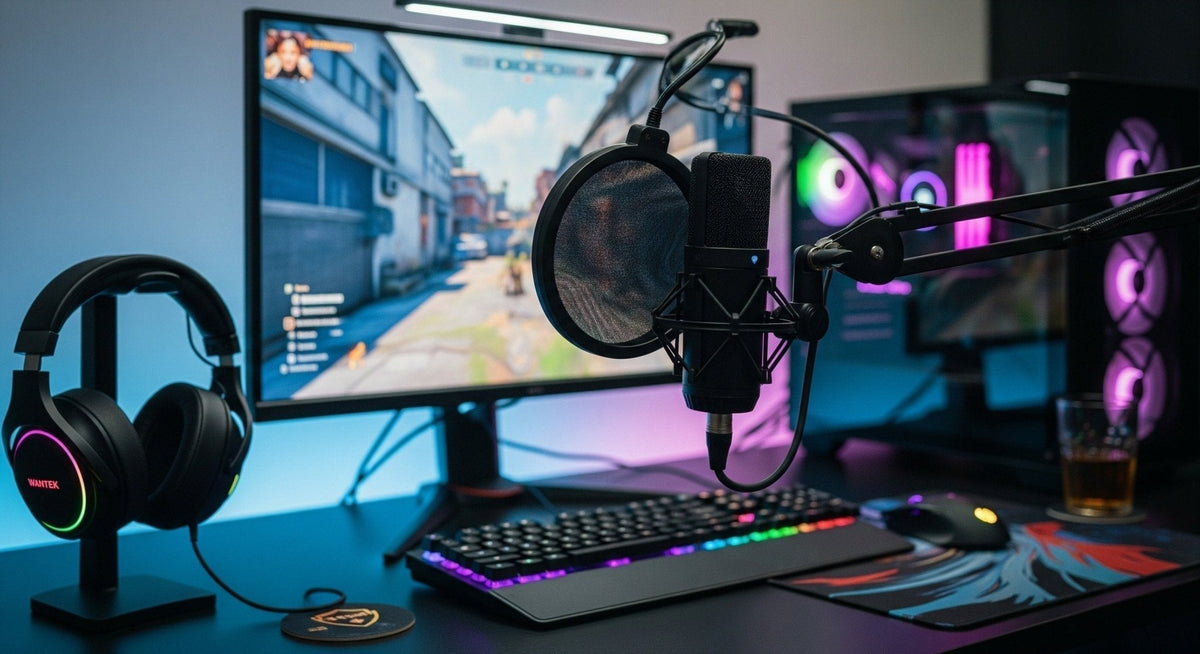
A good gaming mic setup is less about buying the most expensive microphone and more about controlling the full signal path: the microphone, its position, input level, software settings, and the room around you. Start with the simplest setup that meets your needs, then add complexity only when a specific problem justifies it.
Start with the signal path
Your voice has to travel through several stages before teammates hear it. The microphone captures sound, the computer converts or receives the signal, the operating system exposes an input device, and the game or voice-chat app applies its own input settings. A problem at any one stage can make an otherwise capable microphone sound weak, distorted, noisy, or inconsistent.
Before changing filters or buying accessories, confirm four basics: the microphone is connected to the intended port, Windows sees the correct input device, the application is using that same device, and the input meter responds when you speak.
USB or XLR: choose based on complexity, not prestige
USB microphones
A USB microphone combines the microphone and digital conversion in one device. That makes it the straightforward choice for most PC gaming, voice chat, and casual streaming setups. You connect one cable, select the microphone in Windows and your app, then set the input level.
USB is usually the better starting point when you want fewer components, a smaller desk footprint, and fast troubleshooting.
XLR microphones
An XLR microphone normally needs an audio interface or mixer between the microphone and the PC. The interface supplies preamplification and converts the analog signal to digital audio. Some condenser microphones also require phantom power; dynamic microphones may need more gain, depending on the model and how closely you speak.
XLR makes sense when you specifically want a modular signal chain, hardware controls, multiple inputs, or an upgrade path. It is not automatically clearer for gaming just because the connector is professional.
| Path | Good fit when | Extra hardware |
|---|---|---|
| USB microphone | You want fewer components, a small desk footprint, and faster setup or troubleshooting. | Usually no separate audio interface; use the stand or boom arm the setup requires. |
| XLR microphone + interface | You want a modular signal chain, hardware controls, multiple inputs, or a defined upgrade path. | Audio interface and XLR cable; phantom power only when the microphone requires it. |
Choose the microphone type for your room
For a typical gaming desk, placement and pickup pattern often matter more than the brand name. A microphone that sits close to your mouth can capture more direct voice relative to room sound. That can reduce how much keyboard, fan, and room reflection reaches the signal before software processing begins.
If your room is noisy or untreated, a close-positioned dynamic microphone is often easier to manage than a sensitive microphone placed far away. If the room is quiet and you also record detailed voice or instruments, a condenser microphone may be useful. Treat those as starting points rather than universal rules.
Place the mic close enough to use less gain
Put the microphone close to your speaking position without blocking your screen or forcing you to lean forward. Aim it according to the manufacturer's pickup orientation; side-address and end-address microphones are not used the same way.
- Start close enough that your voice is clearly stronger than the room noise.
- Move the mic slightly off-axis if plosive sounds such as “p” and “b” are too strong.
- Use a boom arm or stable stand to keep the distance consistent.
- Do not compensate for a distant mic by turning gain up aggressively; that raises room noise too.
Set gain before adding filters
Speak at the loudest level you use during a normal match and watch the input meter. The goal is a strong signal with headroom for louder moments, not a meter that stays pinned near the maximum. If speech clips or becomes harsh, reduce gain. If normal speech is barely visible, move closer first and then raise gain as needed.
After the raw level is stable, add processing only for a defined problem. A light noise-suppression filter can help with steady computer noise. A noise gate can reduce low-level sound between phrases, but an aggressive threshold can cut off quiet words. Compression can make level changes easier to manage, but too much can raise background noise and make breathing more obvious.
Check Windows and the app separately
PC audio problems often come from selecting one microphone in Windows and another in Discord, a game, OBS, or streaming software. Check both layers. If your app supports automatic gain or automatic input sensitivity, decide whether you want the app controlling level or whether you prefer a fixed manual setting; avoid stacking multiple automatic systems unless you have a reason.
Record a short local test in addition to asking teammates. A recording gives you a repeatable reference for hum, plosives, keyboard noise, clipping, and changes in distance.
Use monitoring carefully
Mic monitoring, or sidetone, lets you hear some of your own voice. That can help you avoid speaking too loudly when wearing closed headphones. If monitoring has noticeable delay, use a hardware direct-monitoring path when your microphone or interface provides one rather than routing the signal through multiple software layers.
Troubleshooting checklist
No signal
Reconnect the cable, select the intended input in Windows, then select the same device in the game or chat app.
Too quiet
Move the microphone closer, confirm the pickup side, then raise gain gradually.
Keyboard dominates
Reduce the mic-to-mouth distance, move the microphone away from the keyboard's direct path, and use modest suppression only after placement is improved.
Voice cuts out
Lower the noise-gate threshold or disable automatic sensitivity temporarily to identify which processor is removing quiet speech.
Headset mic or separate microphone?
A separate desktop microphone is not automatically better. A well-positioned boom mic stays at a consistent distance as you move your head and takes up less desk space. A separate microphone gives you more placement and processing options. Choose based on the room, desk, movement, and how much setup you want to manage.
If you are deciding whether studio headphones and an external mic fit your gaming setup, see the studio headphones for gaming guide.
Gaming Mic Setup FAQ
Do I need XLR for a good gaming microphone?
No. USB microphones can provide a clean, practical gaming setup. XLR is useful when you specifically need a modular interface-based signal chain or additional hardware control.
Why can teammates hear my keyboard?
The mic may be too far from your mouth, gain may be too high, or the keyboard may sit directly in the pickup path. Fix placement first, then add light suppression if needed.
Should I use a noise gate?
Use one only when low-level background noise between phrases is a real problem. Set the threshold conservatively so quiet words and sentence endings are not cut off.
What is the fastest way to test the setup?
Make a local recording at normal and excited speaking levels, then test inside the actual game or voice-chat app because each application can apply separate input settings.
Prefer a headset-based setup?
If you want the microphone to move with you and reduce desk hardware, compare Wantek gaming and work headsets by connection, microphone style, and platform.

