
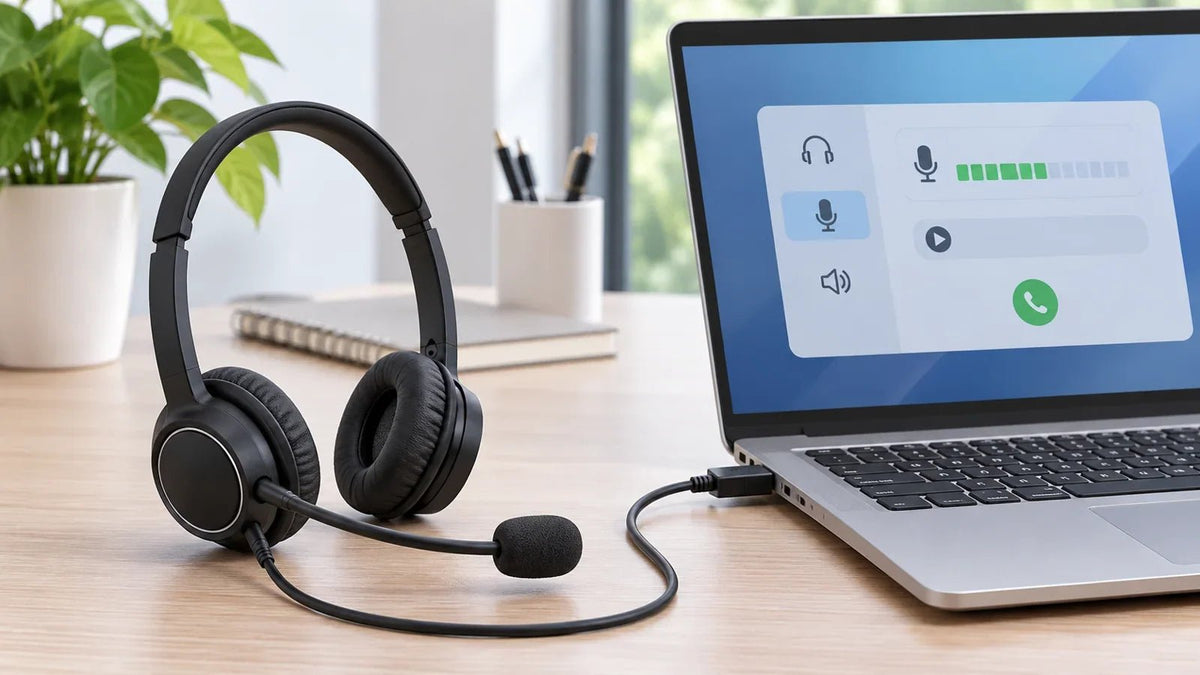
To test USB headset compatibility with your softphone, connect the headset, select its microphone and speakers in your operating system and calling application, and complete incoming and outgoing test calls. Check local mute, application mute synchronization, required call-control buttons, and recovery after reconnecting before approving the headset for daily use.
Key takeaways
Successful audio playback is only the first compatibility check. Test the specific configuration and functions that matter to your work.
- USB recognition does not establish full softphone integration.
- Test microphone and speaker audio separately from hardware call controls.
- Check the exact headset model, application version and operating system.
- Use a live call to verify the remote participant can hear you.
- Record the results before purchasing for a team.
What does USB headset compatibility mean?
Compatibility means the headset performs the required functions with a particular computer and calling application. A device may work for audio without supporting application-level answer, end or mute controls.
A softphone is software used to make and receive voice calls. Examples include Teams Phone, Zoom Phone, RingCentral and Cisco Jabber. Webex and browser-based contact center clients also require configuration-specific testing.
USB Audio Class defines a mechanism for audio transport; USB Human Interface Device (HID) can carry control commands. The presence of a USB connector or HID interface does not establish that a particular application recognizes those commands.
Do all USB headsets work with softphones?
No. Basic USB audio support is often broader than application-specific hardware integration. The exact model, software and connection determine which functions are available.
| Function | Basic USB audio | Application integration |
|---|---|---|
| Microphone and speaker | Required for two-way audio | Required for two-way audio |
| Local mute and volume | Model-dependent | Model-dependent |
| Application mute indicator | Not guaranteed | Verify synchronization |
| Answer and end calls | Not guaranteed | Verify each required control |
| Recovery after reconnect | Test separately | Test audio and controls separately |
Teams-certified headsets meet Microsoft's program requirements for their certified configuration. A standard UC headset may be sufficient for audio calls; a UC label does not establish universal certification. Check the exact model against the vendor's documentation if certified integration is a requirement.
How to test USB headset compatibility in seven steps
Start with local device detection, then test audio inside the application and complete a live call. This sequence helps separate hardware, operating system, application and network problems.
1. Connect directly to a USB data port
For the initial test, bypass docks and hubs where possible. Use the supplied adapter if required. Confirm that the operating system recognizes an input and output audio device. Repeat with the normal workstation connection after the direct test passes.
2. Test Windows or macOS audio
In Windows 11, open Settings > System > Sound. Select the headset under Output and its microphone under Input. Open the microphone properties and use the microphone test. Review microphone permissions if an application cannot capture sound. See Microsoft Support: Set up and test microphones in Windows.
On macOS, open System Settings > Sound, select the intended output and input, and watch the input-level meter while speaking. Check Privacy & Security > Microphone for application access.
3. Record a consistent voice sample
Speak at your normal volume using the same microphone position. Record the sentence: “I am checking that you can hear my voice clearly during a normal office call.” Listen for clipping, dropouts and excessive background noise. Repeat with representative keyboard or office noise; this is a functional comparison, not a calibrated noise-reduction measurement.
4. Select the headset inside the softphone
Explicitly select the headset microphone and speaker in the application's audio settings. A softphone may retain its own device preferences even when the computer uses the correct defaults. Set the ringer separately if available.
5. Make incoming and outgoing calls
Call a colleague or test extension and have the other participant call you back. Confirm both directions of audio, speech clarity and the correct device. If using a phone service, test the actual telephony workflow rather than relying solely on a meeting or local microphone recording.
6. Check local mute and application controls separately
Activate physical mute and ask the other participant whether your voice is blocked. Check whether the application indicator changes; then unmute in the application and verify what happens on the device. Test answer and end buttons only if present or required. A local mute can work without application synchronization.
7. Verify recovery and coexistence
Repeat the call after reconnecting the cable, restarting the application, restarting the computer and resuming from sleep where applicable. Test your normal dock and other communication apps. Record any manual recovery steps instead of marking a configuration fully reliable.
How to test Teams, Zoom Phone and other softphones
Use the platform's built-in audio test where available, then perform real calls in the actual production client. Desktop, web and virtual desktop clients should be treated as different configurations.
Microsoft Teams and Teams Phone
In Teams, go to Settings and more > Settings > Devices. Choose the intended speaker and microphone and use Make a test call if offered in the desktop client for Windows or Mac. For Teams Phone, also test the actual incoming and outgoing phone call workflow. See Microsoft Support: Manage call settings in Teams.
Zoom Phone
Choose your speaker and microphone in Zoom's audio settings. Eligible Zoom Phone users can dial *8378 to test audio. That test does not establish hardware-control compatibility; check the specific HID support documentation and verify each required button. See Zoom Support: Test device audio for Zoom Phone and Zoom Support: Supported USB HID devices.
RingCentral, Cisco Jabber and Webex
Open the audio settings in the exact client you use and select the intended input and output. Use the available audio test, then repeat the incoming, outgoing and hardware-control checks. Check the platform's current device integration guidance rather than assuming identical features across desktop and browser clients.
Browser and virtual desktop softphones
Verify the browser's microphone permission and any application-required device authorization. Test inside the deployed virtual desktop, including its audio redirection configuration. A successful call on the local computer does not validate the virtual environment.
What should a compatibility test record include?
Record the exact device and software configuration, each function's result, and supporting evidence. The following proposed acceptance framework is intended for functional testing, not third-party certification.
| Test | Acceptance check |
|---|---|
| Device detection | Expected input and output appear |
| Speaker playback | Sound comes from the intended headset |
| Microphone recording | Speech is intelligible without persistent dropouts |
| Incoming call | Both parties can hear one another |
| Outgoing call | Both parties can hear one another |
| Local mute | Remote participant cannot hear muted microphone |
| Mute synchronization | App and hardware state agree in both directions if required |
| Answer control | Incoming call is accepted if required |
| End control | Active call ends if required |
| Volume control | Required adjustments work |
| USB reconnect | Required functions recover |
| Sleep recovery | Required functions recover after sleep if applicable |
| Restart recovery | Required functions recover after restart |
| App coexistence | Required functions remain available in normal multi-app use |
Mark each check Pass, Fail, Not applicable, or Not tested. Mark functions as mandatory before testing. A required failure cannot be offset by successful optional checks. If a required check remains untested, approval is incomplete.
Suggested pilot procedure: three direct reconnections and three incoming and outgoing calls per configuration, plus restart and sleep recovery where applicable. These are proposed internal acceptance counts, not industry thresholds or completed test results.
Why does my USB headset work in Windows but not my softphone?
If the computer detects the headset and local audio works, inspect the calling application's device selection, permissions and integration before replacing the hardware.
| Symptom | First check |
|---|---|
| No headset detected | Direct USB data port, cable and adapter |
| Playback works but microphone fails | Correct input, mute and permissions |
| Local audio works but calls fail | Application routing and VoIP connection |
| Audio works but buttons fail | Exact model's supported application integration |
| Problems occur with other apps open | Close competing calling applications and retest |
| Failure after sleep or docking | Device recovery and direct USB comparison |
Microsoft documents peripheral synchronization problems in some multi-application and account-switching scenarios. See Microsoft Learn: Known issues with Teams certified peripherals. Isolate one application first, then repeat the same test with the normal applications running.
How should businesses choose a softphone headset?
Choose a headset that passes the required tests in your actual workflow, not simply a headset advertised as USB or UC-compatible. Prioritize microphone clarity, two-way audio, required controls and reliable reconnection.
For a team rollout, test a sample on representative workstations before buying in quantity. Wantek offers call center headsets; verify the exact product variant before deployment. If you also use physical desk phones, consult the desk phone headset compatibility guide for the separate connector and wiring requirements.
Compare USB headsets for your workstation
Check each model's connector and inline controls, then use the compatibility checklist above before buying.
Can you test compatibility for free?
Yes. Existing operating-system audio tools and available softphone test services can validate basic functionality without purchasing diagnostic software. A colleague or test extension is useful for testing both call directions.
These functional checks do not replace calibrated acoustic measurements or formal certification tests.
Can updates affect headset compatibility?
Yes. Changes to the application, operating system, browser, firmware or workstation connection can alter device selection or control behavior. Keep dated records and repeat mandatory tests after significant changes.
Log the exact headset SKU, hardware revision if known, firmware version, OS build, application version, client type, connection method, date, and evidence. Do not apply one configuration's findings to an untested configuration.
Frequently asked questions
These answers distinguish basic audio from verified call-control integration.
Can any USB headset work with a softphone?
Many USB audio headsets can transmit and receive sound when supported by the operating system. Hardware call controls and mute synchronization depend on the exact device and application.
How do I know if my USB headset is fully compatible?
Complete incoming and outgoing calls, test the required buttons, and confirm recovery after reconnecting the headset. All mandatory functions must pass in the configuration you intend to use.
Do I need a Teams-certified headset to use Microsoft Teams?
No. A standard USB headset may work for audio without certification. Verify certification and application controls separately if your organization requires them.
Why do headset buttons fail when the audio works?
USB audio and application-level control are separate functions. Check the softphone’s device support and any required integration software, and close competing calling applications before retesting.
Can I test compatibility without making a live call?
You can verify local audio and use an available automated test service. A live incoming and outgoing call is still needed to evaluate the full calling workflow.
Does USB-C guarantee softphone compatibility?
No. USB-C describes the connector, not application support. Verify that the port carries data and that the headset works with the exact operating system and calling application.
Do I need headset software?
Follow any mandatory manufacturer setup instructions. If additional software is required for firmware or call controls, record its version and repeat the applicable tests.
Sources
Official platform documentation used for the testing instructions:

