
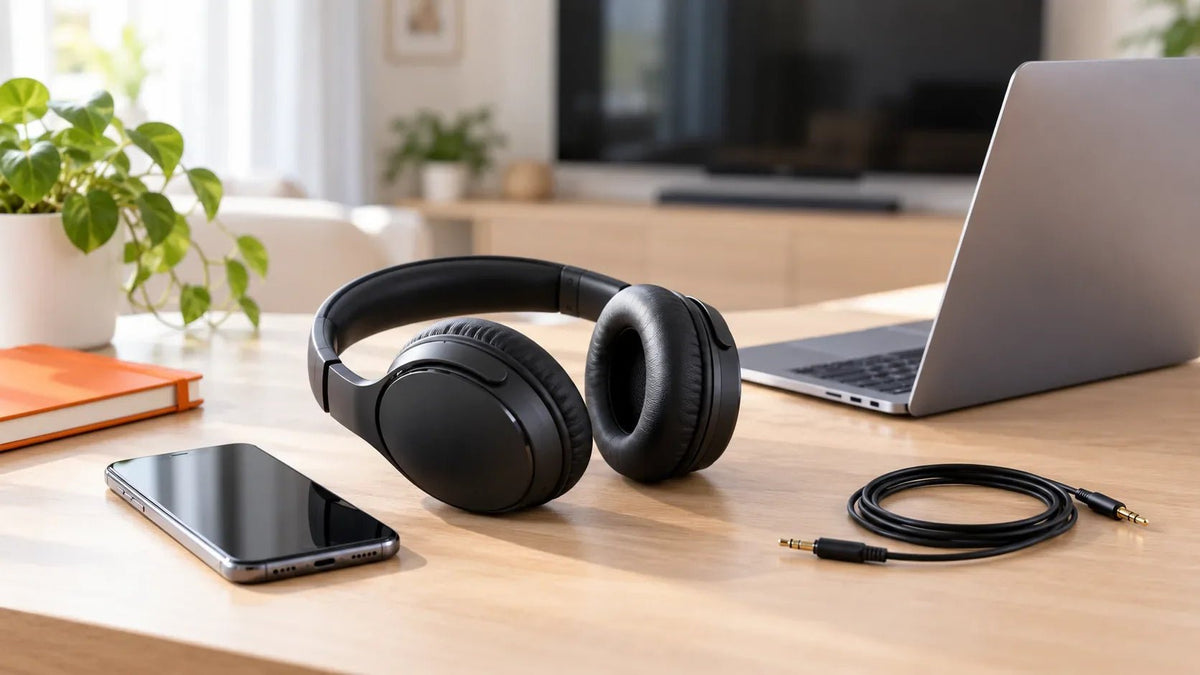
To connect headphones, first identify the connection: Bluetooth, a 3.5 mm audio plug, USB, USB-C, or a wireless USB receiver. For Bluetooth, put the headphones in pairing mode, choose them in your device's Bluetooth settings, and select them as the audio output if needed. For wired headphones, connect the compatible plug and check the sound output.
Quick check: Pairing a Bluetooth device and sending sound to it are separate steps. If your headphones say “connected” but play no audio, check the phone, computer, or app's output selection before resetting anything.
Which Connection Do Your Headphones Use?
- Bluetooth headphones: pair through the source device's Bluetooth settings. No audio cable is needed, but the source must support Bluetooth audio output.
- 3.5 mm wired headphones: insert the plug into a compatible headphone jack. A headset with a microphone may need a compatible combo jack or adapter.
- USB-A or USB-C headphones: connect to a compatible USB port that supports the headset's audio interface. The shape of a port alone does not guarantee audio compatibility.
- Wireless headphones with a USB receiver: connect the supplied receiver and follow the headset's setup instructions. Some receivers use their own wireless protocol and are not paired in the normal Bluetooth menu.
If your headphones came with both a cable and wireless features, consult the model instructions to see which connection modes it actually supports. A charging cable is not necessarily an audio cable.
How to Connect Bluetooth Headphones

Charge and turn on the headphones
Keep them close to the phone, computer, or other source. If they reconnect to a previously paired device, temporarily disconnect that device.
Enter pairing mode
Follow the instructions for your specific headphone model. Simply powering on is not always enough to make headphones discoverable; the indicator or voice prompt varies by model.
Select the headphones on your device
Open Bluetooth settings, enable Bluetooth, and select the headphone model when it appears. Complete any on-screen pairing request.
Test the sound output
Play audio. If sound still comes from the device speakers, select the headphones in sound or media-output settings. For calls, also choose the correct microphone in the app.
Connect Headphones to an iPhone or iPad
For Bluetooth headphones, open Settings → Bluetooth, turn Bluetooth on, put the headphones in pairing mode, and tap their name when it appears. If you have multiple connected audio accessories, choose the intended output from the audio controls. Apple documents this process in its Bluetooth accessory pairing instructions.
For wired headphones, use the phone or tablet's compatible audio connection. Depending on the model, that may mean a 3.5 mm jack, a USB-C audio accessory, or an appropriate adapter. Check whether the adapter supports microphone input if you need calls, not just listening.
Connect Headphones to an Android Phone
Put the Bluetooth headphones in pairing mode. On many Android phones, open Settings → Connected devices → Pair new device, then select the headphones. Menu names vary by Android version and manufacturer; some phones offer a nearby-device pairing notification. Google's Android Bluetooth setup guide covers these variations.
If the headphones are wired, check the phone's physical port and whether its USB-C connection or adapter supports digital or analog headphone audio as required by the accessory. A USB-C connector does not make all adapters interchangeable.
Connect Headphones to Windows 11
- Put Bluetooth headphones into pairing mode.
- Open Settings → Bluetooth & devices, turn on Bluetooth, and select Add device → Bluetooth.
- Choose the headphones and complete the connection.
- Open Settings → System → Sound and select the headphones under Output. For a headset microphone, also confirm Input and the settings in your calling app.
A Windows computer must have Bluetooth hardware or a compatible Bluetooth adapter for wireless pairing. See Microsoft's pairing instructions. Wired USB headsets and compatible 3.5 mm headphones do not require Bluetooth pairing.
Connect Headphones to a Mac
For Bluetooth, put the headphones in pairing mode, open Apple menu → System Settings → Bluetooth, and select Connect next to the device. Then go to System Settings → Sound → Output if the Mac keeps playing through its speakers. For calls, choose the headset microphone under Input when supported.
For wired headphones, insert the matching 3.5 mm connector or connect a compatible USB audio device, then check Sound settings. For AirPods and Mac-specific troubleshooting, follow Wantek's Mac headphone connection guide.
How to Connect Wired Headphones
3.5 mm headphone jack
Insert the plug fully into a compatible headphone output. If the computer has separate speaker and microphone jacks, a headset with a single combined plug may need a compatible splitter to use both audio and microphone. Different TRS and TRRS plug layouts can affect the connection; see the TRS vs. TRRS connector guide before choosing an adapter.
USB-A or USB-C headset
Connect the headset to a compatible port, or use an adapter that supports the required USB data and audio path. Wait for the system to recognize it, then select the headset for sound output and microphone input. If the computer cannot find it, try a different compatible port and bypass a hub temporarily.
Wireless headset with its own receiver
Insert the supplied receiver into a compatible USB port and follow the manufacturer setup instructions. Do not assume a proprietary receiver works with a different headset or that the headset will appear in the operating system's Bluetooth pairing list.
What About TVs and Game Consoles?
Some TVs can send audio directly to Bluetooth headphones, while others need a compatible transmitter or a separate listening method. Check the TV's exact model and audio output options before buying an adapter. Wantek's TV Bluetooth headphone guide explains these paths. Console support is also device-specific; a console with Bluetooth hardware does not necessarily support standard Bluetooth headphone audio.
Headphones Won't Connect? Check the Failure Point
The headphones don't show up in Bluetooth settings
- Confirm pairing mode using the model's actual instructions, not just the power indicator.
- Charge the headphones and keep them near the source device.
- Disconnect a phone or laptop that may already be holding the Bluetooth connection.
- Turn Bluetooth off and back on at the source. If the saved pairing repeatedly fails, remove or forget that entry and pair again.
They show “connected,” but there is no sound
Select the headphones under the device's sound output settings, check both device and app volume, and verify the playing app is not muted. On Windows, use Settings → System → Sound → Output. Microsoft recommends checking the output device before more disruptive troubleshooting in its connected-but-silent troubleshooting guide.
Only one side plays, or the headset microphone doesn't work
Check the source device's audio balance and whether the connection is seated correctly. For separate wireless earbuds, consult the model's pairing and synchronization steps rather than applying an arbitrary factory-reset sequence. Wantek's wireless earbuds setup guide covers earbud-specific cases.
For a microphone, confirm that the wired adapter or wireless path supports mic input. Then choose the headset as the input device in the operating system and inside the calling app. A successful playback connection alone does not prove the microphone is available.
Frequently Asked Questions
How do I put headphones in pairing mode?
Use the pairing action specified for your exact model, often a dedicated button or an extended button press. The required timing and indicator vary, so check the headphone manual.
Do wired headphones need Bluetooth?
No. Compatible 3.5 mm and wired USB headphones connect through their respective physical interfaces. Bluetooth pairing is only for a Bluetooth audio connection.
Why are my headphones connected but still playing sound from the speakers?
The source may still be using its built-in speakers or another output. Select the headphones in system sound settings and check the app's audio output separately.
Can headphones connect to two devices at once?
Only if the specific model supports a suitable multipoint or dual-device feature. Being paired with two devices does not necessarily mean it can maintain two active connections or play both audio streams simultaneously.
Need a Headset for Computer Calls?
If you need both headphones and a microphone for meetings, compare the available USB and 3.5 mm connections against your computer before choosing a model.

