
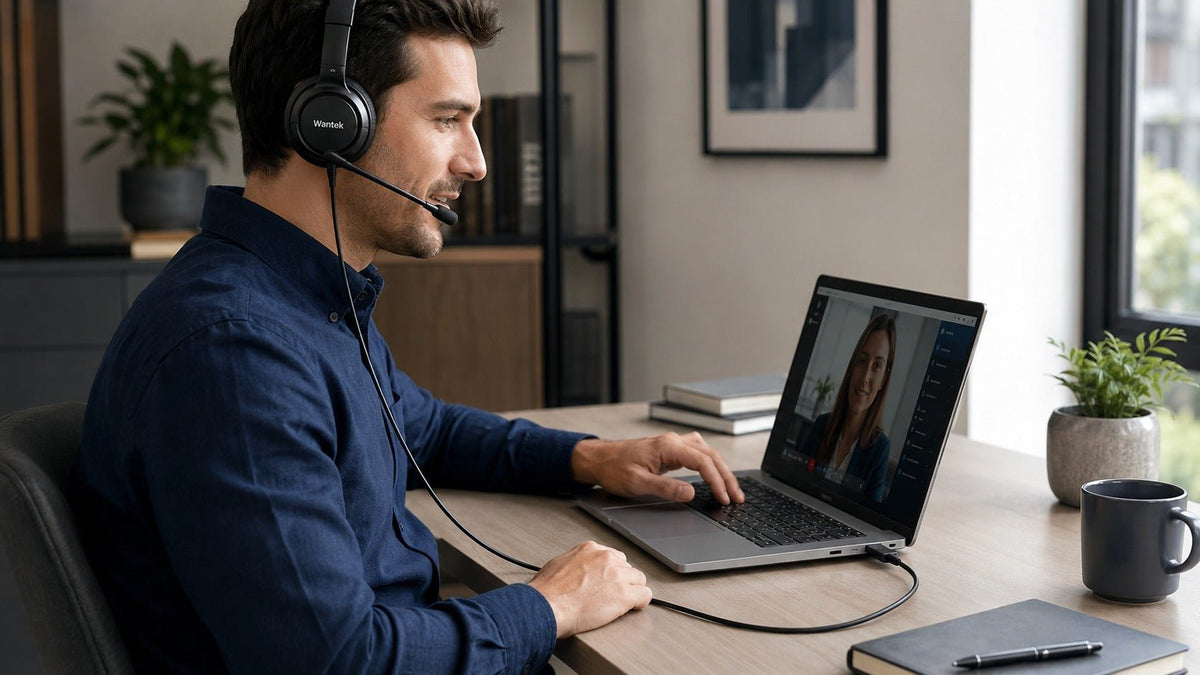
Choosing a USB-C headset starts with compatibility, not the connector alone. Confirm that your computer, phone, tablet, or other device supports the headset's required audio connection, then compare microphone design, wearing style, controls, and the way you actually work.
USB-C does not automatically mean better sound, lower latency, better microphone performance, or universal compatibility. The useful question is whether the exact headset and connection match your device and calling workflow.

What Is a USB-C Headset?
A USB-C headset uses a USB Type-C connection, but USB-C describes the physical connection system rather than the complete audio implementation.
With a digital USB headset, audio travels through USB and digital-to-analog conversion takes place in the headset, cable electronics, inline control module, or another part of the USB audio device. Microphone audio is converted back into digital data before being sent to the host.
USB-C can also support optional analog audio implementations on devices designed for them. That means a USB-C-shaped connector alone does not prove whether an accessory uses digital USB audio or an analog audio mode.
Practical rule: Confirm the exact headset and device combination instead of treating USB-C as a universal audio standard.
What to Check Before Buying a USB-C Headset
1. Check the Device First
Start with the device that will actually handle your calls. For a laptop or desktop, confirm the available port and operating-system support. For a phone or tablet, verify that the device supports the headset's required USB audio implementation.
Windows includes an in-box USB Audio 2.0 driver for compatible devices beginning with Windows 10 release 1703. That supports standard USB Audio Class 2.0 functionality, although proprietary controls or software features can still be model-specific. See Microsoft's USB Audio 2.0 driver documentation.
Android USB audio depends on factors including host support, USB audio implementation, class compliance, power requirements, and the peripheral itself. Android's technical guidance recommends testing interoperability rather than assuming all devices behave identically. See the Android USB digital audio documentation.
USB-C iPhones can also use compatible wired headphones and other audio accessories through the USB-C connector. Apple documents this in its USB-C iPhone guidance.
2. Prioritize the Microphone for Work Calls
For meetings, customer service, remote work, and other frequent calls, microphone design deserves more attention than connector marketing. A boom microphone can be positioned close to the mouth and kept in a more consistent location during a call.
When comparing models, check:
- Microphone type and positioning
- Mute control
- Published noise-control terminology
- Intended device support
- Any application-specific control requirements
Do not treat microphone noise reduction, passive isolation, and Active Noise Cancellation as interchangeable.
ANC primarily addresses environmental sound heard by the wearer. Microphone noise reduction concerns unwanted sound transmitted with the user's voice. Passive isolation depends on physical fit and materials.
A headset can provide one without providing the others.
3. Choose Single-Ear or Dual-Ear
A single-ear headset keeps one ear open to the surrounding workspace. This is useful when awareness of coworkers, visitors, or the room matters.
A dual-ear headset sends call audio to both ears and is the more relevant format when you prefer two-ear listening.
Neither format is automatically better. Choose according to how much awareness of the surrounding workspace you need.
4. Check the Controls You Actually Need
Frequent callers may benefit from easy access to:
- Microphone mute
- Volume up
- Volume down
Physical controls can reduce the need to return to software for basic adjustments.
However, a physical mute button does not automatically guarantee synchronized mute status or call controls inside every conferencing application. That behavior can depend on the headset, operating system, application, and implementation.
5. Treat Weight as One Comfort Factor
Weight is useful to compare because it is measurable, but it is not a complete comfort score.
Comfort also depends on headband geometry, ear-cushion shape, clamping pressure, wearing style, and individual fit.
For frequently used office headsets, replaceable cushions and microphone covers can also matter because worn contact parts can be replaced separately.
Compare Wantek USB-C Headsets for Work
Wantek currently lists several specific wired variants with Type-C, USB, and 3.5 mm connection options.
Because product families can contain different variants, use the complete SKU and current product specification as the final reference.
| Model variant | Wearing style | Listed connections | Weight | Microphone | Listed controls |
|---|---|---|---|---|---|
| HSM-600FUSB | Single ear | Type-C / USB / 3.5 mm | 3 oz / 85 g | Boom mic | Volume + one-key mute |
| HSM-681FUSB | Single ear | Type-C / USB / 3.5 mm | 3.7 oz / 105 g | Boom mic | Volume + one-key mute |
| HSM-602FUSB | Dual ear | Type-C / USB / 3.5 mm | 3 oz / 85 g | Boom mic | Volume + one-key mute |
Wantek H600 HSM-600FUSB
HSM-600FUSB is a single-ear corded headset weighing 3 oz / 85 g. Its current specification lists Type-C, USB, and 3.5 mm connections, a boom microphone, volume control, one-key mute, and replaceable ear cushions and microphone covers.
Its product specification uses PNC as the listed noise-control terminology. Do not rewrite that specification as ANC.
Wantek H681 HSM-681FUSB
HSM-681FUSB is another single-ear option. It weighs 3.7 oz / 105 g and lists Type-C, USB, and 3.5 mm connections.
The current specification also lists a boom microphone, volume and mute controls, PNC, and replaceable ear cushions and microphone covers.
Wantek H602 HSM-602FUSB
HSM-602FUSB uses a dual-ear design and weighs 3 oz / 85 g. It currently lists Type-C, USB, and 3.5 mm connections, a boom microphone, volume control, one-key mute, PNC, and replaceable ear cushions and microphone covers.
This specification belongs to HSM-602FUSB and should not automatically be applied to every H602 variant.
USB-C vs USB-A vs 3.5 mm vs Bluetooth
No connection is universally superior. Choose the connection according to the device and workflow rather than treating one plug as inherently better.
| Connection | Consider it when... | Main thing to verify |
|---|---|---|
| USB-C | Your device provides a compatible USB-C audio path | Exact host and headset compatibility |
| USB-A | Your workstation has traditional USB-A | Correct headset version and available port |
| 3.5 mm | Your device provides a compatible analog headset jack | Whether microphone input is supported |
| Bluetooth | Mobility matters more than maintaining a cable | Pairing, charging, supported devices, and switching behavior |
USB-C and USB-A can both carry digital USB audio. Connector shape does not determine audio quality.
A 3.5 mm headset normally depends more directly on the host device's analog audio hardware. A suitable analog connection can still be a strong choice when the device provides the required headphone and microphone functions.
Bluetooth removes the headset cable but adds wireless pairing, charging, and model-specific connection behavior.
For a deeper comparison of digital USB and analog 3.5 mm audio, see the USB-C vs. 3.5 mm headset guide. If you are still deciding between connection styles for a work desk, see the wired vs. wireless office headset guide.

Will a USB-C Headset Work With My Device?
Windows PCs
Compatible USB Audio Class devices can use Windows' built-in USB audio support. After connecting the headset, verify both the output device and microphone input instead of assuming the system selected both automatically. Microsoft's current documentation covers the USB Audio 2.0 class driver.
Mac
macOS allows users to choose available sound input and output devices under System Settings > Sound. Apple also provides an input-level meter for checking microphone input. See Apple's Mac sound settings guidance.
Android
Android supports USB digital audio, but actual compatibility remains device-dependent. Host mode, audio-class support, available power, and the individual peripheral can all matter. The Android USB audio documentation is the relevant platform-level reference.
USB-C iPhone
Apple documents wired headphone and audio-accessory support through USB-C on USB-C iPhones. Verify the individual third-party headset when exact compatibility is important. See Apple's USB-C iPhone documentation.
Hubs and Docks
If a headset works when connected directly but fails through a hub or dock, test the direct connection first.
The problem may be the intermediate device, USB data path, available power, or host configuration rather than the headset itself.
How to Set Up a USB-C Headset for Calls
Windows
- Connect the headset.
- Open Settings > System > Sound.
- Select the headset as the output device.
- Select its microphone as the input device.
- Confirm that the microphone input responds when you speak.
- Open your meeting or calling application.
- Verify its speaker and microphone selections.
- Test mute and volume before an important call.
macOS
- Connect the headset.
- Open System Settings > Sound.
- Select the headset under Output.
- Select its microphone under Input.
- Confirm that the input-level meter responds.
- Check the calling application's audio settings.
- Test the headset's available inline controls.
If you need a broader guide to wired USB headset selection rather than USB-C specifically, see the USB headset with microphone buying guide.
Common USB-C Headset Problems
The Headset Is Not Detected
Confirm that the connector is fully seated and check whether the operating system detects a new audio device.
If you are using a hub or dock, test the headset directly with the computer. If direct connection works, investigate the intermediate connection before assuming the headset is defective.
The Microphone Does Not Work
- Confirm the headset is detected.
- Select the headset microphone as the input device.
- Check physical mute.
- Confirm application microphone permission.
- Select the headset microphone inside the calling application.
- Test without a hub or dock when possible.
Sound Works but the Wrong Microphone Is Active
Playback and microphone input are separate selections.
A computer can send sound to the headset while continuing to record through its built-in microphone. Check both the operating system and application input settings.
Inline Controls Do Not Behave as Expected
Local volume or mute control does not automatically guarantee synchronized software controls.
If call-answer buttons, mute synchronization, or other UC functions matter, verify them for the exact headset and application.
Frequently Asked Questions
Is a USB-C headset automatically better than a USB-A headset?
No. USB-C and USB-A describe connector formats. Audio and microphone performance still depend on headset design, electronics, processing, fit, controls, and compatibility with the intended device.
Does a wired USB-C headset need charging?
A conventional bus-powered wired USB headset does not require a headset battery to maintain its wired USB connection. Wireless or hybrid products can have different power requirements.
Can I use a USB-C headset with an iPhone?
USB-C iPhones support compatible wired headphones and audio accessories through USB-C. Exact third-party headset compatibility should still be verified for the device and functions you need.
Do all Android phones support USB-C headsets?
No. USB audio support depends on the Android device, host implementation, audio-class support, power requirements, and the peripheral. Connector fit alone does not guarantee compatibility.
Is PNC the same as ANC on these Wantek models?
No. HSM-600FUSB, HSM-681FUSB, and HSM-602FUSB currently list PNC as their noise-control specification. Do not substitute ANC unless the exact product documentation supports it.
Which Wantek model here is dual-ear?
HSM-602FUSB is the dual-ear model in this comparison. HSM-600FUSB and HSM-681FUSB are listed as single-ear corded headsets.
How to Choose the Right USB-C Headset
Use this order:
- Identify the device that handles your calls.
- Verify its supported connection.
- Decide whether you want one ear open or audio in both ears.
- Compare the microphone and controls.
- Check the exact product variant.
- Verify application-specific functions if they matter.
For Wantek's three variants compared here, HSM-600FUSB and HSM-681FUSB are single-ear models, while HSM-602FUSB is dual-ear. All three currently list Type-C, USB, and 3.5 mm connection options.
The most useful buying question is not simply “Does this headset have USB-C?”
It is: “Does this exact headset fit the device, connection, wearing style, and work setup I actually use?”

